
The holiday season brings with it a desire to decorate, even in spaces typically reserved for function over festivity—like the gaming setup. A well-lit desk surrounded by the soft glow of Christmas lights can elevate the mood, reduce eye strain, and create an immersive atmosphere. However, improper placement or excessive brightness can lead to monitor glare, screen reflections, and visual fatigue during long gaming sessions. The challenge lies in balancing ambiance with usability. With thoughtful planning and strategic lighting choices, you can enjoy festive illumination without compromising your screen experience.
Understanding Monitor Glare and Light Reflection
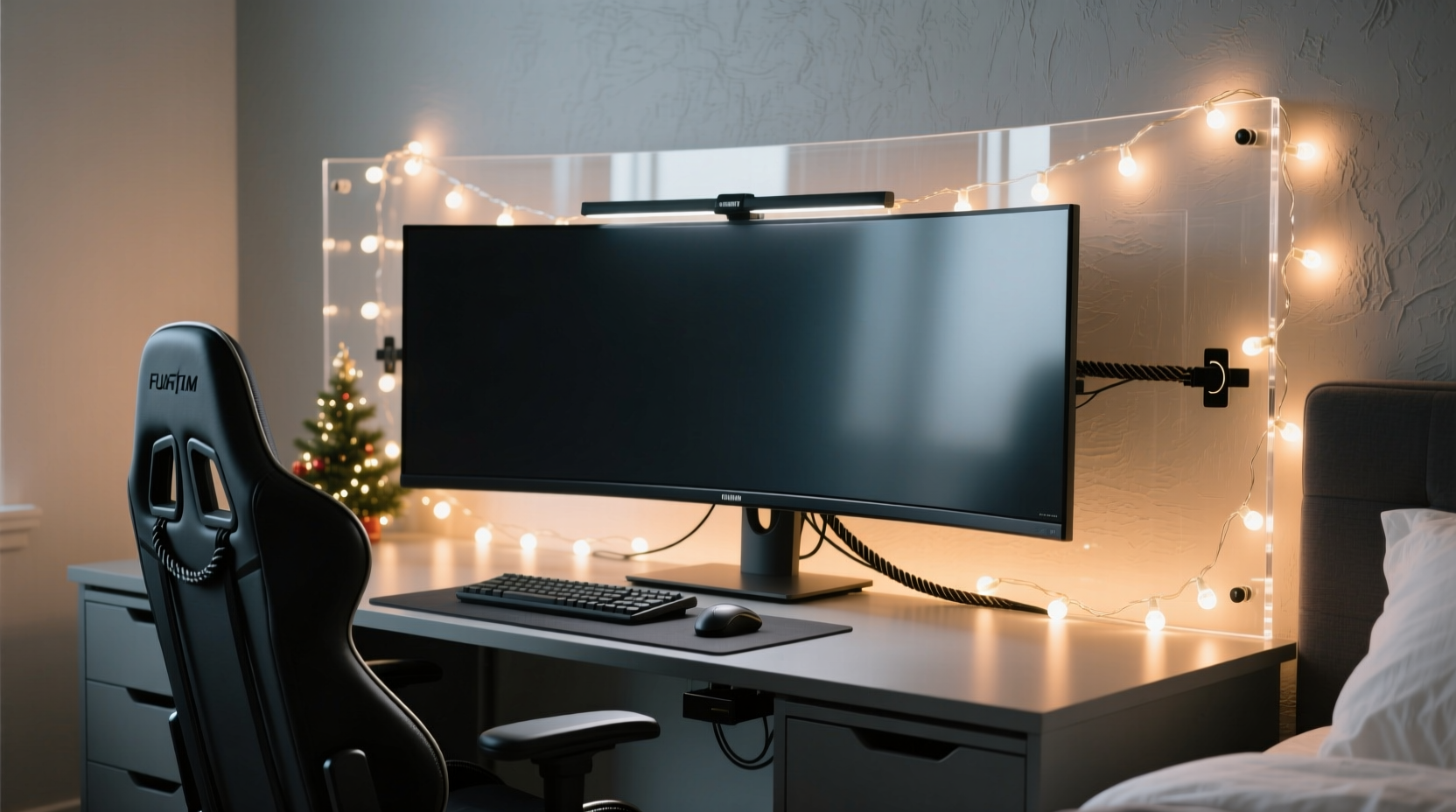
Monitor glare occurs when external light sources reflect off the surface of your screen, creating bright spots that interfere with visibility. This is especially problematic on glossy displays, which are more prone to reflections than matte finishes. When Christmas lights are placed incorrectly—such as directly behind the monitor or at eye level—they can bounce off the screen and cause distracting halos or streaks.
Glare doesn’t just diminish visual clarity; it can also contribute to digital eye strain, headaches, and reduced focus. According to the American Optometric Association, prolonged exposure to glare increases squinting and eye fatigue, particularly in low ambient light conditions. This makes proper lighting integration essential not only for aesthetics but for long-term comfort.
The key is indirect lighting—using Christmas lights to illuminate the environment around the monitor rather than shining directly toward it. By bouncing light off walls, ceilings, or nearby surfaces, you create a soft, diffused glow that enhances the space without reflecting on the screen.
Strategic Placement: Where to Install Christmas Lights Safely
Location is everything when integrating decorative lighting into a functional workspace. The goal is to enhance the background ambiance while keeping direct line-of-sight reflections off the monitor. Here’s how to do it right:
- Behind the Desk (Wall Wash): Mount LED strips or string lights vertically along the wall behind your desk, several inches above monitor height. This creates a “wall wash” effect, where light spreads evenly across the surface and reflects softly into the room without hitting the screen.
- Under-Desk Lighting: Attach adhesive LED strips beneath the desk overhang. This provides subtle ambient light that illuminates the floor or keyboard area without rising high enough to reflect on the monitor.
- Shelf or Monitor Frame Edging: If using mini string lights, place them along the back edge of a shelf above your monitor or frame the sides of your desk setup—not the top of the monitor itself. Avoid wrapping lights around the monitor bezel, as this often causes direct glare.
- Ceiling Perimeter Lighting: For larger rooms, run lights along the ceiling edges or crown molding. This top-down ambient approach minimizes front-facing reflection and adds depth to the room’s lighting profile.
Avoid placing lights directly above or beside the monitor at eye level. Even warm white LEDs can become problematic if they sit within the same vertical plane as your screen.
Step-by-Step Guide: Installing Glare-Free Christmas Lights
- Assess Your Room Layout: Identify reflective surfaces (glass, glossy screens, polished desks) and note where natural or artificial light currently hits them.
- Choose Indirect Zones: Select areas like the upper wall behind the desk, under-desk lip, or ceiling perimeter—places where light won’t have a direct path to the monitor.
- Test Before Securing: Use removable tape or clips to temporarily position lights. Power them on in a darkened room and observe the screen for any reflection.
- Adjust Angles and Brightness: Tilt strip lights downward slightly or use diffuser covers to scatter light. Reduce brightness via dimmer controls or app settings.
- Secure and Conceal Wires: Once placement is confirmed, use adhesive mounts and cable management sleeves to keep cords tidy and out of sight.
“Indirect lighting is the cornerstone of ergonomic workspace design. By illuminating the environment rather than the task area, you maintain screen contrast and reduce visual stress.” — Dr. Lena Torres, Vision Ergonomics Researcher, University of Michigan
Choosing the Right Type of Christmas Lights
Not all Christmas lights are created equal. Some emit harsh beams or flicker at frequencies that can trigger discomfort, even if they don’t cause visible glare. Here’s what to look for:
| Feature | Recommended | Avoid |
|---|---|---|
| Bulb Type | LED (warm white, 2700K–3000K) | Incandescent, cool white (over 4000K) |
| Brightness Control | Dimmable via remote or app | Fixed brightness |
| Flicker Rate | Flicker-free or high-frequency (>100Hz) | Low-frequency flickering (visible strobe) |
| Power Source | USB-powered or plug-in with adapter | Battery-operated (inconsistent output) |
| Form Factor | Adhesive LED strips, flexible wire strings | Rigid icicle lights, spotlight-style bulbs |
Warm white LEDs (2700K–3000K) mimic candlelight and blend naturally with indoor environments, reducing contrast between screen and surroundings. They’re less likely to cause pupil constriction than cooler tones, which helps maintain comfortable vision during extended use.
Additionally, opt for lights with a diffuser lens or frosted coating. These spread the light more evenly and minimize hotspots that could reflect on your monitor.
Real Example: Alex’s Glare-Free Holiday Setup
Alex, a competitive streamer from Portland, wanted to add holiday cheer to his streaming backdrop without affecting video quality or viewer experience. His initial attempt—a string of cool white micro-lights wrapped around the top of his dual-monitor rig—resulted in constant glare visible both on his screen and in his webcam feed.
After testing several configurations, he reinstalled adhesive RGB LED strips along the upper wall behind his desk, about 18 inches above monitor level. He angled the strips upward to wash the wall with light and used a matte gray backing panel to absorb excess brightness. He then added a second, dimmer strip underneath his desk to softly illuminate his peripheral field without adding frontal light.
By switching to warm white (3000K) and reducing brightness to 35%, he achieved a cozy ambiance detectable only in wide-angle camera shots. During gameplay, there was no visible reflection on either monitor. Viewers commented on the improved visual comfort of his stream, noting it felt “calmer” and more professional.
His solution worked because it followed core principles: indirect lighting, controlled color temperature, and layered ambient zones.
Lighting Checklist: Safe Integration Steps
Before powering up your holiday lights, go through this checklist to ensure a glare-free, visually comfortable setup:
- ✅ Confirm lights are not in direct line of sight with the monitor
- ✅ Use warm white (2700K–3000K), not cool white or multicolor modes during gameplay
- ✅ Test lighting in complete darkness to check for screen reflections
- ✅ Install dimmable or smart lights for adjustable brightness
- ✅ Position lights above, below, or beside the monitor—but never facing it directly
- ✅ Use diffusers or indirect surfaces (walls, ceilings) to scatter light
- ✅ Manage cables neatly to avoid clutter and tripping hazards
- ✅ Turn off or dim lights during high-contrast games (e.g., dark horror titles) if needed
Frequently Asked Questions
Can I use colored Christmas lights with my gaming setup?
Yes, but with caution. While colorful lights can look festive, they may cast unnatural hues onto your face (affecting webcam appearance) or create psychological distractions. If using colors, reserve them for special occasions and switch back to warm white during regular gameplay. Smart LEDs allow easy toggling between modes.
Do matte screen protectors help reduce glare from Christmas lights?
Yes. Matte screen protectors diffuse reflected light, reducing the intensity of glare. However, they may slightly blur text or fine details. They’re most effective when combined with proper light placement—don’t rely on them as a sole fix.
Are LED strips safer than traditional string lights near electronics?
Generally, yes. LED strips run cooler, consume less power, and are often low-voltage (especially USB-powered ones). Traditional incandescent strings generate more heat and pose a higher fire risk if trapped under insulation or near flammable materials. Always inspect wiring and avoid overloading outlets.
Final Thoughts: Balance Festivity with Function
Integrating Christmas lights into your gaming setup doesn’t have to come at the cost of visual comfort. With careful planning, the right equipment, and attention to light behavior, you can enjoy a festive atmosphere that enhances rather than hinders your experience. The best setups feel intentional—where lighting supports immersion without demanding attention.
Think of your gaming space not just as a workstation, but as a personal environment shaped by light, sound, and mood. A few well-placed, warm-toned LEDs can transform a sterile desk into a cozy retreat, especially during winter months. Just remember: indirect is ideal, warmth is welcoming, and subtlety wins every time.




 浙公网安备
33010002000092号
浙公网安备
33010002000092号 浙B2-20120091-4
Comments
No comments yet. Why don't you start the discussion?