
In today’s fast-paced digital environment, managing multiple applications simultaneously is a daily reality. Whether you're referencing notes while drafting an email, monitoring chat messages during a presentation, or comparing data across spreadsheets, keeping key windows visible can drastically improve your efficiency. Windows 10 doesn’t offer a native “always on top” feature for all apps, but several practical methods—built-in tools, third-party utilities, and smart keyboard shortcuts—can help you achieve this functionality seamlessly.
Mastering window management not only reduces the frustration of constantly minimizing and maximizing apps but also supports a more fluid, distraction-free workflow. This guide explores reliable techniques to keep application windows always on top, enabling smarter multitasking without cluttering your desktop.
Understanding Always-on-Top Behavior in Windows 10
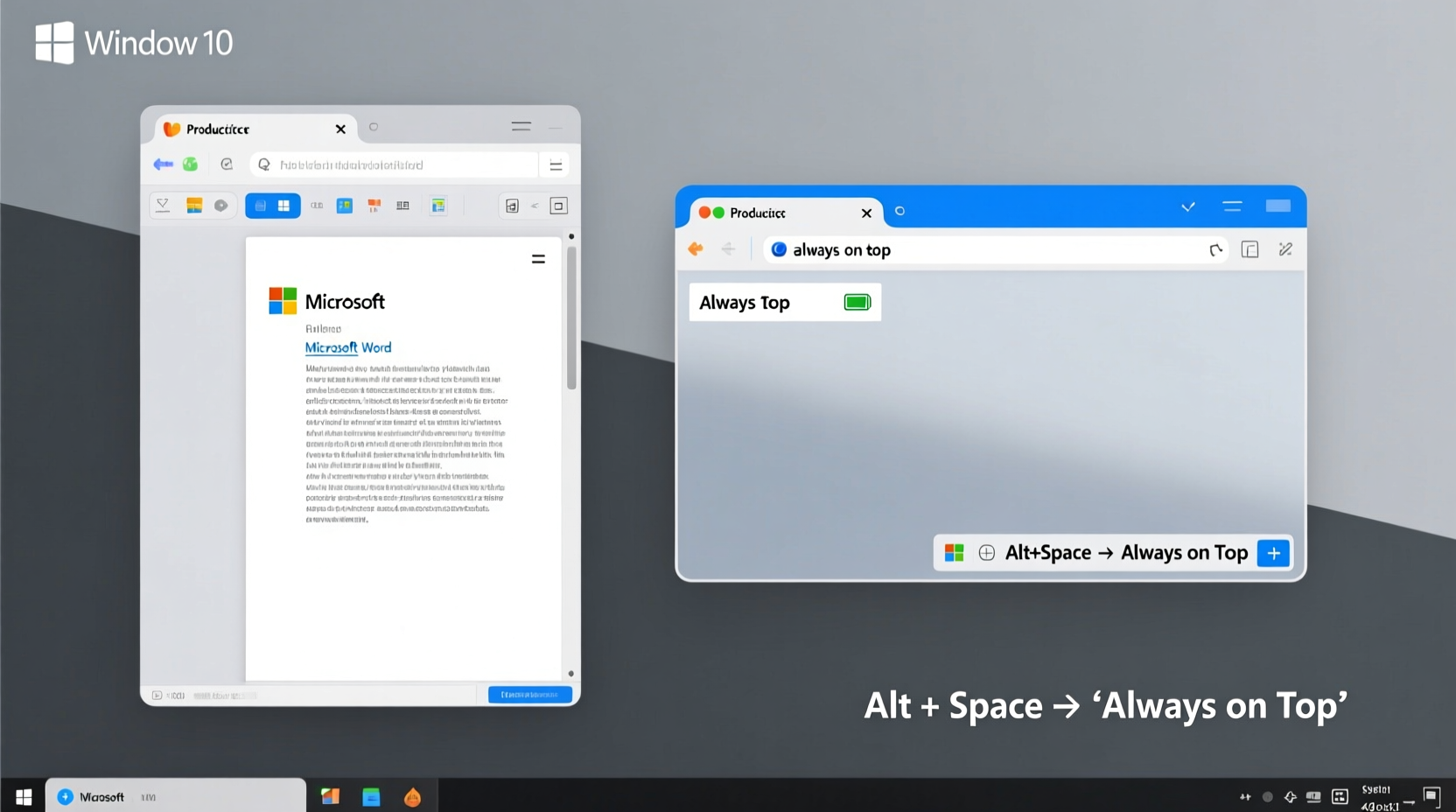
By default, Windows 10 prioritizes active (focused) windows, bringing them to the front when clicked. Background windows are automatically sent behind others unless they are system-level dialogs (like some alerts or password prompts). However, users often need specific windows—such as timers, calculators, reference documents, or communication tools—to remain visible regardless of which other app is active.
The absence of a built-in toggle for \"Always on Top\" means users must rely on workarounds or external tools. These solutions vary from lightweight utilities to automated scripts, each offering different levels of control and ease of use.
Manual Methods Using Built-In Features
Before installing third-party software, consider whether Windows 10’s native capabilities can meet your needs. While limited, there are still effective manual strategies.
Using Snap Assist for Side-by-Side Multitasking
Snap Assist allows you to arrange two or more windows side by side with precision. Press Win + Left/Right Arrow to snap a window to one side of the screen. Then click another open window to fill the opposite side. This creates a stable dual-window layout ideal for comparing files, copying text, or watching video while working.
For even finer control, use Win + Up/Down Arrow to maximize, minimize, or quarter-position windows in corners.
Pinning Critical Tools to Taskbar or Desktop
While not technically “on top,” frequently used tools like Sticky Notes, Calculator, or OneNote can be pinned to the taskbar for instant access. Right-click their icons and select “Pin to taskbar.” You can then restore them quickly with a single click, minimizing disruption.
Using Presentation Mode
If you’re sharing your screen or giving a presentation, Windows 10 has a hidden behavior: notifications are suppressed, and most pop-ups stay hidden. Activate it via Action Center > Focus Assist > Turn on focus assist when I’m duplicating my display to a projector. This prevents interruptions that might obscure your primary windows.
Third-Party Tools for True Always-on-Top Functionality
For full control over window layering, dedicated tools provide the simplest solution. These lightweight utilities add a right-click option or hotkey to pin any window to the foreground.
PowerToys (by Microsoft)
Microsoft PowerToys is a free, open-source suite designed to enhance productivity on Windows 10 and 11. One of its standout features is **Always on Top**, which lets you freeze any window in place with a simple keyboard shortcut.
- Download and install Microsoft PowerToys.
- Launch the app and go to the “Always on Top” module.
- Enable the feature and set a global shortcut (default: Win + Ctrl + T).
- Select any window and press the shortcut to toggle it on top.
- A small pin icon will appear in the title bar, indicating the status.
This method is secure, regularly updated, and integrates smoothly with the OS.
Other Lightweight Alternatives
- Dual Monitor Tools: Offers an “Always on Top” module among other multi-display enhancements. Runs silently in the background.
- WindowTop: Adds transparency, scroll-on-inactive, and always-on-top functions via mouse gestures or hotkeys. Highly customizable.
- DeskPins: A minimalist tool that places a small pin icon on any window when activated. Click it to lock the window in front.
| Tool | Hotkey Support | Customization | Security |
|---|---|---|---|
| PowerToys | Yes (configurable) | High | Official Microsoft release |
| WindowTop | Yes | Very High (transparency, click-through) | Open-source, GitHub-hosted |
| DeskPins | No (mouse-based) | Low | Trusted community tool |
| Dual Monitor Tools | Yes | Moderate | Open-source, widely used |
“Tools like PowerToys bridge critical gaps in Windows functionality. The 'Always on Top' feature alone saves professionals hours per week in window juggling.” — Adrian Lin, Productivity Software Consultant
Step-by-Step Guide: Enable Always on Top with PowerToys
Follow this sequence to implement a reliable always-on-top setup using Microsoft’s trusted utility.
- Visit the official GitHub repository: Navigate to
github.com/microsoft/powertoysand download the latest installer (.exe file). - Run the installer: Accept permissions and follow prompts. Restart if required.
- Launch PowerToys: Open it from the Start menu or system tray.
- Navigate to Always on Top: In the left sidebar, click “Always on Top.”
- Toggle it ON: Ensure the main switch is enabled.
- Set your shortcut: Modify the default (Win + Ctrl + T) if needed.
- Test the function: Open Notepad or Calculator, press the shortcut, and switch to another app. The selected window should remain visible.
- Disable when unnecessary: Press the same shortcut again to release the window.
This process takes less than five minutes and works across all standard desktop applications, including browsers, Office tools, and media players.
Real-World Example: Enhancing Remote Work Efficiency
Sophie, a freelance graphic designer based in Portland, frequently collaborates with clients over Zoom while editing designs in Adobe Photoshop. She struggled with losing sight of the Zoom window whenever she switched to her design canvas—leading to missed verbal cues and awkward silences.
After discovering PowerToys, she enabled Always on Top for her Zoom meeting window and resized it to occupy the bottom-right corner of her screen. Now, she keeps the client’s video feed visible at all times without obstructing her workspace. Her feedback response time improved by nearly 40%, and clients noted a more engaged presence during sessions.
This small adjustment transformed her remote collaboration workflow, proving that even minor UI enhancements can yield significant professional benefits.
Frequently Asked Questions
Can I make multiple windows always on top at once?
Yes. Tools like PowerToys and WindowTop allow you to apply the always-on-top rule to multiple windows independently. Just activate the feature on each one sequentially. Be cautious not to overload your screen space.
Does always-on-top affect system performance?
No. These tools operate at a minimal level, consuming negligible CPU and memory. They simply modify window rendering priority, not resource allocation.
Will this work with full-screen applications like games or videos?
Generally, no. Full-screen exclusive mode applications take complete control of the display and override layering rules. However, running such apps in borderless windowed mode often restores compatibility with always-on-top tools.
Final Checklist for Seamless Multitasking
- ✅ Identify which apps need constant visibility (e.g., chat, timer, reference doc)
- ✅ Install Microsoft PowerToys or a trusted alternative
- ✅ Enable the Always on Top module and configure a comfortable shortcut
- ✅ Test with common workflows (e.g., writing with notes visible)
- ✅ Use virtual desktops to group related always-on-top windows
- ✅ Disable the feature when done to avoid confusion
Take Control of Your Workflow Today
Efficient multitasking isn’t about doing more—it’s about reducing friction between tasks. By leveraging tools like PowerToys to keep essential windows always on top, you eliminate the mental load of constantly searching for or restoring minimized apps. This small change fosters smoother transitions, sharper focus, and greater productivity throughout your day.




 浙公网安备
33010002000092号
浙公网安备
33010002000092号 浙B2-20120091-4
Comments
No comments yet. Why don't you start the discussion?