
Using GPS navigation for extended periods—whether during road trips, delivery shifts, or outdoor adventures—puts significant strain on your smartphone’s battery. The combination of constant location tracking, screen-on time, and data transmission accelerates battery wear over time. While modern lithium-ion batteries are durable, they degrade faster under high stress. Fortunately, small changes in usage habits and device settings can dramatically extend your battery’s lifespan, even with daily heavy GPS use.
This guide provides actionable strategies rooted in battery chemistry, energy efficiency, and real-world usage patterns. Whether you're a rideshare driver, long-distance traveler, or field technician, these methods will help preserve both short-term performance and long-term battery health.
Understand Why GPS Drains Your Battery So Quickly
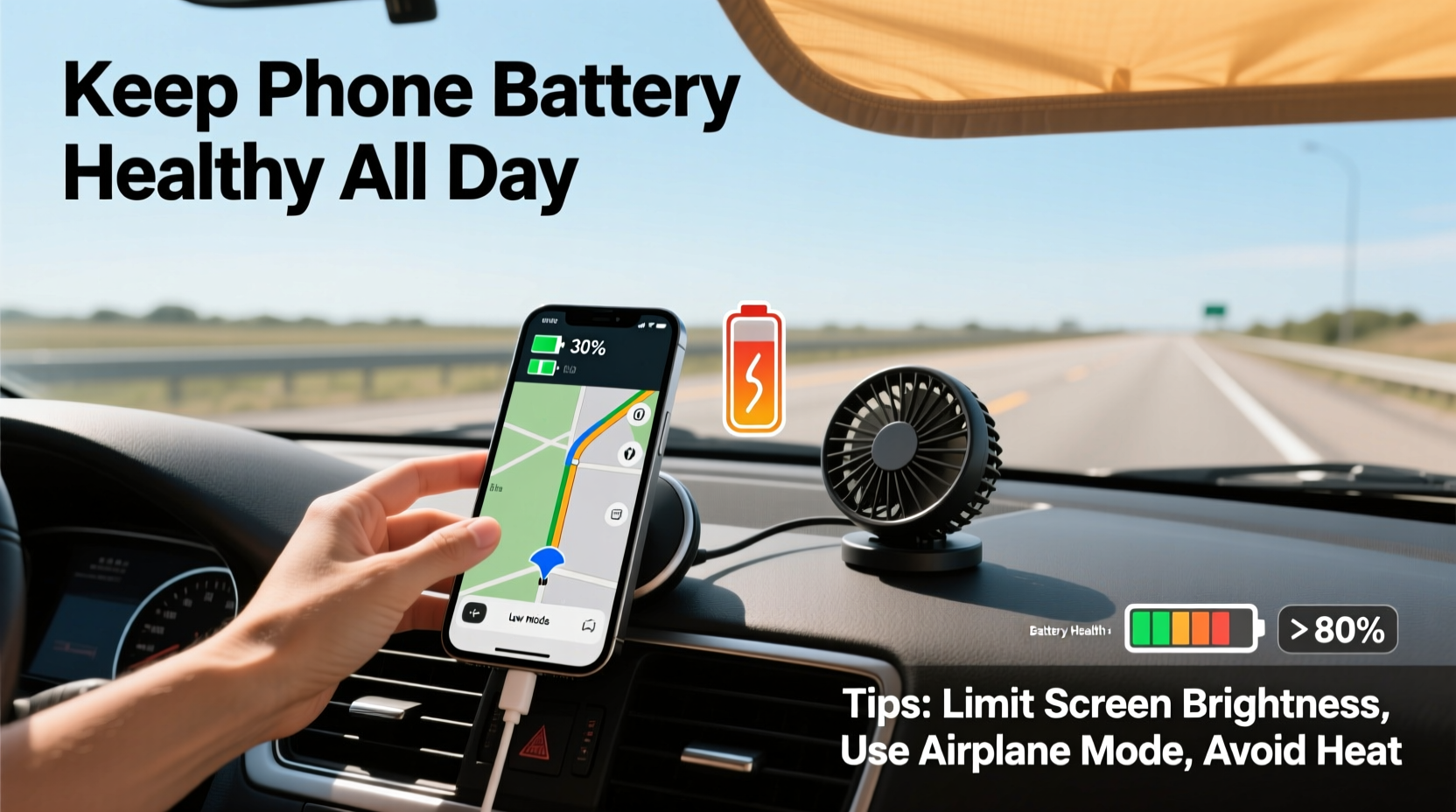
GPS navigation is one of the most power-intensive functions on a smartphone. It requires multiple systems to operate simultaneously:
- GPS receiver: Constantly communicates with satellites to determine your position.
- Screen: Stays on at high brightness for visibility.
- Data connection: Downloads map tiles, traffic updates, and rerouting information.
- Processor: Calculates routes, processes voice commands, and renders maps.
- Sensors: Accelerometer, gyroscope, and compass assist in maintaining accuracy.
When combined, these components can consume up to 40–60% more power than typical daily use. According to Dr. Li Chen, a battery technology researcher at MIT, “Continuous location services force the phone into a sustained high-power state, which increases internal resistance and heat buildup—two primary factors in battery degradation.”
“Every 10°C rise in temperature above 35°C can halve the lifespan of a lithium-ion battery.” — Dr. Li Chen, MIT Energy Initiative
Optimize Settings to Reduce Power Consumption
The most effective way to protect your battery while using GPS is to minimize unnecessary load. Many default settings prioritize convenience over efficiency, but adjusting them yields immediate benefits.
Lower Screen Brightness and Use Auto-Brightness
The display is often the largest single drain on battery life. Keeping it at full brightness during daylight hours can deplete the battery twice as fast.
Use Airplane Mode Strategically (When Offline Maps Are Available)
If you’ve downloaded offline maps (e.g., via Google Maps or HERE WeGo), you don’t need constant cellular data. Switching to airplane mode disables background data, Wi-Fi scanning, and Bluetooth—reducing CPU load and signal searching.
Re-enable cellular only when you need traffic updates or rerouting. This intermittent approach can save 15–25% of battery per hour.
Disable Unnecessary Background Apps and Features
Apps running in the background—especially social media, email, and music streaming—consume power even when not in use. Disable auto-refresh and push notifications before starting navigation.
| Feature | Impact on Battery | Action |
|---|---|---|
| Background App Refresh | High – apps check for updates constantly | Turn off globally or per app |
| Bluetooth | Medium – especially if connected to car audio | Disable if not actively used |
| Vibration & Haptics | Low to Medium – frequent alerts add up | Switch to silent or sound-only alerts |
| Wi-Fi Scanning | Medium – phone searches for networks | Disable in Location settings |
Manage Heat to Prevent Long-Term Damage
Heat is the enemy of lithium-ion batteries. Prolonged exposure to temperatures above 35°C (95°F) causes irreversible chemical breakdown inside the battery cells. When navigating all day, phones often reach 40–45°C, especially when mounted on dashboards exposed to sunlight.
Direct sun heats the phone’s surface, while internal processing adds more thermal load. This double effect accelerates capacity loss and increases the risk of throttling or sudden shutdowns.
Keep the Phone Out of Direct Sunlight
Avoid placing your phone on the dashboard or windshield. Use a vent mount instead, or position it in a shaded area like the passenger seat when not actively viewing directions.
Remove Thick Cases During Navigation
While protective cases are essential, thick silicone or rugged cases trap heat. Consider removing the case during long drives or switching to a thin, thermally efficient model.
Avoid Charging While Navigating in Hot Conditions
Charging generates additional heat. Combining charging with GPS use in a hot car can push the battery beyond safe operating limits. If possible, start your trip with a full charge and delay charging until you’re in a cooler environment.
Adopt Smart Charging Habits
Battery longevity isn’t just about usage—it’s also about how and when you charge. Lithium-ion batteries perform best when kept between 20% and 80% charge. Frequent full discharges or overnight charging to 100% stresses the cells.
Charge in Short Bursts, Not to Full Capacity
Instead of charging from 0% to 100%, plug in when the battery drops to 30–40% and unplug around 80%. This reduces voltage stress and slows capacity fade.
Use Low-Power Chargers on the Go
Fast chargers generate more heat due to higher current. For in-car charging, use a standard 5W or 10W charger instead of 18W+ PD chargers unless absolutely necessary.
Enable Optimized Charging (iOS) or Adaptive Charging (Android)
Both iOS and Android offer intelligent charging features that learn your routine and delay charging past 80% until you’re about to use the phone. Enable these in battery settings for long-term protection.
Step-by-Step Guide: Preparing Your Phone for All-Day Navigation
Follow this sequence before starting a long drive or work shift to maximize battery health and runtime:
- Download offline maps for your route and surrounding areas using Google Maps, Apple Maps, or third-party apps like OsmAnd.
- Close unused apps and disable background refresh for non-essential apps.
- Lower screen brightness to 50% and enable auto-brightness.
- Turn off Bluetooth and Wi-Fi if not needed; disable location scanning for non-navigation apps.
- Set navigation app to “Battery-Saving” mode (if available—Google Maps has a low-power navigation option).
- Mount the phone in a shaded, ventilated area away from direct sunlight.
- Remove thick case to improve heat dissipation.
- Begin trip with battery at 80%, not fully charged or depleted.
- Charge in 20-minute intervals when below 40%, stopping at 70–80%.
- Take breaks every 2–3 hours to let the phone cool down.
Mini Case Study: A Delivery Driver’s Battery Survival Strategy
Jamal, a food delivery driver in Phoenix, Arizona, uses his phone for navigation 9–10 hours a day. After replacing his phone twice in 18 months due to swollen batteries, he adopted a new routine:
- Downloads city-wide offline maps weekly.
- Uses a magnetic vent mount instead of a dashboard holder.
- Keeps brightness at 40% and turns off all notifications except navigation alerts.
- Charges in 15-minute bursts using a 10W car charger, never letting the battery drop below 30% or exceed 80%.
- Takes a 10-minute break every three hours to power off the phone and let it cool.
After six months, his current phone’s battery health dropped only 8%—compared to 25–30% degradation in previous devices. “I used to think I just needed a better phone,” Jamal said. “But it was my habits that were killing the battery.”
Checklist: Daily GPS Navigation Battery Protection Routine
- ✅ Download offline maps before departure
- ✅ Lower screen brightness and enable auto-mode
- ✅ Disable Bluetooth, Wi-Fi, and background app refresh
- ✅ Mount phone in a shaded, ventilated spot
- ✅ Remove thick case during use
- ✅ Start with battery between 70–80%
- ✅ Avoid charging in direct sunlight or hot cars
- ✅ Take cooling breaks every few hours
- ✅ Limit charging sessions to 20–30 minutes
- ✅ End day with battery between 40–60%
Frequently Asked Questions
Does using GPS damage my phone’s battery permanently?
No, GPS itself doesn’t cause permanent damage, but prolonged use under high heat and deep discharge cycles accelerates battery aging. With proper management, you can minimize long-term impact.
Is it safe to use my phone for navigation while charging?
It can be, but only if the phone stays cool. In hot environments or with fast chargers, the combined heat from navigation and charging can degrade the battery quickly. Use slow charging and monitor device temperature.
Are battery-saving modes effective for GPS navigation?
Yes. Modes like Google Maps’ “Low Power” or iOS’s “Low Power Mode” reduce screen timeout, limit background activity, and simplify graphics—all of which help conserve battery without sacrificing core navigation functions.
Conclusion: Small Changes, Long-Term Gains
Keeping your phone battery healthy during all-day GPS use isn’t about buying expensive accessories or upgrading annually—it’s about consistent, mindful habits. By managing heat, optimizing settings, charging wisely, and planning ahead, you can significantly extend your battery’s usable life.
Modern smartphones are powerful tools, but their batteries are still vulnerable to misuse. Treat your phone like a high-performance engine: regular maintenance, controlled conditions, and smart operation lead to longer service life. Start applying these strategies today, and you’ll notice fewer replacements, better reliability, and more confidence on the road.




 浙公网安备
33010002000092号
浙公网安备
33010002000092号 浙B2-20120091-4
Comments
No comments yet. Why don't you start the discussion?