
Gaming doesn’t have to start from scratch when you upgrade from a PS4 to a PS5. Sony designed its ecosystem to allow smooth transitions between generations, letting players maintain progress, preferences, and even gameplay continuity. Linking your PS5 and PS4 properly unlocks the full potential of cross-generation convenience—whether you're transferring saved games, sharing digital purchases, or using one console while another downloads updates in the background.
With the right setup, you can switch between consoles without losing momentum. This guide walks through the essential steps, tools, and best practices to ensure your PlayStation experience remains uninterrupted across devices.
Why Link Your PS4 and PS5?
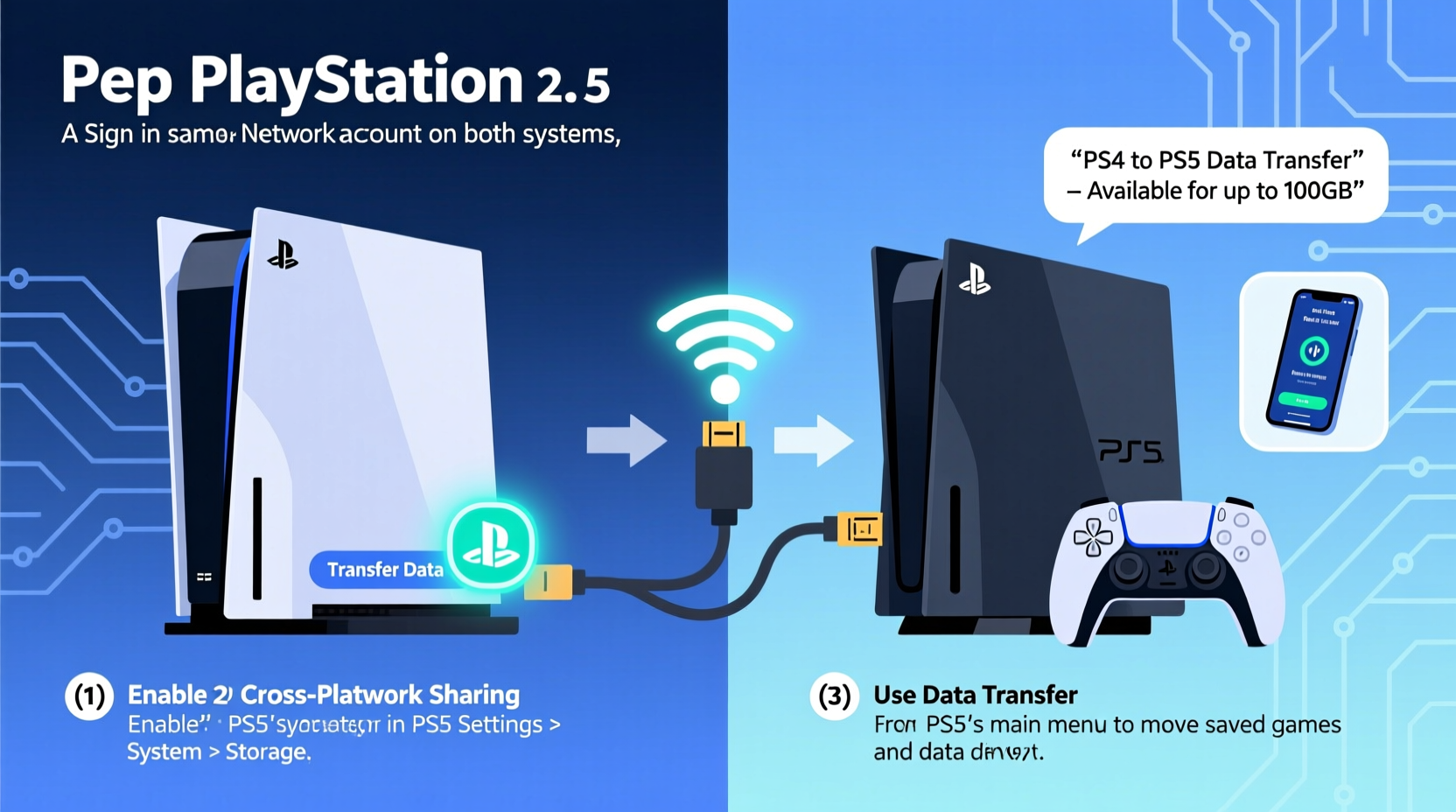
The primary benefit of linking your PS4 and PS5 is continuity. Whether you’re upgrading hardware or managing multiple consoles at home, syncing them enables:
- Transfer of game saves and system settings
- Access to the same digital library on both devices
- Simultaneous downloads and updates via remote download features
- Shared trophies and online profiles
- Use of PS Plus cloud storage across systems
Sony’s backward compatibility means most PS4 games run on PS5, often with improved performance. But without proper linking, you risk starting over or manually moving data each time you switch consoles.
“Linking your PS4 and PS5 isn’t just about convenience—it’s about preserving your gaming identity across platforms.” — Marcus Tran, Senior Console Experience Analyst at GameFlow Insights
Step-by-Step: How to Link Your PS4 and PS5
Follow this structured process to fully integrate your two consoles for optimal performance and data flow.
Step 1: Use the Same PlayStation Network Account
The foundation of linking any PlayStation devices is using the same PSN account. Ensure both consoles are logged into the same username and password. This synchronizes access to purchased content, friends lists, and trophy progress.
Step 2: Enable PS Plus Cloud Storage (Recommended)
If you have a PlayStation Plus subscription, activate cloud storage for game saves:
- On your PS4: Go to Settings > Application Saved Data Management > Sync Saved Data to Online Storage.
- Select all relevant games to upload their progress.
- On your PS5: Navigate to Settings > Saved Data and Game/App Settings > Saved Data (PS4) > Sync with Cloud.
- Download desired saves to your PS5.
Step 3: Transfer Data Over Wi-Fi or LAN
For a complete migration—including installed games, themes, and settings—use direct data transfer:
- Power on both consoles and connect them to the same network.
- On your PS5, go to Settings > System > System Software > Data Transfer.
- Follow prompts to discover your PS4.
- Select what to transfer: user profiles, saved data, captured media, and downloaded games.
- Wait for completion. Large transfers may take hours depending on data volume.
Note: This method only works if your PS4 runs firmware version 8.00 or higher.
Step 4: Set Primary PS5 Console
Go to Settings > Users and Accounts > Other > Console Sharing and Offline Play and designate your PS5 as primary. This allows other users on the network to access your digital games even when you're not logged in.
Step 5: Enable Remote Play and Wake-Up Features
Remote Play lets you stream your PS4 or PS5 gameplay to other devices. To control one console from another:
- Enable Wake Mode from Network on both consoles under Power Save Settings.
- Install the PlayStation App on your smartphone or tablet.
- Use the app to remotely trigger downloads on either console.
Data Transfer Methods Compared
| Method | Best For | Speed | Limitations |
|---|---|---|---|
| Cloud Storage (PS Plus) | Game saves only | Medium (depends on upload speed) | Requires subscription; file size limits apply |
| Direct Wi-Fi Transfer | Full system migration | Slow to moderate | Affected by network congestion |
| Ethernet (LAN Cable) | Fast, large transfers | Fastest option | Requires cable and router/switch |
| USB Drive | Moving specific saves or media | Varies by drive speed | Manual process; limited to compatible files |
Mini Case Study: Seamless Transition for Competitive Players
Jamal, a ranked player in *Call of Duty: Warzone*, upgraded from a PS4 Pro to a PS5. He wanted to keep his weapon loadouts, stats, and progression intact. Using PS Plus cloud sync, he uploaded all his PS4 save data before turning off the old console. Within minutes of setting up his PS5, he restored the saves and resumed playing—his rank, unlock progress, and even custom controllers were preserved. By enabling remote download via the PlayStation App, he scheduled major game updates overnight, ensuring he never missed a competitive season drop.
This real-world example shows how proper linking minimizes downtime and maintains competitive edge across hardware changes.
Essential Tips for Maintaining Linked Consoles
Checklist: Are Your PS4 and PS5 Fully Linked?
- ✅ Both consoles use the same PSN account
- ✅ PS Plus cloud sync is enabled and active
- ✅ Game saves have been uploaded and tested on PS5
- ✅ Data transfer completed (if applicable)
- ✅ Primary console status set on PS5
- ✅ Remote Play and Wake Settings enabled
- ✅ All digital games re-downloaded or verified on new console
- ✅ Friends list and messages synced across devices
Frequently Asked Questions
Can I play my PS4 games on PS5 without re-downloading?
No—you must install or re-download PS4 games on the PS5, but they’ll appear in your library automatically if purchased under the same account. Some titles support Smart Delivery or free upgrades (e.g., *Ghost of Tsushima Director’s Cut*).
Do trophies sync between PS4 and PS5?
Yes. Trophies earned on either console sync automatically to your PSN profile. You can view combined trophy statistics in your profile regardless of platform.
What happens if I sign out of my PSN account on one console?
You’ll lose access to digital games and cloud-saved data until you log back in. If the console was set as “primary,” deactivating it remotely through account management will preserve access for others.
Maximize Your PlayStation Ecosystem
Linking your PS4 and PS5 is more than a technical step—it’s a strategic move toward a frictionless gaming lifestyle. Whether you're transitioning permanently to next-gen hardware or maintaining both consoles for family use, a well-linked setup ensures no progress is lost, no content is duplicated, and no opportunity for play is delayed.
The effort invested in syncing your devices pays off every time you pick up where you left off, launch a game instantly, or let an update download in the background while you sleep. With consistent habits and the right configuration, your PlayStation network becomes an extension of your personal gaming journey.




 浙公网安备
33010002000092号
浙公网安备
33010002000092号 浙B2-20120091-4
Comments
No comments yet. Why don't you start the discussion?