
In today’s digital world, smartphones store more than just messages and photos—they hold banking details, private conversations, health records, and sensitive work documents. While most phones use a passcode, PIN, or pattern to secure the entire device, that single layer of protection may not be enough. What if someone gains access to your unlocked phone while you're distracted? That’s where app-level biometric security comes in. By locking individual apps with fingerprint or facial recognition, you add a powerful second barrier that keeps your most confidential data safe—even if your phone is briefly unattended.
Thankfully, both Android and iOS offer built-in or third-party solutions to apply biometric locks to specific apps. Whether you’re protecting social media accounts, financial tools, or personal journals, this guide walks through practical methods, compares platform capabilities, and provides step-by-step instructions to help you take full control of your digital privacy.
Why Lock Individual Apps with Biometrics?
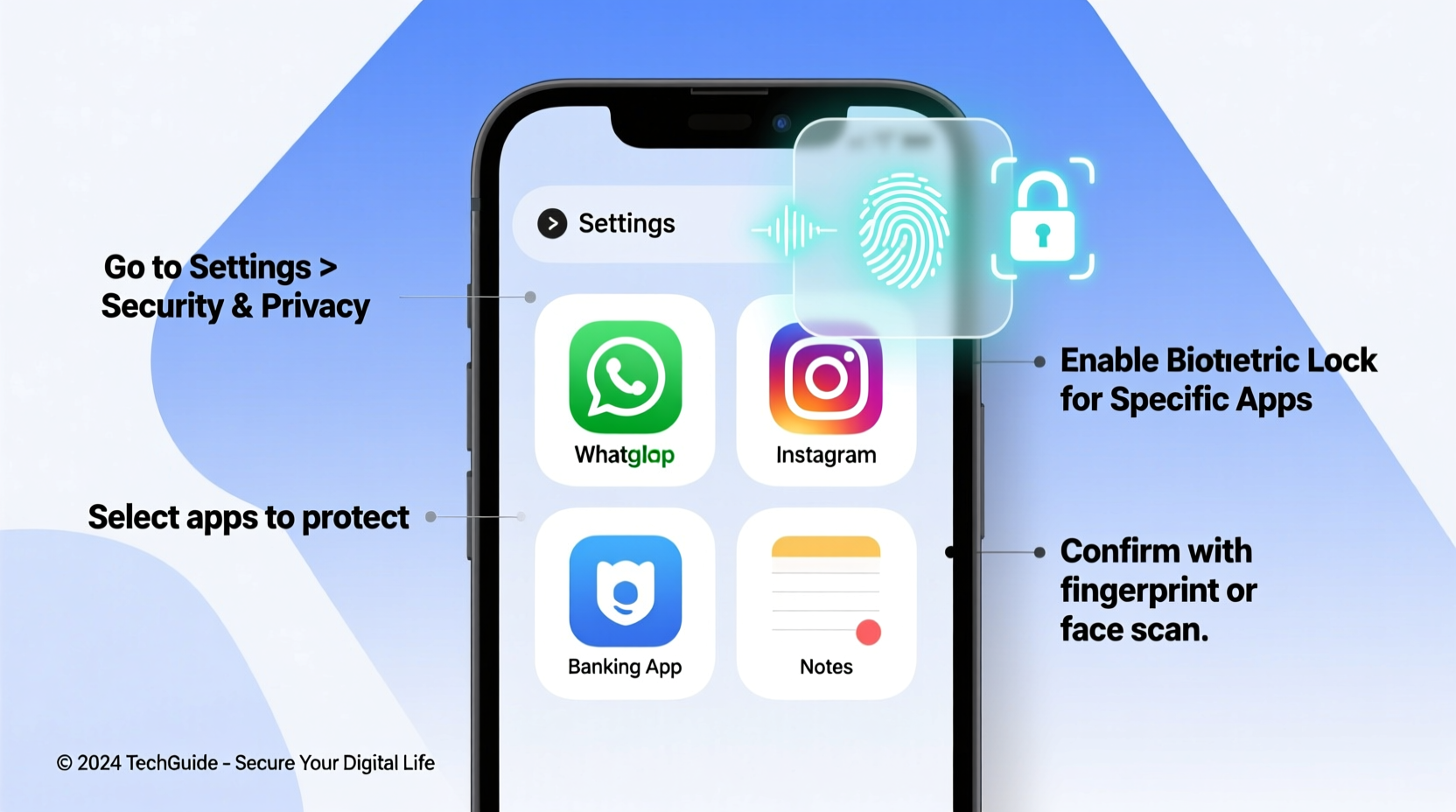
Device-wide security is essential, but it treats all apps the same. A thief or curious friend who picks up your unlocked phone can scroll through everything—unless certain apps require their own authentication. App-specific biometric locks are especially valuable when:
- You share your phone temporarily (e.g., letting someone make a call).
- Your device auto-unlocks via smartwatch or trusted location.
- You use public charging stations or leave your phone unattended in semi-public spaces.
- You want granular control over which apps demand extra verification.
Biometrics—fingerprint and facial recognition—are faster and more convenient than typing passwords repeatedly, yet they provide strong cryptographic authentication tied directly to your physical identity.
“Layered security is no longer optional. App-level biometric locks significantly reduce the risk of unauthorized access, even when device security is compromised.” — Dr. Lena Torres, Cybersecurity Researcher at MobileTrust Labs
Locking Apps on Android: Built-in and Third-Party Options
Android offers multiple ways to lock apps, depending on your manufacturer and Android version. Some brands include native app-lock features, while others rely on Google Play Store apps.
Samsung Secure Folder and App Lock
Samsung devices running One UI come with a powerful built-in tool called **Secure Folder**, which isolates apps and data behind biometric authentication.
- Open Settings > Biometrics and Security > Secure Folder.
- Sign in with your Samsung account and set up biometric unlock (fingerprint or face).
- Add apps from your device to the Secure Folder—these will only open after re-authentication.
- Once added, the original app disappears from your main home screen unless reopened from within Secure Folder.
Using Third-Party App Lockers (All Android Devices)
If your phone lacks native support, reliable app lockers like Norton App Lock, AppLock by DoMobile Lab, or Perfect App Lock fill the gap. These apps let you select which applications require fingerprint or face unlock.
Setup Process:
- Download an app locker from the Google Play Store.
- Grant necessary permissions (usage access, overlay, etc.).
- Set a master password or pattern for the locker itself.
- Navigate to the app list and toggle protection on desired apps (e.g., Gmail, Instagram, Bank App).
- Enable biometric unlock in the app locker settings.
Once enabled, attempting to open a locked app triggers a biometric prompt—even if the phone is already unlocked.
Locking Apps on iPhone: Using Screen Time and Shortcuts
iOS does not offer a direct “app lock” feature like some Android skins, but Apple provides robust alternatives using **Screen Time** and automation via **Shortcuts**.
Method 1: Use Screen Time with Passcode
This method doesn’t use biometrics directly but forces a passcode before opening selected apps—which then triggers Face ID or Touch ID automatically due to system integration.
- Go to Settings > Screen Time.
- Tap App Limits > Add Limit.
- Select categories (e.g., Finance, Social) or choose All Apps & Categories for fine control.
- Set a time limit of 1 minute (a workaround to trigger restrictions immediately).
- Toggle on Block at End of Limit.
- When prompted, enter a Screen Time passcode (different from your device passcode).
Now, when you try to open a restricted app after the timer expires (which happens instantly), you must enter the Screen Time passcode. If biometrics are enabled for password autofill, iOS will prompt for Face ID or Touch ID first.
Method 2: Automate with Shortcuts (Advanced)
Using the Shortcuts app, you can create workflows that simulate app locking.
- Open the Shortcuts app and tap the \"+\" icon.
- Add action: Ask for Input (optional message like \"Authenticate to continue\").
- Add action: Authenticate with Biometrics.
- Add action: Open App and select the target app (e.g., Notes).
- Save the shortcut (e.g., \"Open Locked Notes\").
- Add the shortcut to your home screen for quick access.
Now, instead of tapping the app directly, users must run the shortcut, which enforces biometric verification before launching the app.
Comparison: Android vs. iOS App Locking Capabilities
| Feature | Android (Native) | Android (Third-Party) | iOS (Official) | iOS (Workarounds) |
|---|---|---|---|---|
| Direct App Locking | Yes (Samsung, Xiaomi, etc.) | Yes | No | No |
| Biometric Integration | Yes (Fingerprint/Face) | Yes | Limited (via passcode + Face ID) | Yes (via Shortcuts) |
| Granular App Selection | Yes | Yes | Category-based only | Yes (per app) |
| User Experience | Silent background enforcement | Slight delay on launch | Passcode required | Extra tap needed |
| Privacy Risk | Low (if trusted developer) | Moderate (permissions access) | Very Low | Low |
While Android leads in flexibility and native functionality, iOS compensates with tighter security controls and less invasive permission models. The trade-off is convenience versus control.
Best Practices for Securing Apps with Biometrics
Simply enabling biometric locks isn’t enough. Follow these best practices to maximize protection without sacrificing usability.
✅ Checklist: Secure Your Apps Effectively
- ✅ Identify high-risk apps (banking, email, cloud storage, health).
- ✅ Use strong master passwords for third-party lockers.
- ✅ Regularly review which apps are protected.
- ✅ Disable accessibility permissions for untrusted apps.
- ✅ Keep your operating system updated for latest security patches.
- ✅ Avoid jailbreaking or rooting, which weakens overall security.
- ✅ Test the lock mechanism after setup to ensure it works.
Avoid These Common Mistakes
- Using weak fallback patterns: If your biometric fails, don’t default to a simple 4-digit PIN.
- Granting unnecessary permissions: Some app lockers request SMS or notification access—deny anything beyond usage stats.
- Forgetting recovery options: Store your master password securely (e.g., password manager) in case you get locked out.
- Trusting unknown developers: Only install app lockers with millions of downloads and verified publishers.
Real-World Scenario: Protecting Sensitive Work Data
Consider Maria, a freelance consultant who uses her personal phone for client communication, project management, and invoicing. She often lends her phone to her child for games but worries about accidental access to Slack or QuickBooks.
Maria installs AppLock by DoMobile Lab and secures Slack, Gmail, Dropbox, and her finance app. She enables fingerprint unlock and disables notifications visibility for those apps. Now, even if her child opens the phone, they can’t access work-related data without biometric authentication. When Maria presents at meetings, she confidently hands over her phone for a quick web search, knowing her core apps remain locked.
This layered approach gives her peace of mind without requiring a separate work device.
Frequently Asked Questions
Can apps detect if they’re being locked by a third-party app locker?
Most standard apps cannot detect external locking mechanisms. However, some banking or enterprise apps have anti-tampering features that may warn about \"overlapping windows\" or \"screenshot prevention\" when used with app lockers. This is usually informational, not functional.
Does locking apps drain battery?
The impact is negligible. Biometric sensors are optimized for low power, and app lockers typically run in the background with minimal CPU usage. Any performance hit is far outweighed by the privacy benefit.
Is it safe to trust third-party app lockers with my data?
Reputable app lockers do not collect personal data. Check permissions: avoid apps requesting SMS, contacts, or call logs. Look for transparent privacy policies and regular updates. Norton App Lock and AppLock (by DoMobile) are among the most trusted.
Take Control of Your Digital Privacy Today
Your smartphone is a gateway to your personal life. Relying solely on device unlock methods leaves critical gaps in protection. By applying biometric locks to specific apps, you introduce intelligent, user-friendly barriers that defend against casual snooping and potential breaches.
Whether you're using Samsung’s Secure Folder, a trusted Android app locker, or leveraging iOS shortcuts and Screen Time, the tools are available—and easy to set up. Start with your most sensitive apps: banking, messaging, email, and health. Test the flow, refine your settings, and make app-level security part of your daily digital hygiene.
Privacy isn’t about hiding—it’s about choosing who gets access. Take that choice back with biometric app locking.




 浙公网安备
33010002000092号
浙公网安备
33010002000092号 浙B2-20120091-4
Comments
No comments yet. Why don't you start the discussion?