
WhatsApp is one of the most widely used messaging platforms globally, connecting over two billion users across smartphones, tablets, and computers. Whether you're setting up WhatsApp for the first time or switching devices, logging in is a straightforward process—if you know the steps. This guide walks you through secure and reliable login methods for every supported device, including troubleshooting tips and best practices to protect your account.
Understanding WhatsApp Login Basics
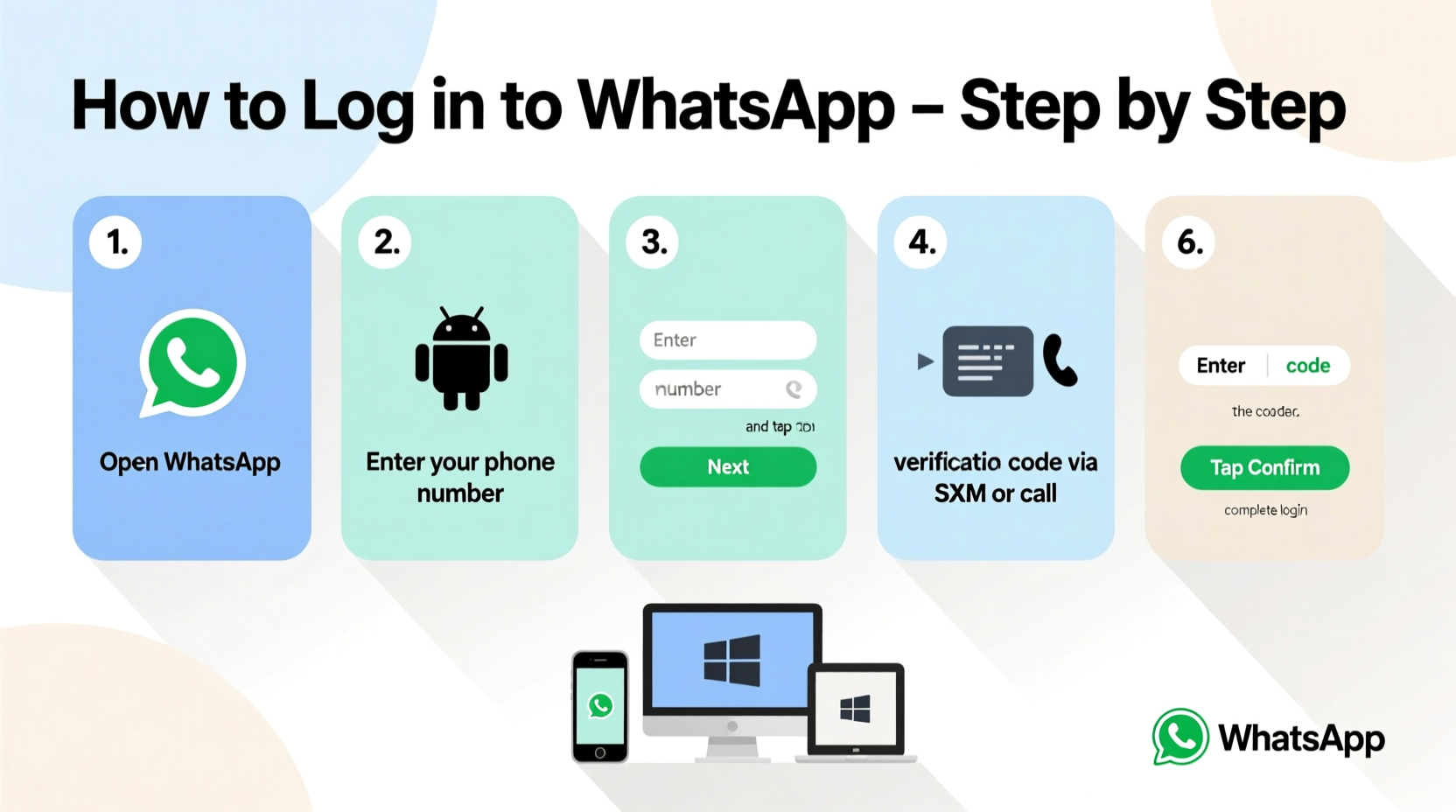
Unlike traditional apps that use usernames and passwords, WhatsApp relies on your phone number and SMS-based verification to authenticate access. Your identity is tied directly to your mobile number, which serves as both your username and account identifier. When you log in, WhatsApp sends a six-digit verification code via SMS or automated call to confirm ownership of the number.
This system ensures that only someone with physical access to your phone can activate the app. However, once logged in, you can extend your session to other devices like tablets and desktops using QR code authentication. No password is stored locally, making account recovery dependent on access to your phone number and SIM card.
“WhatsApp’s login model prioritizes accessibility and security by leveraging mobile number verification, reducing reliance on easily forgotten passwords.” — David Lin, Cybersecurity Analyst at MobileTrust Labs
Step-by-Step: Logging In on Android and iPhone
Whether you’re using an Android smartphone or an iPhone, the initial login process is nearly identical. Follow these steps to get started:
- Download WhatsApp: Visit the Google Play Store (Android) or App Store (iPhone) and install WhatsApp if it’s not already on your device.
- Open the App: Launch WhatsApp after installation.
- Agree to Terms: Tap “Agree and Continue” to accept WhatsApp’s Terms of Service and Privacy Policy.
- Select Your Country: Choose the country associated with your phone number from the dropdown list.
- Enter Your Phone Number: Type your full mobile number, including the country code (e.g., +44 for the UK, +1 for the US).
- Verify via SMS: Wait for a 6-digit code sent via text message. Enter it when prompted.
- Alternative: Voice Call Verification: If SMS doesn’t arrive, tap “Call me” to receive the code via automated voice call.
- Restore Backup (Optional): If you’ve used WhatsApp before, you may be prompted to restore chat history from Google Drive (Android) or iCloud (iPhone).
- Set Up Profile: Add a profile photo and display name.
Linking WhatsApp to Tablets and Desktops
While WhatsApp cannot be installed natively on iPads or most tablets, you can still access your account through companion apps or web versions. Here’s how to log in on non-phone devices:
Using WhatsApp Web (Windows, Mac, Linux)
- Open a browser and go to web.whatsapp.com.
- On your phone, open WhatsApp and tap the three-dot menu (Android) or Settings > Linked Devices (iPhone).
- Select “Link a Device.”
- Scan the QR code displayed on your computer screen using your phone’s camera.
- Once scanned, your chats will sync instantly to the browser window.
Using WhatsApp for iPad (Beta via TestFlight)
As of 2024, WhatsApp offers a limited beta version for iPad through Apple’s TestFlight program. To join:
- Enroll in the WhatsApp beta program via their official website.
- Install TestFlight on your iPad.
- Download the WhatsApp beta app.
- Log in by scanning the QR code with your primary phone’s WhatsApp app under “Linked Devices.”
Device Comparison: Login Methods Across Platforms
| Device Type | Login Method | Verification Required? | Standalone Use? |
|---|---|---|---|
| Android Phone | SMS/Call + Number Entry | Yes | Yes |
| iPhone | SMS/Call + Number Entry | Yes | Yes |
| Windows PC | QR Code Scan | No (after initial link) | No – requires active phone connection |
| Mac Computer | QR Code Scan | No | No |
| iPad (Beta) | QR Code via TestFlight | No | Limited independence |
Recovering Access: What to Do If You Can’t Log In
Losing access to WhatsApp typically happens due to SIM changes, phone loss, or expired verifications. Here’s what to do:
Scenario: You Changed Your Number
If you’ve switched to a new number but want to keep your old WhatsApp account, use the “Change Number” feature *before* uninstalling the app:
- Go to WhatsApp Settings > Account > Change Number.
- Enter your old and new numbers.
- Follow verification steps.
- Your chat history, groups, and settings transfer automatically.
Scenario: Lost Phone or SIM Card
If you no longer have access to your original device:
- Contact your carrier to transfer your number to a new SIM.
- Install WhatsApp on a new phone.
- Enter your number and verify via SMS or call.
- Note: Without backup enabled, previous messages cannot be recovered.
“Always enable end-to-end encrypted backups in WhatsApp settings. It’s the only way to securely restore your messages after device loss.” — Maria Chen, Data Protection Officer at SecureComms Inc.
Frequently Asked Questions
Can I log in to WhatsApp without a phone?
No. WhatsApp requires a functioning mobile number and smartphone for initial verification. All companion apps (Web, Desktop, iPad) depend on an active primary phone connection.
Why isn’t my verification code arriving?
Common causes include poor network signal, incorrect number entry, blocked SMS services, or temporary carrier delays. Try requesting a voice call instead. If issues persist, wait 12–24 hours before retrying to avoid temporary locks.
Is it safe to use WhatsApp Web on public computers?
Only if you manually log out afterward. Never check “Remember this device” on shared machines. You can always disconnect sessions remotely via your phone under Settings > Linked Devices.
Essential Security Checklist
To maintain secure access and prevent unauthorized logins, follow this checklist:
- ✅ Enable two-step verification in WhatsApp Settings > Account > Two-step verification.
- ✅ Regularly review linked devices and remove unknown ones.
- ✅ Avoid sharing verification codes with anyone—even those claiming to be WhatsApp support.
- ✅ Use screen locks on your phone to prevent physical access.
- ✅ Back up chats with encryption enabled (Google Drive/iCloud).
- ✅ Update WhatsApp regularly to patch security vulnerabilities.
Real Example: Recovering WhatsApp After International Travel
Sophie, a digital nomad from Canada, traveled to Portugal and activated a local SIM card for cheaper data. Her original Canadian number was suspended temporarily. Upon trying to log in to WhatsApp, she couldn’t receive the verification code.
She contacted her Canadian provider to reactivate her number temporarily. Once restored, she received the SMS code and reactivated WhatsApp within minutes. She then used the “Change Number” tool to inform contacts of her temporary switch, avoiding confusion. This experience led her to enable two-step verification and encrypted backups immediately.
Conclusion: Stay Connected Safely
Logging in to WhatsApp is designed to be quick and intuitive, yet deeply tied to your mobile identity. By understanding the role of your phone number, mastering QR-based linking, and securing your account with best practices, you ensure seamless communication across all your devices. Whether you're setting up WhatsApp for the first time or regaining access after a change, the process remains consistent and user-focused.




 浙公网安备
33010002000092号
浙公网安备
33010002000092号 浙B2-20120091-4
Comments
No comments yet. Why don't you start the discussion?