
Google accounts are central to digital life—used for email, cloud storage, app access, and device synchronization. While staying logged in offers convenience, there are times when logging out is essential: sharing a device, using public computers, switching personal accounts, or enhancing security after a potential breach. Knowing how to properly sign out across different platforms ensures your data remains private and under your control.
This guide walks through the exact steps to log out of your Google account on smartphones, tablets, desktops, laptops, and even smart TVs. Whether you're using Android, iOS, Chrome, Windows, macOS, or streaming devices, the process varies slightly—but with clarity and consistency, you can maintain full control over your digital footprint.
Why Logging Out Matters
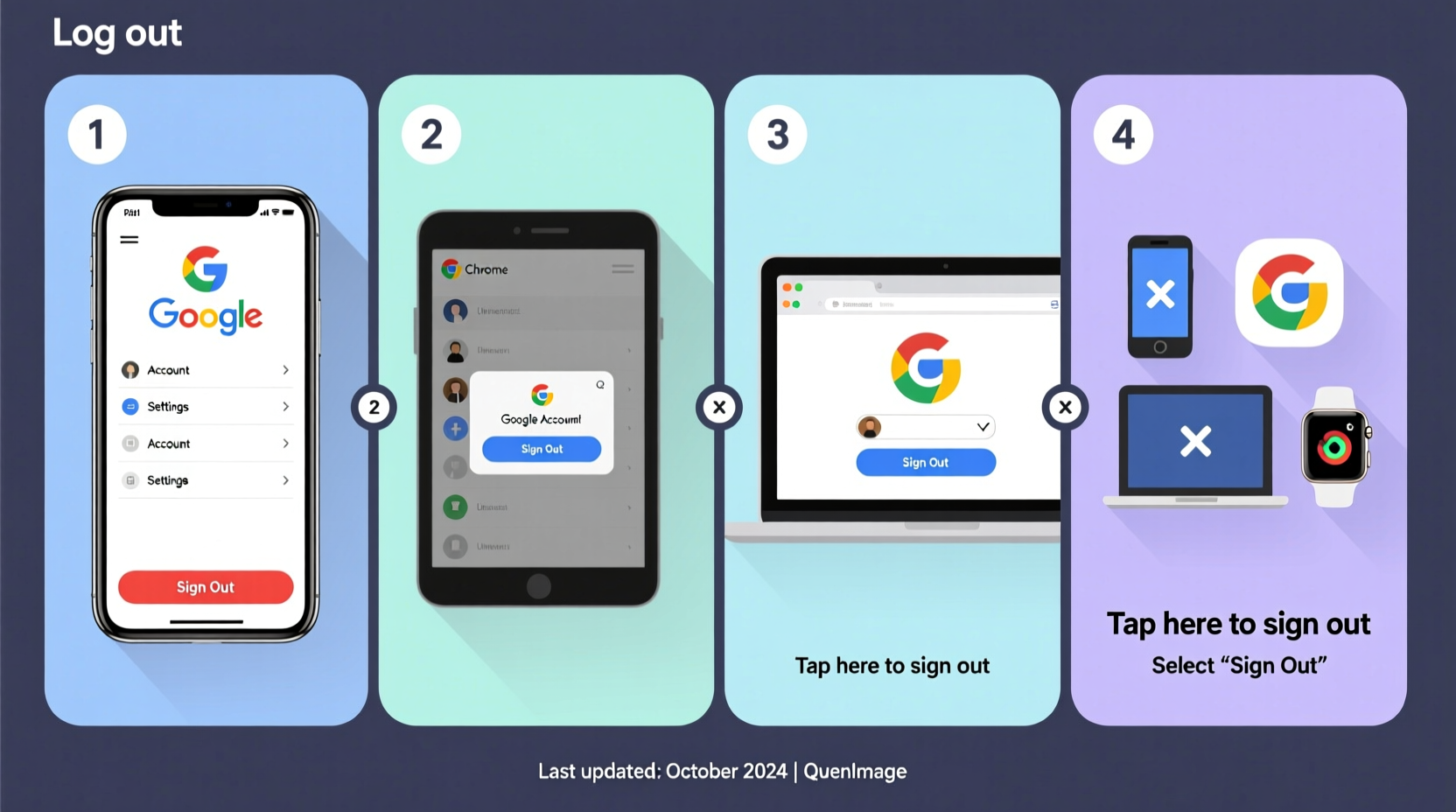
Remaining logged into your Google account on shared or unsecured devices increases the risk of unauthorized access. Even if you trust the people around you, accidental exposure—like leaving a browser open or misplacing a tablet—can lead to privacy breaches. Google stores sensitive information: emails, photos, location history, passwords via Google Password Manager, and payment methods. Protecting that data starts with knowing when and how to log out.
“Signing out of shared or public devices is one of the simplest yet most effective privacy habits users can adopt.” — Sarah Lin, Cybersecurity Analyst at Digital Trust Labs
Step-by-Step: How to Log Out on Android Devices
On Android phones and tablets, being signed in to a Google account enables sync for Gmail, Drive, Photos, and more. However, signing out removes access to these services until you log back in. This is especially important when selling, returning, or lending your device.
- Open the Settings app on your Android device.
- Scroll down and tap Accounts (may also appear as “Passwords & Accounts” or “Users & Accounts” depending on brand).
- Select Google from the list of accounts.
- Tap the three-dot menu icon (⋮) or the gear icon next to your email address.
- Choose Remove account.
- Confirm the action when prompted.
Note: Removing the account signs you out completely and stops all syncing. If you have multiple Google accounts, repeat the process for each one. After removal, apps like Gmail and YouTube will no longer auto-login unless you manually sign back in.
Logging Out on iPhones and iPads (iOS)
iOS doesn’t integrate Google accounts system-wide like Android, but many users add their Google account for mail, calendar, or use Google apps. To fully log out, both app-level and system-level actions may be required.
Option 1: Sign Out Within Google Apps
- Open any Google app (e.g., Gmail, Drive, YouTube).
- Tap your profile picture or initial in the top-right corner.
- Select your account.
- Tap Sign out.
Option 2: Remove Account from iOS Settings (if added)
- Go to Settings > Mail > Accounts.
- Select your Google account.
- Tap Delete Account.
- Confirm deletion.
This only removes email/calendar syncing. For full logout across all Google services, sign out within each individual app.
How to Log Out on Computers (Windows, macOS, Linux)
Most people access Google services through web browsers like Chrome, Firefox, or Safari. Signing out here prevents others from accessing your data if they use the same machine.
Step-by-Step: Browser Logout
- Navigate to any Google service (e.g., Gmail, Google Drive, or Google Search).
- In the top-right corner, click your profile picture or initial.
- If multiple accounts are listed, click Switch account or the dropdown arrow.
- Select Sign out.
This logs you out of all Google services in that browser. Note: You’ll need to sign back in to access Gmail, YouTube, or Google Docs.
Clearing Saved Credentials (Recommended After Logout)
- In Chrome: Go to Settings > Autofill > Passwords.
- Find your Google account email and remove it.
- Also clear browsing history and cookies to erase session data.
Smart TVs, Streaming Devices, and Game Consoles
Many smart TVs (Samsung, LG, Android TV), Roku, Fire Stick, and gaming consoles like PlayStation allow Google app installations such as YouTube or Google Play Movies. These often require signing in—and forgetting to sign out poses real risks.
Logging Out on Smart TVs (Android TV Example)
- Open the YouTube app.
- Press the Menu button (☰) on your remote.
- Navigate to Settings > Account.
- Select Sign out.
- Confirm the action.
For other Google-based apps, repeat the process within each app. On non-Android systems like Apple TV or Roku, open the app, go to settings, and look for an account or logout option.
What Happens When You Log Out?
Understanding the consequences helps determine when logout is necessary:
| Action | Effect |
|---|---|
| Email Sync Stops | New messages won’t appear in Gmail app or inbox. |
| Cloud Data Unavailable | Google Drive, Photos, and Docs require re-login to access files. |
| App Personalization Lost | YouTube recommendations, saved playlists, and search history won’t load. |
| Device No Longer Backed Up | Android devices stop backing up settings, app data, and Wi-Fi passwords. |
None of your data is deleted—you simply lose access until signing back in.
Mini Case Study: The Public Library Incident
Jamal visited his local library to check his job applications via Gmail. He used the public computer, logged in quickly, replied to an email, and closed the browser window. He assumed closing the tab was enough. Two days later, he received a notification about a new device signing into his account. Upon investigation, someone had accessed his account from the same library IP and sent spam emails to his contacts.
The fix? A password reset and enabling two-factor authentication. But the root issue was simple: Jamal never clicked “Sign out.” This common oversight underscores why a deliberate logout matters—even in trusted environments.
Checklist: Secure Your Google Sessions
- ✅ Always click “Sign out” instead of just closing the browser.
- ✅ Use Guest mode or private browsing on shared computers.
- ✅ Remove Google accounts from devices before selling or donating.
- ✅ Regularly review active sessions in your Google Account settings.
- ✅ Enable 2FA to add protection even if someone gains access.
Frequently Asked Questions
Does closing the browser log me out of Google?
No. Closing the browser does not automatically sign you out. Your session remains active, especially if “Stay signed in” was selected. Always manually click “Sign out” for full protection.
Can I log out remotely if I forgot to sign out somewhere?
Yes. Go to Google Device Activity, review active sessions, and click “Sign out” next to any unrecognized or outdated device. This terminates the session immediately.
Will logging out delete my files or emails?
No. Logging out only ends your current session. All emails, Drive files, and photos remain safely stored in your account. You can log back in anytime to access them.
Final Thoughts and Action Steps
Maintaining control over your Google account isn’t just about passwords and recovery options—it’s about managing active sessions across devices. Whether you’re switching phones, using a friend’s laptop, or stepping away from a public terminal, taking a few seconds to log out can prevent hours of damage control later.
Make logout part of your digital hygiene routine. Combine it with strong passwords, two-factor authentication, and regular device reviews to stay ahead of threats. Your online safety depends not just on what you know—but on what you do after you’re done.




 浙公网安备
33010002000092号
浙公网安备
33010002000092号 浙B2-20120091-4
Comments
No comments yet. Why don't you start the discussion?