
Creating your first video game doesn’t require years of programming experience or expensive software. With Scratch, a free visual programming platform developed by MIT, anyone—especially beginners—can build interactive games using drag-and-drop blocks. Whether you're a student, educator, or just curious about game design, this guide walks you through building a fun and engaging Scratch game from start to finish.
Why Scratch Is Perfect for Beginners
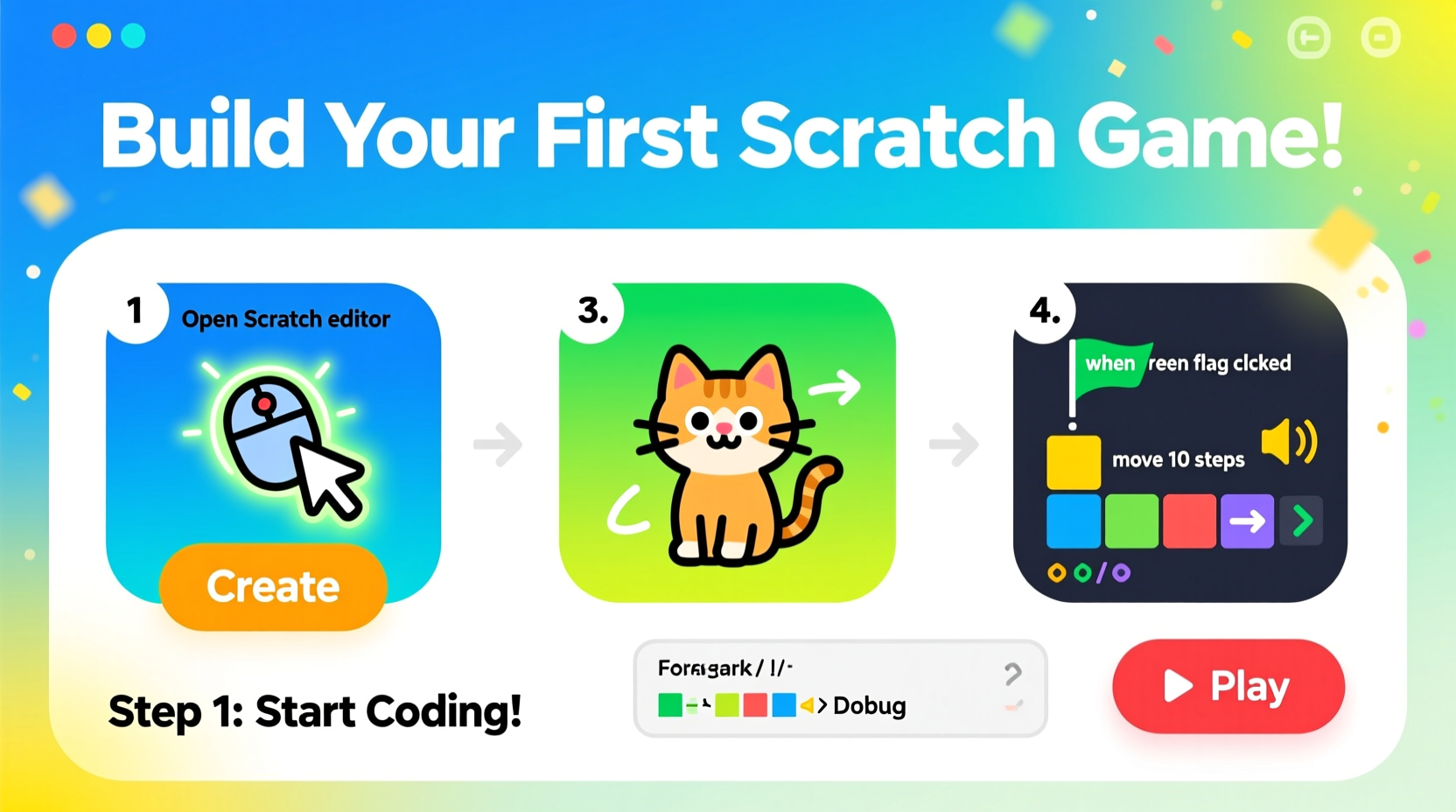
Scratch simplifies coding by replacing complex syntax with colorful code blocks that snap together like puzzle pieces. This makes it ideal for young learners and newcomers who want to understand logic, sequencing, and event handling without getting bogged down by errors in traditional languages.
The platform supports creativity through built-in sprites, sounds, and backdrops, but also allows uploads of custom assets. Millions of projects are shared publicly, offering inspiration and learning opportunities through remixing.
“Scratch empowers kids to think creatively, reason systematically, and work collaboratively—essential skills for the 21st century.” — Mitchel Resnick, Professor at MIT Media Lab and Lead Developer of Scratch
Your First Game: Catch the Falling Object
We’ll create a simple yet engaging game where the player controls a character (like a basket) moving left and right to catch falling items (such as apples). Each successful catch earns a point. If an item hits the ground, the game ends after a set number of misses.
This project teaches core concepts: movement control, collision detection, scoring, and game-over conditions—all fundamental to most games.
Step-by-Step Guide to Building the Game
- Create a New Project: Go to scratch.mit.edu, sign in or use the site without an account, then click “Create” to start a new project.
- Choose Your Sprites:
- Select a sprite for the catcher (e.g., a basket). You can find one in the library or draw your own.
- Add another sprite for the falling object (e.g., an apple).
- Set Up the Player Movement:
- Select the basket sprite.
- Use the following block sequence under the “Events” and “Motion” categories:
When [green flag] clicked
Forever
    If <key [left arrow] pressed?> then
        Change x by -10
    End
    If <key [right arrow] pressed?> then
        Change x by 10
    End
End
- Make the Apple Fall from the Top:
- Select the apple sprite.
- Add this script:
When [green flag] clicked
Forever
    Go to x: (pick random -200 to 200) y: 180
    Repeat until <y position < -160>
        Change y by -5
        Wait 0.1 seconds
    End
    Wait (pick random 1 to 3) seconds
End
- Detect Collisions and Score Points:
- Create a variable called “score” (click “Data” > “Make a Variable”).
- Add to the apple’s script inside the repeat loop:
If <touching [basket v]?> then
    Change [score v] by 1
    Play sound [pop v]
    Go to x: (pick random -200 to 200) y: 180
End
- Add a Game Over Condition:
- Create a second variable: “misses”.
- After the repeat loop in the apple’s script, add:
Change [misses v] by 1
If <(misses) > 3> then
    Stop [all v]
    Show
    Say [Game Over! Your score: ] join (score) [] for 3 secs
End
- Test and Refine: Click the green flag and play. Adjust speeds, positions, or delays to improve gameplay balance.
Enhancing Your Game: Simple Upgrades
Once the basic mechanics work, consider these improvements to make your game cooler and more dynamic:
- Add Lives Instead of Instant Loss: Let players miss three times before game over, as shown above.
- Increase Difficulty Over Time: Gradually reduce the wait time between movements so objects fall faster as the score increases.
- Include Sound Effects: Use the “Sound” tab to add background music or a chime when points are scored.
- Multiple Objects: Duplicate the apple sprite or introduce different ones (e.g., bombs to avoid).
- Custom Backdrop: Draw a sky or orchard scene to give context and visual appeal.
Checklist: Essential Features for a Complete Scratch Game
- Player-controlled character with smooth movement
- Falling or moving targets
- Scoring system
- Collision detection
- Game over condition
- Visual feedback (e.g., messages, animations)
- At least one sound effect or piece of music
Common Pitfalls and How to Avoid Them
| Problem | Why It Happens | Solution |
|---|---|---|
| Sprite doesn’t move | Missing “when green flag clicked” block | Always start scripts with an event trigger |
| Score jumps incorrectly | Variable changed multiple times per collision | Ensure change happens only once using control blocks |
| Objects overlap or behave oddly | Scripts run simultaneously without coordination | Use broadcast messages to synchronize actions |
| Game runs too fast/slow | No delay between actions | Add “wait” blocks in loops to regulate timing |
Real Example: Maya’s Classroom Game Project
Maya, a 12-year-old student in Toronto, used this guide to create her first Scratch game during a school tech week. Her version had a panda catching bamboo shoots while avoiding rocks. She added a high-score tracker and celebratory animation when reaching 10 points.
Her teacher noted significant improvement in logical thinking and persistence. “She debugged her code four times,” said Mr. Thompson, “and each time she understood why something failed—like when the panda kept drifting off-screen due to unchecked x-coordinates.”
Maya’s game was featured in the school’s digital showcase, inspiring others to try coding. Her success wasn’t just technical—it boosted confidence and creative problem-solving.
Frequently Asked Questions
Can I play my Scratch game on a phone or tablet?
Yes. The Scratch website is mobile-friendly, and the Scratch app (available for iOS and Android) lets you play and edit projects on touch devices. However, some mouse-dependent interactions may not work exactly the same way.
How do I share my game with friends?
Click the “Share” button at the top of the editor to publish your project. Once shared, you can copy the link and send it via email, social media, or messaging apps. Friends can play it directly in their browser.
Can I make platformers or shooter games in Scratch?
Absolutely. While our example is a simple catching game, Scratch supports advanced mechanics like gravity, jumping, shooting projectiles, health bars, and even AI behavior. More complex games will use lists, clones, and broadcast events—but they all build on the basics you’ve learned here.
Keep Creating and Level Up
Making your first Scratch game is a milestone, but it’s just the beginning. As you experiment, you’ll discover new ways to combine blocks, tell stories, and challenge players. Try remaking classic games like Pong or Space Invaders. Explore tutorials on YouTube or the Scratch community forums. Most importantly, don’t fear mistakes—each bug you fix teaches you more than any tutorial.
Remember, every expert coder started exactly where you are now: curious, willing to learn, and ready to create something fun.




 浙公网安备
33010002000092号
浙公网安备
33010002000092号 浙B2-20120091-4
Comments
No comments yet. Why don't you start the discussion?