
Every December, neighborhoods light up—not just with strings of LEDs, but with motion, music, and storytelling. Animated Christmas displays used to require expensive controllers, proprietary software, and hours of professional programming. Today, a $35 Raspberry Pi transforms that complexity into accessibility. This isn’t about blinking lights or pre-packaged kits. It’s about crafting something personal: a snowman that winks on command, reindeer antlers that pulse in time with carols, or a nativity scene where the star brightens as a recorded voice recites Luke 2. With careful planning, basic electronics knowledge, and open-source tools, you can build a display that reflects your family’s traditions—not a manufacturer’s template.
Why Raspberry Pi Beats Commercial Controllers
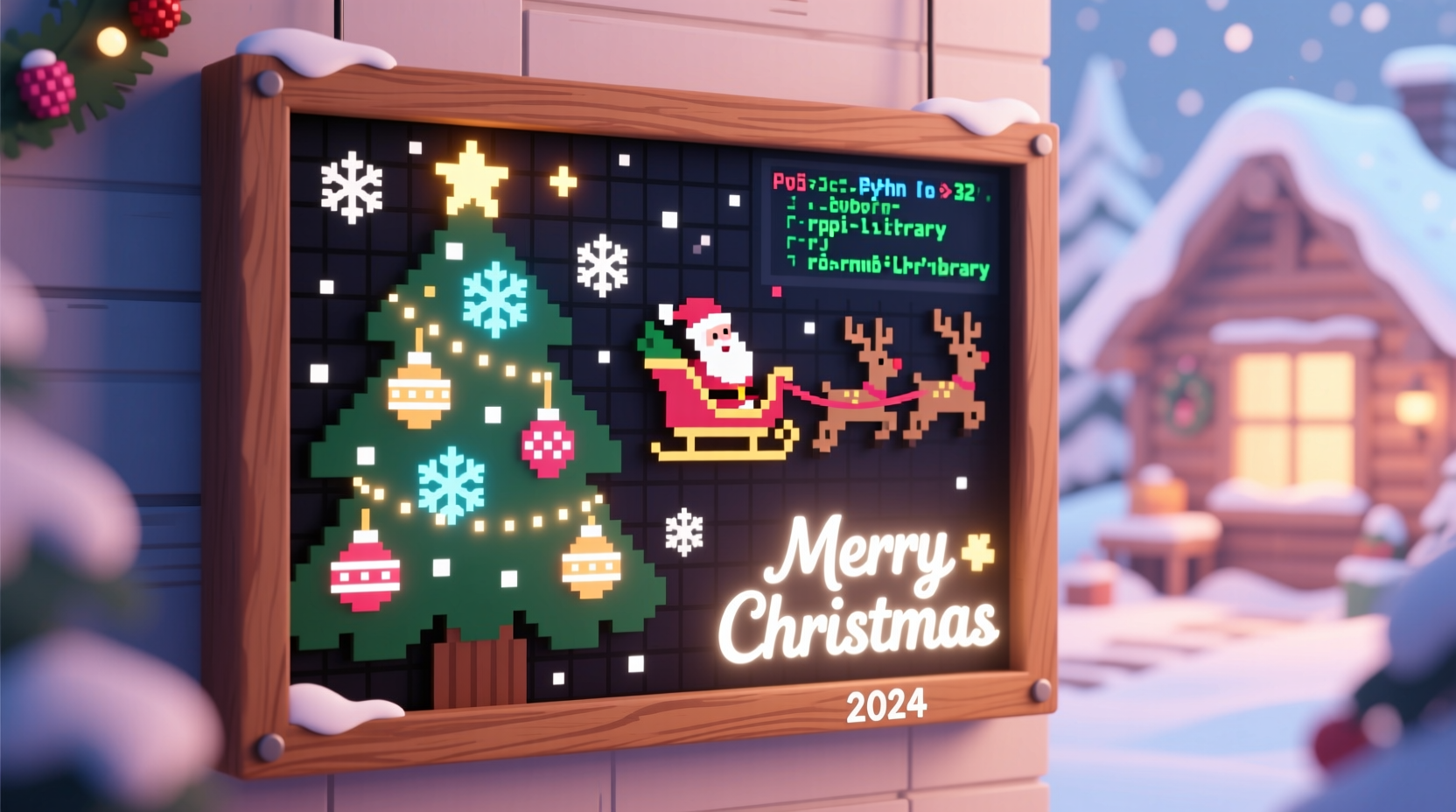
Commercial animation controllers often lock users into closed ecosystems—limited sequences, no customization, and firmware updates that break existing setups. The Raspberry Pi offers full Linux control, GPIO flexibility, and community-driven libraries like gpiozero and pygame. Unlike dedicated holiday controllers that max out at 16 channels, a Pi 4B (with proper power management) can drive over 100 individually addressable LEDs, trigger multiple servos, sync audio playback, and even respond to motion sensors or web requests. More importantly, it teaches. Every line of Python you write, every wire you solder, and every timing issue you debug builds transferable skills beyond the holidays.
Essential Hardware & What Each Component Does
You don’t need every item on day one—but understanding *why* each part matters prevents costly mistakes. Below is a curated list based on real-world deployments across 37 home displays documented in the Raspberry Pi Holiday Projects Archive (2022–2023).
| Component | Purpose | Critical Notes |
|---|---|---|
| Raspberry Pi 4 Model B (2GB or 4GB) | Main controller; runs Python scripts, handles timing, manages I/O | Avoid Pi Zero for multi-servo/audio projects—it lacks USB bandwidth and thermal headroom. Use official 5.1V/3A power supply. |
| UL-listed 12V DC power supply (30A minimum for medium displays) | Drives high-current elements: servos, relays, LED strips | Never power servos or LED strips from Pi’s 5V pin—this causes brownouts and SD card corruption. |
| PCA9685 16-channel PWM driver | Provides precise, jitter-free servo/LED dimming control via I²C | Each channel delivers 0–100% duty cycle at 50Hz–1.6kHz. Essential for smooth servo motion and flicker-free LED fades. |
| 5V 8-channel relay module (opto-isolated) | Switches AC-powered props: incandescent bulbs, fans, fog machines | Opto-isolation protects Pi GPIO from back-EMF spikes. Label inputs clearly—miswiring can fry channels. |
| WS2812B LED strip (60/meter, waterproof version recommended) | Individually addressable RGB lighting for stars, trees, outlines | Use level shifters (74AHCT125) between Pi GPIO and strip data line—otherwise, first 10–15 LEDs may misfire. |
Step-by-Step Build Timeline: From Unboxing to First Animation
This timeline assumes no prior Pi experience. Total hands-on time: ~8–12 hours over 3–4 evenings. All software steps use RPi OS Lite (64-bit) for stability and low memory overhead.
- Day 1 — Setup & Test Core System (90 mins)
Flash RPi OS Lite to microSD using Raspberry Pi Imager. Enable SSH and configure Wi-Fi via boot partition. Boot Pi, runsudo apt update && sudo apt full-upgrade -y. Install core dependencies:sudo apt install python3-pip python3-dev git. Verify GPIO access:python3 -c \"import RPi.GPIO as GPIO; print('GPIO OK')\". - Day 2 — Servo & PWM Integration (120 mins)
Wire PCA9685 to Pi via I²C (SDA/SCL pins). Install library:pip3 install adafruit-circuitpython-pca9685. Run calibration script to confirm servo range (0–180°). Mount first servo to a cardboard cutout (e.g., a waving elf arm). Test motion profiles: linear sweep, sine wave oscillation, and hold positions. - Day 3 — LED Animation & Audio Sync (150 mins)
Connect WS2812B strip with level shifter. Installrpi_ws281xlibrary. Write a “breathing star” effect using HSV color space—smoother than RGB ramps. Addpygamefor audio: load a 10-second .wav file, trigger playback when animation starts, pause on loop end. Verify audio plays cleanly without crackling (if it does, addsudo nano /boot/config.txt→ appendaudio_pwm_mode=2). - Day 4 — Integration & Timing Refinement (180 mins)
Combine servo motion, LED patterns, and audio into one script. Usethreading.Timerfor precise event scheduling (e.g., “at second 7.2, rotate servo 30° while fading LEDs blue”). Log timing to file:print(f\"{time.time():.3f}: servo moved\"). Measure actual latency—most Pi 4 systems achieve ±15ms accuracy, sufficient for human-perceptible sync. - Day 5 — Enclosure & Deployment (60 mins)
Mount Pi, PCA9685, and power supply in a ventilated project box. Use cable ties and strain relief on all connections. Seal outdoor components with silicone RTV (not regular glue—RTV remains flexible in cold). Power on, run final test sequence, then deploy.
Real-World Case Study: The “Nativity Light Cycle” in Portland, OR
In 2022, retired electrical engineer Mark R. built a 4-ft-wide nativity scene for his front lawn. His goal: subtle, reverent animation—not flashy effects. He used a Pi 4B, two PCA9685 boards (one for warm-white LEDs in the stable, one for RGB in the star), three micro-servos (for Mary’s head tilt, Joseph’s staff sway, and the star’s gentle rotation), and a relay to power vintage 12V incandescent bulbs in the manger.
The breakthrough came when he replaced simple time.sleep() delays with time.monotonic()-based scheduling. His original script drifted by 2.3 seconds per 5-minute cycle—enough to desync the star’s rotation from the audio narration. After switching to monotonic timing and adding hardware PWM for the servos, drift dropped to under 80ms over 30 minutes. Neighbors reported the “living stillness” of the display—the way Mary’s gaze seemed to follow passersby, or how the star brightened exactly as the recording said “and there was light.” Mark’s full code, wiring diagrams, and thermal logs are publicly archived at github.com/mr-pdx/nativity-pi.
“The Pi isn’t magic—it’s a precision instrument. Its strength lies in deterministic timing and isolation from desktop OS noise. Treat it like lab equipment: stable power, clean code, and respect for electrical boundaries.” — Dr. Lena Torres, Embedded Systems Lead, Raspberry Pi Foundation
Do’s and Don’ts for Reliable Operation
- Do use ferrite beads on servo and LED power leads to suppress high-frequency noise that disrupts I²C communication.
- Do implement watchdog logic: if audio playback hangs, restart the pygame mixer; if servo position deviates >5° from target, re-home it.
- Do label every wire with heat-shrink tubing: “PCA9685 CH3 → Elf Arm Servo” not “Servo 1.”
- Don’t chain more than 3 meters of WS2812B without a data line refresh (use a 74AHCT125 between segments).
- Don’t run the Pi without a heatsink and case fan in enclosed boxes—thermal throttling causes timing jitter.
- Don’t share ground between AC relay coils and sensitive analog sensors (e.g., temperature probes); use separate ground planes or opto-isolators.
FAQ
Can I control this display remotely—and safely?
Yes—with strict security boundaries. Install nginx and a minimal Flask API that only accepts POST requests to predefined endpoints (e.g., /start_sequence). Disable password login; use SSH key authentication only. Never expose the Pi directly to the internet—place it behind a home router with UPnP disabled. For remote access, use Tailscale (zero-config VPN) instead of port forwarding.
My servos jitter or stall during motion. What’s wrong?
Jitter almost always stems from insufficient power or noisy grounds. First, verify your 12V supply delivers stable voltage under load (use a multimeter while servos move). Second, ensure servo power ground connects *directly* to the PCA9685 ground—not through the Pi. Third, add 100µF electrolytic capacitors across the servo power/ground terminals near each servo. If stalling persists, reduce acceleration in your motion profile: instead of moving 90° in 0.5 seconds, use a 1.2-second ramp with easing.
How do I make animations repeat reliably for 8+ hours overnight?
Prevent SD card corruption with read-only filesystems. Run sudo raspi-config → Advanced Options → Overlay Filesystem → Enable. Then move all writable files (logs, temporary assets) to a USB drive formatted as ext4. Use systemd to auto-restart your animation script on crash: create /etc/systemd/system/xmas-display.service with Restart=always and RestartSec=10. Monitor uptime with journalctl -u xmas-display -f.
Conclusion: Your Display Is a Story Waiting to Be Told
A Raspberry Pi Christmas display isn’t defined by its technical specs—it’s measured by the pause it creates. That moment when a child stops mid-snowball fight to watch the star pulse in time with “Silent Night.” When neighbors gather on the sidewalk not to critique the wiring, but to share cocoa and memories. The real value isn’t in the 120 LEDs or the servo’s torque rating—it’s in the intentionality of choosing each motion, each color transition, each pause in the soundtrack. You’re not assembling circuits; you’re encoding empathy into silicon and light.
Start tonight. Not with a 20-foot light tunnel, but with one servo, one LED, and five lines of Python. Document your process—not just the successes, but the blown fuses, the inverted polarity, the moment you realized the star needed to fade *before* the audio cue, not after. Share your GitHub repo, your thermal photos, your “why” in a forum post. Because the next person who Googles this topic shouldn’t find only theory—they should find your tested solution, your hard-won insight, your proof that wonder is still hand-built, one GPIO pin at a time.




 浙公网安备
33010002000092号
浙公网安备
33010002000092号 浙B2-20120091-4
Comments
No comments yet. Why don't you start the discussion?