
Creating a festive atmosphere doesn’t always require store-bought decorations. With the rise of accessible electronics and open-source programming, crafting your own animated holiday displays has never been easier. One standout project is building a DIY pixel art Christmas tree using programmable LED grid panels and a microcontroller. This isn’t just about lights—it’s about bringing digital artistry into physical space, combining creativity, coding, and circuitry into a glowing centerpiece for the season.
A pixel art tree uses individually addressable LEDs arranged in a grid to form a low-resolution image of a Christmas tree that can animate, change colors, or respond to sound and motion. Whether you're a seasoned maker or a curious beginner, this guide walks through every phase: selecting components, assembling hardware, writing animation code, and mounting your final piece.
Choosing the Right Components
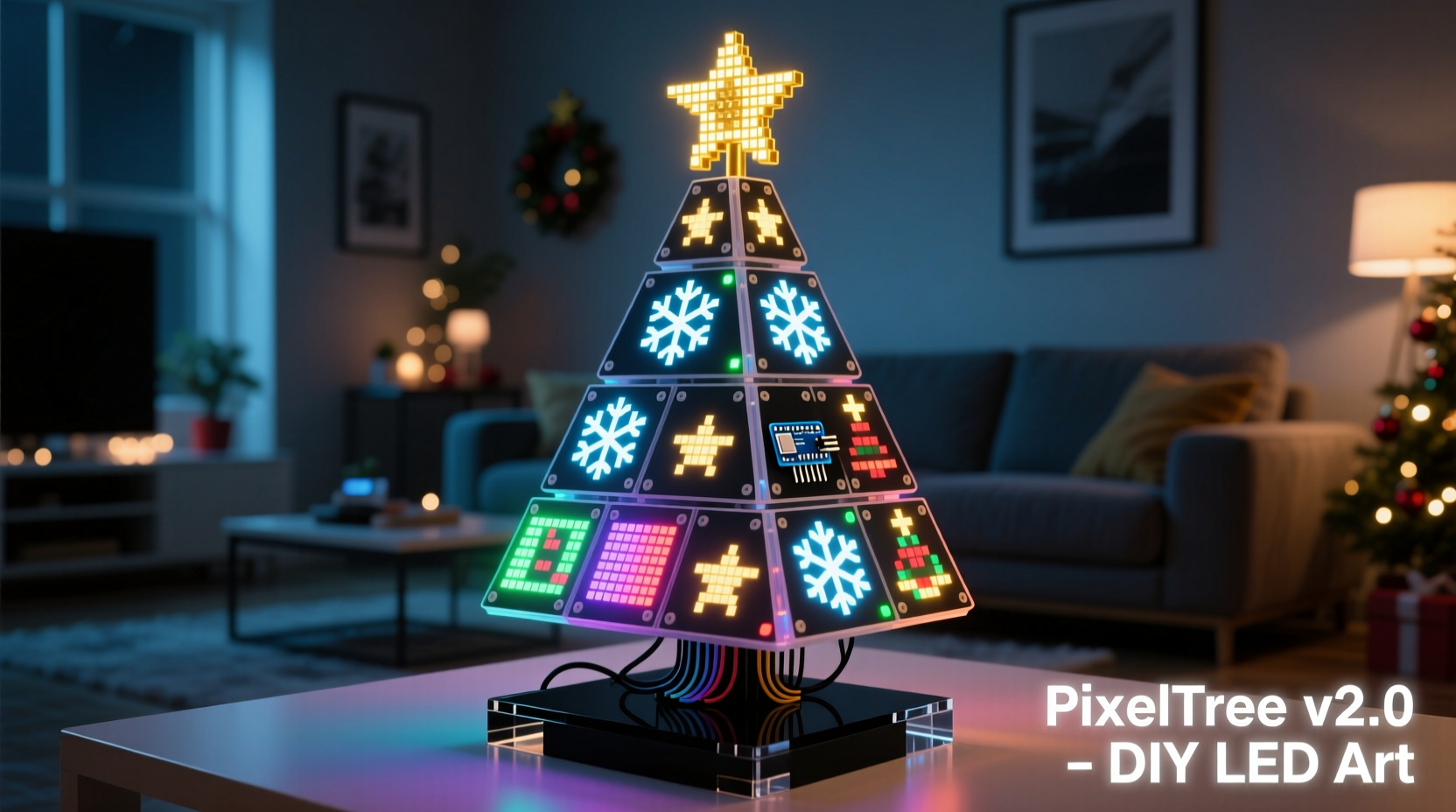
The foundation of any successful LED project lies in component selection. For a pixel art Christmas tree, three key elements matter most: the LED grid panel, the microcontroller, and the power supply.
- LED Grid Panels: The most common choice is an 8x8 WS2812B matrix (also known as NeoPixel grids), which offers 64 individually controllable RGB LEDs. These are widely available, easy to program, and bright enough for indoor use. Larger projects may use multiple panels tiled together—for example, a 16x16 layout made from four 8x8 units.
- Microcontroller: The Arduino Nano or ESP32 are ideal. The Nano is compact and perfect for standalone installations, while the ESP32 adds Wi-Fi and Bluetooth capabilities, enabling remote control via smartphone apps or web interfaces.
- Power Supply: Each WS2812B LED can draw up to 60mA at full brightness. A full 8x8 grid could pull nearly 4A at peak. Use a regulated 5V DC power supply rated for at least 4–5A. Never power large arrays from a USB port alone.
Wiring and Assembly Setup
Proper wiring ensures stable performance and prevents flickering or damaged components. Follow these steps carefully:
- Connect the 5V pin on the microcontroller to the 5V rail of the LED grid.
- Solder or plug the ground (GND) pin from the microcontroller to the grid’s GND.
- Link the data input (DIN) of the first panel to digital pin D6 on the Arduino (or GPIO21 on ESP32).
- If chaining multiple panels, connect the DOUT of the first to the DIN of the next.
- Use a separate 5V power supply for the LED grid—do not rely on the microcontroller’s onboard regulator.
- Add a 1000µF capacitor across the power rails near the LED panel to smooth voltage spikes.
- Place a 330Ω resistor between the microcontroller’s data pin and the LED’s DIN to protect against signal noise.
Mounting the panel depends on your display preference. A black acrylic sheet behind the grid enhances contrast, making pixels appear brighter. You can frame it in wood or mount it on a stand for tabletop placement. For a true \"tree\" shape, consider masking non-tree pixels with black tape or designing animations that only light up triangular patterns.
| Component | Recommended Model | Notes |
|---|---|---|
| LED Panel | Adafruit NeoPixel 8x8 Grid | Individually addressable, 5V logic |
| Microcontroller | Arduino Nano or ESP32 DevKit | Nano for simplicity; ESP32 for connectivity |
| Power Supply | 5V 5A Switching Power Adapter | Use barrel jack or terminal block |
| Capacitor | 1000µF Electrolytic, 6.3V+ | Prevents voltage drops |
| Resistor | 330Ω Through-Hole | Data line protection |
Programming the Pixel Animations
Coding transforms static hardware into dynamic art. Using the Arduino IDE, you’ll leverage libraries like FastLED or NeoPixel to control each LED precisely. Below is a basic workflow:
- Install the FastLED library via the Library Manager in Arduino IDE.
- Define the number of LEDs and data pin used.
- Write functions to render tree-shaped pixel patterns.
- Create animation loops such as color cycling, twinkling, or wave effects.
- Upload code and test responsiveness.
Here’s a simplified code snippet to light up a triangular tree pattern on an 8x8 grid:
#include#define NUM_LEDS 64 #define DATA_PIN 6 CRGB leds[NUM_LEDS]; void setup() { FastLED.addLeds<WS2812B, DATA_PIN, GRB>(leds, NUM_LEDS); } int treePixels[] = {18,19,20, 25,26,27,28,29, 32,33,34,35,36,37,38, 41,42,43,44,45,46, 50,51,52,53,54, 59,60,61,62, 68,69,70, 77,78, 86}; void loop() { // Fill tree pixels with green for (int i = 0; i < sizeof(treePixels)/sizeof(treePixels[0]); i++) { leds[treePixels[i]] = CRGB::Green; } FastLED.show(); delay(1000); // Add blinking ornaments blinkOrnaments(); } void blinkOrnaments() { int ornamentPins[] = {27,36,45,53,61,69}; for (int j = 0; j < 3; j++) { for (int i = 0; i < 6; i++) { leds[ornamentPins[i]] = CRGB::Red; } FastLED.show(); delay(200); for (int i = 0; i < 6; i++) { leds[ornamentPins[i]] = CRGB::Blue; } FastLED.show(); delay(200); } }
This code defines a list of pixel indices forming a tree and alternates red and blue blinking “ornaments.” Expand by adding snowfall effects, fading trunks, or music-reactive lighting using a microphone module connected to an analog pin.
“The beauty of pixel art lies in its constraints. Limiting resolution forces creative solutions—and often results in more memorable designs.” — Lena Torres, Interactive Art Engineer at MakerFest Labs
Real-World Example: The Living Room Display
Jamal, a high school robotics instructor in Portland, built a 16x16 pixel tree using two 8x8 panels controlled by an ESP32. He mounted them on a painted wooden board shaped like a stylized evergreen, with black felt backing to reduce glare. Using MQTT over Wi-Fi, he linked the tree to his home automation system so it turns on at sunset and cycles through seasonal themes: classic green-and-red, icy blues, and even Halloween purple-orange during October.
He added a passive infrared (PIR) sensor so the tree “wakes up” with a sparkle when someone enters the room. Students helped design new animations, submitting code via GitHub. His project now doubles as a classroom tool for teaching arrays, loops, and real-time feedback systems.
Jamal’s experience shows how a simple LED grid can evolve into an interactive family heirloom and educational platform—all starting from a single idea and a few lines of code.
Step-by-Step Build Timeline
Follow this realistic timeline to complete your pixel art tree in under a weekend:
- Day 1 – Morning (1.5 hrs): Gather all materials. Verify compatibility between microcontroller and LED panels. Test each component individually using a sample blink sketch.
- Day 1 – Afternoon (2 hrs): Assemble the circuit on a breadboard. Confirm data flow by running a rainbow animation. Debug any dark or erratic pixels.
- Day 1 – Evening (1 hr): Begin drafting your tree pixel map. Sketch the desired shape on graph paper or use a spreadsheet to simulate the grid.
- Day 2 – Morning (2 hrs): Finalize and upload animation code. Implement at least one base mode (e.g., solid tree) and one dynamic effect (e.g., twinkling).
- Day 2 – Afternoon (1.5 hrs): Solder permanent connections. Mount the panel securely. Conceal wires with cable management clips or routed channels.
- Day 2 – Evening (30 min): Perform final testing. Invite feedback from others. Make minor adjustments to brightness or timing.
Common Pitfalls and How to Avoid Them
- Flickering LEDs: Caused by insufficient power or loose grounds. Always use a dedicated power supply and ensure all ground lines are connected.
- First LED Not Lighting: Often due to reversed polarity or broken solder joints. Check orientation and continuity with a multimeter.
- Code Upload Failures: Ensure the correct board and port are selected in Arduino IDE. Reset the microcontroller manually if needed.
- Overheating Microcontroller: Driving too many LEDs directly can overload the chip. Use external power and avoid daisy-chaining more than 256 LEDs without level shifting.
FAQ
Can I use a Raspberry Pi instead of an Arduino?
Yes, but with caveats. The Pi uses 3.3V logic, while most LED panels expect 5V signals. Use a bidirectional logic level shifter to convert the data line. Python libraries like rpi_ws281x work well, though real-time performance may vary compared to Arduino’s deterministic timing.
How do I make the tree responsive to music?
Add an analog sound sensor (like the MAX9814 or KY-038) to an analog input pin. Sample the amplitude, map it to brightness or animation speed, and update the display accordingly. For advanced audio analysis, use FFT libraries to trigger different effects per frequency band.
Is this safe to leave on overnight?
Yes, provided you use a quality power supply, avoid covering the electronics, and monitor temperature during initial runs. Keep current draw within limits and consider adding a timer or relay to auto-shutoff after midnight.
Conclusion and Next Steps
Building a DIY pixel art Christmas tree merges technical skill with seasonal joy. It’s more than a decoration—it’s a testament to what individuals can create with affordable tools and open knowledge. Once mastered, the same principles apply to larger installations: animated signs, wearable tech, or synchronized holiday displays across multiple windows.
Don’t stop at one animation. Challenge yourself to add modes triggered by buttons, ambient light sensors, or even social media hashtags. Share your code on platforms like GitHub or instructables.com to inspire others. The maker community thrives on collaboration, and your version of a glowing pixel tree might spark someone else’s first electronics project.




 浙公网安备
33010002000092号
浙公网安备
33010002000092号 浙B2-20120091-4
Comments
No comments yet. Why don't you start the discussion?