
Creating a PDF is one of the most essential digital skills today. Whether you're preparing a resume, sharing a report, or archiving important documents, converting files into PDF format ensures consistency across devices and platforms. While it may seem technical at first, generating a high-quality PDF is simple once you understand the right tools and techniques. This guide walks through everything from basic creation to advanced optimization—no prior experience required.
Why PDFs Matter in Modern Workflows
The Portable Document Format (PDF) was developed by Adobe in the 1990s to preserve document integrity regardless of software, hardware, or operating system. Today, PDFs are universally accepted in business, education, legal fields, and personal use because they maintain layout, fonts, images, and hyperlinks exactly as intended.
Unlike editable formats like .docx or .txt, PDFs prevent unintended changes while still allowing annotations, signatures, and accessibility features. For professionals, this means reliable delivery; for beginners, it means peace of mind when submitting assignments or applications.
“PDFs are the digital equivalent of printed paper—they look the same everywhere.” — Dr. Alan Liu, Digital Archiving Researcher, University of California
Step-by-Step Guide to Creating a PDF
Whether you're starting from scratch or converting an existing file, follow these clear steps to generate a professional-grade PDF.
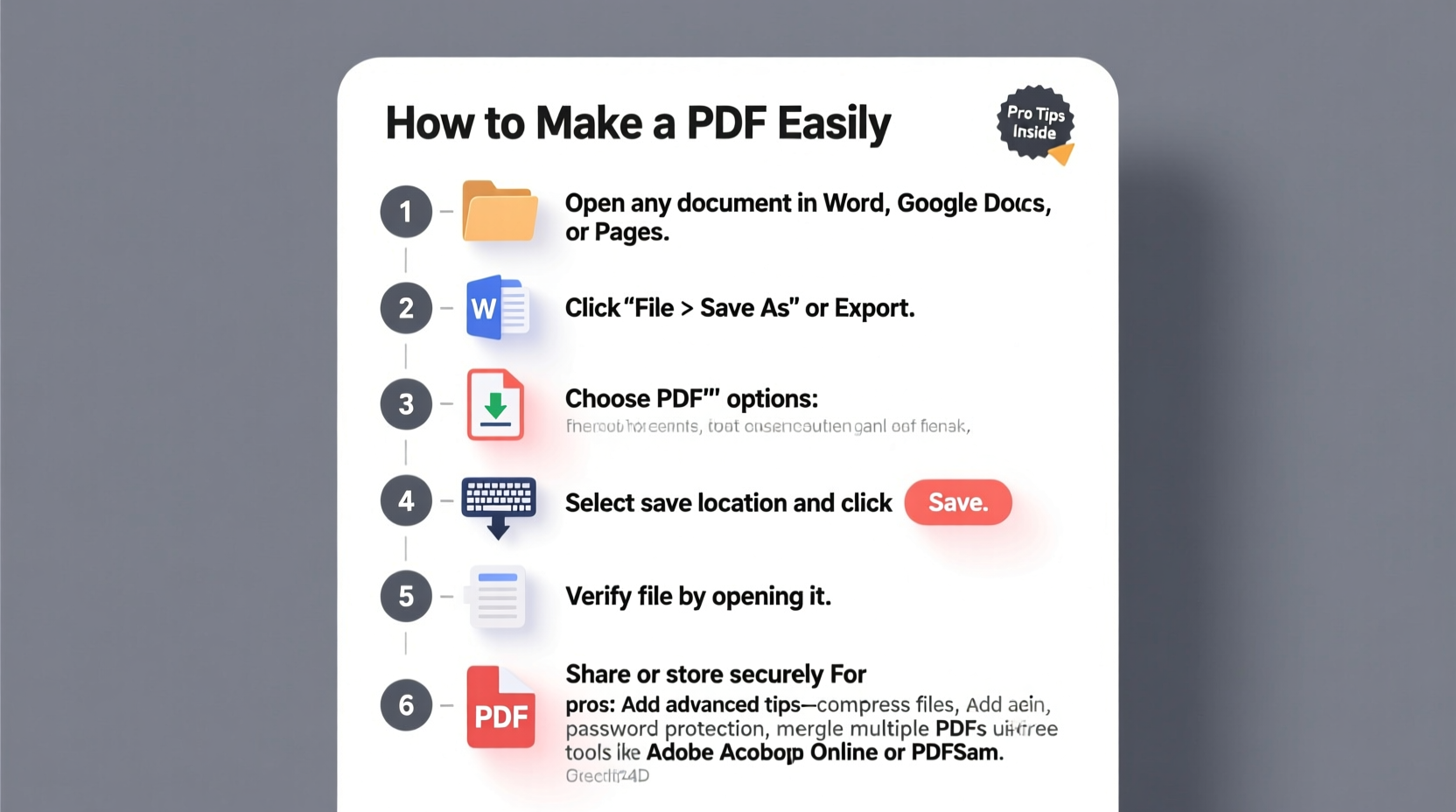
- Choose Your Source Content: Decide what you want to convert—text documents, spreadsheets, presentations, web pages, scanned images, or even multiple files combined into one.
- Select the Right Tool: Use built-in OS features, office suites, or dedicated online converters depending on your needs and security preferences.
- Create or Open the File: If using Word, Google Docs, or another editor, open your document. For images or scans, ensure all pages are correctly ordered.
- Review Formatting: Adjust margins, font sizes, and image alignment. Avoid overly complex layouts if the PDF will be viewed on mobile devices.
- Export or Print to PDF: In most programs, go to File > Save As or Print, then select “Save as PDF” or “Microsoft Print to PDF” (Windows) / “PDF” option (Mac).
- Name and Save the File: Choose a descriptive filename and store it in an organized folder. Avoid special characters in the filename to prevent compatibility issues.
- Verify the Output: Open the saved PDF to confirm text clarity, image quality, and link functionality.
Best Tools for Making PDFs (Beginner to Pro)
Different tasks require different tools. Here's a breakdown of top options based on skill level and use case.
| Tool | Skill Level | Best For | Pros | Cons |
|---|---|---|---|---|
| Built-in OS Print to PDF | Beginner | Quick conversions from any app | Free, no installation, secure | Limited editing after export |
| Microsoft Word / Excel | Beginner/Intermediate | Documents with rich formatting | Preserves styles, tables, headers | Large file size if images included |
| Google Docs / Sheets | Beginner | Cloud-based collaboration | Auto-saves, real-time sharing | Requires internet connection |
| Adobe Acrobat Pro DC | Professional | Editing, securing, OCR scanning | Full control over metadata, compression, permissions | Paid subscription model |
| PDFsam Basic (pdfsam.org) | Intermediate | Merging, splitting, rotating PDFs | Open-source, free, desktop-based | Interface feels outdated |
Advanced Tips for Professional-Quality PDFs
For those who regularly share formal documents, going beyond basic conversion can significantly improve usability and professionalism.
- Add Bookmarks and Navigation: Long reports benefit from clickable bookmarks. Use Adobe Acrobat or LibreOffice to insert hierarchical section links.
- Optimize File Size: Reduce large PDFs using compression tools without sacrificing readability. Aim for under 10 MB for email attachments.
- Enable Accessibility Features: Tag your PDF so screen readers can interpret headings, lists, and alternative text for images. This is critical for educational and government materials.
- Set Security Permissions: Prevent unauthorized copying, printing, or editing by password-protecting sensitive files.
- Use Consistent Metadata: Include author name, title, subject, and keywords. This helps with searchability and organization.
Mini Case Study: From Draft to Final Submission
Sophia, a graduate student, needed to submit her thesis to her university’s digital repository. She wrote the draft in Google Docs but was required to upload a single, accessible, searchable PDF with proper bookmarks and metadata.
She followed these steps:
- Downloaded the Google Doc as a .docx file.
- Opened it in Microsoft Word to refine formatting and add a table of contents.
- Used “Save As PDF” with options enabled for document structure tags.
- Opened the PDF in Adobe Acrobat to add bookmarks for each chapter and input metadata (title, author, abstract).
- Compressed the final file from 28 MB to 9.4 MB using Acrobat’s Optimize feature.
The result? A polished, standards-compliant PDF accepted on the first try—without needing revisions for formatting issues.
Common Mistakes to Avoid
Even experienced users sometimes fall into traps that compromise PDF quality or functionality.
- Taking screenshots instead of exporting properly: Results in low-resolution, non-searchable content.
- Ignoring mobile readability: Tiny fonts or horizontal scrolling frustrate readers on phones or tablets.
- Using untrusted online converters: Some sites retain uploaded files or inject ads/malware.
- Forgetting to check links: Hyperlinks that work in Word may break in PDF if not tested.
- Over-compressing images: Makes diagrams or photos blurry and unprofessional.
Do’s and Don’ts Summary
| Action | Do | Don't |
|---|---|---|
| File Conversion | Use native \"Print to PDF\" or trusted software | Rely on random websites with unclear privacy policies |
| Formatting | Maintain readable font size (11pt minimum) | Crowd text with narrow margins |
| Security | Password-protect confidential data | Share sensitive PDFs via public links |
Frequently Asked Questions
Can I edit a PDF after creating it?
Yes, but editing requires specific tools. Free options like LibreOffice Draw or Sejda allow minor changes. For extensive edits (text reflow, layout redesign), Adobe Acrobat Pro or PDF-XChange Editor offer more precision. Note: Scanned PDFs must first undergo OCR (Optical Character Recognition) to become editable.
Is it safe to use online PDF converters?
Only if they are reputable and transparent about data handling. Look for services that state files are deleted automatically within minutes and do not require account creation. For sensitive documents, always prefer offline tools like built-in OS features or desktop software.
How do I merge multiple files into one PDF?
You can use the “Combine Files” feature in Adobe Acrobat, or free tools like PDFsam Basic. On Mac, open Preview, drag all files into the sidebar, reorder if needed, then go to File > Export as PDF. Windows users can also print multiple files to the “Microsoft Print to PDF” printer and select “Print to One PDF”.
Final Checklist Before Sharing Any PDF
- ✅ All text is legible and properly formatted
- ✅ Images are clear and well-positioned
- ✅ Hyperlinks and buttons work correctly
- ✅ File size is reasonable for sharing
- ✅ Metadata includes title, author, and date
- ✅ No placeholder content or draft notes remain
- ✅ Document opens without errors on different devices
Start Creating Confidently Today
Making a PDF doesn’t have to be complicated. With the right approach, anyone—from students to executives—can produce clean, reliable documents in minutes. The key is choosing the appropriate method for your situation and double-checking the output. As digital communication continues to evolve, mastering this foundational skill ensures your work is always presented professionally, securely, and consistently.




 浙公网安备
33010002000092号
浙公网安备
33010002000092号 浙B2-20120091-4
Comments
No comments yet. Why don't you start the discussion?