
In today’s digital-first world, internet calling—also known as Voice over Internet Protocol (VoIP)—has become essential for personal communication, remote work, and global collaboration. Services like Zoom, Google Meet, WhatsApp, Skype, and Microsoft Teams rely on stable internet connections to deliver voice and video calls. However, poor audio quality, dropped calls, and echo can undermine even the most important conversations. Achieving consistently clear and reliable calls isn’t just about having a good app—it’s about optimizing your environment, equipment, and network. This guide walks you through proven strategies to ensure every call is crisp, professional, and interruption-free.
Understanding Internet Calling Quality Factors
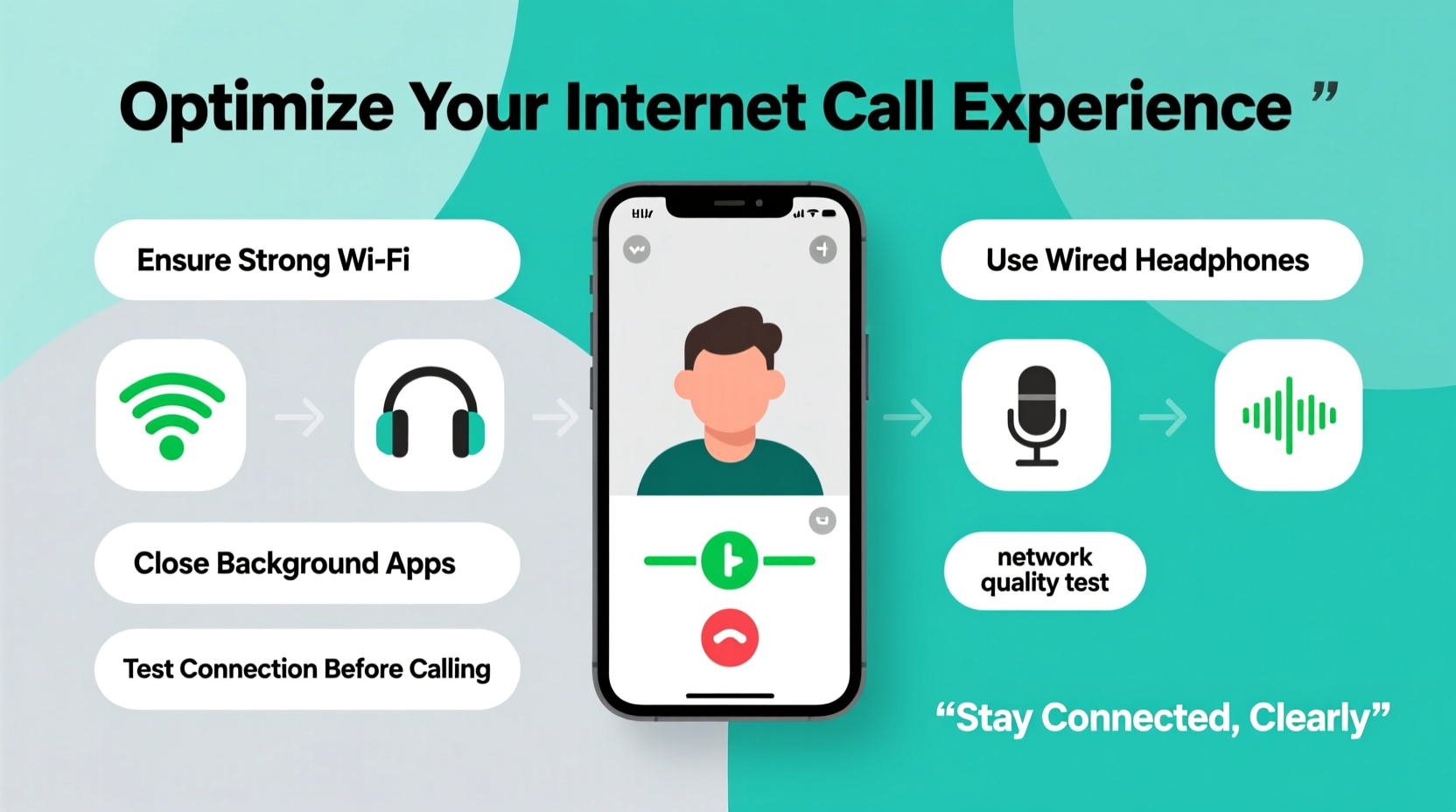
The clarity and reliability of an internet call depend on several interconnected components: network performance, device capabilities, software settings, and physical environment. Unlike traditional phone lines, VoIP transmits voice data in packets over the internet, making it sensitive to delays, packet loss, and jitter (variation in packet arrival time).
Bandwidth is critical. While a basic voice call may require only 100 kbps per direction, HD voice or video calling can demand up to 1.5 Mbps or more. Latency—measured in milliseconds—should ideally stay under 150 ms; higher values cause noticeable lag. Packet loss above 1% leads to choppy audio, while jitter disrupts timing and causes robotic voices.
Optimize Your Internet Connection
Your internet service is the foundation of any successful VoIP experience. Even the best microphone won’t help if your connection keeps dropping packets.
- Test your current speed. Use tools like Speedtest.net or Fast.com to check upload and download speeds, latency, and jitter. Aim for at least 1.5 Mbps upload speed for high-quality calls.
- Prioritize your call traffic. Enable Quality of Service (QoS) settings on your router to give voice data higher priority than streaming or downloads.
- Limit bandwidth-hogging activities. Pause large file downloads, cloud backups, or video streaming during calls.
- Restart your router regularly. Over time, routers accumulate memory leaks and connection issues. A weekly reboot can restore optimal performance.
| Metric | Ideal Value | Acceptable Range | Poor Performance |
|---|---|---|---|
| Latency | < 100 ms | 100–150 ms | > 150 ms |
| Jitter | < 30 ms | 30–50 ms | > 50 ms |
| Packet Loss | 0% | < 1% | > 1% |
| Upload Speed | 1.5+ Mbps | 0.8–1.5 Mbps | < 0.8 Mbps |
Select and Configure the Right Equipment
Hardware plays a major role in call quality. Built-in laptop microphones often pick up keyboard clicks, fan noise, and room echoes. Investing in dedicated peripherals pays off quickly in professionalism and clarity.
- Use a headset with a noise-canceling microphone. This reduces background noise and prevents audio feedback. Brands like Jabra, Sennheiser, and Logitech offer models optimized for VoIP.
- Avoid speakerphone mode in shared spaces. It increases echo and makes it harder for others to hear you clearly.
- Ensure drivers and firmware are updated. Outdated USB audio drivers can cause glitches or dropouts.
“Over 70% of call quality issues originate from endpoint devices, not the network.” — Dr. Lena Torres, Network Communications Engineer, IEEE
Best Practices During Calls
Even with perfect setup, user behavior affects call reliability. Simple habits can drastically improve the experience for everyone involved.
Step-by-Step Guide: Preparing for a High-Stakes Call
- 15 minutes before: Close unnecessary apps and browser tabs to free up system resources.
- 10 minutes before: Run a quick speed test and restart your calling app.
- 5 minutes before: Plug in your headset, confirm input/output settings, and join a test meeting to check levels.
- At start: Greet participants with a brief audio check: “Can everyone hear me clearly?”
- During: Speak clearly, pause between points, and use push-to-mute if available.
Mini Case Study: Remote Team Turns Around Communication Issues
A distributed marketing team at a mid-sized tech firm struggled with daily stand-ups plagued by overlapping voices, dropouts, and frustration. After analyzing their setup, they discovered employees were using Bluetooth earbuds on congested Wi-Fi networks. The company issued wired headsets, upgraded their office router with QoS settings, and implemented a policy of muting when not speaking. Within two weeks, call stability improved by 90%, and meeting efficiency increased significantly. Employee satisfaction surveys noted a marked reduction in communication fatigue.
Common Pitfalls and How to Avoid Them
Avoid these frequent mistakes that degrade call quality:
| Do’s | Don’ts |
|---|---|
| Use a wired connection | Depend solely on public Wi-Fi |
| Position microphone just off-center from mouth | Shout into the mic or place it too far away |
| Conduct monthly system checks | Ignore software update notifications |
| Choose quiet environments | Take calls in kitchens or near windows with street noise |
Checklist: Ensuring Reliable Internet Calls
- ✅ Test internet speed and latency before important calls
- ✅ Use a wired Ethernet connection or strong 5GHz Wi-Fi
- ✅ Equip yourself with a noise-canceling headset
- ✅ Update calling software and operating system regularly
- ✅ Enable QoS on your router for VoIP prioritization
- ✅ Close bandwidth-heavy applications during calls
- ✅ Mute microphone when not speaking
- ✅ Choose a quiet, acoustically neutral space
Frequently Asked Questions
Why does my voice cut out during calls?
Interruptions are usually caused by network congestion, weak Wi-Fi signals, or insufficient upload bandwidth. Check your connection stability and consider switching to Ethernet. Also, ensure no other devices are consuming large amounts of bandwidth.
Can I use my smartphone for reliable internet calling?
Yes, but with caveats. Smartphones work well on strong Wi-Fi or 5G networks. However, cellular data can be inconsistent, and built-in mics may pick up ambient noise. For best results, pair your phone with a compatible headset and avoid moving between signal zones during calls.
What’s the difference between HD voice and regular VoIP audio?
HD voice uses wideband audio codecs (like Opus or G.722) that capture a broader range of sound frequencies, resulting in clearer, more natural-sounding speech. Regular VoIP often uses narrowband (300–3400 Hz), which can make voices sound flat or muffled. Many modern apps support HD voice automatically when network conditions allow.
Final Thoughts: Make Every Word Count
Clear and reliable communication is non-negotiable in both personal and professional contexts. Internet calling services offer incredible flexibility, but their performance depends on deliberate optimization. By managing your network, upgrading your hardware, and adopting disciplined calling habits, you ensure your message comes through—literally and figuratively—without distortion or delay.




 浙公网安备
33010002000092号
浙公网安备
33010002000092号 浙B2-20120091-4
Comments
No comments yet. Why don't you start the discussion?