
Making an online call seems simple—open an app, click a button, and you're connected. But behind the scenes, many factors influence whether your call is clear, stable, and truly private. For beginners, poor audio, dropped connections, or security concerns can turn a routine video meeting into a frustrating experience. This guide walks through everything you need to know to make high-quality, secure online calls with confidence, even if you’re new to digital communication platforms.
Step 1: Choose the Right Platform
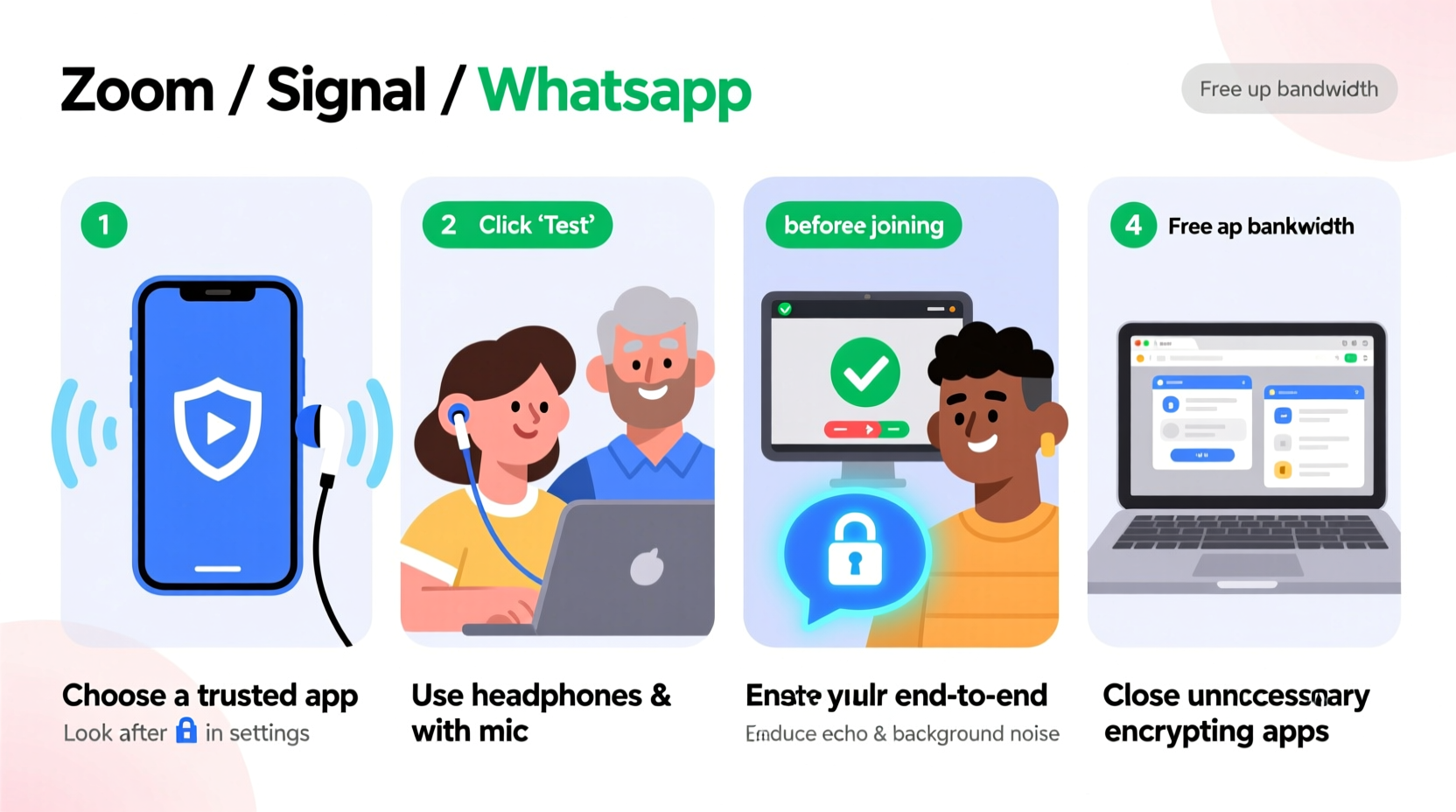
Not all calling apps are created equal. Each platform has different strengths in terms of audio quality, encryption, ease of use, and device compatibility. For beginners, it’s essential to pick a service that balances reliability and security without overwhelming complexity.
Popular options include:
- Zoom: Best for group meetings with screen sharing and virtual backgrounds.
- Google Meet: Simple interface, works directly in browsers, ideal for personal or small team use.
- Microsoft Teams: Integrated with Office 365, suited for workplace environments.
- Signal: Highly secure, end-to-end encrypted, excellent for private one-on-one calls.
- FaceTime: Apple-exclusive, fully encrypted, seamless for iPhone and Mac users.
Step 2: Prepare Your Equipment
Your hardware plays a major role in call clarity. Even the best software can’t compensate for a low-quality microphone or unstable internet.
Essential Equipment Checklist
- A reliable device (laptop, smartphone, or tablet) with updated operating system
- An external USB microphone or headset with a built-in mic (better than built-in laptop mics)
- Stable broadband internet (minimum 3 Mbps upload speed for HD video)
- Webcam with at least 720p resolution (if using video)
- Quiet environment to reduce background noise
If you're using Wi-Fi, sit close to the router or consider using an Ethernet cable for a more stable connection. Wired connections reduce latency and packet loss, which improves both audio and video performance.
Do’s and Don’ts of Audio Setup
| Do’s | Don’ts |
|---|---|
| Use headphones to avoid echo and feedback | Don’t use speakerphone in noisy rooms |
| Test your mic and speakers before each call | Don’t rely solely on your laptop’s internal microphone |
| Position the mic slightly off-axis to reduce plosive sounds (like “p” and “b”) | Don’t place the mic near fans, AC units, or windows |
Step 3: Secure Your Connection
Security is often overlooked in casual online calls, but unsecured links or weak passwords can expose conversations to eavesdropping or unwanted participants.
Always enable these settings:
- Meeting passwords: Require a password for entry, especially for Zoom or Meet links shared publicly.
- Waiting rooms: Let the host approve who joins, preventing strangers from crashing your call.
- End-to-end encryption (E2EE): Use platforms that support E2EE, ensuring only participants can access the conversation.
- Private links: Avoid posting meeting URLs on public social media; share them only via direct message or email.
“Encryption isn’t just for journalists or activists—it’s a basic right in digital communication. If your call isn’t encrypted, it’s like having a conversation in a crowded room.” — Dr. Lena Patel, Cybersecurity Researcher at OpenNet Institute
Step 4: Optimize Your Environment and Settings
Even with great gear and a secure link, poor settings or surroundings can ruin a call.
Audio Optimization Tips
- Close unnecessary browser tabs and apps to free up bandwidth.
- Turn off HD video if your connection is slow—this reduces strain on your upload speed.
- Use “mute when not speaking” to minimize background noise.
- Enable noise suppression features if available (e.g., Krisp, built-in filters in Teams).
Video & Lighting
If you’re on camera, good lighting makes a difference. Position a natural light source or lamp in front of you—not behind. Avoid backlighting, which creates silhouettes. Keep your background tidy or use a neutral virtual background if needed.
Real Example: Maria’s First Client Call
Maria, a freelance designer, had her first online client meeting scheduled via Zoom. She used her laptop’s built-in mic and joined from her kitchen, where the refrigerator hummed in the background. Halfway through, her internet dropped, and the client couldn’t hear her clearly. After rescheduling, she invested in a $30 USB headset, moved to a quieter room, and tested her connection beforehand. The second call went smoothly—the client complimented her professionalism and audio clarity.
Step 5: Follow a Pre-Call Routine
Consistency prevents mistakes. Adopt a quick pre-call checklist every time:
Secure and Clear Call Checklist
- ✅ Confirm the correct time zone with participants
- ✅ Test microphone, camera, and internet speed
- ✅ Close distracting apps (notifications, pop-ups)
- ✅ Ensure the meeting link is password-protected
- ✅ Join 2 minutes early to troubleshoot issues
- ✅ Have a backup plan (e.g., phone number or alternate app)
This routine takes less than five minutes but dramatically increases reliability and professionalism.
Frequently Asked Questions
Why does my voice sound muffled during calls?
Muffled audio is often caused by poor microphone placement, low bitrate settings, or background noise interference. Try moving the mic closer to your mouth (but not too close), use a directional mic, and enable noise cancellation if available.
Can someone listen in on my online calls?
Yes—if the call isn’t encrypted or the meeting link is shared publicly. Always use platforms with end-to-end encryption and avoid sharing links on open forums. Never discuss sensitive information over unsecured lines.
How can I improve call quality on a slow internet connection?
Switch to audio-only mode, disable HD video, connect via Ethernet instead of Wi-Fi, and pause downloads or streaming on other devices during the call. You can also use mobile data as a hotspot if your home network is unreliable.
Conclusion: Clarity and Confidence Start Now
Clear and secure online calls aren’t reserved for tech experts. With the right tools, habits, and awareness, anyone can communicate effectively and safely in today’s digital world. From choosing encrypted platforms to optimizing your setup and following a consistent pre-call routine, each step builds toward smoother, more professional interactions. Whether you're catching up with family, attending a job interview, or leading a team meeting, taking control of your call quality empowers you to be heard—clearly and securely.




 浙公网安备
33010002000092号
浙公网安备
33010002000092号 浙B2-20120091-4
Comments
No comments yet. Why don't you start the discussion?