
For years, synchronized holiday light displays were the domain of professional installers or tech-savvy hobbyists fluent in Arduino, Python, or proprietary firmware. That changed with the rise of accessible, open-architecture lighting systems and intuitive visual programming tools. Today, anyone with a laptop, a strand of smart RGB lights, and 90 minutes can design a fully customized animation—pulsing snowflakes, chasing reindeer, or slow-fade gradients—that plays on loop across their porch, tree, or roofline. No coding. No command-line terminals. No prior experience needed. What matters is knowing which tools align with your hardware, how to sequence effects without confusion, and how to avoid common pitfalls that turn festive visions into flickering frustration.
Why “No-Code” Light Animation Is More Powerful Than You Think
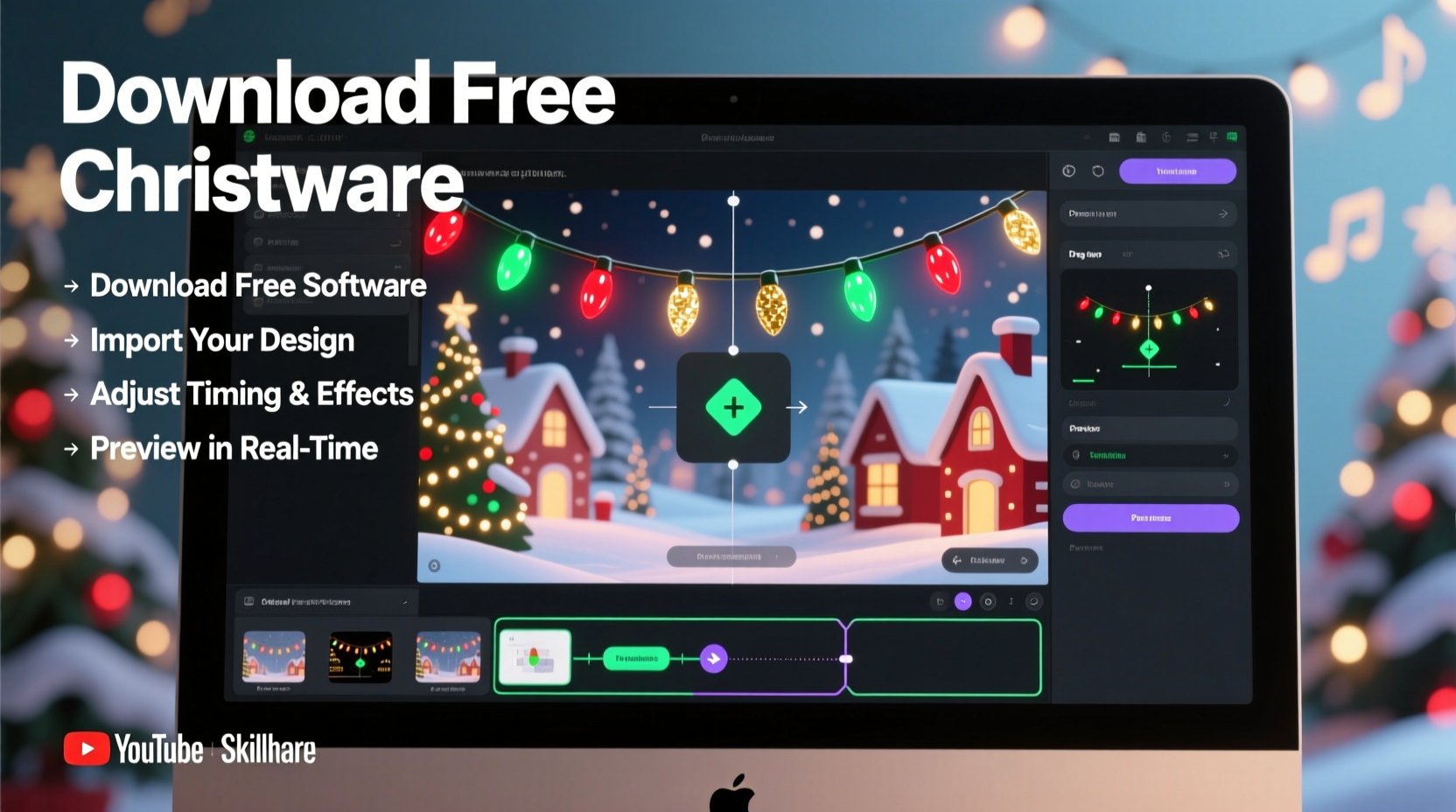
The term “no-code” is often misunderstood as “limited-code.” In reality, modern light animation platforms like xLights, Vixen Lights (legacy), and Light-O-Rama’s Sequence Editor use drag-and-drop timelines, prebuilt effect libraries, and visual channel mapping—making them more expressive and precise than hand-written scripts for most users. These tools generate machine-optimized output files (.fseq, .vix, .lms) that communicate directly with controllers like Falcon F16, SanDevices E68x, or even ESP32-based DIY boards running WLED or ESPixelStick firmware.
What sets these platforms apart isn’t just ease of use—it’s fidelity. A well-designed 30-second animation in xLights can precisely control 500+ individual LEDs across 16 independent channels, with millisecond-level timing, smooth interpolation between colors, and physics-aware motion (e.g., a “falling snow” effect where each pixel drifts at a unique speed and opacity). That level of nuance would take hundreds of lines of code to replicate manually—and be far harder to tweak.
Hardware Compatibility: Match Your Lights to Your Software
Not all smart lights work the same way—and not all software supports every controller. Success begins with compatibility awareness. Below is a practical comparison of widely used, affordable hardware options and their native software support:
| Light Type / Controller | Best-Suited Free Software | Key Notes |
|---|---|---|
| WS2811/WS2812B (NeoPixel) strips + ESP32/WLED | xLights + WLED integration | WLED runs on-device; xLights sends HTTP commands or uses UDP sync. Ideal for beginners—no wiring beyond power & data. |
| Falcon Player (FPP) + Falcon F16 v3 | xLights (primary) | FPP is free, open-source, and built for high-channel count. xLights exports directly to FPP-compatible formats. Requires microSD card setup but zero licensing fees. |
| SanDevices E68x + WS28xx pixels | xLights or Vixen 3 (free version) | E68x supports both E1.31 (sACN) and Art-Net. xLights offers superior timeline editing; Vixen 3 has gentler learning curve for basic sequences. |
| Basic 12V RGB flood lights (DMX) | Vixen 3 + USB-DMX interface | DMX remains reliable for large fixtures. Vixen 3’s DMX plugin is stable and well-documented. Avoid low-cost “DMX clones” without opto-isolation—they risk controller damage. |
Crucially, avoid mixing protocols unless you’re using a protocol converter (e.g., sACN-to-DMX gateway). Trying to run E1.31 signals over standard DMX cable—or sending Art-Net to a WLED device expecting HTTP—will yield silence or erratic behavior. Always verify signal type, voltage level (5V vs. 12V logic), and termination requirements before powering on.
A Real-World Example: Sarah’s Porch Display in Under Two Hours
Sarah, a middle-school art teacher in Portland, Oregon, wanted to animate her existing 100-pixel warm-white + RGB string wrapped around her front porch columns. She owned no controllers—just a $22 WLED-compatible ESP32 dev board, a 5V 10A power supply, and a laptop. She’d tried “smart plug” apps before but found them limited to preset modes (“twinkle,” “fade”) with no timing control.
Here’s what she did:
- Downloaded WLED firmware and flashed it to her ESP32 using the web-based ESPHome Flasher (no drivers needed).
- Connected the ESP32 to her home Wi-Fi and accessed its web interface at
http://wled-XXXX.local. - Installed xLights, created a new model representing her 100-pixel string, and set its type to “RGB Node String.”
- Used xLights’ built-in “Music Sync” wizard: imported a 1:42 version of “Carol of the Bells,” selected “Bass Pulse” and “Rainbow Wave” effects, and assigned them to different pixel ranges (bottom 30% pulsed with bass; top 70% cycled through hues).
- Exported the sequence as an “E1.31 (sACN)” output, pointed it to her ESP32’s IP address, and hit “Play.”
By 8:17 p.m., her porch was dancing in time to the music—no soldering, no terminal commands, no debugging. Neighbors asked if she’d hired a company. She posted her xLights model file and WLED config on Reddit’s r/ChristmasLighting, where others adapted it for similar setups. Her only hardware upgrade? A second ESP32 for her roofline—added two weeks later.
“Five years ago, syncing lights to music meant buying $400 controllers and learning binary addressing. Today, the barrier is downloading software—not technical fluency.” — Derek Lin, Founder of HolidayCoro.com and xLights community contributor
Step-by-Step: Build Your First Animation in xLights (Free & Fully Functional)
xLights is the industry-standard free tool for serious no-code animators. Its interface appears complex at first glance—but its workflow is deeply logical. Follow this exact sequence for your first working animation:
- Install & Launch: Download xLights from xlights.org. Run the installer (Windows/macOS/Linux supported). Launch and dismiss the welcome screen.
- Create a New Show: Click File → New Show. Name it (e.g., “Front-Porch-2024”), set start time to today, and click OK.
- Add Your First Model: Go to Models → Add Model. Select “RGB Node String.” Enter total pixels (e.g., 50), set “Start Channel” to 1, and choose “WS2811” as the chipset. Name it meaningfully (“Porch-String-1”). Click OK.
- Import Audio (Optional but Recommended): Drag your MP3/WAV file into the main timeline window. xLights will auto-create a 30-second placeholder if no audio is present—but syncing to music dramatically improves perceived polish.
- Apply Your First Effect: Right-click any point on the timeline below your model’s channel bar. Select Effect → Color Wash. In the pop-up, choose “Red,” set duration to 5 seconds, and click OK. You’ll see a red bar appear on the timeline.
- Add Motion: Right-click again, choose Effect → Chase. Set color to “Green,” direction “Forward,” and duration “10 seconds.” Notice how the green bar overlaps the red—xLights layers effects automatically.
- Preview Live: Click the green “Play” button at the top. If you have a controller connected and configured (via Controllers → Configure Controllers), you’ll see real-time output. If not, use the built-in Visualizer (View → Visualizer) to simulate pixel behavior.
- Export for Your Hardware: Go to Tools → Export → Export to E1.31. Enter your controller’s IP address and universe settings. Click “Export.” xLights generates a timestamped .fseq file ready for playback.
This eight-step process produces a functional, playable animation. From here, explore “Effect → Custom Effects” for ripple, twinkle, and fire simulations—or use the “Model Tool” to draw custom shapes (stars, trees, letters) and map effects to specific zones.
Essential Do’s and Don’ts for Reliable, Stress-Free Results
Hardware limitations and configuration oversights cause 90% of beginner frustrations—not software flaws. Keep this checklist visible during setup:
- Do calculate total power draw: Multiply pixel count × 0.3W (for WS2812B @ full white) and add 20% headroom. A 300-pixel string needs ≥108W—so use a 12V 10A (120W) supply, not a 5V 2A phone charger.
- Do inject power every 50–75 pixels on long runs. Voltage drop causes dimming, color shift, and flicker at the far end.
- Do terminate data lines with a 47Ω resistor if using long cables (>10 ft) or multiple splitters. Prevents signal reflection and ghost pixels.
- Don’t daisy-chain more than 150–200 pixels per controller output without buffering (e.g., 74HCT245 chip). Signal degrades beyond that length.
- Don’t run E1.31 traffic over Wi-Fi for >2 universes. Use a wired Ethernet connection between computer and controller for reliability.
- Don’t assume “plug-and-play” USB controllers work out of the box. Most require driver installation (e.g., FTDI for older SanDevices) or firmware updates via manufacturer utilities.
FAQ: Common Questions Answered
Can I use my smartphone instead of a laptop?
Not for creation—but yes for playback. Tools like xLights require desktop OS capabilities (multi-threading, precise timing, large memory buffers). However, once exported, many controllers support standalone operation: load your .fseq file onto an SD card (Falcon Player), or trigger sequences via WLED’s mobile app using saved presets. Your phone becomes the remote—not the studio.
My lights flicker or show wrong colors—what’s wrong?
Most often, it’s a ground loop or insufficient power. First, ensure all power supplies share a common ground (connect negative terminals). Second, check voltage at the last pixel—it should be ≥4.5V for 5V strips. If below, add power injection. Third, verify chipset selection in xLights matches your physical lights (e.g., selecting “WS2811” for a “WS2812B” strip causes green/red inversion). Never skip the “Test All Channels” function under Tools → Test.
Is there truly no cost? What about licenses or subscriptions?
Yes—xLights, Vixen 3, Falcon Player, WLED, and ESPHome are all 100% free, open-source, and ad-free. No hidden tiers, no watermarks, no export limits. The only costs are hardware (lights, controllers, power supplies) and your time. Community support is robust: the xLights Discord server hosts 12,000+ members; official forums answer questions within hours.
Conclusion: Your First Animation Is Closer Than You Think
You don’t need a degree in electrical engineering or a decade of coding experience to bring wonder to your neighborhood. You need curiosity, a willingness to follow one clear sequence of steps, and the understanding that every expert started exactly where you are now—with a blinking LED and a question. The software exists. The hardware is affordable and widely available. The community is generous and eager to help. What’s missing is only your decision to begin.
So tonight, before bed: download xLights. Tomorrow, wire up five pixels. On Sunday, play your first color wash. By next weekend, you’ll have a full 60-second sequence synced to your favorite carol. And when friends ask how you did it, you won’t say “I coded it”—you’ll say “I designed it.” Because animation isn’t about syntax. It’s about vision, rhythm, and the quiet joy of making light move with intention.




 浙公网安备
33010002000092号
浙公网安备
33010002000092号 浙B2-20120091-4
Comments
No comments yet. Why don't you start the discussion?