
Microsoft Word remains one of the most widely used tools for creating and editing documents in both professional and personal settings. Yet, many users only scratch the surface of its capabilities. Mastering a few key features can transform your workflow—saving time, reducing errors, and producing polished, consistent results. Whether you're drafting reports, writing proposals, or organizing notes, these practical strategies will help you work smarter, not harder.
Leverage Styles for Consistent Formatting
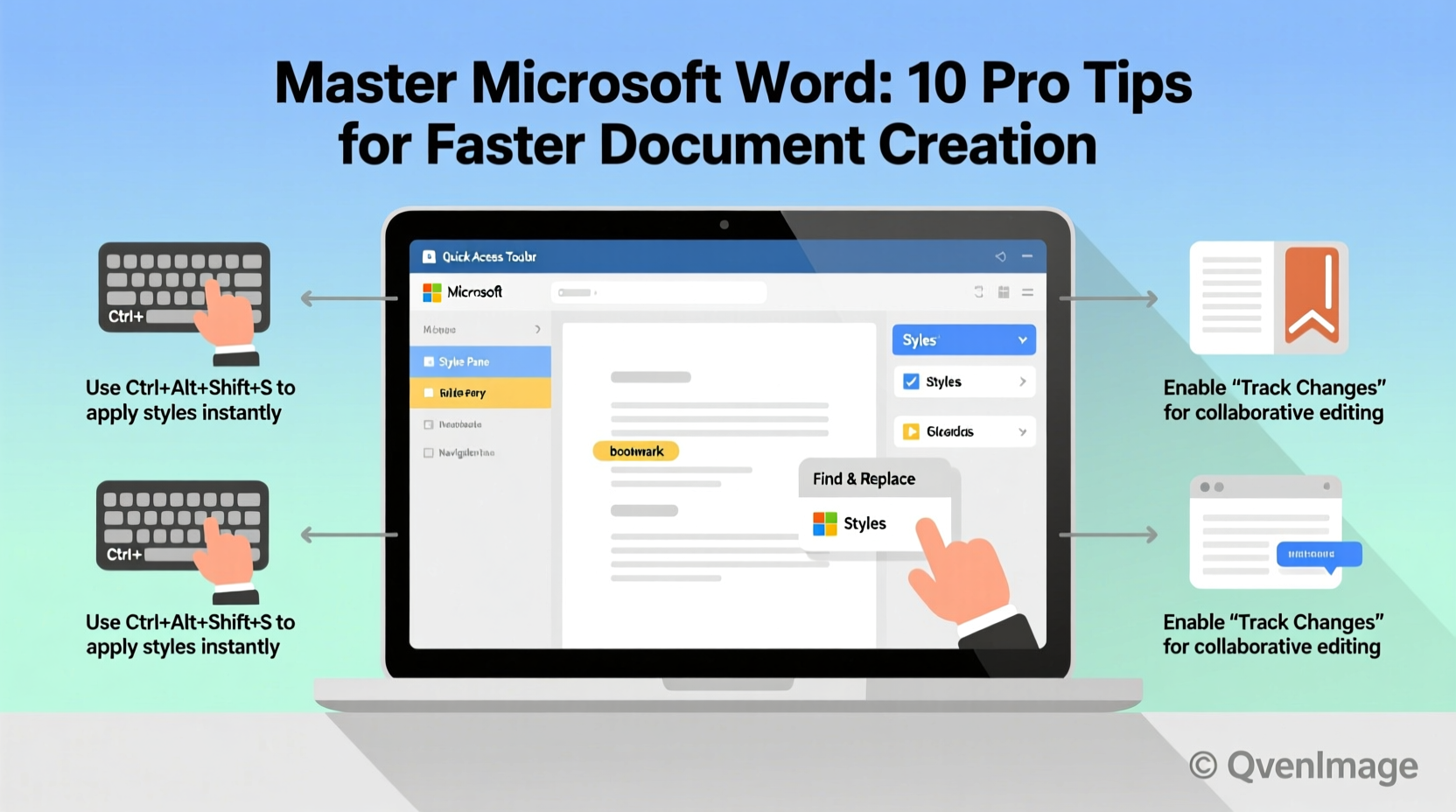
One of the most underused yet powerful features in Word is the Styles gallery. Instead of manually adjusting font size, spacing, and alignment every time, use built-in styles like “Heading 1,” “Heading 2,” and “Normal.” These ensure visual consistency across long documents and enable automatic table of contents generation.
Customize styles to match your organization’s branding or personal preferences. Right-click any style in the Home tab, select \"Modify,\" and update formatting once—it will apply everywhere that style is used.
Navigate Efficiently with Keyboard Shortcuts
Relying solely on the mouse slows you down. Learning essential keyboard shortcuts dramatically improves navigation and editing speed. Here are some of the most useful ones:
| Action | Shortcut |
|---|---|
| Save document | Ctrl + S |
| Select all text | Ctrl + A |
| Bold text | Ctrl + B |
| Find text | Ctrl + F |
| Replace text | Ctrl + H |
| Undo last action | Ctrl + Z |
| Redo | Ctrl + Y |
| Insert hyperlink | Ctrl + K |
| Move to end of document | Ctrl + End |
| Copy formatting (Format Painter) | Ctrl + Shift + C |
Practice these daily until they become second nature. You’ll notice an immediate improvement in your typing rhythm and overall efficiency.
Use Templates to Standardize Repeated Work
If you frequently create similar documents—such as meeting agendas, invoices, or cover letters—save time by using templates. Word offers hundreds of pre-designed templates, but creating your own ensures consistency and brand alignment.
- Design your document with proper headers, footers, logos, and placeholders.
- Go to File > Save As, then choose Word Template (*.dotx) as the file type.
- Name it descriptively (e.g., “Client Proposal Template”) and save it in the default template folder.
- Next time, open Word and select your custom template from the \"Personal\" section.
Templates eliminate repetitive setup and reduce formatting errors, especially when multiple team members are involved.
Edit Smarter with Advanced Find and Replace
The Find and Replace tool (Ctrl + H) goes far beyond simple text swaps. It supports wildcards, special characters, and formatting changes—making it ideal for large-scale edits.
For example, suppose you need to change all instances of “Q3” to “Third Quarter” but only when followed by a year (e.g., Q3 2024). Enable wildcards and use this pattern:
Find what:    Q3 [0-9]{4}
Replace with: Third Quarter \\1
This targets only valid matches, avoiding accidental replacements in unrelated content.
“Power users don’t edit line by line—they automate bulk changes. Find and Replace with wildcards is one of Word’s most underrated tools.” — Dr. Alan Reed, Productivity Researcher at TechFlow Institute
Create Professional Documents with Sections and Page Breaks
Long documents often require different formatting—like portrait for body text and landscape for spreadsheets, or varying headers per chapter. This is where sections come in.
Insert a section break via Layout > Breaks > Next Page. Then, modify margins, orientation, or headers independently within each section. Double-click the header area and disable \"Link to Previous\" to customize headers without affecting earlier sections.
Avoid using multiple Enter presses to start a new page. That creates messy spacing and layout issues during edits. Always use proper page breaks (Ctrl + Enter) or section breaks when structure demands separation.
Collaborate Effectively with Track Changes and Comments
When working with others, clarity is critical. Turn on Track Changes under the Review tab to log every addition, deletion, or format shift. Reviewers can accept or reject changes individually, preserving accountability and transparency.
Pair this with comments (Ctrl + Alt + M) to provide context, ask questions, or suggest alternatives without altering the original text. Mention collaborators using @ followed by their name (if integrated with Microsoft 365) to notify them directly.
- Resolve comments once addressed to keep the document clean.
- Use the Reviewing Pane to view all changes and comments at once.
- Switch to \"Final Showing Markup\" to preview how the document looks with changes applied.
Mini Case Study: Streamlining Report Approval at NexaCorp
NexaCorp’s finance team used to spend two days reconciling feedback on monthly performance reports. With up to eight reviewers emailing annotated PDFs, version control was chaotic. After switching to Word with Track Changes and structured commenting, the approval cycle dropped to under eight hours. Team leads now assign comment threads to specific members, resolve discussions inline, and lock final versions—all within a single live document.
Essential Editing Checklist
Before finalizing any document, run through this checklist to ensure quality and professionalism:
- ✅ Apply consistent heading styles throughout.
- ✅ Insert a table of contents for documents over three pages.
- ✅ Run spell check and grammar review (Review > Editor).
- ✅ Verify hyperlinks are functional and descriptive.
- ✅ Check margins, page numbers, and headers/footers.
- ✅ Remove hidden metadata (File > Info > Check for Issues > Inspect Document).
- ✅ Export as PDF if sharing externally to preserve formatting.
Frequently Asked Questions
How do I remove extra blank pages in Word?
Extra pages are usually caused by hidden paragraph marks or section breaks. Turn on Show/Hide ¶, scroll to the blank page, and delete any stray paragraphs or breaks. If it's due to a table at the end, adjust text wrapping or insert a manual page break before it.
Can I recover an unsaved Word document?
Yes. Go to File > Open > Recent, then click \"Recover Unsaved Documents\" at the bottom. Word auto-saves drafts in the background, and you may find recent versions there. For future protection, enable AutoSave (if using OneDrive) and set backup intervals via File > Options > Save.
What’s the difference between a hard and soft return?
A hard return (Enter) starts a new paragraph and applies paragraph-level formatting. A soft return (Shift + Enter) inserts a line break without starting a new paragraph—useful for addresses or poetry. Be mindful: mixing them inconsistently can disrupt style application.
Conclusion: Take Control of Your Workflow
Microsoft Word isn’t just a place to type—it’s a dynamic environment designed to support complex, collaborative, and high-quality document creation. By mastering styles, shortcuts, templates, and collaboration tools, you shift from merely using Word to commanding it. The time invested in learning these techniques pays exponential dividends in accuracy, speed, and confidence.




 浙公网安备
33010002000092号
浙公网安备
33010002000092号 浙B2-20120091-4
Comments
No comments yet. Why don't you start the discussion?