
Modern laptops are powerful tools for work, study, and entertainment, but they’re also significant investments. With proper care, a laptop can serve you reliably for five years or more—far beyond the average 3–4 year lifespan many users experience. The difference lies not in luck, but in consistent, informed maintenance and smart usage habits. From managing battery health to preventing hardware degradation, small daily choices add up over time. This guide reveals practical, expert-backed strategies to extend your laptop’s life, boost its performance, and protect your data.
1. Optimize Battery Health for Long-Term Use
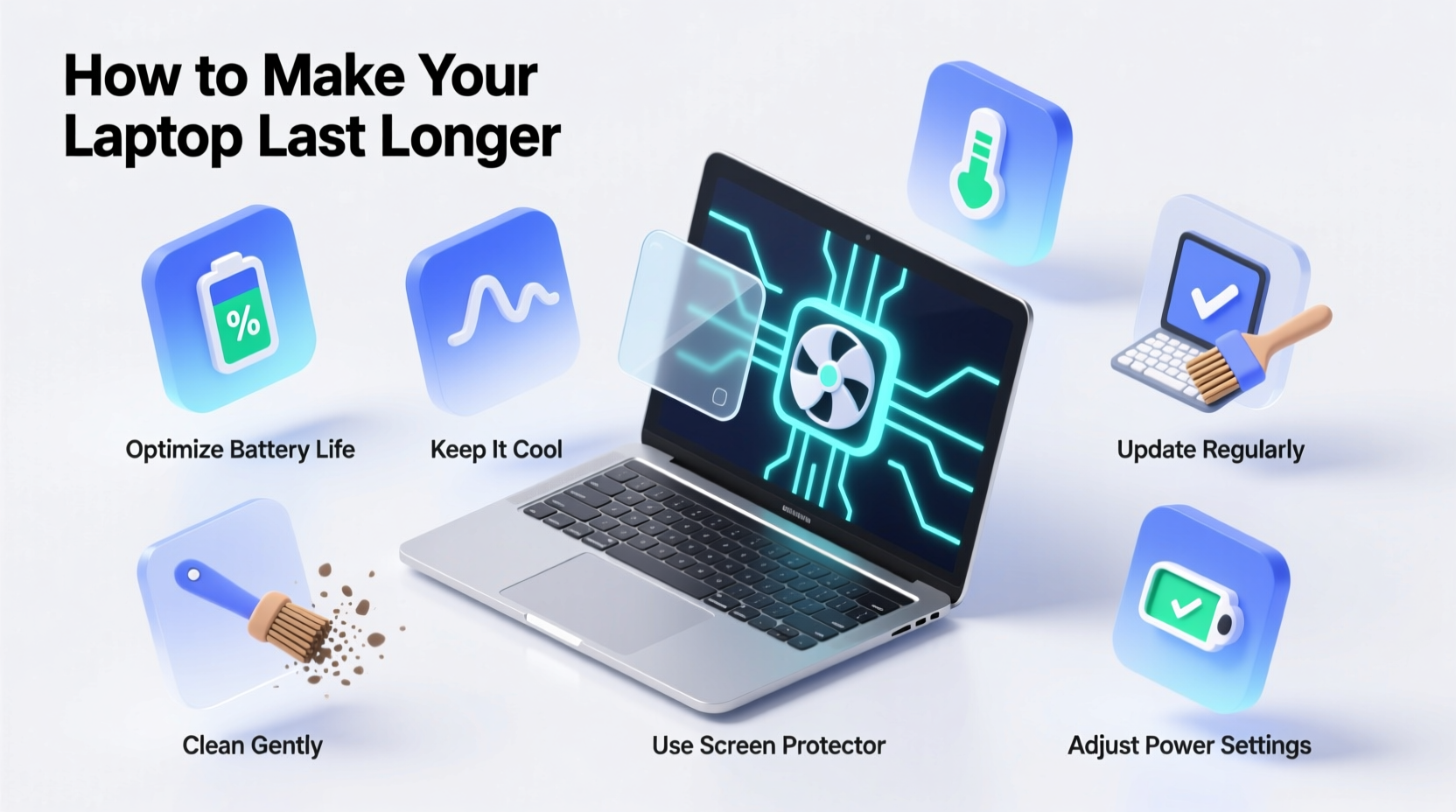
Lithium-ion batteries, used in nearly all modern laptops, degrade with time and charge cycles. However, how you charge and use your laptop dramatically affects battery longevity. Keeping your battery between 20% and 80% is ideal for long-term health. Frequent full discharges or leaving it plugged in at 100% for days stresses the cells and accelerates capacity loss.
Heat is another major enemy of battery life. Avoid running intensive tasks while charging, especially on soft surfaces like beds or couches that block ventilation. Elevated temperatures cause chemical breakdown inside the battery, reducing its ability to hold a charge.
“Battery longevity isn’t about how often you charge—it’s about how you charge. Avoid extremes, and your battery will thank you.” — Dr. Alan Reyes, Electronics Engineer, IEEE Senior Member
Step-by-Step: Preserve Your Laptop Battery
- Unplug when battery reaches 80% if using AC power regularly.
- Recharge when it drops below 30%, avoiding deep discharges.
- Use manufacturer-recommended chargers only.
- Enable built-in battery optimization features (e.g., Windows Battery Limit, macOS Optimized Charging).
- Store the laptop at around 50% charge if not using for extended periods.
2. Keep Your System Clean: Software and Hardware Maintenance
Dust buildup inside your laptop can block airflow, causing fans to work harder and components to overheat. Over time, thermal stress damages the CPU, GPU, and motherboard. Externally, grime on the keyboard and screen reduces usability and hygiene.
Hardware Cleaning Routine
Clean your laptop every 2–3 months, depending on environment. Use compressed air to blow dust from vents and keyboard crevices. Never use household cleaners directly on the screen—opt for a microfiber cloth lightly dampened with distilled water or a 50/50 isopropyl alcohol solution.
Software Optimization
A cluttered operating system slows down performance and increases wear on storage drives. Uninstall unused programs, disable startup apps, and run regular disk cleanups. For Windows users, use Disk Cleanup or Storage Sense; macOS users can leverage the built-in Storage Management tool.
| Maintenance Task | Frequency | Tools/Methods |
|---|---|---|
| External cleaning | Monthly | Microfiber cloth, compressed air |
| Internal dust removal | Every 6–12 months | Professional service or careful DIY |
| Software cleanup | Quarterly | Built-in tools, CCleaner (with caution) |
| Malware scan | Monthly | Windows Defender, Malwarebytes |
3. Prevent Overheating with Smart Usage Habits
Overheating is one of the leading causes of premature laptop failure. When internal temperatures rise, thermal throttling reduces performance, and prolonged exposure shortens component lifespans. Many users unknowingly contribute to this by placing laptops on soft surfaces like beds or pillows, which block intake vents typically located on the bottom.
Always use your laptop on a hard, flat surface. Consider investing in a cooling pad if you frequently run demanding applications such as video editing, gaming, or virtual machines. These pads improve airflow and can reduce internal temperatures by 5–10°C under load.
Real-World Example: The Student Who Saved Her Laptop
Sophia, a university student, used her laptop daily for online classes and coding assignments. She often worked from her bed, placing the laptop directly on her comforter. After six months, the fan ran constantly, and the system began shutting down unexpectedly. A technician found severe dust accumulation and overheating damage. After a professional cleaning and adopting a lap desk with ventilation, her laptop stabilized. Now two years later, it still performs reliably—proof that simple changes can reverse early signs of wear.
“Over 30% of laptop repairs we see are heat-related and entirely preventable with better airflow practices.” — Mark Lin, Owner, TechCare Repair Services
4. Protect Against Physical Damage and Environmental Risks
Accidental drops, spills, and exposure to extreme environments are common threats. Even minor impacts can loosen internal connections or crack solder joints over time. Humidity promotes corrosion, while dry, dusty environments accelerate fan strain.
- Use a padded laptop sleeve or bag with shock absorption.
- Avoid eating or drinking near your laptop.
- Keep it away from direct sunlight and car interiors on hot days.
- Never close the lid with objects on the keyboard (like pens or sticky notes).
Checklist: Daily Protection Habits
- ✅ Use a protective case when transporting
- ✅ Place on hard, stable surfaces
- ✅ Keep liquids at a safe distance
- ✅ Close the lid gently—no slamming
- ✅ Avoid exposing to rapid temperature changes (e.g., cold car to warm room)
5. Upgrade and Future-Proof When Possible
Instead of replacing your laptop at the first sign of slowdown, consider upgrades. Many models allow RAM and storage expansion. Swapping a traditional hard drive for an SSD can breathe new life into even a 7-year-old machine, improving boot times, responsiveness, and overall efficiency.
Before purchasing a laptop, check if it has user-upgradeable components. Brands like Dell Latitude, Lenovo ThinkPad, and certain HP ProBooks are known for repairability and longevity. In contrast, many ultrabooks now have soldered parts, limiting future enhancements.
Upgrade Impact Comparison
| Upgrade | Cost (Approx.) | Lifespan Extension | Performance Gain |
|---|---|---|---|
| SSD Replacement | $40–$80 | 2–4 years | High (3x faster boot) |
| Ram Upgrade (8GB → 16GB) | $30–$60 | 1–3 years | Medium (better multitasking) |
| Thermal Paste Refresh | $10 + labor | 1–2 years | Low-Medium (reduces heat) |
| New Battery | $80–$120 | 2–3 years | High (restores portability) |
If your laptop supports upgrades, do them proactively. Replacing aging parts before they fail prevents data loss and downtime. Always back up your system before any internal work.
Frequently Asked Questions
How often should I replace my laptop’s thermal paste?
Under normal use, reapplying thermal paste every 2–3 years helps maintain efficient heat transfer from the CPU/GPU to the heatsink. Gamers or heavy users may benefit from annual checks.
Is it bad to leave my laptop plugged in all the time?
It’s not inherently harmful if your laptop has modern battery management. However, keeping it at 100% charge for weeks on end can degrade long-term capacity. Use battery limit features to cap charge at 80% for daily desktop-like use.
Can I use my laptop while it’s charging?
Yes, you can safely use your laptop while charging. Modern systems regulate power flow intelligently. Just ensure adequate ventilation, especially during intensive tasks, to prevent overheating.
Final Thoughts: Small Habits, Lasting Results
Extending your laptop’s lifespan doesn’t require technical expertise—just consistency and awareness. By managing battery health, minimizing heat exposure, cleaning regularly, protecting against physical risks, and upgrading wisely, you can double or even triple your device’s usable life. These practices save money, reduce e-waste, and ensure your technology remains reliable when you need it most.
Think of your laptop not as disposable tech, but as a long-term companion. Every time you plug it in, place it on a desk, or delete temporary files, you’re making a choice that shapes its future. Start today. Your future self—and your wallet—will appreciate the effort.




 浙公网安备
33010002000092号
浙公网安备
33010002000092号 浙B2-20120091-4
Comments
No comments yet. Why don't you start the discussion?