
A transparent logo is essential for professional branding. Whether you're placing it over a website banner, product packaging, or social media graphics, a clean, see-through background ensures your logo integrates seamlessly without unsightly white boxes or jagged edges. Achieving transparency isn’t always straightforward—especially if you’re unfamiliar with design software or file formats. This guide walks you through the entire process, from choosing the right tool to exporting in the correct format, so your logo looks polished across all platforms.
Why Transparent Logos Matter
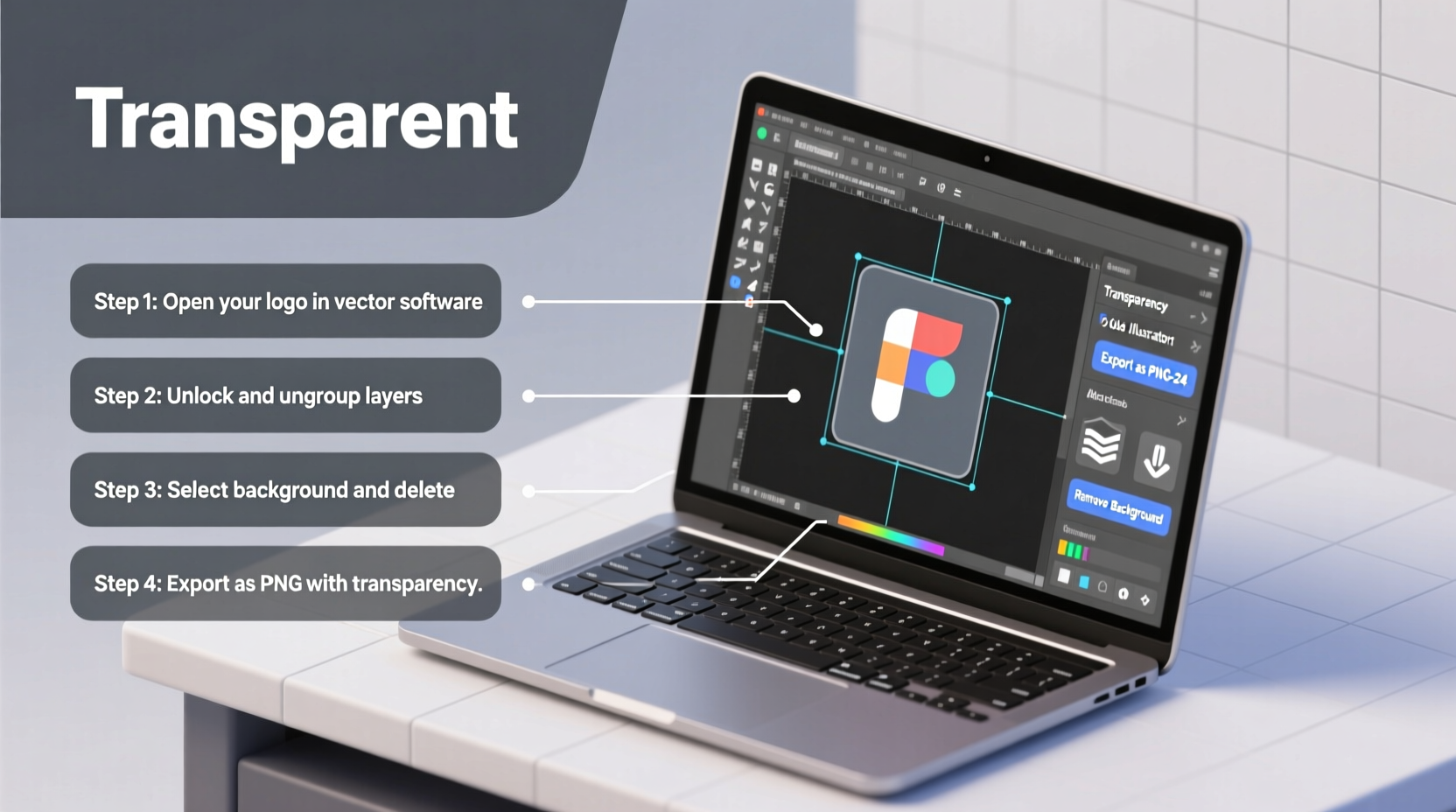
Logos with opaque backgrounds limit versatility. A white box around your logo may clash with dark or patterned backdrops, undermining brand cohesion. Transparent logos eliminate this issue by allowing the underlying design to show through, preserving visual harmony. They are standard for digital use—especially on websites, apps, presentations, and marketing materials where flexibility is key.
“Transparency isn’t just aesthetic—it’s functional. A well-optimized transparent logo enhances recognition and adaptability across mediums.” — Daniel Park, Brand Identity Designer at Studio Nova
Understanding File Formats and Transparency Support
Not all image formats support transparency. Choosing the wrong one can result in lost quality or unwanted backgrounds. Here's a breakdown of common formats:
| Format | Supports Transparency? | Best Use Case | Limitations |
|---|---|---|---|
| PNG | Yes (alpha channel) | Websites, digital graphics, logos with soft edges | Larger file size than JPEG |
| GIF | Yes (1-bit transparency) | Simple logos, animations | Limited color palette, no partial transparency |
| SVG | Yes (vector-based) | Responsive web design, scalable branding assets | Requires vector source; not ideal for complex raster images |
| JPEG | No | Photographs, high-detail imagery | White or solid background only |
| Yes (if saved with transparency) | Print-ready files, multi-page documents | Overkill for simple web use |
For most purposes, PNG is the go-to choice. It supports full alpha transparency (smooth gradients and shadows), maintains sharpness, and is universally supported online.
Step-by-Step Guide to Creating a Transparent Logo
Follow these steps to convert any logo into a transparent version, regardless of your starting file type.
- Start with a high-quality source file
If possible, use the original vector file (AI, EPS, SVG). These allow lossless scaling and precise editing. If only a raster image (JPEG, PNG) is available, ensure it’s high resolution (300 DPI minimum). - Choose the right software
Select a program based on your skill level and access:- Beginner: Canva, Remove.bg, Pixlr
- Intermediate: Adobe Photoshop, GIMP
- Advanced: Adobe Illustrator, Affinity Designer
- Open your logo in the editor
Import the file. If using Photoshop or GIMP, confirm the background layer is unlocked (double-click it to convert to “Layer 0”). In Illustrator, simply select the artwork. - Remove the background
The method varies slightly depending on the software:- Photoshop: Use the “Magic Wand” or “Select Subject” tool to highlight the background, then press Delete. Refine edges under “Select and Mask” for smoother results.
- GIMP: Use the Fuzzy Select Tool to click the background, then press Delete. Use “Select > Grow” to expand selection if needed.
- Illustrator: Ungroup elements if necessary. Select and delete any background shapes manually.
- Canva: Upload your logo, click “Edit Image,” then choose “BG Remover.” Wait for auto-detection and download as PNG.
- Remove.bg: Upload the image, let AI remove the background automatically, then download the result.
- Check for residual artifacts
Zoom in and inspect edges. Look for faint halos, especially around curved or text-heavy areas. Clean up with eraser tools or refine selections. - Export as PNG or SVG
In Photoshop: File > Export > Export As > Choose PNG, check “Transparency.”
In Illustrator: File > Save As > Choose SVG or PNG (enable transparency in options).
In Canva: Download > PNG > Toggle “Transparent background” ON.
Common Pitfalls and How to Avoid Them
- Using JPEG with forced transparency: Some tools claim to export JPEGs with transparency, but they don’t truly support it. The background will default to white.
- Low-resolution exports: Even with transparency, pixelation ruins professionalism. Always export at 2x the intended display size for retina screens.
- Ignoring anti-aliasing: Smooth edges matter. Enable anti-aliasing when selecting or tracing your logo to prevent jagged lines.
- Overlooking shadow effects: Drop shadows or glows may rely on a white background. Rebuild them using layer styles that work over any backdrop.
Mini Case Study: Revamping a Local Café’s Branding
When “Maple Grounds,” a small coffee shop, launched their Instagram campaign, they used a logo exported as a JPEG. On their warm-toned stories, a harsh white rectangle surrounded the bean icon, making it look unprofessional. After switching to a PNG with a transparent background created in Canva, the same logo blended smoothly over textured photos of lattes and pastries. Engagement increased by 35% within three weeks, and customers noted the “cleaner, more modern look.” The change required less than 20 minutes but significantly elevated their visual identity.
Checklist: Preparing Your Transparent Logo for Deployment
- ✅ Confirm the original file is high resolution or vector-based
- ✅ Use appropriate software for your skill level
- ✅ Remove all background elements completely
- ✅ Zoom in to verify clean edges and no leftover pixels
- ✅ Export in PNG (raster) or SVG (vector) with transparency enabled
- ✅ Test the logo on multiple background colors and textures
- ✅ Save both web (72 DPI) and print (300 DPI) versions if needed
Frequently Asked Questions
Can I make a transparent logo from a photo taken with my phone?
Yes, but quality depends on clarity and contrast. Use AI tools like Remove.bg or Adobe Express to extract the subject. Results improve with well-lit, high-resolution photos against plain backgrounds.
Why does my transparent logo show a gray checkerboard in editing software?
The checkerboard pattern represents transparency—it won’t appear when published. It’s a visual cue used by design programs to indicate areas with no fill. When placed over another image, those areas will show the underlying content.
Is SVG better than PNG for transparent logos?
It depends. SVG is ideal for logos that need to scale infinitely (e.g., responsive websites) because it’s vector-based. PNG is better for logos with intricate details or effects like gradients and shadows. For broad compatibility, provide both if possible.
Final Thoughts
A transparent logo is more than a technical detail—it’s a mark of brand maturity. With the right approach, anyone can create a clean, professional version of their logo without expensive software or design expertise. Whether you’re launching a new business, redesigning your website, or updating social profiles, taking the time to prepare a properly formatted transparent logo pays off in consistency and credibility.




 浙公网安备
33010002000092号
浙公网安备
33010002000092号 浙B2-20120091-4
Comments
No comments yet. Why don't you start the discussion?