
Every household has one: that aging Wi-Fi router tucked behind the TV or perched on a dusty shelf, once the star of your smart home but now struggling to keep up. Buffering videos, dropped Zoom calls, and dead zones in the backyard are common symptoms—not because your internet plan is lacking, but because your router’s potential is being wasted. The good news? You don’t need to buy a new one. With a few strategic adjustments, you can breathe fresh life into your old router and enjoy performance that feels brand new.
Modern routers are often underutilized due to outdated settings, poor placement, firmware neglect, or interference from nearby devices. By addressing these issues systematically, you can significantly improve speed, stability, and coverage. These fixes cost nothing but a few minutes of your time and require no technical degree—just a willingness to optimize what you already own.
1. Reboot and Reset: The First Line of Defense
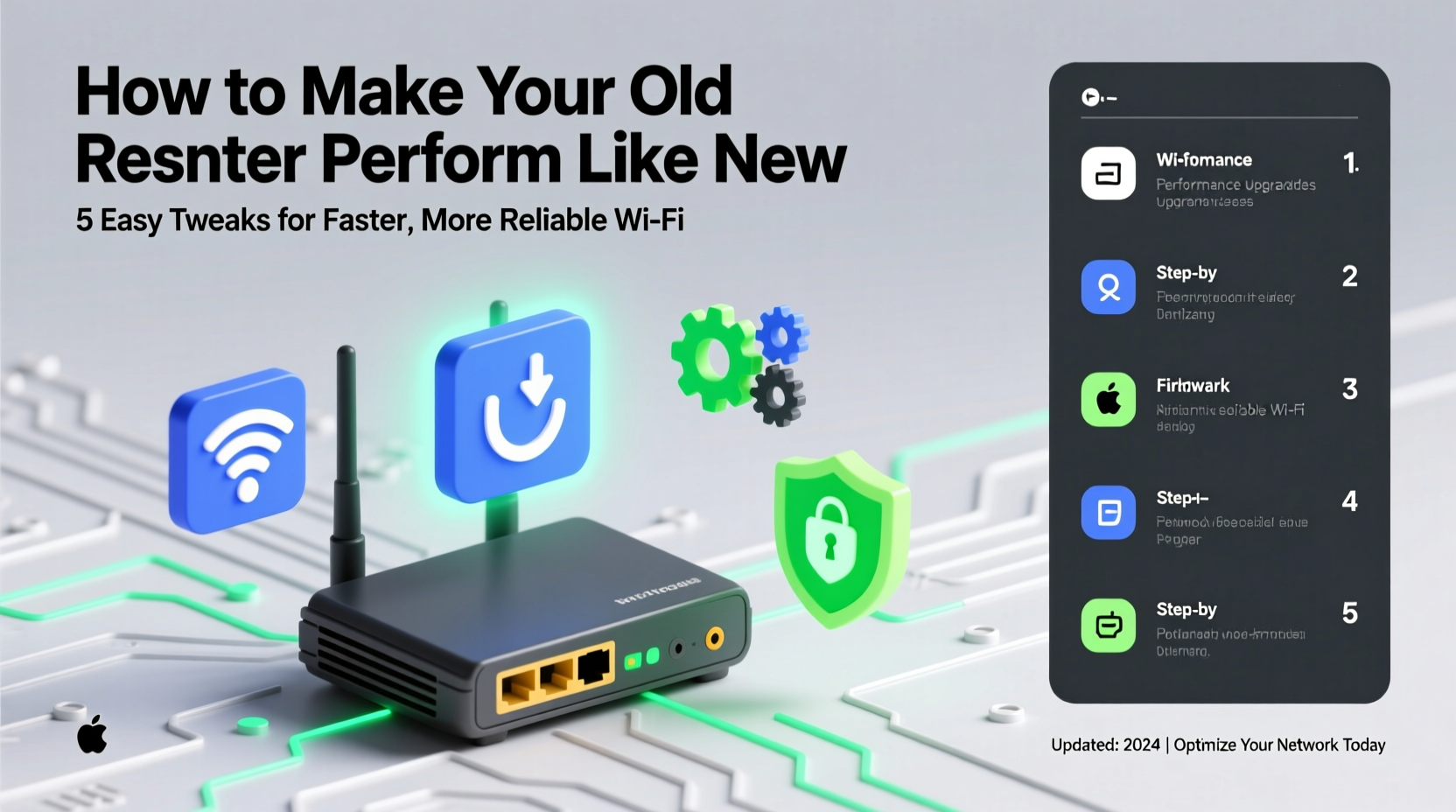
The simplest fix is often the most overlooked. Routers, like any computer, accumulate memory leaks and connection errors over time. A regular reboot clears temporary glitches and refreshes network connections.
But don’t just unplug and plug back in. For best results, follow this sequence:
- Unplug the router from power.
- Wait at least 30 seconds (this allows capacitors to fully discharge).
- Plug it back in and wait two minutes for all lights to stabilize.
If performance issues persist after multiple reboots, consider a factory reset. This wipes custom settings and returns the router to its original state—ideal if configurations have become corrupted.
2. Update Firmware: Unlock Hidden Performance
Firmware is the operating system of your router. Manufacturers release updates to patch security flaws, improve compatibility, and boost performance. An outdated router may be running on software from years ago—needlessly limiting its capabilities.
To check for updates:
- Log in to your router’s admin panel (usually via
192.168.1.1or192.168.0.1in a browser). - Navigate to the \"Administration\" or \"Firmware Update\" section.
- Check for available updates and install if prompted.
Some newer models support automatic updates. If yours doesn’t, set a calendar reminder to check every three months.
“Outdated firmware is one of the top reasons for degraded Wi-Fi performance. It’s like driving a car without ever changing the oil.” — David Lin, Network Engineer at NetSecure Labs
Note: Never interrupt a firmware update. Power loss during installation can permanently brick your device.
3. Optimize Placement and Environment
Where you place your router affects signal strength more than most people realize. Walls, appliances, mirrors, and even fish tanks can absorb or reflect Wi-Fi signals, creating weak spots.
Ideal placement follows these rules:
- Central location: Position the router near the center of your home to evenly distribute coverage.
- Elevated position: Place it on a shelf or desk, not on the floor.
- Avoid obstructions: Keep it away from thick walls, metal objects, and large electronics.
- Antenna orientation: If your router has external antennas, angle one vertically and one horizontally to support different device orientations.
Also, avoid placing the router inside cabinets or behind books—these materials block signals. Even a few inches can make a noticeable difference.
Common Router Placement Mistakes
| Mistake | Why It Hurts Performance | Better Alternative |
|---|---|---|
| Basement or utility closet | Signals must travel upward through floors, weakening quickly | Main floor, central room |
| Next to microwave or cordless phone | These emit 2.4 GHz interference, same as many routers | At least 5–6 feet away |
| Behind a TV or entertainment center | Dense electronics and metal casings block signals | On top or beside, with space around |
| In a corner | Limited broadcast range; signals bounce inefficiently | Open area with line-of-sight to key rooms |
4. Fine-Tune Channel and Band Settings
Most routers automatically select Wi-Fi channels, but they often stick to overcrowded ones. In dense neighborhoods, dozens of networks might compete for the same airwaves, causing slowdowns.
You can manually switch to a less congested channel using your router’s admin interface. Focus on the 2.4 GHz and 5 GHz bands differently:
- 2.4 GHz band: Longer range but slower and prone to interference. Best for older devices and appliances. Use channels 1, 6, or 11—they don’t overlap.
- 5 GHz band: Faster and less crowded, but shorter range. Offers up to 25 non-overlapping channels. Ideal for streaming and gaming.
Use a free app like WiFi Analyzer (Android) or NetSpot (Windows/Mac) to scan nearby networks and identify the least busy channels.
Once identified, log into your router and change the wireless channel manually. Also, enable “Auto” where available—some modern routers do this intelligently.
5. Reduce Connected Device Load
An old router can become sluggish when too many devices are connected simultaneously. Smart TVs, phones, tablets, thermostats, lights, and security cameras all consume bandwidth and processing power.
While total device count matters, so does usage. A single 4K stream uses far more resources than ten idle smart bulbs. Still, reducing background load helps.
Consider these steps:
- Kick off unused devices via the router dashboard.
- Set up a guest network for visitors to prevent cluttering your main network.
- Disable Wi-Fi on devices that use Ethernet (e.g., desktop PCs, game consoles).
- Limit background updates (e.g., pause cloud backups during peak hours).
Mini Case Study: The Overloaded Home Office
Mark, a remote worker in Chicago, complained of constant lag during video calls. His 6-year-old router served 18 devices: laptops, phones, a printer, four security cameras, and various smart home gadgets. Despite having a 300 Mbps plan, speeds tested below 50 Mbps during work hours.
After auditing his network, he discovered two cameras were updating firmware overnight, saturating bandwidth. He moved them to a separate VLAN, updated firmware manually, and switched his laptop to the 5 GHz band. He also relocated the router from a basement shelf to the first-floor hallway.
Result: Upload speeds jumped to 90 Mbps, and call quality improved dramatically—all without spending a dollar.
6. Upgrade DNS for Faster Browsing
Your router likely uses your ISP’s default Domain Name System (DNS) servers, which translate website names into IP addresses. These can be slow or unreliable.
Switching to a public DNS service improves browsing speed, security, and reliability. Top options include:
- Cloudflare DNS:
1.1.1.1and1.0.0.1— fast and privacy-focused. - Google Public DNS:
8.8.8.8and8.8.4.4— widely compatible. - OpenDNS:
208.67.222.222and208.67.220.220— includes filtering features.
To change DNS settings:
- Log into your router’s admin panel.
- Go to WAN or Internet settings.
- Replace the primary and secondary DNS fields with your chosen addresses.
- Save and reboot.
This tweak won’t increase download speed but will make websites load faster and reduce latency in daily browsing.
7. Enable QoS to Prioritize Critical Traffic
Quality of Service (QoS) lets you prioritize certain devices or activities over others. If someone starts a movie while you’re on a critical call, QoS ensures your video feed stays smooth.
Access QoS in your router settings and configure it based on your needs:
- Assign higher priority to work devices (laptops, VoIP phones).
- Limit bandwidth for low-priority devices (smart fridges, IoT sensors).
- Set rules for specific applications (e.g., prioritize Zoom over Netflix).
Not all routers support advanced QoS, but even basic versions allow device-based prioritization. This feature alone can transform how usable your network feels during peak times.
“QoS is the unsung hero of home networking. It doesn’t add bandwidth—it reallocates it wisely.” — Lena Patel, Senior Network Architect at HomeNet Solutions
8. Secure Your Network to Prevent Unauthorized Use
An unsecured or poorly secured network can be hijacked by neighbors or passersby, draining bandwidth and slowing performance. Worse, unauthorized access increases security risks.
Ensure your Wi-Fi is protected with WPA2 or WPA3 encryption. Avoid outdated WEP, which can be cracked in minutes.
Steps to secure your router:
- Change the default admin password (many still use “admin/admin”).
- Use a strong Wi-Fi password (at least 12 characters, mix of letters, numbers, symbols).
- Disable WPS (Wi-Fi Protected Setup), which has known vulnerabilities.
- Review connected devices regularly—unknown MAC addresses could indicate intruders.
Router Revival Checklist
Follow this step-by-step checklist to maximize your router’s performance:
- ✅ Reboot the router properly (unplug, wait 30 sec, restart).
- ✅ Log into admin panel (
192.168.1.1or similar). - ✅ Change default login credentials for admin access.
- ✅ Check for and install firmware updates.
- ✅ Move router to a central, elevated, open location.
- ✅ Switch to less congested Wi-Fi channels using a scanner app.
- ✅ Set custom DNS (e.g., Cloudflare or Google).
- ✅ Enable WPA2/WPA3 security and disable WPS.
- ✅ Configure QoS to prioritize important devices.
- ✅ Limit connected devices; create a guest network if needed.
Complete this once, then revisit every 3–6 months for maintenance.
Frequently Asked Questions
Will these tweaks really make my old router faster?
Yes—especially if your router was misconfigured or in a poor location. While you can’t exceed its hardware limits, real-world speeds often improve by 30–60% with proper optimization. Users commonly report reduced lag, fewer dropouts, and better coverage.
Can I damage my router by changing settings?
It’s unlikely. Most changes are reversible. If you make a mistake, a factory reset will restore defaults. Just avoid opening the casing or modifying hardware unless you’re trained.
How do I know if it’s time to replace my router?
If your router lacks 5 GHz support, uses only 802.11n (Wi-Fi 4), or doesn’t support WPA3, upgrading makes sense. Also, if it frequently overheats, disconnects, or can’t handle your device count despite optimization, replacement may be necessary. Otherwise, squeeze every ounce of life from it first.
Conclusion: Don’t Replace—Revive
Your old router isn’t obsolete just because it’s not the latest model. With thoughtful tweaks, it can deliver reliable, responsive Wi-Fi that meets modern demands. From firmware updates and smarter placement to DNS changes and traffic prioritization, each adjustment compounds to create a smoother, faster experience.
Technology evolves, but so does our ability to extract value from what we already own. Before adding another device to the landfill, give your router the upgrade it deserves—not a new shell, but a smarter setup. These small efforts pay off in seamless streaming, stable calls, and peace of mind.




 浙公网安备
33010002000092号
浙公网安备
33010002000092号 浙B2-20120091-4
Comments
No comments yet. Why don't you start the discussion?