
Smartphones age quickly—not because they stop working, but because software demands grow while hardware stays the same. Over time, an older phone can feel sluggish: apps take longer to open, screens freeze during scrolling, and even basic tasks seem to drag. The good news? You don’t need to buy a new device. With a few strategic adjustments, you can reclaim lost performance and breathe new life into your aging smartphone. These methods are accessible, cost nothing, and deliver noticeable improvements—often within minutes.
1. Eliminate Performance Drains
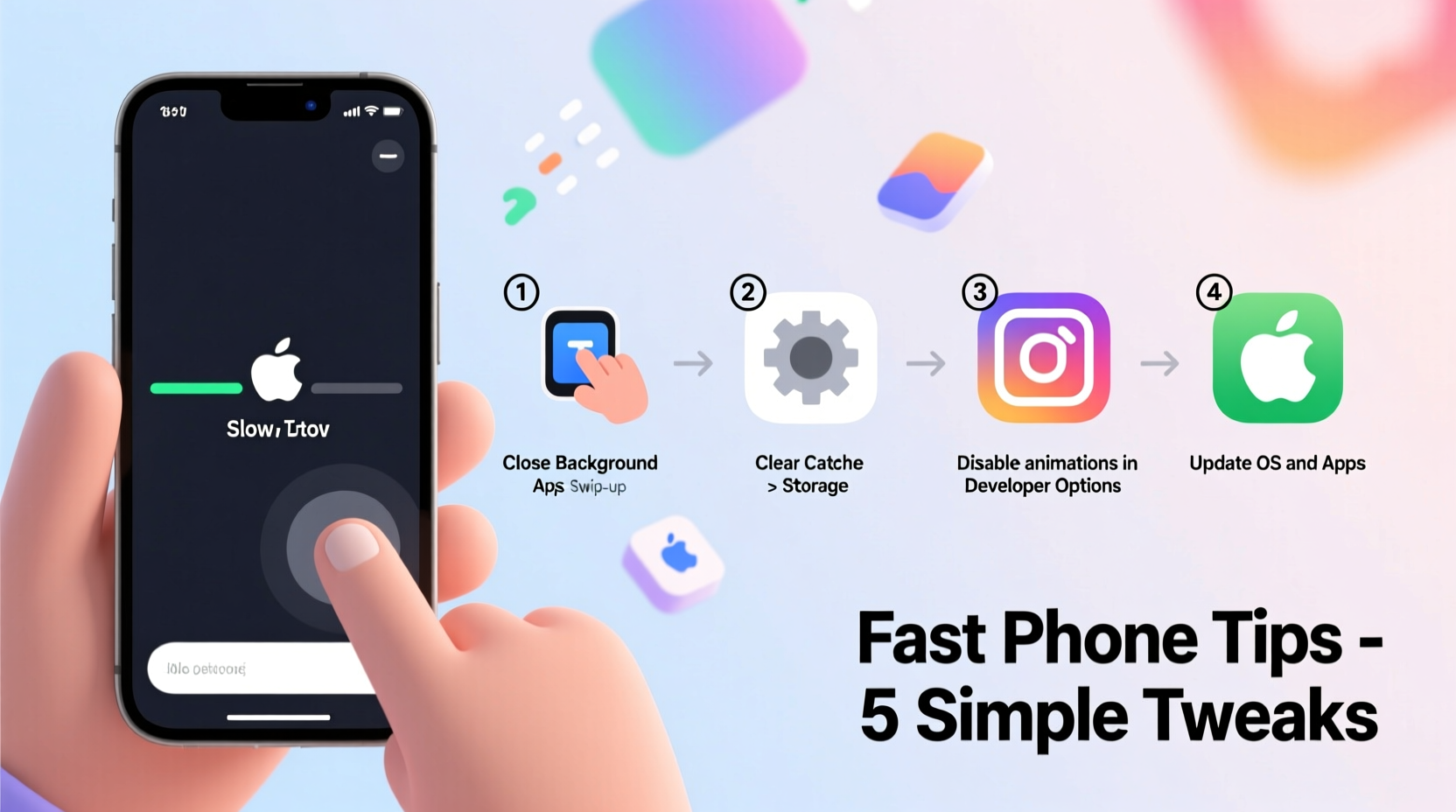
The most common cause of slowdowns isn't hardware failure—it's digital clutter. Background apps, bloated caches, and unnecessary startup processes consume memory and CPU cycles, leaving little room for actual use. Identifying and removing these invisible burdens is the first step toward a faster phone.
Start by reviewing your running applications. On Android, go to Settings > Apps > See all apps, then tap on individual entries to check their background activity. On iOS, double-click the home button (or swipe up from the bottom on newer models) to view active apps and swipe them away to close. But closing apps manually isn’t enough—some relaunch automatically or run services in the background.
Next, clear cached data. This temporary storage helps apps load faster initially but accumulates over time and can become corrupted. In Android, navigate to Storage > Internal Storage > Cached Data and clear it. For iOS, offload unused apps via Settings > General > iPhone Storage. Offloading removes the app but keeps its documents and data, allowing quick reinstallation later.
2. Optimize System Settings for Speed
Modern smartphones come loaded with animations, visual effects, and convenience features that look impressive but tax older processors. Disabling or reducing these effects can significantly improve responsiveness.
On Android, enable Developer Options by going to Settings > About Phone and tapping the build number seven times. Once activated, go to Developer Options and adjust the following:
- Window animation scale – Set to 0.5x or off
- Transition animation scale – Set to 0.5x or off
- Animator duration scale – Set to 0.5x or off
These changes reduce the time spent rendering screen transitions, making navigation feel snappier—even if the underlying hardware hasn’t changed.
iOS users have fewer direct controls, but several accessibility settings can yield similar results. Go to Settings > Accessibility > Motion and toggle on “Reduce Motion.” This disables parallax effects and minimizes layer transitions. Also enable “Prefer Cross-Fade Transitions” to further simplify screen changes.
“Reducing UI overhead can make a three-year-old phone feel like it gained a performance boost. It’s not more power—it’s smarter resource use.” — David Lin, Mobile Systems Engineer at OpenSignal Labs
Do’s and Don’ts of System Optimization
| Action | Do | Don’t |
|---|---|---|
| Animations | Reduce or disable animation scales | Leave all animations at default |
| Brightness | Use adaptive brightness or set to 70% max | Keep at 100% constantly |
| Vibration | Disable keyboard and call vibration | Enable haptic feedback on every tap |
| Sync Frequency | Set email and social media to manual sync | Allow real-time push notifications for all apps |
| Live Wallpapers | Switch to static wallpaper | Use animated or interactive wallpapers |
3. Streamline App Usage and Management
Applications are the primary interface between you and your phone—but not all apps behave equally. Some, especially social media and messaging platforms, are designed to stay active, constantly checking for updates, location, and messages. Over time, this behavior degrades system performance.
Uninstall apps you no longer use. Even idle apps occupy storage and may run background services. After uninstalling, reboot your phone to ensure any residual processes are terminated.
For essential apps that misbehave, restrict their permissions. Take Facebook, for example: it often requests access to location, camera, contacts, and microphone—even when unnecessary. Limit these via Settings > Privacy (iOS) or Settings > Apps & Notifications > Permissions (Android). Fewer permissions mean fewer background activities.
Consider switching to lightweight versions of popular apps. Facebook offers Facebook Lite, Twitter has TweetDeck or third-party clients like Fenix, and Google provides YouTube Go and Gmail Go. These stripped-down variants use less RAM, load faster, and consume far less data.
Mini Case Study: Reviving a Five-Year-Old Galaxy S9
Jamal, a freelance photographer in Austin, relied on his Galaxy S9 for client communication and light editing. By 2023—four years after purchase—the phone struggled to keep up. Apps crashed, the camera shutter lagged, and the home screen stuttered when swiping.
Instead of upgrading, he spent two hours optimizing the device. He cleared over 8GB of cached data, disabled auto-start for WhatsApp and Instagram, reduced all animation scales to 0.5x, and replaced Google Chrome with Firefox Lite. He also uninstalled bloatware using ADB (Android Debug Bridge), removing pre-installed apps from Microsoft and Facebook that he never used.
The result? Boot time dropped from 48 seconds to 29. App launches improved by an average of 60%. The phone still couldn’t match flagship speeds, but it became reliably functional for daily tasks—saving him $800 on a new device.
4. Free Up Storage and Maintain File Hygiene
When internal storage exceeds 85% capacity, most smartphones begin to slow down. The operating system struggles to manage virtual memory, cache files spill over, and write speeds degrade. Keeping free space available is critical for sustained performance.
Begin by auditing large files. Use built-in tools like Settings > Storage to identify categories consuming the most space. Photos and videos are usually the biggest offenders. Transfer them to cloud storage (Google Photos, iCloud, Dropbox) or a computer, then delete from the device.
Clear download folders regularly. Many apps save files here by default—PDFs, APKs, ZIP archives—and forget about them. On Android, use the Files by Google app to sort by size and date. On iOS, access downloads via the Files app.
Remove duplicate photos and screenshots. These often pile up unnoticed. Tools like Google Photos’ cleanup feature or third-party apps such as Duplicate File Fixer (Android) can help identify and remove redundant items.
Step-by-Step Guide: Deep Storage Cleanup (1 Hour)
- Backup important data to cloud or computer (10 min)
- Open storage settings and analyze usage by category (5 min)
- Delete old screenshots (usually found in DCIM/Screenshots) (10 min)
- Clear app caches for top 5 largest apps (e.g., WhatsApp, Instagram, Chrome) (15 min)
- Uninstall unused apps — especially games and trial software (10 min)
- Empty download folder and recycle bin equivalents (5 min)
- Reboot the device to finalize changes and flush memory (5 min)
5. When to Consider a Factory Reset
If your phone remains sluggish despite optimization, a factory reset may be the most effective solution. This wipes the device clean and reinstalls the OS, eliminating deep-seated software issues, malware remnants, and configuration bloat.
Proceed only after backing up essential data. Sync contacts, photos, messages, and app data to your account. Then navigate to Settings > System > Reset options > Erase all data (factory reset).
After resetting, resist the urge to immediately reinstall all previous apps. Instead, adopt a minimalist approach: install only what you use daily. Observe performance over a week before adding secondary tools. You may find you don’t miss half the apps you once thought were essential.
Note: A factory reset won’t physically upgrade your hardware, but it can restore near-original responsiveness—especially if the phone hasn’t been reset in over a year.
Checklist: Pre-Reset Preparation
- ✅ Back up photos and videos to cloud or computer
- ✅ Sync contacts to Google or iCloud
- ✅ Save important messages (use backup tools if available)
- ✅ Note down Wi-Fi passwords or save them in a secure note
- ✅ Sign in to app stores and ensure recovery accounts are active
- ✅ Charge phone to at least 80%
- ✅ Write down serial/IMEI number for warranty reference
FAQ
Will clearing cache delete my photos or messages?
No. Cache data is temporary and separate from personal files. Clearing it removes only stored app fragments meant to speed up loading. Your photos, messages, and account logins remain intact.
Can I speed up my phone without rooting or jailbreaking?
Absolutely. Most performance gains come from settings adjustments, storage management, and smart app use. Rooting or jailbreaking introduces security risks and isn’t necessary for meaningful improvements.
Is it safe to disable system animations?
Yes. Disabling animations doesn’t affect functionality—it only changes how transitions appear. Some users may find the interface feels too abrupt at first, but it’s completely reversible.
Conclusion
An old smartphone doesn’t have to be a slow smartphone. With deliberate care and a few precise adjustments, you can dramatically improve speed, extend usability, and delay the need for a costly upgrade. The techniques outlined here—ranging from disabling background processes to performing a strategic factory reset—are proven, accessible, and effective across both Android and iOS platforms.
Technology should serve you, not frustrate you. Instead of accepting lag as inevitable, take control of your device’s performance. Start today: spend 30 minutes cleaning storage, adjusting settings, and uninstalling bloat. You might be surprised how much faster your phone feels—and how much longer it can continue to meet your needs.




 浙公网安备
33010002000092号
浙公网安备
33010002000092号 浙B2-20120091-4
Comments
No comments yet. Why don't you start the discussion?