
Emojis have become a universal language in digital communication, adding tone, emotion, and personality to our messages. While standard emoji sets are functional, they often lack personal flair. Creating your own custom emoji pack allows you to express yourself uniquely—whether it’s inside jokes with friends, branded visuals for business, or stylized avatars that reflect your identity. The good news: crafting a custom emoji collection for both iPhone and Android is not only possible but increasingly accessible, even without coding expertise. This guide walks through the entire process—from design to deployment—with practical advice, tools, and best practices.
Understanding Emoji Compatibility Across Platforms
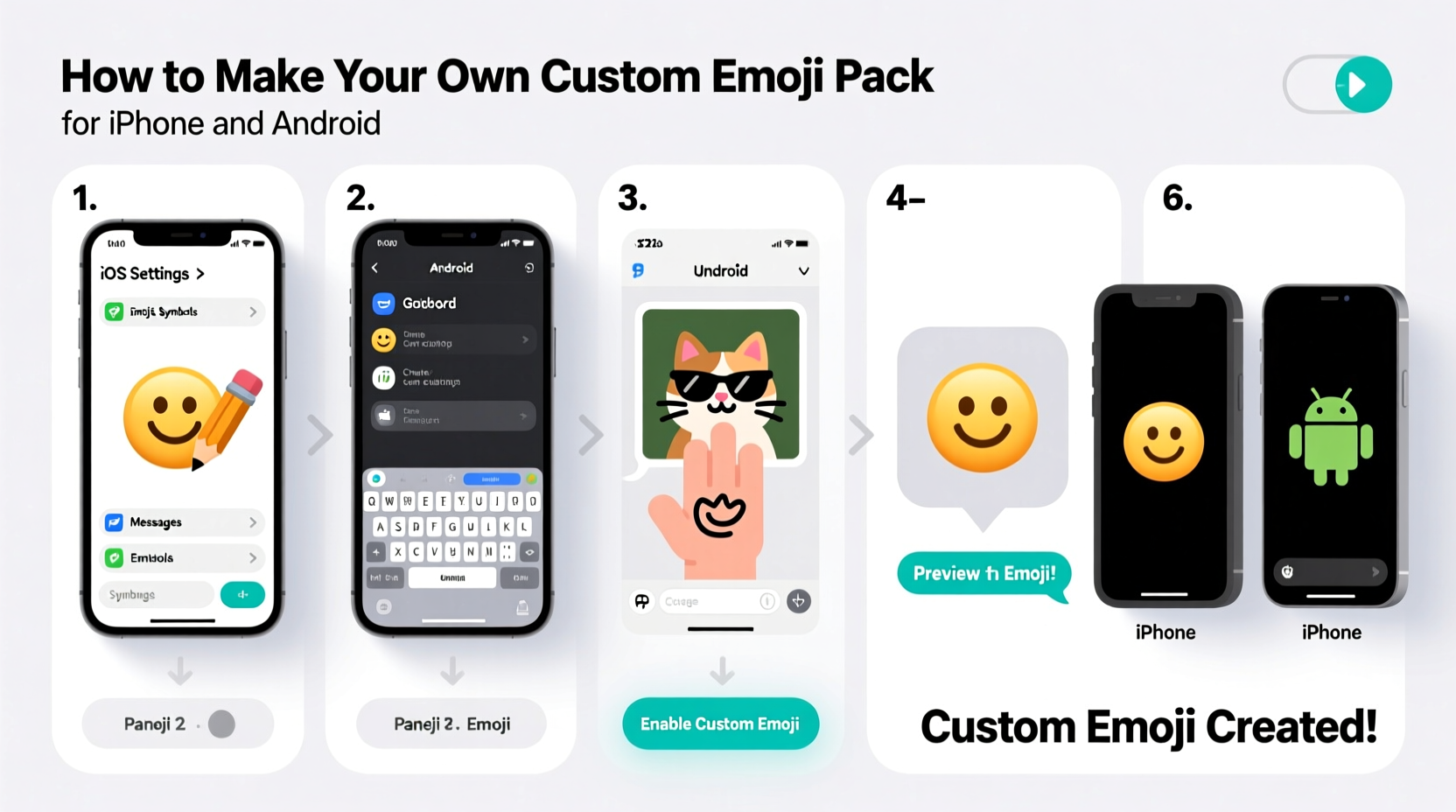
iOS and Android handle emojis differently. Apple uses its proprietary San Francisco Symbols font and tightly controls how emojis render within Messages and third-party apps. Android, on the other hand, relies on Google’s Noto Color Emoji font and offers more flexibility through keyboard integrations like Gboard. Unlike stickers or GIFs, true \"emoji\" integration requires adherence to Unicode standards, which isn’t feasible for user-generated content. Instead, what most people refer to as “custom emoji” are actually sticker packs embedded into messaging platforms.
For this reason, creating a cross-platform custom emoji experience means building a sticker pack compatible with iMessage (for iPhone) and either Gboard or WhatsApp (for Android). These stickers function like emojis in conversation threads—tappable, searchable, and sent instantly—but are technically distinct from system-level emojis.
Step-by-Step Guide to Designing Your Custom Sticker Pack
The foundation of any great emoji (or sticker) pack is thoughtful design. Whether you’re illustrating characters, converting selfies into cartoon versions, or designing brand mascots, consistency in style, color palette, and expression matters.
- Define your theme: Choose a unifying concept—mood faces, pet reactions, travel icons, or office humor. A focused theme improves usability and memorability.
- Select design software: Use vector-based tools like Adobe Illustrator, Affinity Designer, or free alternatives such as Inkscape and Figma for scalable artwork. For pixel-perfect raster images, Photoshop or Procreate work well.
- Create transparent PNGs: Export each sticker as a PNG file with transparency (no background). This ensures clean blending into chat bubbles regardless of app theme.
- Optimize file size: Keep individual sticker files under 500 KB. Large files slow down loading times and may be rejected by app stores.
- Limit pack size: Start with 8–12 stickers per pack. Smaller sets load faster and feel more curated.
When designing expressions, exaggerate facial features slightly—small eyes or subtle smiles get lost on mobile screens. Test your designs by viewing them at actual send size (around 100x100 pixels).
Recommended Dimensions and Formats
| Platform | Recommended Size | Format | Max File Size |
|---|---|---|---|
| iMessage Apps | 306x306 px | PNG with alpha channel | 500 KB |
| Gboard (Android) | 512x512 px | PNG or WebP | 300 KB |
| 512x512 px | WebP only | 100 KB |
“Stickers succeed when they’re emotionally resonant and instantly recognizable. Think less about artistry and more about communicative power.” — Lena Patel, Digital Expression Researcher at UX Collective
Building and Installing for iPhone (iMessage App)
Apple allows users to create iMessage sticker packs via Xcode, its free development environment for macOS. No programming is required for basic sticker packs.
Steps to Create an iMessage Sticker Pack:
- Install Xcode from the Mac App Store if you haven’t already.
- Open Xcode and select Create a new project.
- Choose iMessage Application under iOS > Application.
- Name your project (e.g., “MyFunnyFaces”) and save it.
- In the Project Navigator, click on Sticker Pack in the left panel.
- Drag and drop your PNG stickers into the designated area labeled “Stickers”.
- Ensure all files are named clearly (e.g., laugh.png, cry.png) and include no spaces or special characters.
- Click the play button (▶) to build and install the app on your connected iPhone.
- Approve installation when prompted, then open Messages and tap the Apps icon (square smiley face).
- Select your sticker pack and start sending!
Your sticker pack will appear alongside other iMessage apps. Note: You must use a physical iPhone connected to your Mac; simulator testing has limited functionality.
Creating Sticker Packs for Android Devices
Android offers multiple pathways for deploying custom stickers, depending on the target app. The two most common are Gboard and WhatsApp, each with different technical requirements.
Option 1: Add to Gboard (Google Keyboard)
Gboard supports third-party sticker packs through dedicated apps available on the Google Play Store. You can create your own app using Android Studio or leverage no-code platforms.- Prepare your stickers as 512x512 PNGs or WebP files.
- Use a template like Sticker Maker for Gboard (available on GitHub or third-party developer sites).
- Import your images, assign names and tags for searchability (e.g., “happy,” “dancing dog”).
- Build the APK file and install it manually on your device or publish it to the Play Store.
- After installation, go to any text field, open Gboard, and tap the sticker icon to access your pack.
Option 2: Build for WhatsApp
WhatsApp uses WebP format exclusively and requires specific metadata embedding.- Convert all PNGs to WebP format using tools like WebP Converter (online) or command-line cwebp.
- Resize images to exactly 512x512 pixels.
- Compress files to under 100 KB using lossless compression.
- Create a simple JSON file listing sticker names, emojis for association, and order.
- Package everything into a folder named
stickers, then zip it asmyemojipack.zip. - Rename the .zip extension to .wastickers (e.g.,
funfaces.wastickers). - Transfer the file to your Android phone and place it in the
WhatsApp/Stickersfolder. - Open WhatsApp → Settings → Stickers → Tap “+” icon → Select your imported pack.
Once added, your stickers appear in the sticker tray during chats. Friends can download the same pack if you share the .wastickers file directly.
Do’s and Don’ts for Android Sticker Creation
| Do’s | Don’ts |
|---|---|
| Use 512x512 resolution for consistency | Exceed 100 KB per sticker in WhatsApp |
| Add descriptive tags for discoverability | Use JPEGs—they don’t support transparency |
| Test on multiple screen densities | Include copyrighted characters or logos |
| Offer 30+ stickers for full engagement | Forget to credit artists if using commissioned work |
Mini Case Study: Launching “CampVibes” Sticker Pack
Jamie Lin, a camp counselor in Oregon, wanted a fun way for her team to stay connected during off-season months. She created a sticker pack called “CampVibes” featuring inside jokes—like “S’mores Emergency” and “Mosquito Attack”—using hand-drawn sketches scanned and cleaned in Procreate.
She followed the WhatsApp method, converting eight core designs into WebP, compressing them below 90 KB, and packaging them as a .wastickers file. After sharing the file via email and cloud storage, all 15 staff members installed it within hours. The pack boosted morale and became a tradition—each year, a new edition is released before summer begins.
Encouraged by internal success, Jamie later published a public version on the Play Store via a simple Gboard-compatible app. Within three months, it reached over 7,000 downloads, proving niche themes can resonate widely when authentically executed.
Checklist: From Idea to Live Emoji Pack
- ☑ Define a clear theme or purpose for your emoji pack
- ☑ Design 8–12 high-quality PNGs at 300x300px or larger with transparent backgrounds
- ☑ Optimize file sizes (under 500 KB for iOS, 300 KB for Android, 100 KB for WhatsApp)
- ☑ Convert to WebP format if targeting WhatsApp or Gboard
- ☑ Build iMessage app using Xcode (Mac required)
- ☑ Package for WhatsApp using .wastickers format
- ☑ Install and test on real devices before sharing
- ☑ Share file or publish to app store based on audience size
Frequently Asked Questions
Can I use my custom emojis in any app?
Not universally. iMessage stickers only work within Apple’s Messages app and some third-party iOS apps that support iMessage extensions. Android stickers depend on the keyboard or messaging platform—Gboard stickers appear wherever Gboard is active, while WhatsApp stickers are limited to that app. True system-wide emoji replacement is not supported without rooting or jailbreaking.
Do I need to code to make a sticker pack?
No. Basic sticker packs for iMessage can be built in Xcode without writing code. Similarly, tools exist for Android that automate APK generation or allow direct .wastickers creation. However, advanced features like animated stickers or search indexing require development knowledge.
Can I sell my custom emoji pack?
Yes. Both the Apple App Store and Google Play Store allow monetization of sticker apps. You’ll need to enroll in their developer programs ($99/year for Apple, one-time $25 fee for Google), comply with content policies, and submit your app for review. Many creators earn passive income from themed packs—especially holiday, romance, or fandom-based designs.
Final Thoughts and Next Steps
Creating your own custom emoji pack bridges creativity and communication. Whether you're strengthening team culture, expressing personal identity, or launching a micro-brand, the ability to design and deploy visual language has never been more accessible. With just a few hours of effort and free tools, you can turn ideas into interactive content used daily by friends, family, or global audiences.
The key is starting small—design a handful of meaningful stickers, test them in real conversations, and refine based on feedback. Over time, expand your library, explore animations (APNG or Lottie formats), or integrate voice notes and reactions for richer interactivity.




 浙公网安备
33010002000092号
浙公网安备
33010002000092号 浙B2-20120091-4
Comments
No comments yet. Why don't you start the discussion?