
Navigating a computer efficiently often comes down to more than just speed—it’s about reducing friction between thought and action. For many Windows users, the default keyboard shortcuts are helpful but limited. What if you could launch your favorite app, open a critical document, or execute a complex command with just a few keystrokes? You can. By creating custom keyboard shortcuts, you gain precise control over your workflow, reduce mouse dependency, and save valuable time across the workday.
This guide walks through multiple methods to create personalized keyboard shortcuts on Windows—ranging from built-in tools to third-party utilities—so you can tailor your system to match your habits, not the other way around.
Create Custom Shortcuts Using Desktop Shortcuts
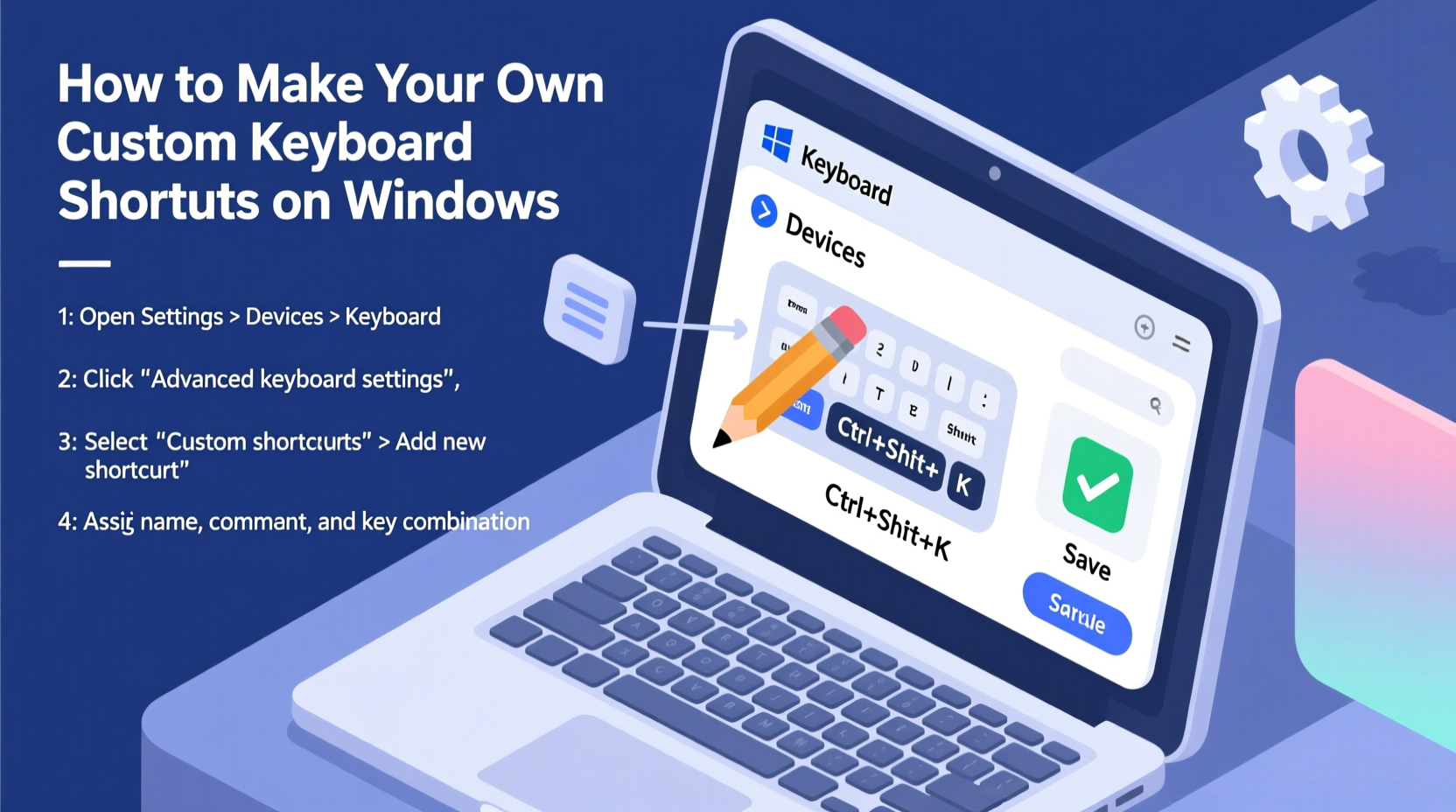
One of the most straightforward ways to assign a keyboard shortcut in Windows is by modifying a desktop shortcut. This method works for launching applications, opening folders, or running scripts.
- Right-click on your desktop and select New > Shortcut.
- In the location field, enter the path to the program or file. For example:
C:\\Program Files\\Mozilla Firefox\\firefox.exe. - Click Next, give the shortcut a name (e.g., “Firefox Fast”), then click Finish.
- Right-click the new shortcut and choose Properties.
- In the Properties window, click inside the Shortcut key field.
- Press the key combination you want to use. Windows will automatically prefix it with Ctrl + Alt.
- Click OK to save.
Now, pressing your chosen key combination (e.g., Ctrl + Alt + F) will launch Firefox instantly.
Limitations of Shortcut-Based Key Assignments
While simple, this method has constraints:
- The shortcut only works when no other window is blocking the desktop context.
- You cannot assign single-key shortcuts (e.g., just F5).
- It doesn’t support complex actions like text expansion or automation sequences.
For deeper customization, alternative approaches are necessary.
Use AutoHotkey for Advanced Customization
AutoHotkey (AHK) is a free, open-source scripting language designed specifically for automating tasks and creating powerful keyboard shortcuts on Windows. It allows you to go beyond launching apps—you can remap keys, trigger macros, insert text snippets, and even control mouse movements.
Getting Started with AutoHotkey
- Download and install AutoHotkey from the official site.
- Right-click on your desktop, select New > AutoHotkey Script.
- Name the file (e.g.,
MyShortcuts.ahk) and double-click to edit it. - Add your custom hotkeys using AHK syntax.
Example: Create a Text Expansion Shortcut
If you frequently type your email address, create a shortcut that expands \"eml\" into your full address:
::eml::john.doe@example.com
Now, whenever you type eml followed by a space or punctuation, it will automatically replace it with your email.
Launch Applications with Custom Keys
To launch Visual Studio Code with Win + Shift + V:
#Shift+V::Run \"C:\\Users\\YourName\\AppData\\Local\\Programs\\Microsoft VS Code\\Code.exe\"
In AutoHotkey syntax, # represents the Windows key.
Use PowerToys Keyboard Manager
Microsoft PowerToys is a suite of utilities for power users. One of its standout features is the Keyboard Manager, which allows you to remap keys and create global shortcuts without writing code.
Setting Up PowerToys
- Download Microsoft PowerToys from the official GitHub repository.
- Install and launch the application.
- Navigate to Keyboard Manager in the sidebar.
- Click Remap a shortcut.
- Under Physical Shortcut, press the key combination you want to use (e.g., Ctrl + Alt + T).
- Under Mapped To, either select an existing shortcut or browse to an application.
- Click OK, then Apply.
This method is ideal for users who prefer a graphical interface over scripting. It supports both key remapping (e.g., turning Caps Lock into Escape) and app-launching shortcuts.
| Method | Best For | Learning Curve | Persistence After Reboot |
|---|---|---|---|
| Desktop Shortcuts | Beginners launching apps | Low | Yes |
| AutoHotkey | Advanced automation & text expansion | High | Yes (if added to startup) |
| PowerToys Keyboard Manager | Visual remapping & global shortcuts | Medium | Yes |
Real-World Example: Streamlining a Developer's Workflow
Consider Maria, a full-stack developer working remotely. Her day involves switching between her browser, terminal, IDE, and documentation. She used to waste several seconds each time navigating through menus or searching for files.
She created the following shortcuts using AutoHotkey:
- Win + D: Opens project directory in File Explorer.
- Win + T: Launches her terminal (Windows Terminal).
- ;;code: Expands to a standard comment block in her code.
- Ctrl + Alt + L: Locks her PC instantly (useful during quick breaks).
Within a week, Maria estimated she saved nearly 45 minutes per day on repetitive navigation and typing. The cognitive load decreased, and her focus improved because fewer actions required conscious effort.
“Automation isn’t about doing less work—it’s about removing distractions so you can do better work.” — Dr. Alan Liu, Human-Computer Interaction Researcher
Checklist: Setting Up Your First Custom Shortcut
Follow this checklist to successfully implement your first custom keyboard shortcut:
- ✅ Identify the task you perform frequently (e.g., opening an app, typing a phrase).
- ✅ Choose a method: desktop shortcut, PowerToys, or AutoHotkey.
- ✅ Select a key combination that’s easy to reach and not already in use.
- ✅ Test the shortcut in different applications to ensure it works globally.
- ✅ Document your shortcuts in a note or cheat sheet for future reference.
- ✅ Add the script or tool to startup for persistent access.
Common Pitfalls and How to Avoid Them
Creating custom shortcuts seems simple, but mistakes can lead to frustration or conflicts.
Overriding System Shortcuts
Avoid remapping combinations like Ctrl + C, Ctrl + V, or Alt + Tab unless absolutely necessary. These are deeply embedded in user behavior and overriding them can cause confusion.
Using Conflicting Key Combinations
Some apps reserve specific shortcuts. For example, Ctrl + Shift + P is common in editors. Test your shortcuts in various contexts to ensure they don’t interfere.
Forgetting Shortcut Documentation
Without a reference, even self-made shortcuts become forgotten. Keep a plain-text file named my-shortcuts.txt in your Documents folder.
Frequently Asked Questions
Can I create a shortcut that types a paragraph automatically?
Yes. With AutoHotkey, you can define a hotstring that inserts multi-line text. For example:
::sig::John Doe
Senior Developer
Email: john@example.com
Phone: (555) 123-4567
Typing “sig” will expand into your full signature.
Do custom shortcuts work in fullscreen games or secure applications?
Most custom shortcuts are disabled in secure contexts like UAC prompts or login screens for security reasons. Fullscreen applications may also intercept input, preventing global shortcuts from triggering. Test in your target environment.
Can I sync my shortcuts across multiple PCs?
Yes. If you use AutoHotkey, store your script in a cloud folder (e.g., OneDrive or Dropbox). On each machine, install AutoHotkey and run the synced script. For PowerToys, export your settings via JSON and import them on another device.
Maximize Efficiency with Thoughtful Design
The true value of custom keyboard shortcuts lies not in their novelty, but in their consistency. A well-designed shortcut system operates silently in the background, reducing decision fatigue and minimizing interruptions.
Think of your keyboard as a personalized control panel. Every time you reach for the mouse to click a menu, ask: “Could this be one keystroke?” Over time, these small efficiencies compound into significant gains in focus and output.
Start small. Pick one repetitive task today—opening your notes app, pasting your address, or launching a calculator—and automate it. Once that becomes second nature, add another. Within a month, you’ll have a finely tuned system that feels uniquely yours.
“Productivity is not about doing more. It’s about making the right actions effortless.” — Cal Newport, Author of *Deep Work*
Take Control of Your Workflow Today
Custom keyboard shortcuts are more than convenience—they’re a form of digital self-expression. They reflect how you work, what you value, and where you choose to invest your attention.
Whether you use Windows’ built-in options or dive into scripting with AutoHotkey, the ability to shape your computing environment is within reach. No advanced degree or technical background is required—just curiosity and a willingness to experiment.




 浙公网安备
33010002000092号
浙公网安备
33010002000092号 浙B2-20120091-4
Comments
No comments yet. Why don't you start the discussion?