
In today’s hyper-connected world, a dead phone battery can disrupt everything from work meetings to weekend plans. Most advice for extending battery life starts with “turn down the brightness,” but that’s not always practical—especially outdoors or in bright environments. The good news? You don’t have to sacrifice screen clarity to keep your phone alive until bedtime. With smarter habits, strategic settings, and a few underused features, you can stretch your battery through even the heaviest usage days—without dimming the display.
Optimize Background App Activity
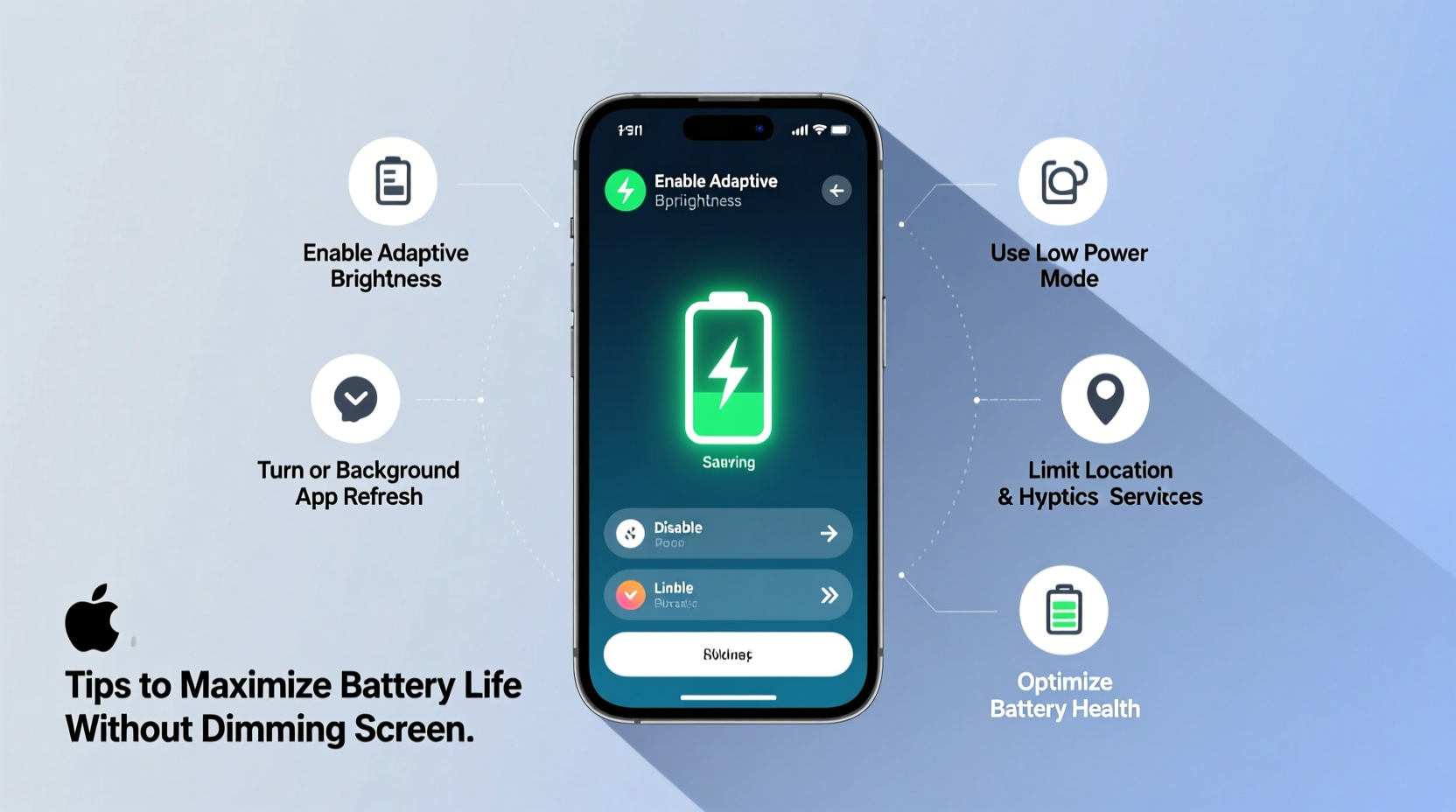
One of the biggest hidden drains on your phone’s battery is background app activity. Many apps continue running or refreshing data even when you’re not using them. Social media platforms, email clients, and navigation tools often sync in the background, consuming both power and data.
On iOS, go to Settings > General > Background App Refresh and disable it for non-essential apps. On Android, navigate to Settings > Apps & notifications > Advanced > Special app access > Background restriction, then apply limits selectively.
Consider this: a fitness tracker syncing every 5 minutes, a weather app updating hourly, and a social network checking for new posts every few minutes may seem harmless individually—but together, they can consume up to 15–20% of your daily battery.
Leverage Adaptive Battery and Smart Features
Modern smartphones come equipped with intelligent battery management systems. Android’s Adaptive Battery learns your usage patterns and restricts power-hungry apps you rarely use. Apple’s Optimized Battery Charging delays charging past 80% when your phone detects it will be plugged in for extended periods, reducing wear over time.
To activate Adaptive Battery on Android: Settings > Battery > Adaptive Preferences. On iPhone, enable it via Settings > Battery > Battery Health & Charging > Optimized Battery Charging.
These AI-driven tools don’t just save energy—they extend the physical lifespan of your battery by minimizing unnecessary charge cycles and heat buildup.
“Smart battery features can reduce energy waste by up to 30% over manual management.” — Dr. Lena Patel, Mobile Energy Systems Researcher at MIT
Manage Connectivity Wisely
Wireless connections are major contributors to battery drain. While Wi-Fi, Bluetooth, GPS, and cellular networks are essential, leaving them active when unused is like driving with the parking brake on—inefficient and damaging over time.
Instead of keeping all radios active, adopt a situational approach:
- Turn off Bluetooth when not using headphones or wearables.
- Disable GPS/location services for apps that don’t need real-time tracking (e.g., games or shopping apps).
- Use Airplane Mode strategically during flights, meetings, or low-signal areas where your phone struggles to maintain connection.
- Switch to Wi-Fi over cellular data when possible—Wi-Fi uses less power than 5G or LTE, especially in weak signal zones.
Signal strength plays a crucial role. When your phone is searching for a tower in a basement or rural area, it ramps up transmission power dramatically. This can increase battery consumption by as much as 40% compared to strong signal conditions.
| Connectivity Type | Battery Impact (Relative) | Best Practice |
|---|---|---|
| 5G/LTE (Weak Signal) | Very High | Use airplane mode or switch to Wi-Fi |
| Wi-Fi (Strong Signal) | Low | Keep enabled; prioritize over data |
| Bluetooth (Connected) | Moderate | Turn off when idle |
| GPS (Continuous Use) | High | Limit to navigation apps only |
Implement a Power-Saving Routine with Automation
The most effective battery-saving strategies are those that require no daily effort. Automation tools built into modern phones allow you to create context-aware rules that adjust behavior based on time, location, or activity.
For example:
- Create a “Work Mode” that disables social media notifications, turns off Wi-Fi at 6 PM, and enables Do Not Disturb after 9 PM.
- Set up a “Travel Profile” that activates GPS only when maps are open and silences non-urgent alerts.
- Use geofencing to automatically connect to home Wi-Fi and disable mobile data upon arrival.
On iPhone, use Shortcuts in the Settings app. On Android, explore Tasker or Google Assistant Routines. These tools let you automate battery-heavy functions so you don’t have to remember to manage them manually.
Mini Case Study: Sarah’s All-Day Conference Survival
Sarah, a marketing consultant, frequently attends back-to-back virtual and in-person meetings. Her phone used to die by mid-afternoon, forcing her to carry a bulky power bank. After implementing automation, she created a “Meeting Day” routine:
- Background refresh disabled for Instagram, TikTok, and news apps.
- Bluetooth turns off automatically when her earbuds disconnect.
- Location services restricted to Maps and Uber only.
- A morning checklist ensures Wi-Fi is on and unnecessary widgets are removed.
Result: Her battery now lasts from 7 AM to 10 PM—even with video calls, note-taking, and navigation—without lowering brightness. She estimates a 45% improvement in battery endurance.
Reduce Visual Load Without Dimming the Screen
You don’t need to lower brightness to reduce screen energy use. Instead, focus on what appears on the screen. Dynamic content, animations, and live wallpapers force the display to work harder, especially on OLED devices where each pixel generates its own light.
Switch to a static wallpaper—preferably black if you have an OLED screen. Avoid live widgets that update constantly, such as weather tickers or social media feeds. Replace them with glanceable icons or turn off auto-refresh.
Additionally, reduce motion effects. On iPhone, go to Settings > Accessibility > Motion > Reduce Motion. On Android, disable transition animations in Developer Options. This not only saves battery but also improves responsiveness.
Checklist: Daily Battery Optimization Routine
Follow this quick 2-minute checklist each morning to maximize battery efficiency:
- ✅ Close unused apps running in the background
- ✅ Disable Bluetooth and Wi-Fi if not needed
- ✅ Verify location services are limited to essential apps
- ✅ Ensure adaptive battery/optimized charging is enabled
- ✅ Remove live widgets and set static wallpaper
- ✅ Confirm dark mode is scheduled or manually activated
- ✅ Check for system updates (they often include battery fixes)
Charge Smarter, Not Harder
How you charge your phone impacts how long the battery lasts—not just each day, but over months. Lithium-ion batteries degrade fastest when exposed to extreme temperatures or kept at 100% charge for long periods.
Experts recommend keeping your battery between 20% and 80% for optimal longevity. Avoid overnight charging if possible, or use built-in features that stop charging at 80% and finish in the morning.
Also, avoid fast charging unless necessary. While convenient, rapid charging generates more heat, accelerating battery wear. For everyday use, a standard 5W or 10W charger is gentler and more sustainable.
“Keeping your phone between 30% and 80%, avoiding heat, and using slow charging when possible can extend battery lifespan by 2–3 years.” — Carlos Mendez, Senior Engineer at Battery University
Frequently Asked Questions
Can dark mode really save battery without lowering brightness?
Yes—especially on OLED or AMOLED screens. In dark mode, black pixels are turned off completely, reducing power consumption. Studies show that switching from white to dark interfaces can cut display energy use by up to 60% at full brightness.
Does closing apps manually help battery life?
Not significantly on modern phones. iOS and Android are designed to suspend inactive apps efficiently. Force-closing apps repeatedly can actually use more power, as reopening them requires reloading from scratch. Focus instead on disabling background refresh and permissions.
Is it safe to use my phone while charging?
It’s safe, but not ideal for battery health. Using the phone while charging—especially for intensive tasks like gaming or video calls—generates heat, which degrades the battery faster over time. For best results, avoid heavy usage during charging cycles.
Conclusion: Take Control of Your Battery Life
Your phone doesn’t have to run out of power by dinnertime. By managing background processes, leveraging smart features, automating connectivity, and adopting efficient charging habits, you can maintain full screen brightness while still getting all-day endurance. The key is consistency and awareness—small adjustments compound into significant gains.




 浙公网安备
33010002000092号
浙公网安备
33010002000092号 浙B2-20120091-4
Comments
No comments yet. Why don't you start the discussion?