
In today’s connected world, your home Wi-Fi network is more than just a convenience—it's a gateway to your personal data. While most people focus on password strength and encryption, few consider the visibility of their network’s name—the SSID (Service Set Identifier). Broadcasting your Wi-Fi name openly can reveal information about your presence, device habits, and even your router model. For those seeking enhanced privacy, making your Wi-Fi name invisible to neighbors is a smart, often overlooked step. This guide explains exactly how to hide your SSID, why it matters, and what limitations to expect.
Why Hiding Your Wi-Fi Name Matters
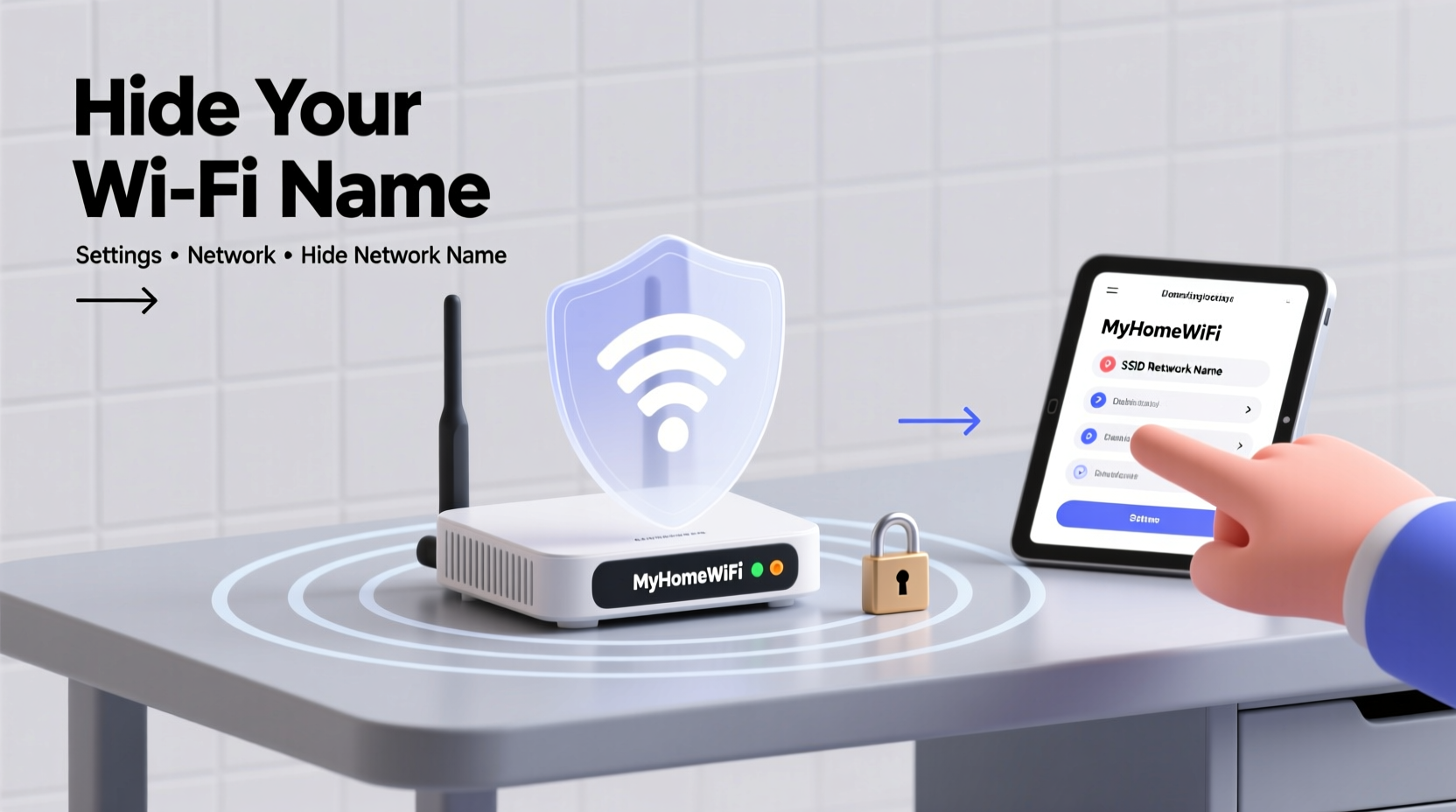
Your Wi-Fi network constantly broadcasts its name so that devices can detect and connect to it. This broadcast is visible to anyone within range—neighbors, passersby, or even opportunistic hackers using simple tools like Wi-Fi scanners. While hiding the SSID doesn’t replace strong encryption, it adds a layer of obscurity that reduces your network’s digital footprint.
Think of it like closing your curtains at night. You’re not preventing someone from looking in entirely, but you’re removing the easy invitation. A hidden SSID won’t appear in the list of available networks on smartphones or laptops, making casual detection much harder.
“Reducing network visibility is a foundational principle in wireless security hygiene. It may not stop a determined attacker, but it filters out 90% of casual threats.” — Dr. Marcus Lin, Network Security Researcher at CyberShield Labs
For households in densely populated areas—apartments, townhouses, or suburban neighborhoods—this small change can significantly reduce unwanted attention on your network.
How to Hide Your Wi-Fi SSID: Step-by-Step Guide
Hiding your Wi-Fi name involves accessing your router’s administrative settings and disabling SSID broadcast. The process varies slightly depending on your router brand, but the general steps are consistent across models.
- Connect to Your Router: Use a wired or wireless connection to access your home network. Wired connections are recommended for stability during configuration.
- Find Your Router’s IP Address: Open Command Prompt (Windows) or Terminal (Mac), type
ipconfig(orifconfigon Mac), and look for “Default Gateway.” This is typically192.168.1.1or192.168.0.1. - Log Into the Admin Panel: Enter the IP address into your browser’s address bar. Log in using your admin credentials. If you haven’t changed them, check the router’s label or manual for default username/password (often “admin/admin” or “admin/password”).
- Navigate to Wireless Settings: Look for tabs labeled “Wireless,” “Wi-Fi,” or “Network Settings.” The exact wording depends on your router (e.g., TP-Link, Netgear, ASUS).
- Disable SSID Broadcast: Within the wireless settings, find an option called “Broadcast SSID,” “Enable SSID Broadcast,” or “Visibility Status.” Uncheck or disable this feature.
- Save and Reboot: Apply the changes and restart your router. After rebooting, your network name will no longer appear in public Wi-Fi lists.
Connecting Devices to a Hidden Network
Once the SSID is hidden, devices can no longer select the network from a dropdown list. You must manually configure each device to connect. Here’s how:
- On Windows: Go to Settings > Network & Internet > Wi-Fi > Manage Known Networks > Add a New Network. Enter the SSID, security type (WPA2-Personal), and password.
- On macOS: Click the Wi-Fi icon, choose “Join Other Network,” enter the SSID, select WPA2, and input the password.
- On iPhone/iPad: Navigate to Settings > Wi-Fi > Other. Type the SSID, choose Security type, and enter the password.
- On Android: Go to Wi-Fi settings, tap “Add Network,” enter the SSID manually, select WPA2 PSK, and save.
Smart home devices (like cameras, thermostats, or speakers) may require special setup through their companion apps. Some older IoT gadgets struggle with hidden networks, so test compatibility before fully relying on this method.
Benefits and Limitations of a Hidden SSID
Hiding your Wi-Fi name offers tangible benefits, but it’s crucial to understand its scope. It’s not a silver bullet, but part of a layered security strategy.
| Benefit | Description |
|---|---|
| Reduced Visibility | Makes your network invisible to casual scanners, reducing the chance of unauthorized connection attempts. |
| Discourages Opportunistic Hackers | Most attackers target open or poorly secured visible networks. A hidden SSID increases effort required to target you. |
| Minimizes Neighbor Curiosity | Prevents friends or neighbors from seeing your network name, which might include personal info (e.g., “SmithFamilyWiFi”). |
| Limitation | Description |
|---|---|
| Not Truly Invisible | Advanced tools can still detect hidden networks by capturing probe responses between your devices and router. |
| No Encryption Boost | Hiding SSID does not improve encryption. Always use WPA3 or WPA2-PSK (AES) for actual security. |
| Device Compatibility Issues | Some older or low-end devices fail to connect reliably to hidden networks, requiring troubleshooting. |
Real-World Example: The Apartment Complex Scenario
Consider Sarah, who lives in a busy urban apartment building. Her Wi-Fi network was named “SarahsNet – iPhone12,” revealing both her identity and device type. Using a free Wi-Fi analyzer app, she discovered over 20 visible networks in her vicinity—many with weak passwords or outdated security.
Concerned about potential snooping or wardriving (where people drive around scanning for vulnerable networks), Sarah decided to hide her SSID. She logged into her ASUS router, disabled SSID broadcast, and renamed her network to a generic identifier (“HomeNetwork5G”) without personal details. Though the name was now hidden, she kept WPA2 encryption with a strong 12-character password.
After the change, her network disappeared from public scans. When guests visited, she provided connection details manually—a small inconvenience offset by greater peace of mind. Over time, she noticed fewer unknown devices attempting to connect, and her overall sense of digital privacy improved.
Complementary Privacy Measures
Hiding your SSID is just one piece of the puzzle. To maximize Wi-Fi privacy, combine it with other proven strategies:
- Use Strong Encryption: Ensure your router uses WPA3 if available. If not, use WPA2-PSK with AES encryption. Avoid WEP or TKIP—they’re outdated and easily cracked.
- Change Default Credentials: Never leave your router’s admin login as “admin/password.” Create a unique, complex password.
- Update Firmware Regularly: Manufacturers release updates to patch security flaws. Enable automatic updates if available.
- Disable WPS (Wi-Fi Protected Setup): This feature allows easy pairing via PIN but is vulnerable to brute-force attacks.
- Use a Guest Network: Isolate visitors from your main network. Most modern routers support a separate guest SSID with limited access.
- Monitor Connected Devices: Check your router dashboard monthly for unfamiliar devices. Remove any you don’t recognize.
Common Myths About Hidden Wi-Fi Networks
Several misconceptions surround hidden SSIDs. Clarifying these helps set realistic expectations:
- Myth: A hidden SSID makes my network unhackable.
Reality: It only hides the name. Attackers can still detect network traffic and attempt breaches if encryption is weak. - Myth: Hiding the SSID slows down my internet.
Reality: There’s no measurable speed difference. However, some older devices may take longer to reconnect. - Myth: I don’t need a password if my SSID is hidden.
Reality: This is dangerously false. Always use a strong password regardless of visibility.
Frequently Asked Questions
Can a hidden Wi-Fi network be detected?
Yes, though not directly visible in standard Wi-Fi lists. Specialized tools like Wireshark or Kismet can capture probe requests and responses between your devices and router, revealing the SSID. However, this requires technical skill and isn’t common among casual snoopers.
Will hiding my SSID affect my internet speed?
No. The change only affects how the network name is broadcast, not data transmission speed or bandwidth. Connection stability remains unchanged for properly configured devices.
What if I forget my SSID after hiding it?
You can recover it by logging back into your router’s admin panel or checking a previously connected device. On Windows, go to Command Prompt and type netsh wlan show profiles to see saved networks. On mobile devices, check Wi-Fi settings history or use a QR code if you’ve shared it before.
Final Checklist: Securing Your Wi-Fi Privacy
Before finalizing your changes, run through this checklist to ensure comprehensive protection:
- ✅ Disabled SSID broadcast in router settings
- ✅ Confirmed all primary devices can reconnect manually
- ✅ Verified WPA2 or WPA3 encryption is enabled
- ✅ Changed default router login credentials
- ✅ Disabled WPS and UPnP (Universal Plug and Play)
- ✅ Set up a guest network for visitors
- ✅ Scheduled regular firmware updates
- ✅ Documented SSID and password in a secure location
Conclusion: Take Control of Your Digital Perimeter
Your home Wi-Fi is the foundation of your digital life. Making your network name invisible to neighbors is a simple yet effective way to reduce exposure and assert control over your online environment. While it won’t stop every threat, it raises the barrier for casual intruders and reflects a proactive mindset toward privacy.
The steps outlined here—from accessing your router to configuring hidden network connections—are within reach of any homeowner or renter. Combine SSID hiding with strong passwords, updated firmware, and network monitoring for a truly resilient setup.




 浙公网安备
33010002000092号
浙公网安备
33010002000092号 浙B2-20120091-4
Comments
No comments yet. Why don't you start the discussion?