
In today’s world, where remote work and long hours at a desk are increasingly common, the importance of an ergonomic workspace cannot be overstated. Poor posture, repetitive strain, and discomfort from ill-fitting furniture can lead to chronic pain and reduced productivity. The good news? You don’t need a high-end office setup or thousands in equipment to create a healthier, more supportive workspace. With smart adjustments and resourceful use of what you already have, you can significantly improve your ergonomics on a tight budget.
Why Ergonomics Matter—Even on a Budget
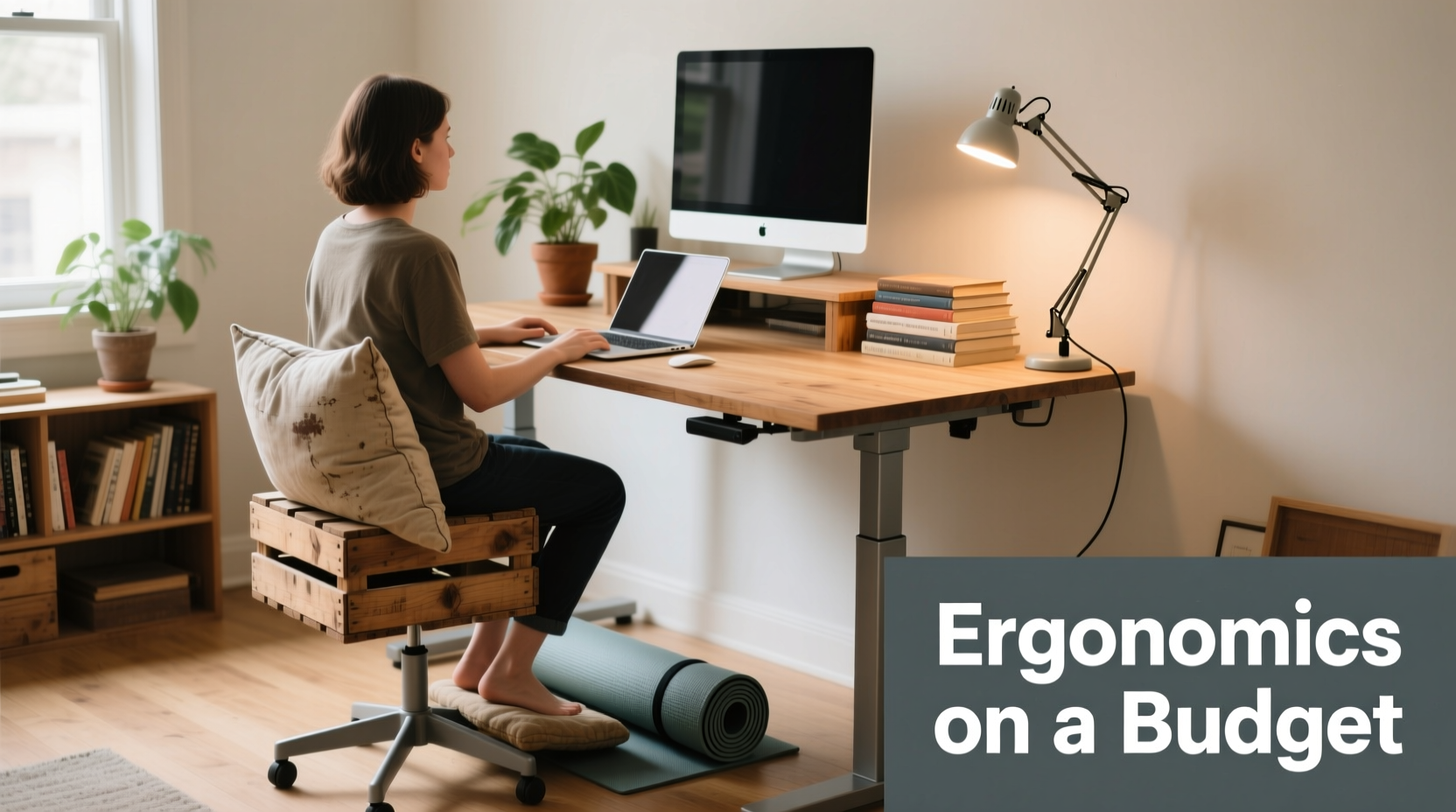
Ergonomics is the science of designing your environment to fit your body, not the other way around. When applied correctly, it reduces physical stress, prevents injury, and enhances focus. Ignoring ergonomics may seem harmless in the short term, but over months or years, small issues like slouching, wrist strain, or neck tension can evolve into serious musculoskeletal conditions.
The misconception that ergonomics requires expensive chairs, standing desks, or specialized keyboards keeps many people from making changes. However, research shows that even minor adjustments—like raising your monitor or supporting your lower back—can dramatically reduce discomfort. According to the Occupational Safety and Health Administration (OSHA), employers who implement ergonomic solutions see up to a 50% reduction in workplace injuries. The same principles apply at home.
“Ergonomics isn’t about luxury—it’s about alignment. A well-aligned body performs better and lasts longer.” — Dr. Lena Torres, Physical Therapist and Workplace Wellness Consultant
Assess Your Current Setup: The First Step to Improvement
Before making changes, take stock of your current workspace. Sit down at your desk and observe how your body feels after 10–15 minutes of typical work. Ask yourself these questions:
- Do your shoulders feel tense?
- Is your neck craned forward?
- Are your wrists angled upward while typing?
- Do your feet dangle instead of resting flat?
- Is your screen too low, forcing you to look down?
These are signs of poor ergonomics. The goal is neutral posture: ears aligned with shoulders, arms at 90 degrees, wrists straight, and feet flat on the floor. You don’t need fancy tools to achieve this—just awareness and a few strategic tweaks.
Budget-Friendly Adjustments That Make a Big Difference
You don’t need to buy a $500 chair to support your spine. Many effective ergonomic improvements cost little or nothing. Below are practical, low-cost strategies organized by key areas of your workspace.
1. Optimize Chair Height and Back Support
If your chair is too low or too high, it throws off your entire posture. The ideal height allows your feet to rest flat on the floor with knees bent at 90 degrees. If your feet don’t reach the ground, stack books or use a sturdy box as a footrest.
Lack of lumbar support is a common issue. Instead of buying a new chair, roll up a towel or use a small pillow and secure it behind your lower back with a rubber band or hair tie. This simple fix maintains the natural curve of your spine.
2. Raise Your Monitor to Eye Level
Looking down at a laptop or desktop monitor strains your neck and upper back. The top of your screen should be at or slightly below eye level, about an arm’s length away.
Instead of purchasing a monitor stand, stack hardcover books, storage bins, or even shoeboxes under your screen. For laptops, consider using a folding tray or a cookbook stand as a riser. Pair this with an external keyboard and mouse to keep your hands at a comfortable height.
3. Improve Keyboard and Mouse Positioning
Your keyboard should allow your elbows to stay close to your body at a 90-degree angle. Wrists should remain straight, not bent up, down, or to the side.
If your keyboard is too far forward, slide it closer or place it on a pull-out shelf made from a wooden board and drawer slides (available at hardware stores for under $15). Avoid working from the bed or couch with a laptop on your lap—this forces awkward angles and restricts breathing.
4. Enhance Lighting Without Glare
Poor lighting contributes to eye strain and headaches. Natural light is ideal, but if you rely on artificial sources, position a desk lamp to the side to avoid screen glare. A simple clip-on LED lamp from a dollar store can provide focused task lighting.
Avoid placing your monitor directly in front of or behind a window, as this creates contrast that tires your eyes. Use curtains or blinds to diffuse bright sunlight.
D.I.Y. Ergonomic Hacks Using Household Items
Many everyday objects can double as ergonomic tools. Get creative with what you already own:
| Problem | Household Solution | How to Use |
|---|---|---|
| Monitor too low | Stacked books or boxes | Place laptop or monitor on top until screen top aligns with eye level |
| No footrest | Shoebox, wood block, or thick books | Rest feet flat to maintain hip-knee alignment |
| Poor back support | Towel, cushion, or rolled sweater | Secure behind lower back with a belt or elastic band |
| Wrist strain | Wrist pad from mousepad or folded cloth | Place in front of keyboard to support wrists during pauses |
| Cable clutter | Rubber bands, binder clips, or toilet paper rolls | Clip cables to desk edge or bundle them neatly |
These solutions aren’t permanent, but they’re effective and accessible. Over time, you can upgrade as needed—but never let perfection be the enemy of progress.
Step-by-Step Guide to a Budget-Ergonomic Workspace
Follow this sequence to transform your workspace in under an hour, using minimal or no money:
- Clear your desk: Remove unnecessary items to create a clean, open surface.
- Adjust chair height: Sit with feet flat and knees at 90 degrees. Use a phone book or crate if needed.
- Add lumbar support: Roll a towel and secure it behind your lower back.
- Elevate your screen: Stack books or boxes under your monitor so the top is at eye level.
- Position keyboard and mouse: Place them close enough to keep elbows at your sides and wrists straight.
- Set up lighting: Use a desk lamp to illuminate your work area without casting glare on the screen.
- Organize cables: Bundle cords with twist ties or use binder clips to route them behind the desk.
- Test and adjust: Sit for 10 minutes and note any discomfort. Tweak heights or positions as needed.
This process doesn’t require special tools or purchases. It’s about intentionality and alignment—not expense.
Mini Case Study: Maria’s Home Office Transformation
Maria, a freelance writer in Austin, worked from her kitchen table for months using her laptop directly on the surface. After just six weeks, she developed persistent neck pain and numbness in her right hand. She couldn’t afford a full office setup, so she took a different approach.
She used three hardcover cookbooks to raise her laptop, connected a second-hand USB keyboard and mouse from a thrift store ($12 total), and placed a throw pillow behind her back. She also bought a $7 clamp lamp for better lighting. Within two days, her neck pain decreased significantly. After a week, her hand tingling disappeared.
“I thought I needed to save up for a fancy chair,” she said. “But fixing my posture with things I already had changed everything.”
“You don’t need a perfect setup—you need a mindful one.” — Dr. Raj Mehta, Occupational Medicine Specialist
Ergonomic Checklist: What to Do Today
Use this checklist to quickly audit and improve your workspace—no shopping required:
- ✅ Chair height adjusted so feet rest flat on floor
- ✅ Lower back supported with rolled towel or cushion
- ✅ Screen top at or slightly below eye level
- ✅ Keyboard and mouse within easy reach, elbows at 90°
- ✅ Wrists straight, not bent during typing
- ✅ Adequate lighting without screen glare
- ✅ Cables managed to prevent tripping or pulling
- ✅ Take a stretch break every 30–60 minutes
Check off each item as you complete it. Even doing half of these can make a noticeable difference.
Frequently Asked Questions
Can I make my laptop ergonomic without buying a stand?
Yes. Use stacked books, a wooden cutting board, or a sturdy box to raise your laptop screen. Pair it with an external keyboard and mouse to avoid hunching forward.
What if I don’t have an adjustable chair?
You can still optimize a fixed-height chair. Place a cushion or folded blanket on the seat to raise your height if needed, or use a footrest if your feet don’t reach the floor. Focus on maintaining a 90-degree knee angle.
How often should I move during the day?
Stand up, stretch, or walk for at least 1–2 minutes every hour. Set a timer or use a free app like Stretchly or Pomodoro Tracker to remind you. Movement relieves muscle tension and improves circulation.
Small Changes, Lasting Impact
An ergonomic workspace isn’t defined by price tags—it’s defined by purpose. Every adjustment you make to support your body pays dividends in comfort, health, and productivity. You don’t need to replicate a Silicon Valley startup’s office to work well. You just need to pay attention to how your body responds to your environment.
Start today. Look at your desk. Sit in your chair. Notice where you’re straining. Then make one change—raise your screen, roll a towel for support, or reposition your mouse. Build from there. Over time, these small acts accumulate into a sustainable, healthy work habit.




 浙公网安备
33010002000092号
浙公网安备
33010002000092号 浙B2-20120091-4
Comments
No comments yet. Why don't you start the discussion?