
Instagram is one of the most widely used social platforms, but like any app, it can occasionally fail to load new content or display outdated feeds. Whether you're missing a friend's post, stuck on an old Stories carousel, or your DMs aren't updating, the issue often comes down to syncing problems rather than server outages. The good news: most of these glitches can be resolved in minutes with the right approach. This guide walks through practical, step-by-step methods to manually refresh Instagram and troubleshoot persistent update issues across devices.
Why Instagram Doesn’t Refresh Automatically
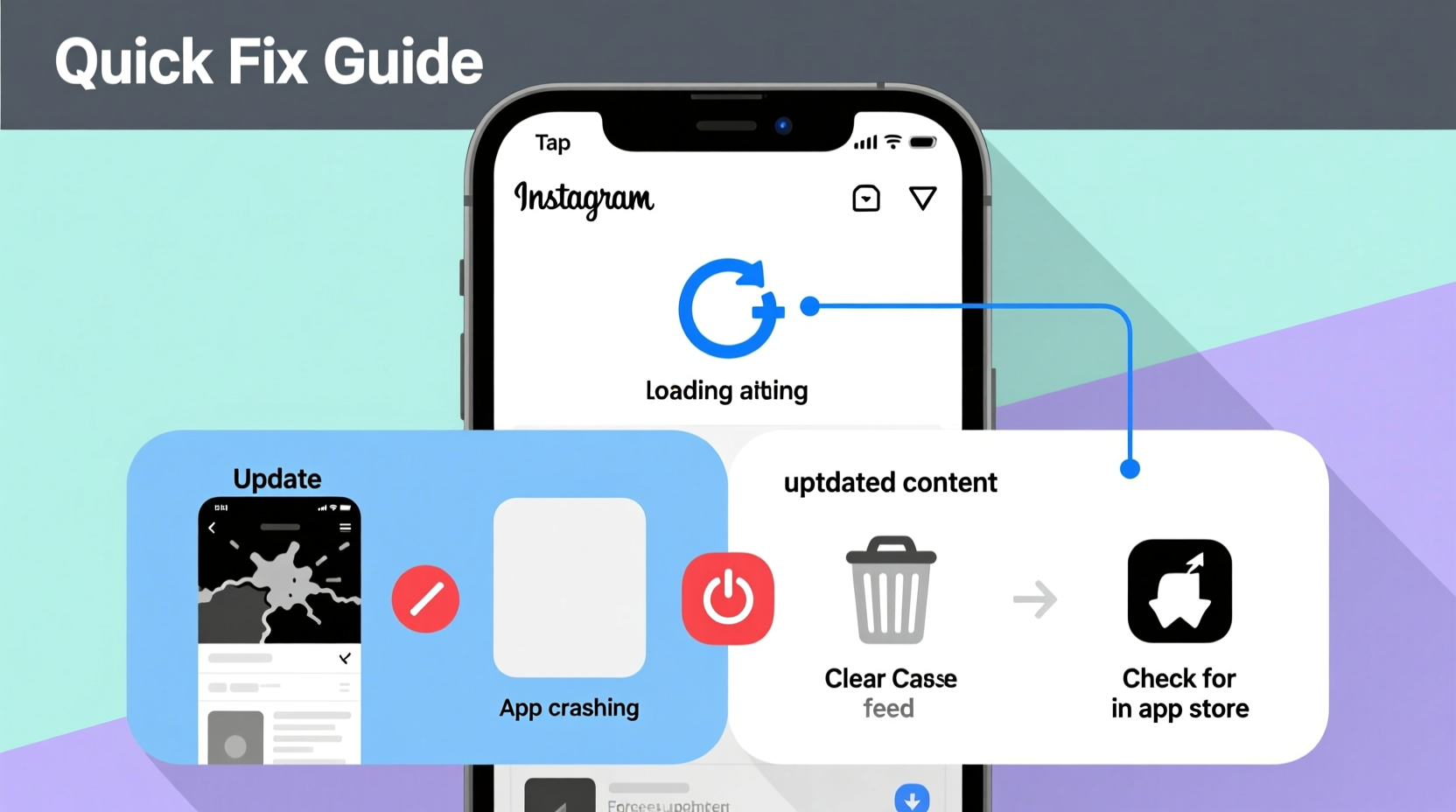
Instagram uses background data and push notifications to keep your feed, stories, and messages current. However, several factors can interrupt this process:
- Weak or unstable internet connection – Slow Wi-Fi or spotty cellular data delays content loading.
- App cache corruption – Accumulated temporary files may prevent new data from rendering.
- Outdated app version – Older versions may lack critical fixes for syncing bugs.
- Background app restrictions – Battery-saving settings can limit background activity.
- Server-side delays – Rarely, Instagram’s servers may temporarily delay content distribution.
Understanding these causes helps pinpoint the right solution—starting with the simplest fixes before moving to deeper troubleshooting.
How to Manually Refresh Your Instagram Feed
The most immediate way to reload fresh content is by using Instagram’s built-in pull-to-refresh gesture. This works on both iOS and Android.
- Open the Instagram app and go to your Home feed.
- Place your finger near the top of the screen.
- Swipe downward gently and hold for a second.
- Release when you see the loading spinner (a circular icon).
- Wait a few seconds as the app fetches new posts.
This action forces Instagram to query the server for updates. If new content doesn’t appear after three attempts, proceed to more advanced solutions.
Note: Pull-to-refresh also works in the Activity tab (heart icon), Explore page, and Profile section. Use it whenever content seems stale.
Troubleshooting Persistent Update Issues
If manual refreshing fails, deeper system-level adjustments are needed. Follow this checklist to resolve stubborn syncing problems.
✅ Quick Fix Checklist
- Toggle airplane mode on and off to reset network connections.
- Force close and reopen the Instagram app.
- Clear the app cache (Android) or offload the app (iOS).
- Check for app updates in the App Store or Google Play.
- Restart your smartphone.
These actions address over 80% of common update failures. For example, clearing cache removes corrupted temporary files without deleting login data or saved content.
Clearing Cache on Android
Navigate to Settings > Apps > Instagram > Storage > Clear Cache. Do not tap “Clear Data” unless necessary—it will log you out and erase local preferences.
Offloading App on iPhone
Go to Settings > General > iPhone Storage > Instagram. Tap “Offload App,” then reinstall it. This preserves documents and data while removing the app binary.
“Many users overlook cache buildup. A simple clear every few weeks keeps apps responsive and syncing reliably.” — Jordan Lee, Mobile App Support Specialist
Advanced Fixes: Reinstalling & Network Reset
When standard methods fail, consider more comprehensive steps that target deeper software conflicts.
Step-by-Step: Reinstall Instagram
- Uninstall the Instagram app from your device.
- Restart your phone to clear residual processes.
- Reconnect to a stable Wi-Fi network.
- Download Instagram again from the official store (Google Play or App Store).
- Log back in using your credentials.
- Test feed refresh and story loading.
This ensures you’re running a clean, up-to-date version free of installation errors.
Reset Network Settings (If Syncing Fails Across Apps)
If Instagram isn’t the only app having connectivity issues, resetting network settings may help.
| Device | Steps to Reset Network |
|---|---|
| iOS | Settings > General > Transfer or Reset iPhone > Reset > Reset Network Settings |
| Android | Settings > System > Reset Options > Reset Wi-Fi, Mobile & Bluetooth |
Note: This will erase saved Wi-Fi passwords and Bluetooth pairings, so have them ready before proceeding.
Real Example: Fixing a Frozen Feed After Travel
Sophia returned from a trip abroad and noticed her Instagram feed hadn’t updated in two days. Her Stories were missing, and direct messages appeared delayed. She tried pulling to refresh multiple times with no success. First, she toggled airplane mode—no change. Then she checked for app updates and found Instagram was two versions behind due to disabled auto-updates. After downloading the latest version from the App Store, the app began syncing within seconds. Later, she enabled automatic updates to prevent recurrence.
This case highlights how outdated apps combined with roaming data restrictions can disrupt synchronization. Regular maintenance prevents such oversights.
Preventing Future Sync Problems
Maintaining smooth performance requires proactive habits. Consider these long-term strategies:
- Keep Instagram updated – Enable automatic app updates in your device settings.
- Limit background battery optimization – On Android, set Instagram to “Unrestricted” in Battery Usage settings.
- Avoid public Wi-Fi for critical use – Open networks often throttle bandwidth, delaying content loads.
- Use Instagram Lite (Android) – A lighter version that runs faster on slower devices and networks.
Additionally, avoid logging in from too many devices or locations in a short span, as Instagram may temporarily restrict syncing for security reasons.
Frequently Asked Questions
Why does my Instagram feed not update even after refreshing?
Persistent failure to update usually stems from an outdated app version, poor internet, or excessive cache. Try updating the app, switching networks, or clearing the cache. If the problem persists, reinstalling Instagram often resolves underlying glitches.
Can I refresh Instagram on desktop?
Yes. On the web version (instagram.com), simply press F5 (Windows) or Cmd+R (Mac) to reload the page and fetch new content. Note that some features like Stories may still lag slightly behind the mobile app.
Does force-closing Instagram help with syncing?
Yes. Force-closing stops all background processes and clears active memory. When reopened, the app restarts fresh, which can resolve hangs and failed sync attempts. On iPhone, swipe up on the app preview; on Android, go to Recent Apps and swipe away Instagram.
Final Thoughts
Manually refreshing Instagram is just the beginning. True reliability comes from understanding how the app interacts with your device and network. By combining quick gestures with regular maintenance—like clearing cache, enabling updates, and managing settings—you maintain seamless access to your digital world. Most issues aren’t permanent or complex; they’re fixable with the right sequence of actions.




 浙公网安备
33010002000092号
浙公网安备
33010002000092号 浙B2-20120091-4
Comments
No comments yet. Why don't you start the discussion?