
Modern infotainment systems often come with built-in support for Apple CarPlay and Android Auto, offering seamless smartphone integration. But not every vehicle has these features—especially older models or budget-friendly cars. If your car lacks native smartphone mirroring, that doesn’t mean you’re stuck navigating with a dangling phone or missing out on music streaming. There are effective ways to mirror your phone’s screen directly onto your car’s display without relying on CarPlay or Android Auto. From wireless casting to hardware adapters and third-party apps, this guide covers practical, tested methods that work across different devices and vehicles.
Why Mirror Your Phone Without CarPlay or Android Auto?
CarPlay and Android Auto provide optimized interfaces designed for driving safety, but they come with limitations. They restrict access to certain apps, require specific software compatibility, and aren’t available in all vehicles. Mirroring your entire phone screen offers broader functionality: use any navigation app (like Waze, Google Maps, or Sygic), stream video from Netflix when parked, control smart home devices, or even manage productivity tools—all from your car’s central display.
Additionally, full-screen mirroring is ideal if you rely on region-specific apps or services not supported by official platforms. For example, Chinese drivers may prefer Baidu Maps or DiDi over Google services, which are unavailable in their region. Full mirroring bypasses these restrictions.
Method 1: Use Built-In Wireless Display (Miracast or Screen Mirroring)
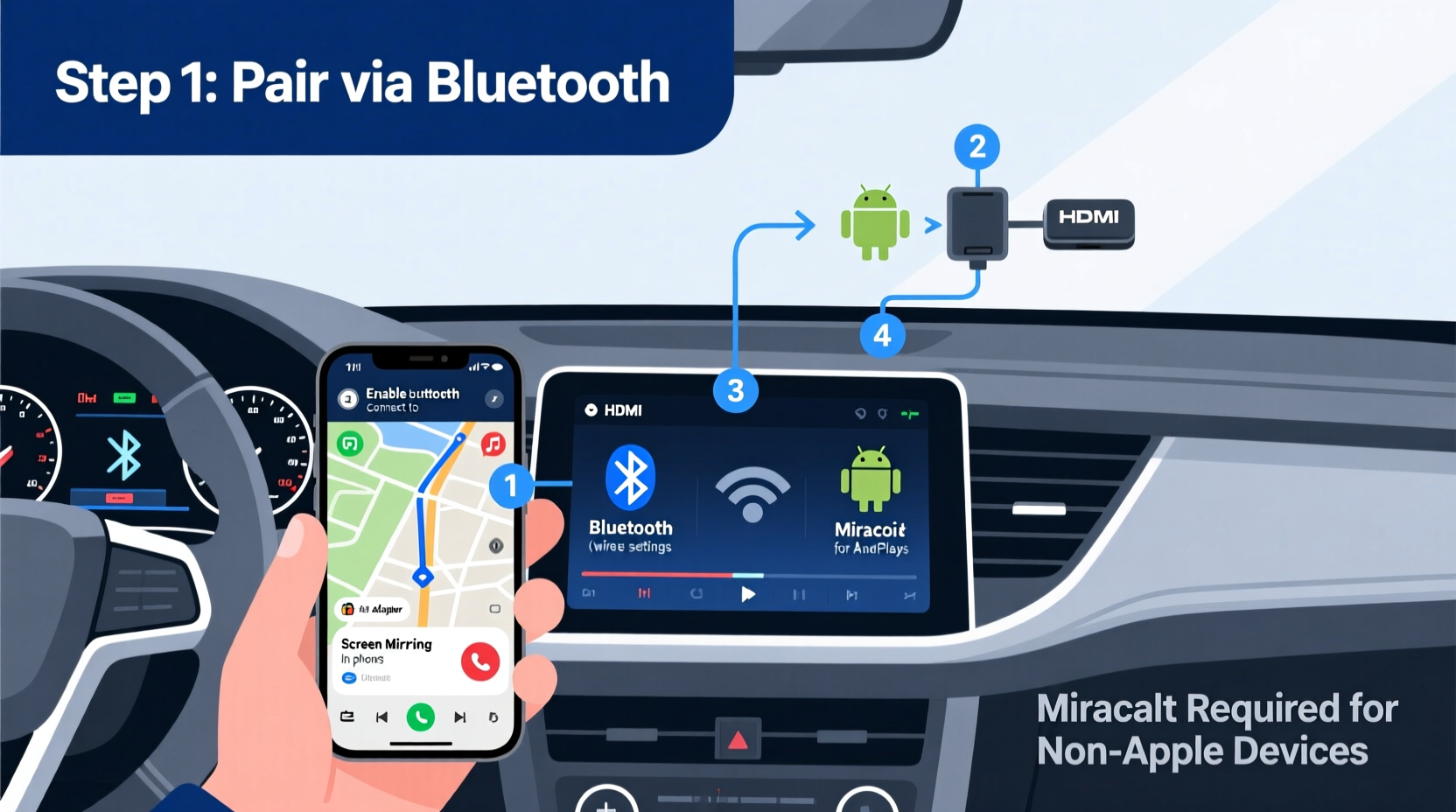
If your car’s infotainment system supports screen mirroring via Wi-Fi Direct, you can connect your phone wirelessly. This method works best with newer head units that include \"Screen Mirroring,\" \"Smart View,\" or \"Wi-Fi Display\" options—even without Android Auto.
Many Samsung, LG, and other Android phones support Miracast natively. iPhones don’t support Miracast, so this method applies primarily to Android users.
Step-by-Step Guide to Connect via Miracast
- On your car’s infotainment system, navigate to Settings > Device Connection > Screen Mirroring or similar.
- Enable screen mirroring mode on the car display.
- On your Android phone, go to Settings > Connected Devices > Connection Preferences > Screen Sharing or Smart View.
- Select your car’s device name from the list of available displays.
- Confirm the connection prompt on both devices.
- Once connected, your phone’s screen will appear on the car display.
Note: Some cars require you to initiate the connection from the vehicle side first. Signal strength and latency depend on the quality of the internal Wi-Fi module. Expect slight delays during fast scrolling or video playback.
“Wireless mirroring through Miracast gives OEMs flexibility without licensing fees tied to proprietary ecosystems.” — Rajiv Mehta, Automotive Software Engineer at Harman International
Method 2: HDMI Adapter with MHL or Slimport
For wired mirroring, an HDMI adapter can transmit your phone’s screen directly to a car display equipped with an HDMI input. While rare in factory-installed systems, aftermarket stereos often include HDMI ports.
You’ll need one of the following:
- MHL (Mobile High-Definition Link): Works with select older Samsung, Sony, and HTC phones.
- Slimport: Used by some Motorola and Xiaomi devices.
- USB-C to HDMI: Compatible with most modern phones supporting DisplayPort Alt Mode.
Required Equipment Checklist
- Phone with MHL, Slimport, or USB-C video output support
- HDMI-enabled car stereo or external monitor in vehicle
- Appropriate adapter (e.g., USB-C to HDMI cable)
- Power source (use a car charger to prevent battery drain)
Once connected, the phone outputs video and audio simultaneously. No additional pairing is required. However, ensure your phone remains charged during use, as screen mirroring increases power consumption significantly.
Method 3: Third-Party Mirroring Apps Over Wi-Fi
When hardware solutions aren’t feasible, software-based screen mirroring apps offer a flexible alternative. These apps create a local network bridge between your phone and a receiver running compatible software—often on a tablet or secondary display connected to your car’s audio system.
Popular apps include:
- ApowerMirror – Supports both Android and iOS, allows bidirectional control.
- Reflector – Runs on Windows/Mac; turns your computer into an AirPlay/Miracast receiver.
- TeamViewer QuickSupport – Enables remote viewing with low-latency screen sharing.
Real Example: Commuter Uses ApowerMirror Daily
Jamal, a delivery driver in Chicago, uses a 2015 Toyota Camry with a basic touchscreen but no smartphone integration. He installed ApowerMirror on his Android phone and runs the desktop version on a small Raspberry Pi-powered display mounted near his dashboard. By connecting both devices to a portable Wi-Fi hotspot, he mirrors Google Maps in real time. The setup costs under $100 and eliminates the need to glance at his phone. “It’s not factory-grade,” he says, “but it’s reliable and updated whenever I want new features.”
This approach requires technical know-how but offers customization unmatched by standard solutions.
Method 4: Aftermarket Head Units with Native Mirroring Support
The most robust long-term solution is replacing your factory radio with an aftermarket unit that supports direct phone mirroring. Brands like Pioneer, Kenwood, and Sony offer receivers with “WebLink” or “Smartphone Mirror” modes that replicate your phone’s interface—no CarPlay or Android Auto needed.
These units typically support:
- Full touch interaction from the car screen
- USB or Wi-Fi connection
- Compatibility with both iOS and Android
- App sandboxing for safer driving experience
Installation usually takes 1–2 hours and may require a wiring harness adapter specific to your vehicle model. Once set up, simply plug in your phone or connect via Wi-Fi to begin mirroring.
Comparison Table: Factory vs. Aftermarket Solutions
| Solution Type | Connection Method | Latency | Cost Range | Best For |
|---|---|---|---|---|
| Factory CarPlay/Android Auto | USB/Wi-Fi | Low | $0 (built-in) | Newer vehicles, simplicity |
| Miracast (Wireless) | Wi-Fi Direct | Medium | $0 (if supported) | Android-only, temporary setups |
| HDMI Adapter | Wired (HDMI) | Very Low | $15–$40 | Aftermarket stereos with HDMI |
| Third-Party App (e.g., ApowerMirror) | Local Wi-Fi | High (varies) | $0–$30/year | Tech-savvy users, custom setups |
| Aftermarket Head Unit (e.g., Pioneer WebLink) | USB/Wi-Fi | Low to Medium | $200–$500+ | Permanent upgrade, full control |
Method 5: Use a Secondary Display with Casting Dongles
Another workaround involves adding a secondary screen inside your car—such as a portable tablet mounted on the dash—and using a casting dongle like Google Chromecast or Amazon Fire TV Stick. While primarily designed for media, these devices can mirror selected content when paired correctly.
iOS users can use AirPlay to cast videos or slideshows to an Apple TV-connected display. Android users can cast Chrome tabs or supported apps via Google Cast. Though not true full-screen mirroring, this method works well for audio streaming and passive navigation displays.
To optimize performance:
- Use a high-speed USB power adapter to avoid throttling.
- Minimize background apps to reduce lag.
- Keep the Wi-Fi signal strong—consider a dual-band router if using a mobile hotspot.
Frequently Asked Questions
Can I mirror an iPhone without CarPlay?
Yes, but with limitations. iPhones do not support Miracast. Instead, use AirPlay-compatible receivers (like Apple TV or third-party docks) connected to a display in your car. True screen mirroring requires jailbreaking or enterprise-level tools, which are not recommended due to security risks. Alternatively, use apps like Reflector or ApowerMirror that accept AirPlay streams on a computer or Android device acting as a receiver.
Is screen mirroring safe while driving?
Mirroring itself isn’t inherently unsafe, but interacting with complex phone interfaces while driving increases distraction risk. Always limit usage to essential functions like turn-by-turn navigation or hands-free calling. Set destinations before driving and disable notifications during trips.
Will screen mirroring drain my phone battery?
Yes—significantly. Screen mirroring, especially over Wi-Fi, consumes extra power due to continuous graphics processing and network transmission. Always connect your phone to a car charger during use. Consider using a high-amperage USB port (2.4A or higher) for faster charging under load.
Final Recommendations and Best Practices
Not having CarPlay or Android Auto doesn’t mean sacrificing convenience. Depending on your vehicle, budget, and tech comfort level, several viable alternatives exist. For casual users, Miracast or a simple HDMI adapter might suffice. Tech enthusiasts may prefer building a custom setup with third-party apps and mini PCs. Those seeking a polished, permanent solution should consider upgrading to an aftermarket head unit with native mirroring capabilities.
Regardless of method, keep these principles in mind:
- Ensure stable power supply to prevent mid-drive disconnections.
- Prioritize low-latency connections for responsive navigation.
- Test the system in a stationary environment before hitting the road.
- Update firmware regularly to maintain compatibility and security.
“The future of in-car connectivity isn’t just about branded ecosystems—it’s about interoperability and user choice.” — Dr. Lena Torres, Senior Researcher at MIT Mobility Lab
Conclusion
Mirroring your phone to your car display without Android Auto or CarPlay is not only possible—it can be more flexible and customizable than relying on proprietary systems. Whether you opt for wireless casting, physical adapters, or a full infotainment upgrade, the right solution puts you back in control of your digital driving experience. Evaluate your needs, test options safely, and choose the method that balances ease of use, reliability, and functionality. With the right setup, your car becomes an extension of your smartphone—not limited by outdated factory software.




 浙公网安备
33010002000092号
浙公网安备
33010002000092号 浙B2-20120091-4
Comments
No comments yet. Why don't you start the discussion?