
PDFs are everywhere—from contracts and invoices to e-books and academic papers. While they’re great for preserving formatting across devices, editing them can feel like a challenge. Many assume that modifying a PDF requires expensive software like Adobe Acrobat Pro. But that’s no longer the case. With modern free tools, you can edit text, add annotations, insert images, rotate pages, and even fill out or create forms—all without spending a dollar.
This guide walks through reliable, accessible methods to modify PDFs using only free tools. Whether you're updating a resume, signing a document, or extracting pages from a report, these solutions work across operating systems and skill levels.
Why Editing PDFs Used to Be Difficult
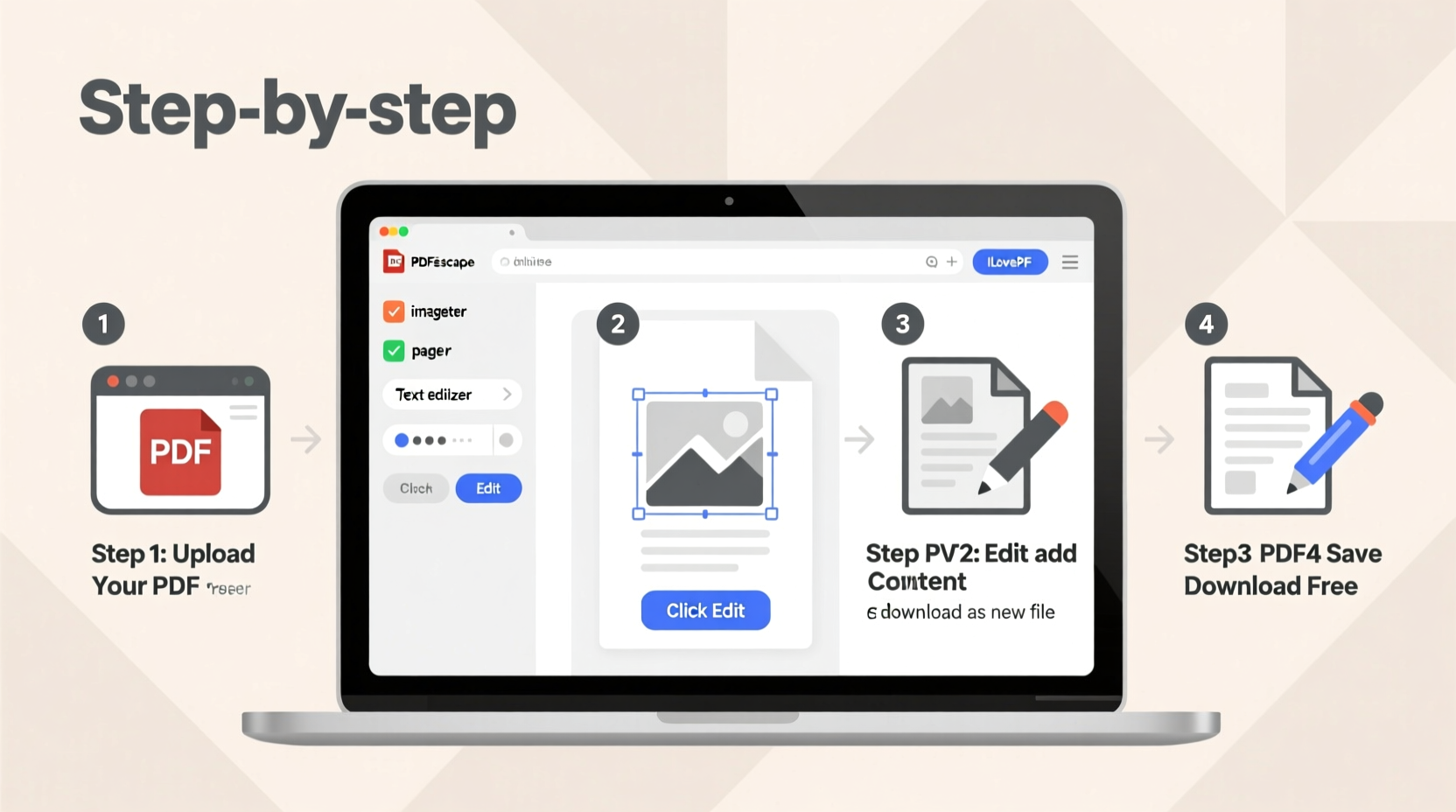
Originally, PDF (Portable Document Format) was designed to be a fixed-layout format. It ensured documents looked identical regardless of device or software. That strength became a limitation when users needed to make changes. Unlike Word or Google Docs, standard PDF readers like Adobe Reader don’t allow direct editing.
For years, this meant paying for premium software. But as cloud computing and open-source development advanced, free alternatives emerged—many offering surprisingly robust features.
“Free PDF tools have closed the gap with paid software. For most everyday tasks, you don’t need to spend a cent.” — David Lin, Digital Workflow Consultant
Best Free Tools to Modify PDF Files
Not all free PDF editors are created equal. Some compromise on security, others on functionality. Below is a curated list of trustworthy, feature-rich tools available at no cost.
| Tool | Key Features | Platform | Offline Use? |
|---|---|---|---|
| PDFescape | Edit text, add images, annotate, form creation | Web, Windows | Yes (desktop version) |
| Sejda PDF Editor | Text editing, page manipulation, OCR, e-signatures | Web, macOS, Windows, Linux | Yes (desktop app) |
| LibreOffice Draw | Full document reformatting, vector editing | Windows, macOS, Linux | Yes |
| Google Docs (via upload) | Convert and edit text-heavy PDFs | Web-based | No (requires internet) |
| PDF24 Creator | Merge, split, compress, edit metadata | Windows, Web | Yes |
Step-by-Step Guide to Modifying a PDF for Free
Follow this universal workflow to edit any PDF—regardless of which tool you choose. This example uses Sejda PDF Editor (web version), but the principles apply across platforms.
- Choose your tool: Go to sejda.com and select “Edit PDF”.
- Upload your file: Drag and drop your PDF or click to browse. Note: Web versions often limit file size (e.g., 50MB) and processing time.
- Edit text: Click on any text block. You can change font, size, color, or rewrite content. The tool preserves layout where possible.
- Add or replace images: Use the “Image” tool to upload a new graphic. Resize and position it over the old image or in blank space.
- Annotate or highlight: Use sticky notes, arrows, or highlighters to mark up the document without altering original content.
- Rearrange pages: Drag and drop thumbnails in the sidebar to reorder, delete, or rotate pages.
- Fill out or create forms: Add text fields, checkboxes, or signature lines. Save as interactive PDF.
- Download: Once done, click “Apply Changes” and download the modified file.
The entire process takes under five minutes for simple edits. More complex changes—like reformatting multi-column layouts—may require additional tweaking.
Real-World Example: Updating a Job Application Packet
Sophie needed to submit a revised cover letter and update her address on her resume before applying to a remote job. She had both documents saved as PDFs but didn’t own Microsoft Word or Adobe Acrobat.
She used PDFescape to open her resume, edited the contact section directly, and uploaded a small company logo next to her name. Then she converted her cover letter PDF into an editable format using Google Docs (by uploading the PDF and opening with Docs), made her revisions, and downloaded it back as a PDF.
Total time: 12 minutes. Total cost: $0. Her application looked professional and error-free.
Checklist: Before and After Editing Your PDF
- ✅ Back up the original file before making changes
- ✅ Verify that fonts render correctly after editing
- ✅ Check alignment and spacing, especially after adding text
- ✅ Test form fields if submitting digitally
- ✅ Compress the final file if it's too large to email
- ✅ Password-protect sensitive documents if sharing online
Advanced Uses: Beyond Text Editing
Free tools now support surprisingly advanced functions:
- Merging multiple PDFs: Combine reports, contracts, or portfolios into one file using Sejda or PDF24.
- Extracting pages: Pull specific pages from a manual or article without third-party help.
- Adding electronic signatures: Sign leases or agreements using drawing tools or uploaded signature images.
- OCR (Optical Character Recognition): Convert scanned documents into editable text—supported by Sejda and some desktop tools.
For scanned PDFs that appear as images, use Online OCR (free site) to extract text first, then paste into an editable PDF editor.
Frequently Asked Questions
Can I edit scanned PDFs for free?
Yes, but only after converting them using OCR technology. Tools like Sejda and OnlineOCR.net can transform scanned images into selectable and editable text. Accuracy depends on scan quality—clear, high-resolution scans yield better results.
Are free PDF editors safe to use?
Most reputable tools are safe, especially those that delete files automatically after processing (like Sejda, which removes files within hours). Avoid obscure websites that lack privacy policies or request unnecessary permissions. When in doubt, use offline tools like LibreOffice Draw.
Why does my edited text look misaligned?
PDFs preserve exact positioning, so changing text length can disrupt layout. To fix this, adjust line spacing manually or reflow content by breaking it into smaller blocks. In complex cases, consider recreating the section entirely in a word processor and re-exporting as PDF.
Final Tips for Flawless PDF Edits
Even with powerful tools, clean results depend on technique. Keep these best practices in mind:
- Work incrementally: Make small changes and save frequently to avoid losing progress.
- Use consistent fonts: Match existing typefaces when possible. If unsure, stick to common fonts like Arial, Times New Roman, or Calibri.
- Avoid overcrowding: Resist the urge to cram in extra information. Adjust margins or page count instead.
- Proofread twice: Typos in PDFs are harder to correct later, especially after sharing.
“Editing a PDF shouldn’t mean starting over. With the right free tools, you can maintain professionalism while saving time and money.” — Maria Chen, Remote Work Trainer
Conclusion
Modifying PDF files doesn’t require a subscription or technical expertise. From updating personal documents to preparing business materials, free tools like Sejda, PDFescape, and LibreOffice offer everything most users need. The key is choosing the right tool for your task and following a clear editing process.
Start with a backup, make your changes carefully, and always preview the final result. Whether you're a student, freelancer, or office worker, mastering free PDF editing empowers you to stay productive without added expenses.




 浙公网安备
33010002000092号
浙公网安备
33010002000092号 浙B2-20120091-4
Comments
No comments yet. Why don't you start the discussion?