
The PlayStation 5 was built around speed—lightning-fast SSDs, near-instant loading, and seamless transitions between game worlds. But as you install more titles, the internal storage fills up, performance can degrade, and load times may creep back in. Optimizing your PS5 storage isn’t just about freeing up space—it’s about maintaining peak performance. With the right strategies, you can ensure faster load times, reduced stuttering, and a smoother overall gaming experience.
Upgrade to a High-Speed NVMe SSD
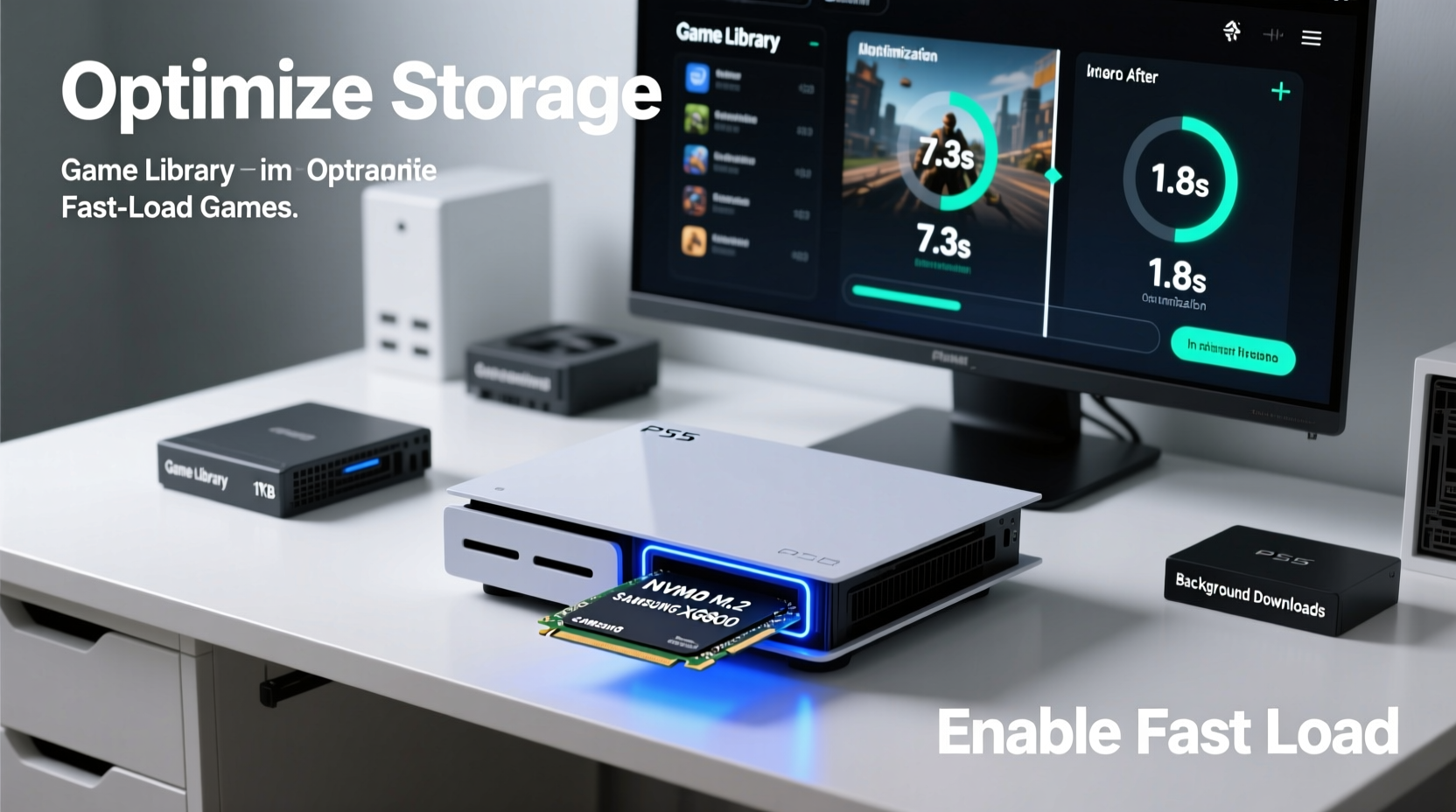
The PS5’s internal 825GB SSD (with ~667GB usable) is fast but limited. If you’re regularly deleting and reinstalling games, it’s time to expand. Sony allows expansion via the M.2 slot, but not all SSDs work optimally. To maintain the console’s high-speed architecture, choose an NVMe PCIe Gen4 x4 M.2 SSD with a minimum sequential read speed of 5,500 MB/s.
Slower drives will still function but may bottleneck performance, especially in open-world or asset-heavy games like Spider-Man: Miles Morales or Horizon Forbidden West. A high-end SSD ensures that data streams efficiently from storage to GPU, reducing texture pop-in and improving frame stability.
Installation is straightforward: power off the console, remove the side panel, insert the drive at a 30-degree angle into the M.2 slot, secure it with the screw, and reassemble. The PS5 will prompt you to format the drive upon boot.
Optimize Game Installation and Management
Not all games need to live on your fastest drive at all times. Strategic game management helps balance performance and convenience.
Install frequently played or performance-sensitive games—such as competitive shooters or story-driven RPGs—on the internal SSD or expanded NVMe drive. Less-played titles or those with minimal loading differences (e.g., turn-based games) can be stored on an external USB HDD.
The PS5 lets you move games between internal and external storage through the Settings menu. While you can’t play PS5 titles directly from external drives, transferring them back takes only minutes thanks to high-speed USB 3.2 connections.
“Storage hierarchy matters. Prioritize speed for active games, use capacity for archive titles.” — David Chen, Console Performance Analyst at GameFrame Labs
Game Organization Checklist
- Identify your top 5 most-played games
- Move older or completed games to external storage
- Use the ‘Upload to Cloud’ feature for saved data before deletion
- Label external drives by genre or completion status for easy retrieval
- Regularly review installed games every 4–6 weeks
Leverage System Software Features
Sony has steadily improved the PS5’s storage tools. Use these built-in features to streamline performance:
1. Game Preloading and Updates
Enable automatic downloads during rest mode. This keeps games updated without interrupting play sessions. Updated games often include optimization patches that improve loading efficiency and fix memory leaks.
2. Selective Launch Options
In the game library, you can choose to launch only specific modes—like multiplayer or single-player campaigns. This reduces unnecessary asset loading and speeds up startup.
3. Rebuild Database (Safe Mode)
If your PS5 feels sluggish despite ample free space, rebuild the system database. This doesn’t delete data but reindexes files for faster access.
- Turn off the PS5 completely.
- Hold the power button until you hear two beeps (about 7 seconds).
- Select “Option 5: Clear Cache and Rebuild Database” from Safe Mode.
- Choose “Rebuild Database” to scan the drive and optimize file structure.
This process can take 30–60 minutes but often results in noticeably snappier navigation and shorter load screens.
Compare Storage Solutions: Internal vs. External vs. Cloud
| Storage Type | Speed (Read) | Play PS5 Games? | Best For | Limitations |
|---|---|---|---|---|
| Internal SSD | 5,500+ MB/s | Yes | Primary gaming, fastest loads | Limited capacity (~667GB usable) |
| NVMe M.2 SSD (Gen4) | 5,000–7,000 MB/s | Yes | Expanding primary storage | Requires compatible model; physical installation |
| External USB HDD/SSD | 100–500 MB/s | No (for PS5 games) | Storing PS5/PS4 games, backups | Must transfer to internal drive to play PS5 titles |
| PS Plus Cloud Storage | Internet-dependent | No | Saved game backups, cross-console sync | Requires subscription; not for full games |
Understanding these options helps you build a tiered storage strategy. Think of your setup like a pyramid: fast storage at the top for active play, high-capacity external drives in the middle for archives, and cloud at the base for critical save files.
Real-World Example: Reducing Load Times in Open-World Games
Consider Mark, a PS5 owner who plays Ghost of Tsushima Director’s Cut. Initially, he installed the game on his external USB 3.0 HDD to save internal space. Fast travel between regions took 18–22 seconds, and textures loaded slowly after entering new zones.
After moving the game to his newly installed 1TB Samsung 980 Pro NVMe SSD, fast travel dropped to 7–9 seconds. Texture streaming improved significantly, eliminating foggy distant objects and reducing pop-in. Though the game remained the same, the storage upgrade transformed the experience.
This case illustrates a key truth: even if a game runs, its fluidity depends heavily on storage speed. Asset-rich titles benefit most from high-bandwidth drives.
Optimize In-Game Settings and System Tweaks
Beyond hardware, software settings influence how efficiently your PS5 uses storage.
Enable Game Presets
Go to Settings > Saved Data and Game/App Settings > Game Presets. Here, you can set default behavior for new games—such as automatically downloading updates or launching in performance mode. This reduces manual setup and ensures consistent optimization across titles.
Clear Temporary Files Regularly
Games leave behind cache and temporary data. While the PS5 manages this well, accumulated junk can slow down operations over time. Manually clear it:
- Navigate to Settings > Storage > Clear Cache.
- Select the system storage and confirm.
- Restart the console.
This simple step can reclaim hundreds of megabytes and improve UI responsiveness.
Use Rest Mode Wisely
Rest Mode allows background downloads and charging, but it can also cause wear on the SSD if used excessively. Limit Rest Mode to essential updates and disable it when traveling or during prolonged inactivity.
“The PS5’s SSD is rated for years of use, but minimizing unnecessary disk writes extends longevity and maintains write performance.” — Tech Review Board, IEEE Consumer Devices Journal
Frequently Asked Questions
Can I use any M.2 SSD in my PS5?
No. Only NVMe PCIe Gen4 x4 M.2 SSDs with a heatsink (or low-profile design) and a minimum 5,500 MB/s read speed are recommended. Drives slower than this may not meet Sony’s performance standards and could lead to degraded gameplay.
Why can’t I play PS5 games from an external drive?
PS5 games are designed to leverage the console’s custom SSD I/O architecture, which external USB drives cannot replicate. You can store PS5 games externally, but must copy them back to internal or M.2 storage to play.
Does compressing saved data help free up space?
The PS5 does not offer native compression for game data. However, you can delete redundant saves manually or upload them to PS Plus cloud storage before deletion. Some third-party tools (used on PC) claim to compress PS5 data, but they risk corrupting files and are not recommended.
Final Recommendations: Build a Sustainable Storage Strategy
Optimizing PS5 storage isn’t a one-time fix—it’s an ongoing process. As games grow larger and more complex, your approach must evolve. Start by upgrading to a high-speed M.2 SSD if you haven’t already. Then, implement a rotating game library: keep 3–5 active titles on fast storage, archive others externally, and use cloud saves as insurance.
Regular maintenance—rebuilding the database, clearing caches, and updating firmware—keeps the system running cleanly. Monitor storage usage monthly, especially after major game releases or seasonal updates.
Remember, the goal isn’t just more space. It’s about preserving the PS5’s defining advantage: speed. When your storage is optimized, load times vanish, worlds unfold instantly, and gameplay feels uninterrupted. That’s the next-gen experience as intended.




 浙公网安备
33010002000092号
浙公网安备
33010002000092号 浙B2-20120091-4
Comments
No comments yet. Why don't you start the discussion?