
Competitive gameplay in Call of Duty: Warzone demands more than just sharp reflexes—your hardware must perform at its peak while staying within safe thermal limits. Achieving high frames per second (FPS) is crucial for smooth aiming, tracking, and situational awareness. However, pushing your system too hard can lead to thermal throttling, frame drops, and even long-term component damage. The real challenge lies in balancing performance with temperature control. This guide breaks down proven strategies to maximize FPS in Warzone while keeping your CPU and GPU cool, ensuring consistent performance during extended sessions.
Understanding the Performance-Thermal Tradeoff
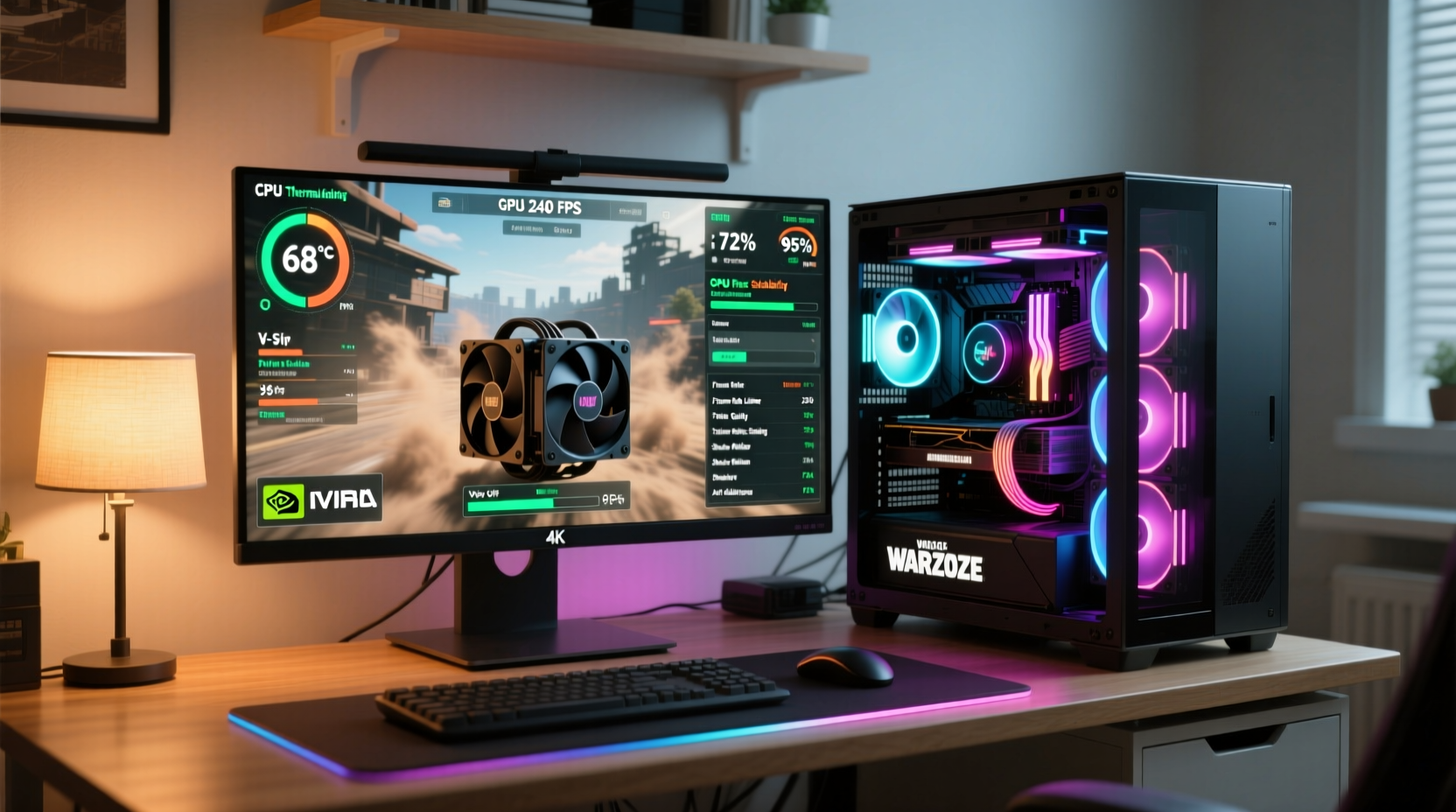
High FPS in Warzone requires significant GPU and CPU resources. As these components work harder, they generate heat. When temperatures exceed safe thresholds—typically above 85°C for GPUs and 90°C for CPUs—thermal throttling kicks in, reducing clock speeds to prevent damage. This results in sudden FPS drops mid-match, input lag, and unstable performance. The goal isn’t just to boost FPS but to sustain it over time without triggering thermal safeguards.
Modern systems are designed to handle bursts of load, but Warzone’s large map size, dynamic lighting, and constant player interactions create sustained stress. Optimizing both in-game settings and system-level configurations allows you to extract maximum performance while minimizing heat output.
“Balancing visual fidelity with thermal efficiency is the key to competitive longevity. A stable 120 FPS at 70°C outperforms a fluctuating 140 FPS at 95°C.” — Marcus Lin, Senior PC Performance Analyst at FrameLabs
Step-by-Step Optimization Guide
Follow this structured approach to fine-tune your setup for high FPS and low temperatures. Each step targets a specific area of performance or thermal management.
- Update Drivers and Firmware: Ensure your GPU drivers (NVIDIA GeForce Experience or AMD Adrenalin) are up to date. Newer drivers often include optimizations for recent game patches and better power management.
- Set Power Mode to High Performance: In Windows, go to Settings > System > Power & Sleep > Additional Power Settings and select “High Performance” or “Ultimate Performance” if available.
- Launch Warzone with Fullscreen Exclusive Mode: This reduces overhead from Windows compositor and improves input responsiveness. Disable fullscreen optimizations in the game’s .exe properties if needed.
- Limit Background Applications: Close browsers, Discord overlays, RGB control software, and other non-essential programs. Use Task Manager to identify high-CPU processes.
- Enable Hardware Acceleration Where Possible: Use NVIDIA Reflex Low Latency mode (set to “On + Boost”) and ensure V-Sync is off unless using G-Sync/FreeSync.
In-Game Graphics Settings for Maximum FPS and Lower Heat
Warzone offers granular control over visual quality. Some settings have minimal impact on visuals but massive effects on performance and thermals. Prioritize disabling or lowering options that are GPU-intensive but not essential for gameplay clarity.
| Setting | Recommended Value | Impact on FPS | Impact on Thermals |
|---|---|---|---|
| Resolution | 1920x1080 (or lower if needed) | +++ High | +++ High reduction |
| Texture Quality | High | + Low | + Slight |
| Shadow Quality | Low | +++ High | ++ Moderate |
| View Distance | Medium | ++ Medium | ++ Medium |
| Anti-Aliasing | FidelityFX (or TAA Low) | ++ Medium | ++ Medium |
| Effects Quality | Low | +++ High | +++ High reduction |
| HUD Scale | Custom (optimize for screen size) | None | None |
| NVIDIA Reflex | Enabled + Boost | + Improves responsiveness | Neutral |
Lowering shadow and effects quality significantly reduces GPU shader workload, which directly lowers power consumption and heat generation. Meanwhile, texture quality has less impact because modern GPUs cache textures efficiently. Reducing resolution remains the most effective way to cut thermal load, especially on mid-tier GPUs.
Cooling and System Maintenance Strategies
No amount of software tuning will compensate for poor airflow or dust-clogged internals. Thermal performance begins with physical maintenance and environmental factors.
- Clean Your PC Every 3–6 Months: Dust buildup on heatsinks and fans acts as insulation. Use compressed air to clean intake/exhaust fans, GPU, CPU cooler, and PSU vents.
- Improve Case Airflow: Aim for balanced positive pressure—more intake than exhaust. Front/side intakes should pull cool air, rear/top exhausts push hot air out.
- Reapply Thermal Paste: If your CPU/GPU temps have risen over time, old or dried thermal paste may be the culprit. Replace it every 2–3 years.
- Elevate Laptops: Use a stand or risers to improve bottom-side airflow. Avoid playing on beds or carpets.
- Monitor Ambient Temperature: Room temps above 28°C make cooling less efficient. Play in a well-ventilated or air-conditioned space when possible.
Real-World Example: Competitive Player Setup Tuning
Jamal, a semi-pro Warzone player using an RTX 3070 and Ryzen 5 5600X, struggled with FPS dropping from 130 to 80 during long lobbies. His GPU consistently hit 92°C, triggering throttling. He followed a systematic optimization process:
He began by updating his GPU driver and closing background apps like Chrome and Spotify. Next, he adjusted in-game settings: lowered shadows to Low, effects to Low, and view distance to Medium. He enabled NVIDIA Reflex and switched to Fullscreen Exclusive mode. These changes boosted average FPS to 145 and reduced GPU load from 98% to 82%.
Then, he cleaned his case, replaced dried thermal paste on the CPU, and added an extra intake fan. He also undervolted his GPU by 80mV, stabilizing performance at 140 FPS with temps capped at 76°C. The result? Consistent high FPS throughout matches, no throttling, and improved aim stability due to smoother frame pacing.
This case illustrates how combining software and hardware optimizations leads to sustainable gains.
Do’s and Don’ts of FPS Optimization
| Do | Don't |
|---|---|
| Use fullscreen exclusive mode | Run Warzone in borderless windowed by default |
| Enable NVIDIA Reflex or AMD Anti-Lag | Leave input latency features disabled |
| Lower shadow and effects quality | Max out all settings for aesthetics |
| Keep drivers updated | Ignore driver updates for months |
| Monitor temps with overlay tools | Assume your system is running cool without checking |
| Undervolt GPU for efficiency | Overclock GPU without improving cooling |
Frequently Asked Questions
Can I achieve high FPS on a laptop without overheating?
Yes, but thermal constraints are tighter. Use a cooling pad, limit resolution to 1080p or 900p, lower graphics settings aggressively, and consider undervolting. Many gaming laptops allow custom fan curves via manufacturer software—set fans to run faster at lower temps.
Does lowering FPS help with overheating?
Not directly. It’s the GPU workload that generates heat, not the frame rate itself. However, capping FPS slightly below your monitor’s refresh rate (e.g., 141 FPS on a 144Hz display) can reduce unnecessary rendering and stabilize power draw, indirectly helping thermals.
Is V-Sync necessary for preventing overheating?
No. V-Sync synchronizes FPS with monitor refresh rate to eliminate tearing but can increase input lag and doesn’t reduce heat. If you have G-Sync or FreeSync, leave V-Sync off in the game and enable it only in the driver control panel when using adaptive sync.
Checklist: Optimize Warzone for High FPS and Low Heat
- ✅ Update GPU drivers and OS
- ✅ Set Windows power plan to High Performance
- ✅ Launch Warzone in Fullscreen Exclusive mode
- ✅ Close background applications and overlays
- ✅ Lower Shadow Quality, Effects Quality, and View Distance
- ✅ Enable NVIDIA Reflex (On + Boost) or AMD Anti-Lag
- ✅ Cap FPS slightly above refresh rate (e.g., 141 for 144Hz)
- ✅ Clean PC internals and ensure proper airflow
- ✅ Reapply thermal paste if temps have increased over time
- ✅ Monitor temps using MSI Afterburner or HWInfo
- ✅ Consider undervolting GPU for lower power and heat
Conclusion: Stability Wins Over Peak Numbers
Chasing the highest possible FPS in Warzone is tempting, but sustained performance matters more in ranked matches and long lobbies. A system running at 120 FPS with CPU at 65°C and GPU at 75°C will deliver a smoother, more responsive experience than one hitting 150 FPS before throttling drops it to 90. True optimization balances visual clarity, frame rate, and thermal control. By refining in-game settings, maintaining hardware, and monitoring system behavior, you create a reliable platform for competitive success. Don’t just play Warzone faster—play it smarter.




 浙公网安备
33010002000092号
浙公网安备
33010002000092号 浙B2-20120091-4
Comments
No comments yet. Why don't you start the discussion?