
Steam remains the dominant platform for PC gaming, hosting thousands of titles and millions of concurrent users. Yet even with a solid internet connection, many players experience frustratingly slow download speeds and prolonged update times. The culprit isn’t always your ISP—often, it’s misconfigured Steam settings or inefficient server choices. By fine-tuning key options within the client, you can significantly improve download performance, reduce wait times, and get back into your games faster.
This guide walks through practical, tested methods to maximize your Steam download efficiency. From adjusting bandwidth limits to selecting optimal download regions, these changes are easy to implement and deliver real-world results.
Adjust Download Region and Server Priority
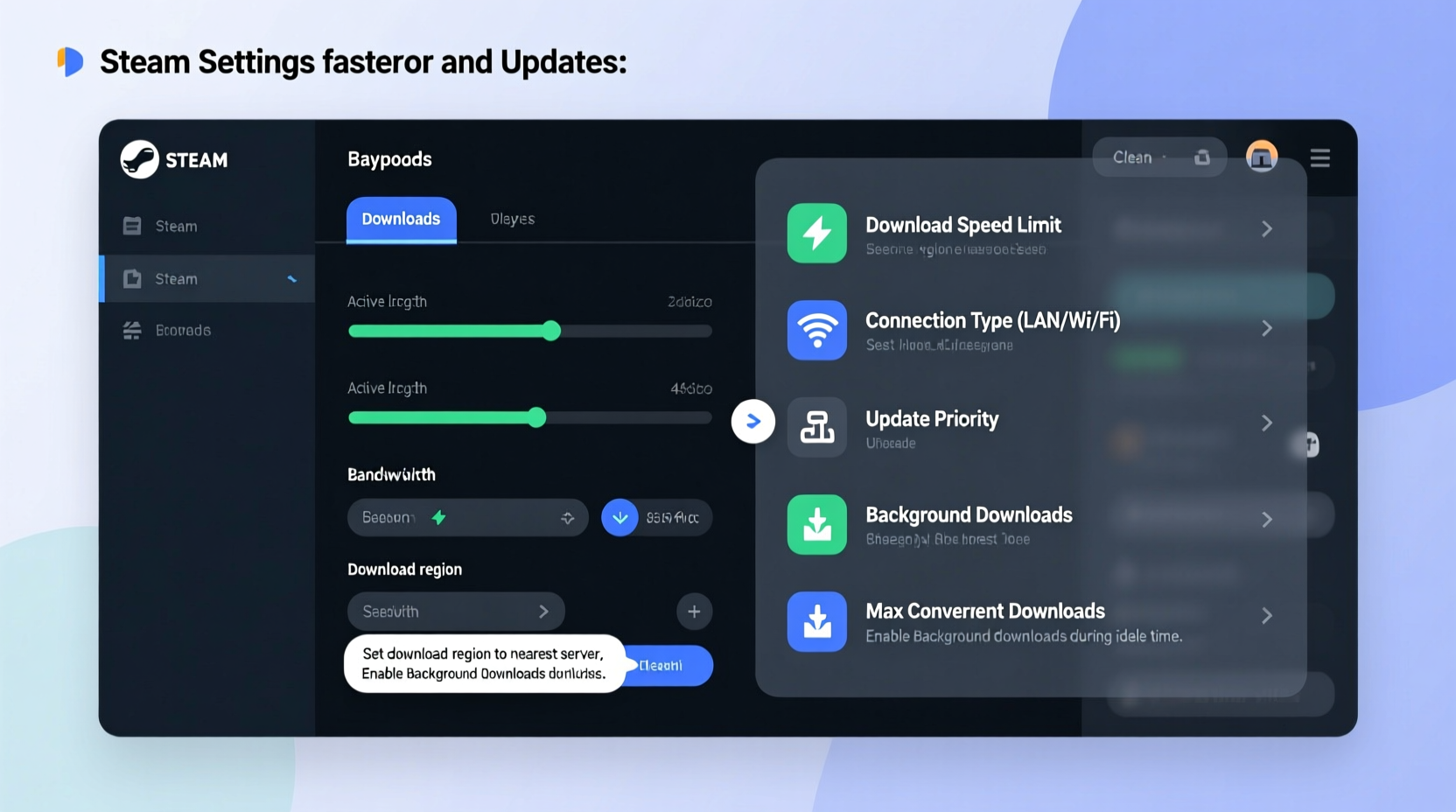
Steam uses Content Delivery Networks (CDNs) distributed globally to serve game files. If you're connected to a distant or overloaded server, your download speed will suffer. Steam automatically selects what it believes is the best server, but this choice isn’t always optimal—especially if your location has multiple nearby options or network congestion varies by time of day.
To manually select the fastest download region:
- Open Steam and go to Settings (via the top-left menu).
- Navigate to the Downloads tab.
- Click on Download Region and choose a server geographically close to you.
- For maximum accuracy, test a few nearby regions during off-peak hours and monitor speeds.
Regions like \"United States,\" \"Western Europe,\" or \"Central Europe\" often provide fast throughput for users in those zones. Avoid regions across oceans unless local ones consistently underperform.
Limit Bandwidth Usage and Schedule Downloads
One of the most overlooked settings in Steam is the bandwidth limiter. While intended to prevent network congestion, default settings may cap your download speed unnecessarily—especially if you’re not actively using your connection for other tasks.
To ensure Steam uses available bandwidth efficiently:
- Go to Settings > Downloads.
- Uncheck Limit bandwidth to if you want full-speed downloads.
- If you share your connection, set a reasonable cap (e.g., 80% of your max speed) to avoid lag in video calls or streaming.
- Enable Only download during specified hours to schedule updates overnight.
Scheduling downloads during off-peak hours (typically between 2 AM and 6 AM) reduces competition for bandwidth both on your local network and from Steam’s servers, which tend to be less congested.
| Setting | Recommended Value | Purpose |
|---|---|---|
| Download Region | Closest geographic location | Reduces latency and improves throughput |
| Max Download Speed | Unlimited or 80% of connection | Balances gaming and other online activities |
| Download Schedule | 2:00 AM – 6:00 AM | Leverages off-peak network availability |
| Allow Downloads During Gameplay | Enabled (if connection allows) | Enables background patching while playing |
Clear Download Cache to Resolve Bottlenecks
Over time, Steam accumulates cached data that can become corrupted or outdated, leading to stalled downloads, failed updates, or inconsistent speeds. Clearing the download cache forces Steam to re-establish connections with CDNs and refresh its server list, often restoring lost performance.
To clear the download cache:
- Open Steam and go to Settings > Downloads.
- Click Clear Download Cache.
- Confirm the action. You’ll need to log back in after completion.
This process doesn’t delete games or personal data—it only removes temporary network-related files. It’s a safe, non-destructive reset that should be performed every few months or when noticing unexplained slowdowns.
“Regular cache maintenance can resolve up to 30% of reported download issues on Steam.” — Steam Support Documentation, Valve Corporation
Optimize Network and Hardware Configuration
No software tweak can overcome fundamental network limitations. To fully leverage optimized Steam settings, ensure your hardware and network setup support high-speed transfers.
Use Wired Over Wireless Connection
Ethernet connections offer greater stability and lower latency than Wi-Fi. Even on modern dual-band routers, wireless interference from appliances, walls, or neighboring networks can throttle throughput. For consistent download speeds, connect your PC directly via Ethernet cable whenever possible.
Update Router Firmware and Prioritize Traffic
Older routers may struggle with sustained large-file transfers. Check your manufacturer’s website for firmware updates. Additionally, enable QoS (Quality of Service) settings to prioritize your gaming PC’s traffic over less critical devices like smart TVs or phones.
Close Bandwidth-Hungry Background Applications
Applications such as cloud sync tools (Google Drive, Dropbox), video streaming platforms, or automatic backup services can consume significant bandwidth unnoticed. Close or pause them before initiating large Steam downloads.
Consider DNS Optimization
While Steam primarily uses IP-based routing, switching to a faster DNS service like Google DNS (8.8.8.8 / 8.8.4.4) or Cloudflare (1.1.1.1) can improve domain resolution speed and overall connectivity responsiveness. This won’t drastically increase download rates but may help establish CDN connections faster.
Step-by-Step Optimization Checklist
Follow this sequence to systematically enhance your Steam download performance:
- Test your internet speed using a tool like speedtest.net to confirm your baseline connection.
- Set the closest download region in Steam Settings > Downloads.
- Disable bandwidth limits or set them to 80% of your max speed.
- Schedule downloads during off-peak hours (e.g., 2 AM – 6 AM).
- Clear the download cache to eliminate stale or corrupt network data.
- Connect via Ethernet instead of Wi-Fi for improved stability.
- Close background applications that use bandwidth (cloud sync, streaming, etc.).
- Restart your router to refresh network conditions and clear congestion.
- Monitor download speed in Steam’s Downloads window to verify improvements.
- Repeat cache clearing monthly or when performance drops unexpectedly.
Real-World Example: Improving Download Speed in a Shared Household
Mark, a PC gamer in Chicago, frequently experienced download speeds below 5 Mbps despite having a 100 Mbps internet plan. His Steam downloads took days to complete, especially for AAA titles like Red Dead Redemption 2 or Cyberpunk 2077.
After reviewing his setup, he discovered several issues: his Steam download region was set to “Canada,” his Wi-Fi signal fluctuated due to distance from the router, and family members streamed 4K video during peak hours.
He applied the following fixes:
- Changed download region to “United States – Central.”
- Ran an Ethernet cable from his desk to the router.
- Set download scheduling for 1:00 AM – 5:00 AM.
- Cleared the Steam download cache.
- Asked family to limit streaming during scheduled download windows.
Result: His download speed jumped from 4.2 Mbps to 12.8 Mbps—an almost 200% improvement—and large games downloaded overnight instead of over multiple days.
Frequently Asked Questions
Why is my Steam download speed slower than my internet speed?
Steam’s download speed depends on server load, geographic distance, network congestion, and your local setup. Even with a fast connection, external factors like CDN availability or ISP throttling during peak times can limit throughput. Also, Steam displays speed in megabytes per second (MB/s), while ISPs advertise in megabits per second (Mbps). A 100 Mbps connection equals about 12.5 MB/s maximum under ideal conditions.
Can I use a download manager to speed up Steam downloads?
No. Steam uses a proprietary protocol and encrypted connections, making third-party download managers incompatible. Attempting to intercept or redirect Steam traffic may trigger security warnings or bans. Always rely on built-in Steam optimization features instead.
Does closing Steam stop active downloads?
By default, yes. However, you can enable background downloads by checking Allow downloads during gameplay in Settings > Downloads. Note that completely exiting Steam (right-click tray icon > Exit) will halt all downloads. Use “Minimize to Tray” to keep downloads running.
Conclusion: Take Control of Your Gaming Experience
Slow Steam downloads don’t have to be a fact of life. With a few strategic adjustments—choosing the right server, managing bandwidth, clearing cache, and optimizing your network—you can unlock dramatically faster update times. These changes require minimal effort but deliver outsized benefits, especially for gamers with large libraries or limited patience.
Don’t accept sluggish performance as inevitable. Apply these optimizations today, reclaim your time, and return to gaming with fewer interruptions and more control over your digital experience.




 浙公网安备
33010002000092号
浙公网安备
33010002000092号 浙B2-20120091-4
Comments
No comments yet. Why don't you start the discussion?