
Modern games demand peak performance from your hardware, but even the best PC can underperform if Windows 11 isn’t tuned correctly. Many gamers assume their system is already optimized out of the box — but default settings often prioritize aesthetics and background tasks over raw gaming performance. With a few strategic adjustments, you can reclaim lost frames, reduce input lag, and make your existing hardware work smarter. This guide walks through proven techniques that go beyond basic tips, focusing on real performance gains.
Enable Game Mode and Optimize Graphics Settings
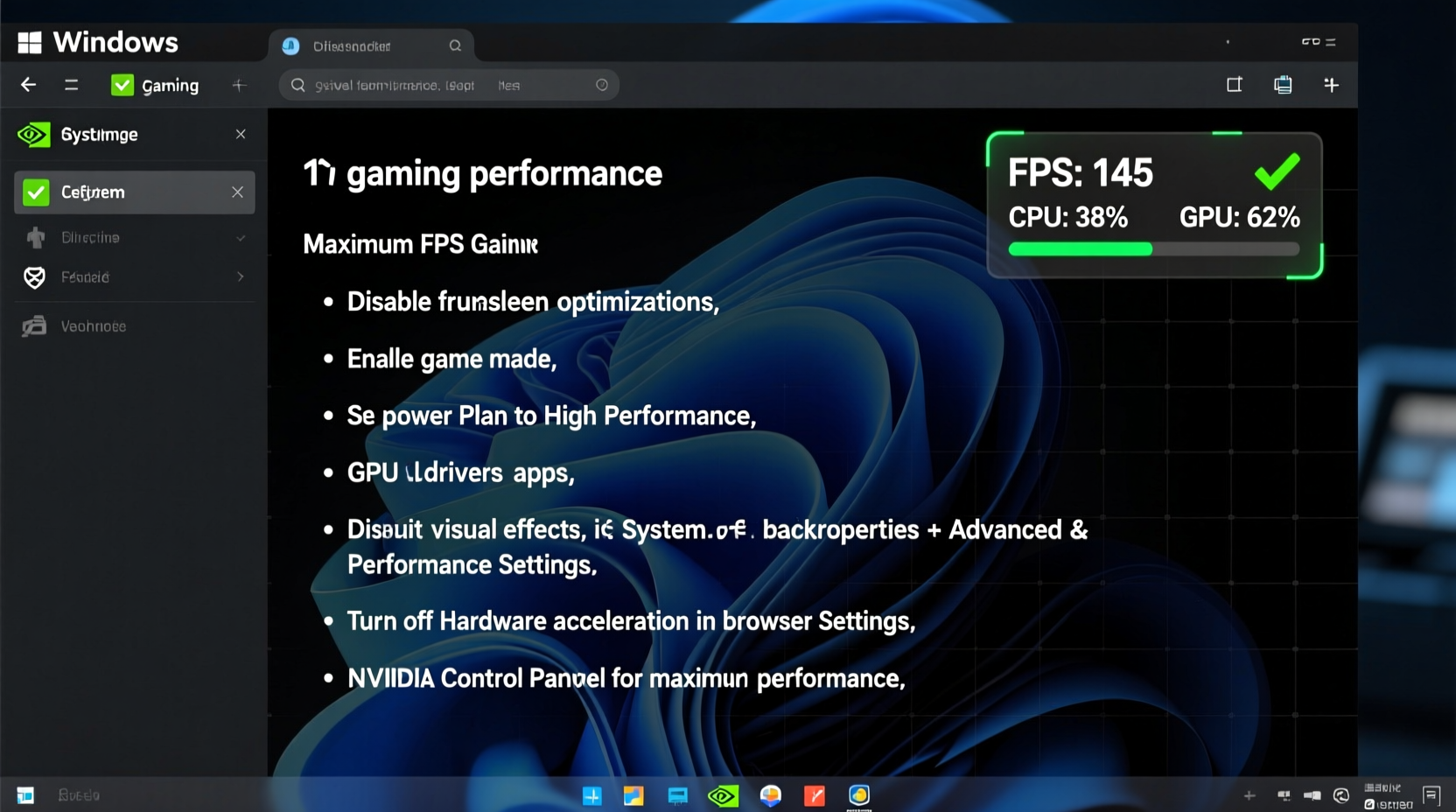
Windows 11 includes a built-in feature called Game Mode, designed to prioritize system resources for active games. When enabled, it reduces background activity, optimizes CPU scheduling, and can improve frame rates in CPU-intensive titles.
To enable Game Mode:
- Open Settings (Win + I).
- Navigate to Gaming > Game Mode.
- Toggle Game Mode to On.
In addition to enabling Game Mode, configure app-specific GPU preferences. If you're using a dedicated graphics card (NVIDIA, AMD, or Intel Arc), ensure your games are set to use the high-performance GPU rather than integrated graphics.
For NVIDIA users, also open NVIDIA Control Panel, go to \"Manage 3D Settings,\" and set preferred refresh rate to \"Highest,\" power management to \"Prefer maximum performance,\" and vertical sync to \"Off\" unless screen tearing is an issue.
Optimize Power and Performance Plans
One of the most overlooked bottlenecks is the power plan. By default, Windows 11 may run on \"Balanced\" mode, which throttles CPU and GPU performance to save energy. For gaming, this setting sacrifices FPS unnecessarily.
Switch to a high-performance power plan:
- Press Win + S and search for \"Power & sleep settings.\"
- Click Additional power settings.
- Select High performance or create a custom plan via \"Create a power plan.\"
If \"High performance\" isn't visible, create it manually by selecting \"High performance\" as the base template. Then, edit the plan to prevent the computer from turning off the display or sleeping during gameplay.
“Power plans directly influence CPU clock speeds and GPU boost behavior. Running on Balanced can cap performance at 70–80% of potential.” — David Lin, Systems Performance Engineer at Puget Systems
Additionally, within advanced power settings, expand Processor power management and set both \"Minimum processor state\" and \"Maximum processor state\" to 100% when plugged in. This ensures full CPU utilization during intense gaming sessions.
Reduce Background Processes and Startup Bloat
Every background process consumes memory, CPU cycles, and disk I/O — resources that could otherwise be used by your game. Windows 11 runs numerous services by default, including widgets, telemetry, and Cortana, which contribute to stuttering and lower FPS.
Start by managing startup apps:
- Press Ctrl + Shift + Esc to open Task Manager.
- Go to the Startup tab.
- Disable non-essential programs like Spotify, Discord (if not needed), OneDrive, or manufacturer utilities.
Next, disable visual effects that consume GPU resources. While Windows 11’s animations look sleek, they come at a cost.
Navigate to:
- Settings > Personalization > Animations – Turn off animations.
- Settings > Accessibility > Visual Effects – Reduce transparency effects and animation speed.
For deeper optimization, disable unnecessary services:
- Press Win + R, type
msconfig, and press Enter. - Go to the Services tab, check \"Hide all Microsoft services,\" then click \"Disable all.\"
- Re-enable only essential ones (e.g., antivirus, audio services).
Update Drivers and Firmware for Peak Efficiency
Outdated drivers are one of the top causes of poor gaming performance. GPU drivers, in particular, receive regular updates that improve frame pacing, reduce latency, and add optimizations for new game releases.
Regularly update your drivers:
- NVIDIA: Use GeForce Experience or download manually from NVIDIA’s website.
- AMD: Use AMD Radeon Software.
- Intel: Use Intel Driver & Support Assistant.
Don’t neglect other components. Update chipset drivers from your motherboard manufacturer’s site (ASUS, MSI, Gigabyte, etc.), and ensure your BIOS is up to date. Newer BIOS versions often improve CPU scheduling, PCIe lane allocation, and RAM compatibility — all of which impact gaming performance.
Also, keep your SSD firmware updated. Manufacturers like Samsung, WD, and Crucial release firmware updates that improve read/write speeds and reduce latency, especially beneficial for fast NVMe drives used in modern game loading.
Use a Performance Monitoring Checklist
Before and after applying optimizations, benchmark your system to measure real-world impact. Use this checklist to ensure no step is missed:
| Action | Status (✓/✗) | Notes |
|---|---|---|
| Game Mode enabled | Settings > Gaming > Game Mode | |
| Power plan set to High Performance | Control Panel > Power Options | |
| GPU set as default for games | Graphics settings per app | |
| Background apps minimized | Task Manager > Startup | |
| Visual effects reduced | Animation & transparency off | |
| GPU drivers updated | Last updated: ________ | |
| BIOS and chipset drivers current | Motherboard support page | |
| SSD firmware updated | Manufacturer utility |
After completing this checklist, run a consistent benchmark (e.g., in-game benchmark tool or third-party software like MSI Afterburner with RTSS) to compare FPS, frame times, and CPU/GPU utilization before and after.
Real-World Example: Boosting Performance in Cyberpunk 2077
Consider a mid-tier gaming rig: Ryzen 5 5600X, RTX 3060, 16GB DDR4, running Windows 11 on an NVMe SSD. Initially, the user experienced frequent stutters and averaged 48 FPS in Cyberpunk 2077 at 1080p High settings.
After applying the following steps:
- Switched to High Performance power plan
- Disabled startup bloat (including RGB control software and cloud sync tools)
- Updated GPU driver to latest Game Ready version
- Set game to use discrete GPU explicitly
- Turned off widgets and live tiles
The average FPS increased to 63, with smoother frame pacing and fewer micro-stutters. Input lag dropped noticeably, confirmed via frame time analysis in OBS with performance overlay. The total gain: **+15 FPS** — without any hardware upgrades.
This case illustrates how software-level tuning can unlock meaningful improvements, especially in poorly optimized games where every frame counts.
Advanced Tweaks for Enthusiasts
For users comfortable with deeper system modifications, consider these advanced options:
Disable Core Isolation Memory Integrity
While a security feature, Core Isolation’s Memory Integrity can cause performance hits, particularly on AMD systems or with certain GPUs. It runs a hypervisor that may interfere with GPU scheduling.
To disable:
- Go to Settings > Privacy & Security > Windows Security > Device Security.
- Click \"Core isolation details.\"
- Toggle off Memory integrity.
Note: This reduces protection against kernel-level attacks. Only disable if you notice FPS gains and trust your software sources.
Adjust Virtual Memory (Page File)
Windows manages virtual memory automatically, but on systems with 16GB or less RAM, manually setting a fixed page file can reduce hiccups.
Set a custom size:
- Search for \"View advanced system settings.\"
- Under Performance, click Settings.
- Go to Advanced > Virtual Memory > Change.
- Uncheck \"Automatically manage,\" select \"Custom size,\" and set initial = 4096 MB, maximum = 8192 MB.
- Place it on your fastest drive (usually C:).
Clean Boot for Maximum Resources
A clean boot starts Windows with minimal drivers and startup programs. This is useful for isolating performance issues.
Run msconfig, go to the General tab, select \"Selective startup,\" and uncheck \"Load startup items.\" Reboot and test gaming performance. If FPS improves significantly, gradually re-enable services to identify the culprit.
Frequently Asked Questions
Does disabling Windows Update improve gaming performance?
Not directly, but background updates can cause disk spikes and stuttering during gameplay. Instead of disabling updates entirely, schedule them outside gaming hours. Use Delivery Optimization settings to limit bandwidth usage during play sessions.
Can overclocking help increase FPS in Windows 11?
Yes, but proceed with caution. Overclocking the CPU, GPU, or RAM can yield 5–15% more FPS depending on the game and hardware. Use stable tools like MSI Afterburner (GPU) or BIOS settings (CPU/RAM). Monitor temperatures closely and stress-test for stability before gaming.
Is Windows 11 worse for gaming than Windows 10?
Not inherently. Early builds had performance regressions, but recent updates have closed the gap. Windows 11 offers advantages like DirectStorage (faster load times), Auto HDR, and better DCH driver support. With proper optimization, it performs on par with or slightly better than Windows 10 in most scenarios.
Final Steps: Make Optimization a Habit
Optimizing Windows 11 for gaming isn’t a one-time fix. As new updates roll out, background apps accumulate, and drivers evolve, periodic maintenance is essential. Set a monthly reminder to review startup programs, check for driver updates, and verify power settings.
Performance tuning is about maximizing what you already own. You don’t need the latest GPU to gain extra frames — just attention to detail and a systematic approach. Every millisecond saved in system overhead translates to smoother gameplay, tighter response, and a competitive edge.




 浙公网安备
33010002000092号
浙公网安备
33010002000092号 浙B2-20120091-4
Comments
No comments yet. Why don't you start the discussion?