
Slow boot times are one of the most common frustrations for PC users. You press the power button expecting a quick start, only to wait minutes while icons slowly populate the taskbar. While hardware limitations can contribute, the real culprit is often an overloaded startup process. Too many programs launching at boot unnecessarily consume system resources, dragging down performance from the very first second.
Optimizing your startup programs isn’t just about shaving off 30 seconds—it’s about reclaiming control over your machine’s responsiveness. By managing what launches when Windows starts, you reduce CPU strain, free up RAM, and improve overall system stability. This guide walks through proven strategies, tools, and best practices to streamline your boot sequence and get your PC running efficiently again.
Understanding Startup Programs and Their Impact
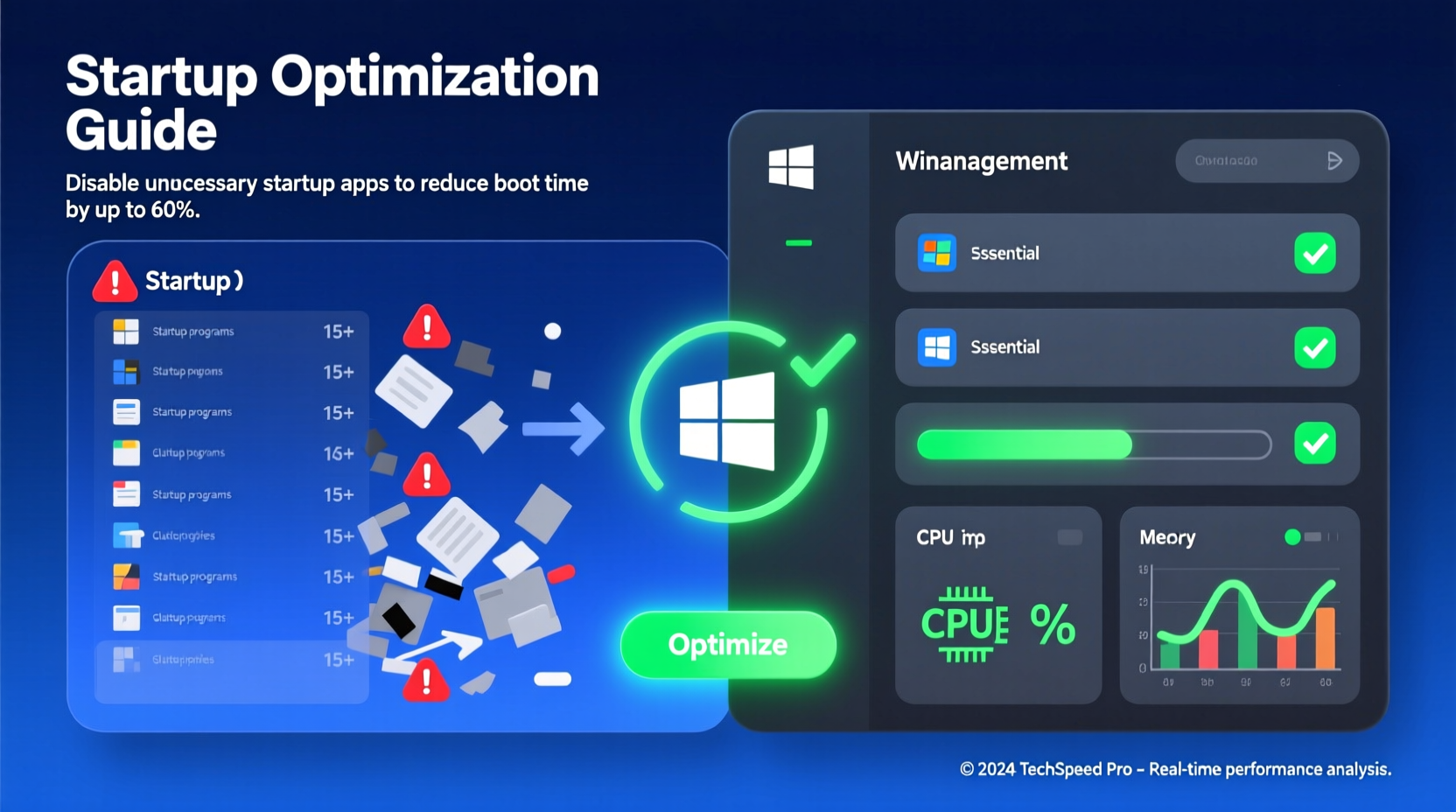
Every time your computer boots, Windows loads essential system services and then runs any applications configured to launch automatically. These \"startup programs\" range from antivirus software and cloud sync tools to chat apps and printer utilities. While some are necessary, many serve little purpose during startup and only slow things down.
The impact of unmanaged startup entries accumulates quickly. Each program consumes memory and CPU cycles, even if it runs silently in the background. On older systems or those with mechanical hard drives, this effect is magnified. A study by Microsoft found that reducing startup programs by just 50% could cut boot time by up to 40% on average systems.
“Startup bloat is the silent killer of PC performance. Most users don’t realize how many apps are fighting for resources before they even open a browser.” — David Lin, Senior Systems Engineer at WinPerf Labs
Modern versions of Windows include built-in diagnostics (like the Startup tab in Task Manager) that assign impact ratings—Low, Medium, High, or Not Measured—to each startup item. High-impact programs should be reviewed closely, especially if they aren’t mission-critical.
Step-by-Step Guide to Managing Startup Programs
Taking control of your startup sequence is straightforward. Follow this systematic approach to identify, evaluate, and manage what launches with your PC.
- Open Task Manager: Press Ctrl + Shift + Esc or right-click the taskbar and select “Task Manager.” If you see a simplified view, click “More details” at the bottom.
- Navigate to the Startup Tab: Click the “Startup” tab at the top. Here, you’ll see a list of all user-configured startup applications, along with their status, publisher, and startup impact.
- Sort by Impact: Click the “Startup impact” column header to sort from High to Low. Focus first on items labeled “High” or “Medium” impact.
- Research Each Entry: Right-click any unfamiliar program and choose “Search online” to learn its purpose. Avoid disabling entries from unknown publishers unless confirmed safe.
- Disable Non-Essential Programs: Select any unnecessary app and click “Disable.” Do not delete files—just prevent automatic launch.
- Reboot and Observe: Restart your PC to test changes. Note improvements in boot speed and general responsiveness.
- Re-enable if Necessary: If a disabled program turns out to be needed, return to Task Manager and re-enable it.
Do’s and Don’ts of Startup Optimization
Missteps in startup management can lead to instability or loss of functionality. Use this table as a reference to avoid common pitfalls.
| Do | Don't |
|---|---|
| Disable startup entries for apps you rarely use (e.g., Spotify, Discord, Skype). | Don’t disable programs labeled “Microsoft,” “Windows,” or your antivirus without research. |
| Use the “Search online” option in Task Manager to verify unknown entries. | Don’t assume all third-party apps are safe to disable—even utility tools can have dependencies. |
| Keep cloud storage apps like OneDrive or Dropbox enabled only if you rely on auto-sync. | Don’t manually delete startup .exe files from the file system; use proper tools instead. |
| Regularly review startup items after installing new software. | Don’t ignore impact ratings—high-impact items deserve priority attention. |
Advanced Tools for Deeper Control
While Task Manager covers basic needs, advanced users benefit from deeper inspection tools. These provide visibility into hidden or system-level startup processes that Windows doesn’t expose by default.
- MSConfig (System Configuration): Type
msconfigin the Run dialog (Win + R) to access a legacy but powerful tool. The “Startup” tab here (in older Windows versions) or integration with Task Manager allows broader control, including selective startup modes. - CCleaner: Offers a user-friendly interface to manage startup items, clear temporary files, and analyze boot performance. Use cautiously—some bundled offers during installation are unnecessary.
- Autoruns (by Microsoft Sysinternals): A professional-grade utility that displays every program configured to run at logon, including drivers, scheduled tasks, browser add-ons, and registry entries. Ideal for diagnosing stubborn startup delays.
Autoruns, in particular, reveals layers of automation most users never see. For example, a single printer driver might trigger five background processes. Disabling non-critical ones through Autoruns can significantly lighten the boot load.
Mini Case Study: Reducing Boot Time from 3 Minutes to 45 Seconds
Mark, a freelance graphic designer using a 5-year-old laptop with an HDD, routinely waited over three minutes for his system to become usable. After opening Task Manager, he found 22 startup entries—12 labeled “High” impact. These included Adobe Creative Cloud, Steam, Zoom, Spotify, and multiple vendor utilities (e.g., Dell SupportAssist, Realtek Audio Manager).
He disabled all non-essential apps, keeping only his antivirus (Bitdefender) and OneDrive (for client file syncing). He also used Autoruns to hide redundant driver loaders. After rebooting, his boot time dropped to 48 seconds. Applications he still needed were launched manually when required, with no functional loss—only regained productivity.
Checklist: Optimize Your Startup in 7 Actions
Follow this concise checklist to systematically improve your boot performance:
- Open Task Manager and go to the Startup tab.
- Sort programs by “Startup impact” (High to Low).
- Identify and research unfamiliar high-impact entries.
- Disable non-essential programs (e.g., chat apps, media players).
- Keep critical tools enabled (antivirus, security software).
- Use MSConfig or Autoruns for advanced diagnostics if needed.
- Reboot and measure improvement; repeat quarterly or after major software installs.
Frequently Asked Questions
Will disabling startup programs harm my computer?
No. Disabling a startup entry only prevents the program from launching automatically at boot. The app remains installed and fully functional—you can open it manually whenever needed. Only system-critical services (usually protected by Windows) should never be disabled without expertise.
Which programs should I never disable at startup?
Avoid disabling entries related to:
- Your primary antivirus or firewall (e.g., Windows Defender, Bitdefender, Norton).
- Core system processes from Microsoft or your hardware manufacturer (e.g., Intel Management Engine, NVIDIA Display Driver).
- Encryption tools like BitLocker or third-party disk encryption if you use them.
Why does my PC still feel slow after optimizing startup?
Startup optimization improves boot time, but overall system sluggishness may stem from other factors: insufficient RAM, a fragmented hard drive, background processes, or malware. Consider upgrading to an SSD, running a disk cleanup, or scanning for malicious software if performance issues persist.
Conclusion: Take Back Control of Your PC’s Performance
Optimizing startup programs is one of the fastest, most effective ways to breathe new life into a sluggish PC. It requires no hardware upgrades, no technical certifications—just a few minutes of focused attention. By curating what launches at boot, you reduce resource contention, shorten wait times, and create a more responsive computing environment.
The benefits compound over time. Every second saved at startup adds up across weeks and months, translating into real productivity gains. Whether you're a student, professional, or casual user, a leaner startup process means less frustration and more time spent doing what matters.




 浙公网安备
33010002000092号
浙公网安备
33010002000092号 浙B2-20120091-4
Comments
No comments yet. Why don't you start the discussion?