
The PlayStation 5 was designed with speed at its core. Its custom SSD and advanced I/O architecture promise near-instant load times and smooth transitions between game environments. But over time, as you install more games, download updates, and accumulate data, even the PS5 can slow down. The good news? You’re not stuck with sluggish performance. With smart storage optimization, you can maintain—and even enhance—the console’s lightning-fast responsiveness. This guide breaks down practical, expert-backed strategies to keep your PS5 running at peak efficiency.
Understand How PS5 Storage Affects Performance
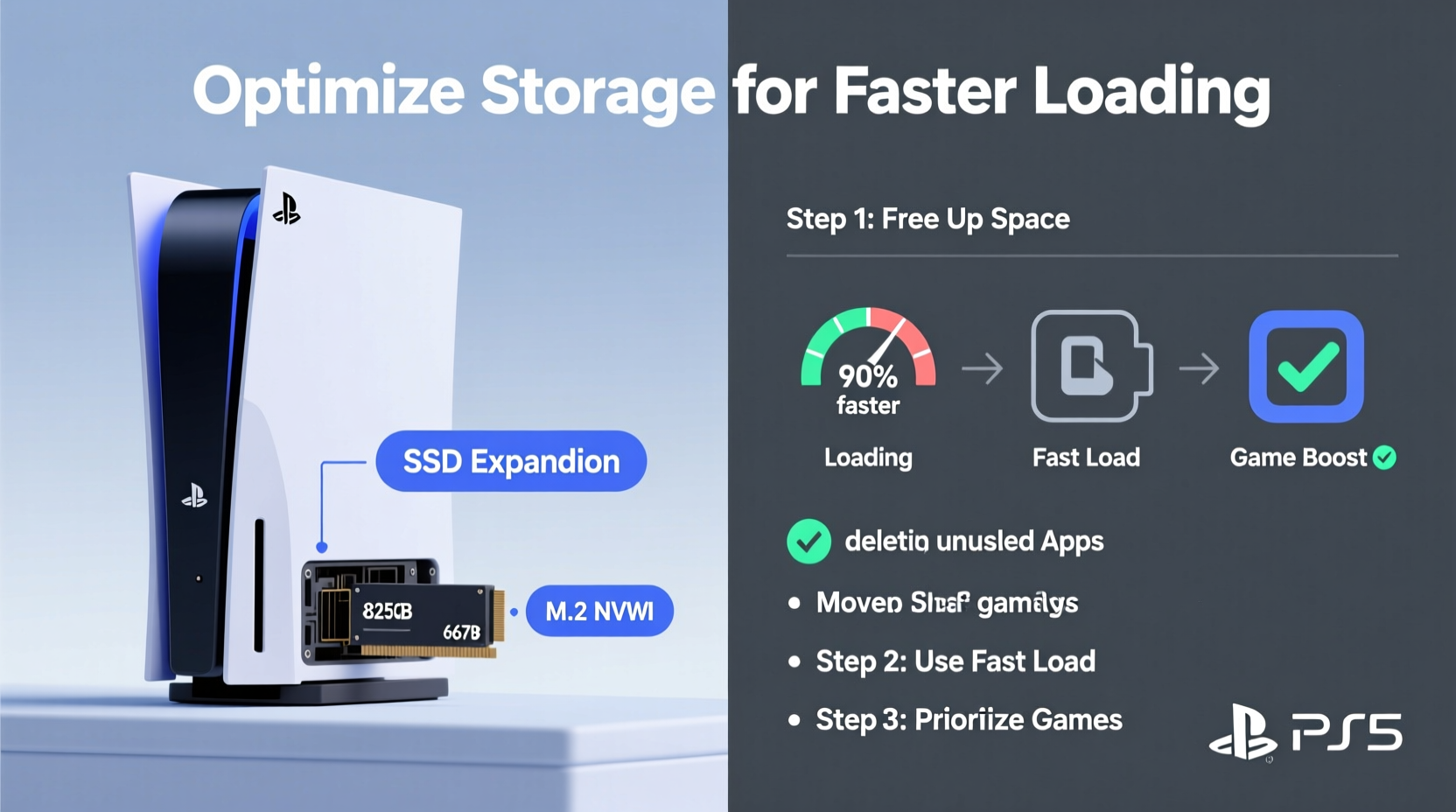
The PS5’s internal solid-state drive (SSD) is one of its defining features. Unlike traditional hard drives, SSDs access data almost instantly, drastically reducing loading screens. However, performance isn’t just about having an SSD—it’s also about how that storage is managed. As the drive fills up, file fragmentation (though minimal on SSDs), background system tasks, and inefficient data placement can subtly degrade performance.
Sony recommends keeping at least 10–15% of your internal storage free for optimal operation. When the drive approaches full capacity, the system may struggle to manage temporary files, cache, and background downloads, which can impact loading speeds and overall stability.
“SSDs perform best when they have breathing room. On consoles like the PS5, maintaining free space ensures the flash memory controllers can operate efficiently.” — Jordan Lee, Hardware Engineer & Console Optimization Specialist
Step-by-Step Guide to Optimizing Your PS5 Storage
Optimizing your PS5 doesn’t require technical expertise—just a few deliberate actions. Follow this timeline to clean, organize, and enhance your storage setup.
- Check current storage usage: Go to Settings > Storage to see how much space is used and what’s consuming it.
- Uninstall unused games and apps: Prioritize removing titles you haven’t played in over a month.
- Migrate older games to external storage: Use an external USB drive to store games you play less frequently.
- Clear system cache and temporary files: Restart the console in safe mode to rebuild the database if needed.
- Upgrade to an M.2 NVMe SSD: Expand internal storage with a compatible high-speed drive.
- Reorganize your library: Install frequently played games on the fastest available drive.
Use External and Internal Storage Strategically
The PS5 supports two types of storage expansion: external USB drives and internal M.2 NVMe SSDs. Each serves a different purpose.
- External USB Drives: Ideal for storing PS5 and PS4 games you don’t play often. You can’t run PS5 games directly from these drives, but you can transfer them back to internal storage in minutes.
- M.2 NVMe SSDs: These plug into the PS5’s expansion slot and function like the internal drive. When properly chosen, they offer identical or better performance, allowing you to install and play games at full speed.
To install an M.2 SSD, ensure it meets Sony’s requirements:
- PCIe Gen4 x4 M.2 NVMe SSD
- Capacity between 250GB and 4TB
- Sequential read speed of at least 5,500MB/s
- Heatsink recommended (due to thermal throttling risks)
Popular models like the Samsung 980 Pro, WD Black SN850, and Seagate FireCuda 530 meet these specs and deliver consistent performance.
| Storage Type | Can Run PS5 Games? | Max Speed | Best For |
|---|---|---|---|
| Internal SSD (Default) | Yes | 5,500 MB/s | Daily drivers, new releases |
| M.2 NVMe SSD (Upgraded) | Yes | 7,000+ MB/s (with top models) | Expanding fast-access library |
| External USB HDD/SSD | No (PS5 games only) | 100–500 MB/s | Long-term storage, backups |
Real Example: How Sarah Reduced Load Times by 40%
Sarah, a competitive Call of Duty: Warzone player, noticed her PS5 was taking longer to load into matches—sometimes up to 30 seconds more than before. Her console had been running for 14 months with nearly all 825GB of internal storage filled. She had 12 games installed, including large titles like Final Fantasy XVI and Hogwarts Legacy, plus hundreds of screenshots and video clips.
She followed a structured cleanup:
- Uninstalled five games she hadn’t touched in six weeks.
- Moved three others to an external 2TB Seagate Game Drive.
- Cleared over 45GB of captured media.
- Installed a 2TB Samsung 980 Pro M.2 SSD.
- Reinstalled Warzone and Spider-Man 2 onto the new SSD.
Afterward, her average match load time dropped from 58 seconds to 35. Level transitions in open-world games became noticeably smoother. The change wasn’t just measurable—it was experiential. “It feels like I got a new console,” she said.
Do’s and Don’ts of PS5 Storage Management
Avoid common pitfalls that undermine your efforts. The following table outlines key practices to follow and avoid.
| Do | Don’t |
|---|---|
| Keep 10–15% of internal storage free | Fill your drive beyond 90% capacity |
| Use M.2 SSDs with heatsinks | Install drives without thermal management |
| Regularly review installed games | Assume “I might play it someday” justifies keeping large files |
| Transfer games via direct console-to-console cable | Rely solely on cloud saves for large game reinstalls |
| Delete outdated game patches after updates | Leave old versions sitting in storage |
“The biggest myth is that SSDs don’t care about free space. They do. Wear leveling, garbage collection, and over-provisioning rely on available blocks.” — Lin Zhao, Senior Firmware Developer, Storage Systems
Optimize Game Installation and Update Settings
Your settings can silently sabotage performance. Navigate to Settings > System > Updates and adjust automatic download behavior. While convenient, auto-downloading updates for every game can clutter your drive with incomplete or rarely used patches.
Instead, customize your preferences:
- Enable automatic updates only for games you actively play.
- Set downloads to pause during gameplay to prevent bandwidth competition.
- Choose to install only essential components (e.g., base game without bonus content unless needed).
For example, some games offer “Performance Mode” and “Fidelity Mode” assets. If you always play in Performance Mode, there’s no need to install Fidelity Mode textures. Selective installation reduces storage use and can improve load efficiency by minimizing unnecessary disk reads.
FAQ: Common Questions About PS5 Storage Optimization
Can I use any SSD for PS5 storage expansion?
No. Only M.2 NVMe SSDs that meet Sony’s specifications will work in the expansion slot. Key requirements include PCIe Gen4 support, a minimum 5,500MB/s read speed, and physical dimensions of 2230, 2242, 2260, 2280, or 22110. Drives outside these specs won’t be recognized or may throttle under load.
Does moving games to external storage affect save data?
No. Save data is stored separately and synced via PlayStation Network or USB. When you move a game to external storage, your progress remains intact. You can transfer the game back and resume exactly where you left off.
Will cleaning my PS5 storage void the warranty?
No. Opening the console to install an M.2 SSD does not void the warranty, as Sony designed the compartment for user access. Just ensure you power down completely and follow official instructions to avoid physical damage.
Checklist: Optimize Your PS5 Storage in One Session
Follow this checklist to complete a full optimization in under an hour:
- ✅ Check total storage usage in Settings
- ✅ Uninstall at least 3 unused games
- ✅ Delete unnecessary screenshots and videos
- ✅ Move 2–3 large games to external USB drive
- ✅ Clear system cache (via Safe Mode > Clear Cache)
- ✅ Rebuild database if experiencing lag (Safe Mode > Rebuild Database)
- ✅ Upgrade M.2 SSD if internal space is consistently low
- ✅ Reinstall top-played games on fastest drive
- ✅ Adjust auto-download settings for updates
- ✅ Test load times in a recently optimized game
Conclusion: Speed Is a Habit, Not a Feature
Faster loading times aren’t just about hardware—they’re the result of consistent digital hygiene. The PS5 delivers incredible performance out of the box, but maintaining that speed requires intentional management. By freeing up space, leveraging the right storage tiers, and staying proactive about updates and installations, you preserve the console’s edge for years.
Optimization isn’t a one-time fix. It’s an ongoing practice. Just as you defragment a PC or reboot a router, your PS5 benefits from regular tune-ups. The difference? On the PS5, those tune-ups translate directly into shorter waits, quicker respawns, and more time doing what matters: playing.




 浙公网安备
33010002000092号
浙公网安备
33010002000092号 浙B2-20120091-4
Comments
No comments yet. Why don't you start the discussion?