
Navigating an iPhone shouldn’t feel like searching through a cluttered drawer. Yet, many users scroll past dozens of app pages just to open their calendar or notes. Over time, as apps accumulate, the home screen becomes overwhelming—slowing down productivity and increasing digital fatigue. The good news is that iOS offers powerful tools to streamline your app layout, reduce unnecessary swipes, and place your most-used apps within instant reach. With intentional organization, you can transform your iPhone into a responsive, intuitive extension of your daily workflow.
Create Priority-Based App Zones
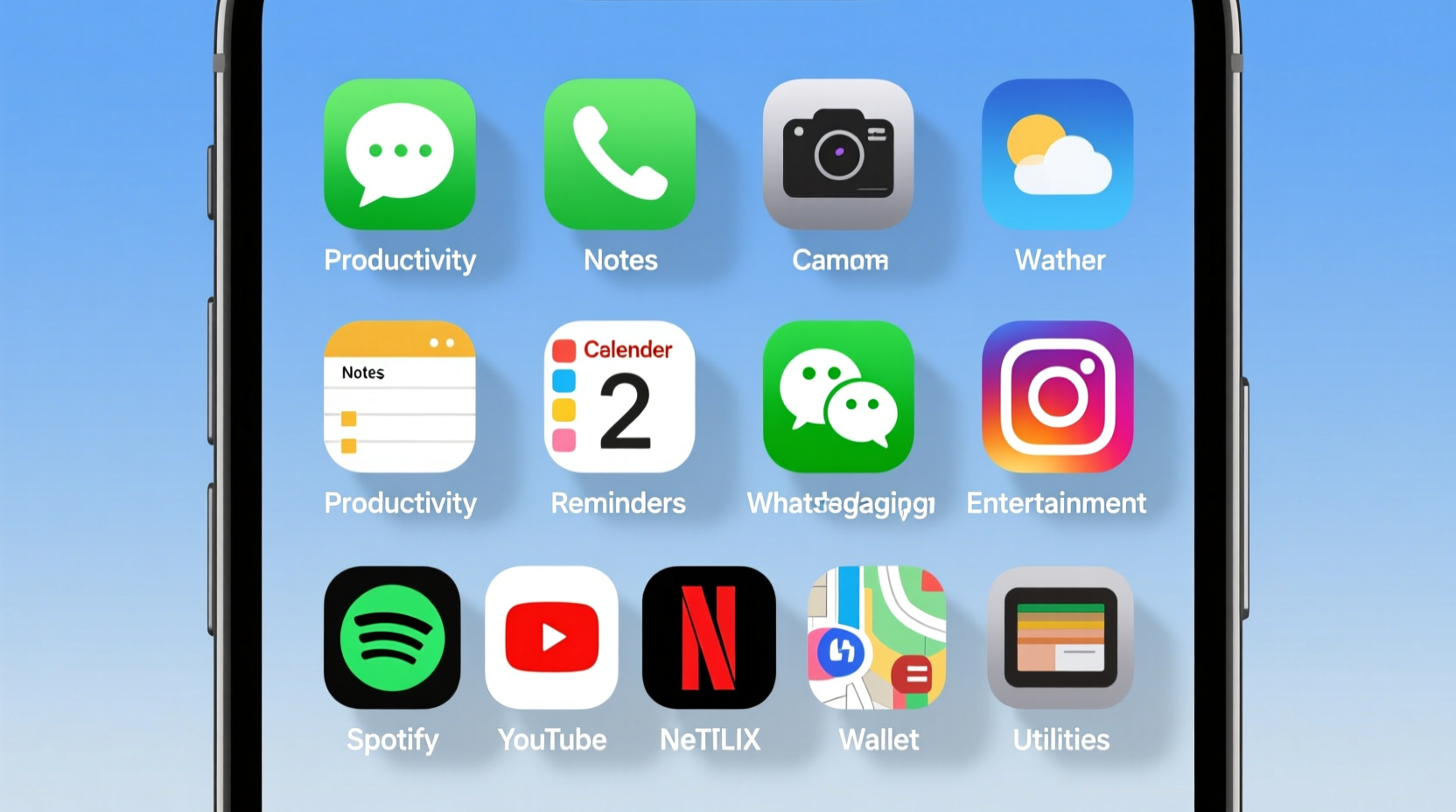
Start by categorizing your apps based on frequency and urgency of use. Not all apps deserve equal real estate. A useful framework divides apps into three tiers:
- Core Apps: Used multiple times per day (Messages, Phone, Camera, Notes, Calendar).
- Secondary Apps: Accessed daily or every few days (Mail, Safari, Maps, Banking).
- Occasional Apps: Used weekly or less (Games, Utilities, Travel, Shopping).
Place Core apps on your primary home screen—ideally on the first two pages. Secondary apps can live on the third page or in folders. Occasional apps should be moved to the App Library or tucked into categorized folders at the back.
Use Smart Folders and Naming Conventions
Folders are among the most underused yet effective tools for reducing clutter. Instead of scattering similar apps across multiple screens, group them logically. But don’t stop at generic names like “Utilities” or “Apps.” Use descriptive labels that reflect purpose and context.
For example:
- Finance Hub: Bank apps, budgeting tools, PayPal, Venmo
- On the Go: Uber, Lyft, Google Maps, Transit
- Health & Fitness: MyFitnessPal, Strava, Water Reminder, Headspace
- Work Tools: Slack, Zoom, Dropbox, Notion
Arrange apps within folders so the most frequently used one appears on top—iOS displays this as the front-facing icon, making it instantly accessible without opening the folder.
| Folder Type | Recommended Apps | Best Location |
|---|---|---|
| Daily Essentials | Phone, Messages, Mail, Calendar, Clock | First Home Screen |
| Social Media | Instagram, Twitter, Facebook, Threads | Second Page or App Library |
| Productivity | Notes, Reminders, Files, Scanner Pro | Second Home Screen |
| Entertainment | Spotify, YouTube, Netflix, Podcasts | App Library or Third Page |
Master the App Library for Hidden Efficiency
The App Library, introduced in iOS 14, is not just a backup storage—it’s a smart organizational engine. It automatically groups apps into categories like Suggestions, Recently Added, Social, Productivity, and Gaming. You can also create custom collections and hide entire home screens to rely solely on the App Library for secondary access.
To minimize scrolling, consider hiding all home screens except one. Swipe all the way left until you reach the App Library, tap the dock, then long-press and select “Edit Home Screen.” Tap the page dots at the top and deselect all except your main screen. Now, only your curated apps appear—everything else remains searchable and accessible via the App Library.
Use the search bar at the top of the App Library to instantly locate any app. Typing “bank” brings up all finance-related apps immediately. This method reduces reliance on muscle memory and eliminates endless scrolling.
“The App Library isn’t just for hiding apps—it’s a dynamic index that makes retrieval faster than manual navigation.” — Jordan Lee, iOS Interface Designer at UXMobile Labs
Implement a Step-by-Step Reorganization Plan
Rearranging your iPhone doesn’t have to happen in one sitting. Follow this realistic timeline over 3–5 days to avoid overwhelm and ensure lasting results.
- Day 1: Audit Your Apps
Go through every app on your device. Delete duplicates, unused trials, and outdated tools. If you haven’t opened an app in 90 days, question its necessity. - Day 2: Define Your Zones
Identify your top 10 most-used apps. Place them on the first home screen. Group remaining apps into 4–6 logical folders based on function or context. - Day 3: Optimize Folder Placement
Position folders strategically. For instance, put Work Tools on the second screen, Entertainment on the third. Rename folders with clear, action-oriented labels. - Day 4: Configure App Library & Hide Screens
Hide redundant home screens. Test accessing apps through the App Library. Add a widget (e.g., To-Do List) above the dock for quick glance information. - Day 5: Refine and Maintain
After using the new layout for a day, adjust placements based on friction points. Set a monthly reminder to review app usage and prune clutter.
Leverage Widgets and the Today View
Widgets aren't just decorative—they're functional shortcuts. The Today View (swipe right from the home screen or lock screen) lets you access real-time info and app actions without opening apps. Add widgets for Weather, Calendar, Reminders, Notes, and Fitness to reduce app-switching.
For even faster access, place small or medium-sized widgets directly on your home screen. A Calendar widget at the top of your first page shows upcoming events instantly. A Notes widget allows one-tap creation of a new note.
Avoid overcrowding—limit home screen widgets to 2–3 high-value ones. Reserve larger widgets for information you check constantly, like activity rings or daily to-dos.
Real-Life Example: Streamlining a Busy Professional’s iPhone
Sarah, a project manager in Toronto, used to scroll through four home screens to find her work apps. Her phone had 147 apps, many downloaded for short-term projects and never removed. After a reorganization session, she implemented the following changes:
- Deleted 62 unused apps, including old event check-in tools and duplicate note-taking apps.
- Created a “Work Central” folder with Asana, Slack, Outlook, and Teams—placed on the second home screen.
- Moved personal apps like TikTok and games entirely to the App Library.
- Added a medium-sized Calendar widget to her first home screen.
- Hid three home screens, leaving only one active.
Within a week, Sarah reported saving nearly 15 minutes per day in navigation time. She also noticed reduced decision fatigue when switching between tasks. “I’m not fighting my phone anymore,” she said. “It feels like it works with me now.”
Common Mistakes That Increase Scrolling
Even well-intentioned organization can go wrong. Avoid these pitfalls:
- Over-folding: Creating too many folders defeats the purpose. Aim for 4–6 key folders max.
- Poor naming: Labels like “Stuff” or “Misc” make finding apps harder, not easier.
- Ignoring usage patterns: Placing rarely used apps on the first screen wastes prime space.
- Forgetting the dock: The dock holds four apps accessible from any screen—reserve it for true essentials like Messages, Safari, Phone, and Wallet.
- Not updating regularly: App habits change. Quarterly reviews prevent drift back into chaos.
“Your iPhone should adapt to your life—not force you to adapt to it.” — Marcus Tran, Digital Wellbeing Consultant
Checklist: Optimize Your iPhone App Layout in One Hour
Follow this concise checklist to reorganize your iPhone efficiently:
- ✅ Delete all unused or redundant apps
- ✅ Identify your top 10 most-used apps
- ✅ Create 4–6 clearly named folders by category
- ✅ Place core apps and essential folders on the first home screen
- ✅ Add 1–2 high-utility widgets to your home screen
- ✅ Move infrequent apps to the App Library
- ✅ Hide extra home screens (optional)
- ✅ Set a calendar reminder to review in 30 days
FAQ
Can I completely remove home screens and rely only on the App Library?
Yes. You can hide all home screens except one or even hide them all. The App Library remains accessible by swiping left from the last home screen. Many users find this reduces distraction and improves focus.
How do I quickly move multiple apps at once?
Press and hold an app until it enters jiggle mode. Tap another app to pick it up in a stack. Continue tapping apps to add them to the stack, then drag the entire group to a folder or new screen. This saves significant time during reorganization.
Will organizing my apps improve battery life?
Not directly. However, deleting unused apps—especially those running background refresh or location tracking—can reduce battery drain. Organization leads to deletion, which can improve performance and efficiency.
Conclusion: Take Control of Your Digital Space
An organized iPhone isn’t about aesthetics—it’s about efficiency, mental clarity, and reclaiming time. Every swipe and scroll adds up over days, weeks, and years. By applying strategic placement, smart folders, the App Library, and targeted widgets, you eliminate friction from everyday tasks. The goal isn’t a perfectly curated grid but a functional system that serves your actual behavior.
Start today. Spend one focused hour pruning, grouping, and positioning your apps. Then, refine as needed. A faster, calmer iPhone experience is within reach—no technical expertise required, just intention and consistency.




 浙公网安备
33010002000092号
浙公网安备
33010002000092号 浙B2-20120091-4
Comments
No comments yet. Why don't you start the discussion?