
A cluttered desktop may seem harmless, but it can silently drain your focus, slow down your workflow, and increase digital stress. With dozens of icons scattered across the screen, finding the right file or application becomes a frustrating game of visual hide-and-seek. The good news is that organizing your desktop doesn’t require advanced technical skills—it just takes intention, consistency, and a smart system. When done right, an optimized desktop layout can save you minutes every day, reduce mental clutter, and create a more professional digital environment.
Why Desktop Organization Matters
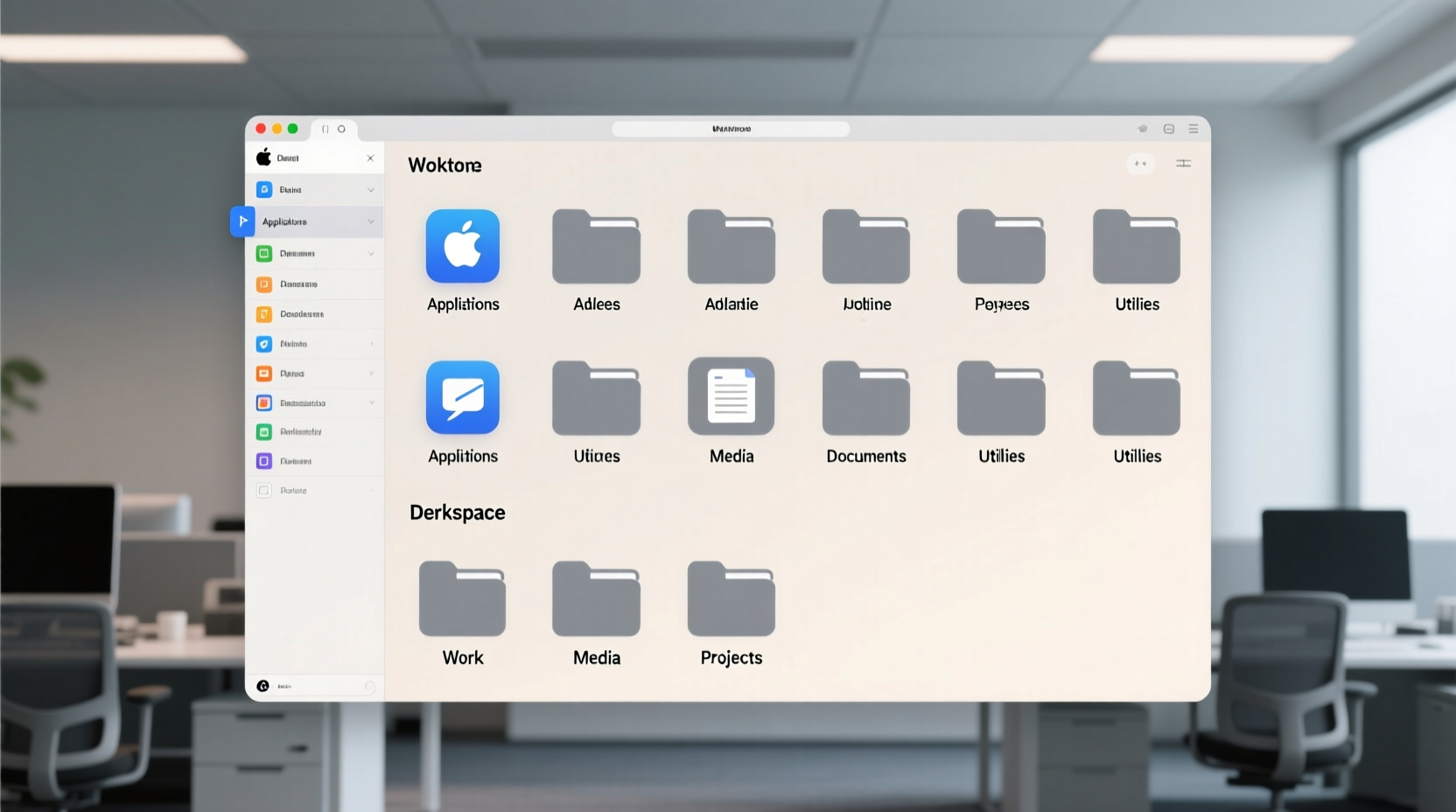
Most people treat their desktop as a temporary holding zone. But over time, shortcuts, downloaded files, and project folders accumulate until the screen resembles a digital junk drawer. Research from Princeton University’s Neuroscience Institute shows that physical clutter competes for attention, reducing cognitive capacity. The same applies to digital clutter—visual noise on your desktop can impair concentration and decision-making.
Efficient icon organization isn’t about aesthetics alone; it’s about creating a frictionless interface between you and your work. A clean desktop means faster access to essential tools, fewer distractions, and a stronger sense of control over your digital workspace.
“Your desktop is the front door to your digital life. If it’s disorganized, everything else feels chaotic.” — Dr. Linda Ray, Digital Productivity Consultant
Step-by-Step Guide to Organizing Your Desktop Icons
Reorganizing your desktop should be methodical, not rushed. Follow this timeline-based approach to build a sustainable system:
- Declutter First (Day 1): Begin by removing everything unnecessary. Delete outdated shortcuts, move old downloads to appropriate folders, and uninstall unused programs. Right-click each icon and ask: “Have I used this in the past 30 days?” If not, remove it.
- Group by Function (Day 1–2): Categorize remaining items into logical groups such as “Work Apps,” “Personal Files,” “Creative Tools,” or “Finance.” Use folder names that reflect purpose, not arbitrary labels.
- Create Labeled Folders (Day 2): On Windows, right-click > New > Folder. On macOS, press Cmd+Shift+N. Name folders clearly and place related shortcuts inside. For example, put all design software in a “Creative Suite” folder.
- Arrange Spatially (Day 2): Position folders and key icons in zones. Keep frequently used apps near the top-left corner (natural eye-start position). Place reference materials in the bottom-right if using a secondary monitor setup.
- Set Maintenance Rules (Ongoing): Adopt a “one in, one out” policy. Every time you add a new shortcut, remove an obsolete one. Schedule a 10-minute weekly cleanup every Friday afternoon.
Best Practices for Icon Layout and Accessibility
How you arrange icons matters as much as what you keep. Poor alignment leads to wasted space and inefficient navigation. Apply these principles to maximize usability:
- Align to Grid: Enable “Auto-arrange” or “Align to grid” in your operating system settings. This prevents icons from drifting and maintains uniform spacing.
- Leverage Zones: Divide your desktop into functional quadrants. Top-left: High-priority apps. Top-right: Communication tools. Bottom-left: File repositories. Bottom-right: Infrequent utilities.
- Limit Visibility: Only keep 5–7 active icons visible. Store the rest in folders. Too many visual elements overwhelm working memory.
- Use Naming Hierarchy: Name files with dates when relevant (e.g., “Report_Q3_2024”) and avoid vague terms like “Final_v2_copy.”
- Customize Icons (Optional): Replace generic icons with custom ones for quick recognition. On Windows, right-click > Properties > Change Icon. On macOS, use third-party tools like LiteIcon.
| Practice | Benefit | Platform Support |
|---|---|---|
| Auto-arrange icons | Prevents visual drift and maintains order | Windows, macOS (via third-party) |
| Folder grouping | Reduces visual load by 60%+ | All platforms |
| Custom icon sets | Improves recognition speed | Windows, macOS (with tools) |
| Quarterly audit | Ensures long-term sustainability | All platforms |
Real-World Example: How a Freelancer Transformed Her Workflow
Sophia, a freelance graphic designer, used to spend 10–15 minutes daily searching for client files, fonts, and plugin shortcuts buried under layers of desktop chaos. Her screen had over 80 icons, including multiple versions of the same project.
She applied the five-step method outlined above. First, she deleted 47 obsolete items. Then, she created four master folders: “Clients,” “Design Tools,” “Stock Assets,” and “Invoices.” She renamed key files with date prefixes and aligned all icons to the grid. Finally, she set a recurring calendar reminder to review her desktop every Sunday evening.
Within two weeks, Sophia reported a noticeable improvement. She estimated saving 45 minutes per week on file navigation alone. More importantly, her mental clarity improved—she no longer felt overwhelmed when opening her laptop in the morning.
Common Mistakes That Undermine Efficiency
Even well-intentioned efforts can backfire if based on flawed assumptions. Avoid these pitfalls:
- Using the desktop as a filing system: It’s not a substitute for proper folder structures in Documents or cloud storage.
- Over-folding: Creating too many nested folders defeats the purpose. One level of categorization is usually enough.
- Ignoring backups: If your desktop stores critical data, ensure it’s backed up regularly to prevent loss during system crashes.
- Forgetting mobile sync: If you switch devices often, rely on cloud-synced folders (e.g., Dropbox, OneDrive) rather than local desktop files.
- Skipping maintenance: Without routine check-ins, clutter returns quickly. Automation helps, but human oversight is essential.
“Organization isn’t a one-time fix—it’s a habit. The most efficient users don’t have perfect desks; they have consistent routines.” — Mark Tran, UX Researcher at FlowState Labs
Checklist: Build Your Optimized Desktop in 7 Actions
Follow this concise checklist to implement a high-efficiency desktop setup:
- ✅ Remove all unused or duplicate icons
- ✅ Sort remaining items into 3–5 functional categories
- ✅ Create labeled folders for each category
- ✅ Move shortcuts and files into their respective folders
- ✅ Arrange folders and key icons using quadrant zoning
- ✅ Enable auto-arrange and snap-to-grid features
- ✅ Schedule a weekly 10-minute maintenance session
This process should take no more than 60–90 minutes initially, with diminishing time required each week as habits form.
Frequently Asked Questions
Should I hide all desktop icons completely?
Hiding all icons can reduce distraction, especially if you rely heavily on Start menus or Spotlight search. However, keeping 3–5 mission-critical shortcuts visible (e.g., main project folder, primary app) improves access speed. Use the “Show/Hide Desktop Icons” toggle (Windows: View tab; macOS: Cmd+Ctrl+D) strategically during deep work sessions.
How often should I reorganize my desktop?
Aim for a light weekly review and a deeper quarterly audit. Weekly checks prevent buildup; quarterly reviews allow you to reassess workflows, retire outdated projects, and optimize folder structures based on usage patterns.
Can desktop clutter affect computer performance?
Yes—especially on older systems. Each visible icon consumes system resources. Windows loads thumbnail previews and metadata for every file, which can slow boot times and drag performance if you have hundreds of items. Reducing desktop load directly improves responsiveness.
Conclusion: Turn Chaos Into Clarity
An organized desktop is more than a neat screen—it’s a reflection of intentional digital hygiene. By systematically removing clutter, grouping by function, and maintaining spatial logic, you transform your desktop from a liability into a productivity engine. The time invested pays compound dividends: faster access, sharper focus, and reduced digital fatigue.
Start today. Clear your desktop, apply the zoning strategy, and commit to a weekly tune-up. Small actions, repeated consistently, create lasting change. Your future self will open your laptop each morning to a workspace that works for you—not against you.




 浙公网安备
33010002000092号
浙公网安备
33010002000092号 浙B2-20120091-4
Comments
No comments yet. Why don't you start the discussion?