
For many iPhone users, managing digital photos has become a daily challenge. With high-resolution cameras capturing hundreds of images each month, it's easy for your photo library to spiral into chaos. While iCloud offers automatic syncing and backup, not everyone wants to rely on Apple’s cloud service—whether due to privacy concerns, limited storage plans, or simply preferring local control over their files. The good news is that you can effectively organize your digital photos directly on your iPhone without ever enabling iCloud Photos.
This guide walks through practical, sustainable methods to sort, categorize, and preserve your memories—all while keeping your data stored locally. From leveraging built-in features to integrating third-party tools and external drives, these strategies are designed for real-world use and long-term maintenance.
Create a Smart Folder System Using Albums
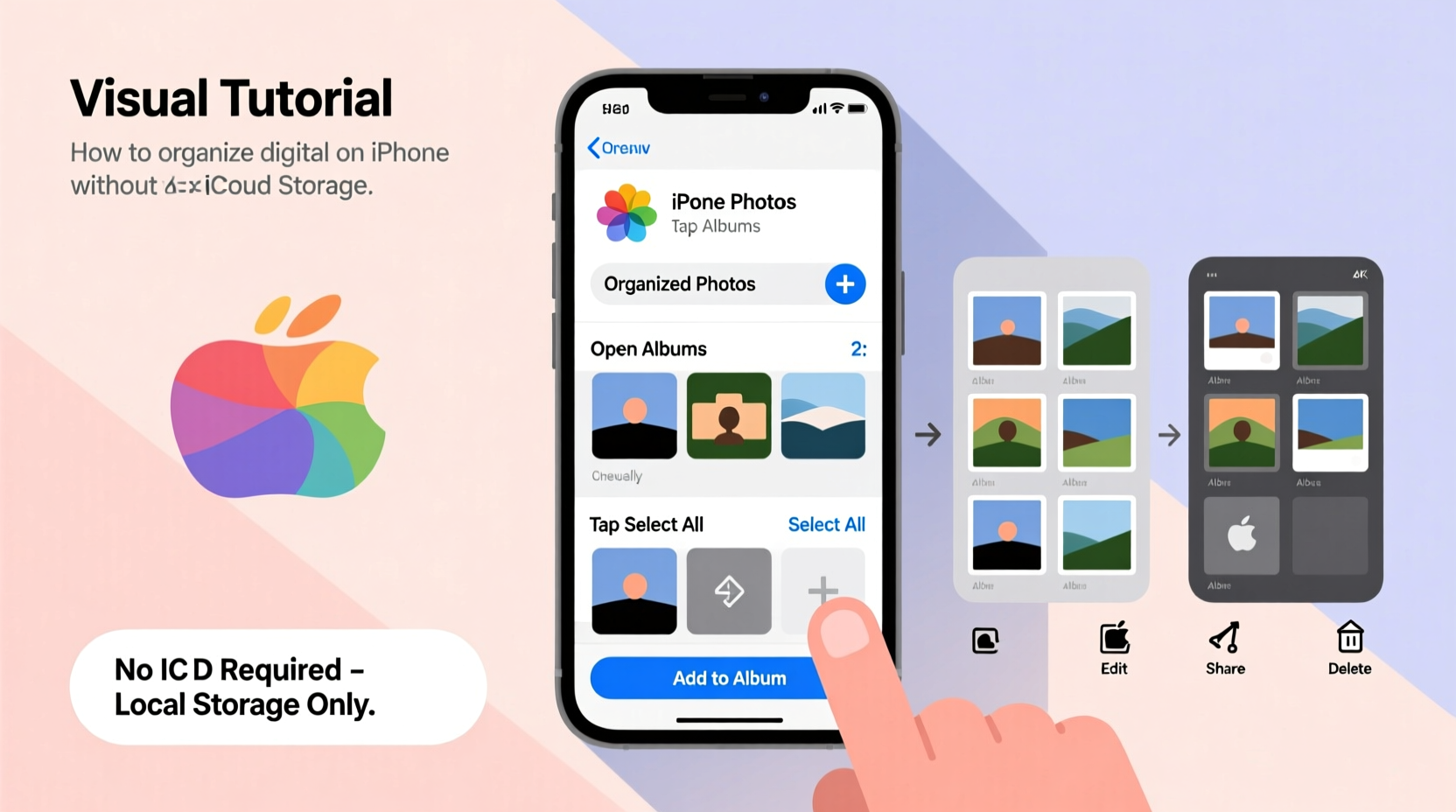
The most powerful organizational tool within the iPhone’s native Photos app is the album feature. Unlike folders on a computer, albums in iOS allow you to group photos without duplicating them. This means one photo can belong to multiple albums—ideal for cross-referencing events, people, or themes.
To begin organizing:
- Open the Photos app and tap “Albums” at the bottom.
- Select “+” in the top-left corner, then choose “New Album.”
- Name the album descriptively (e.g., “Hawaii Trip 2023,” “Family Reunion – July,” “Spring Garden Shots”).
- Select photos from your library to add.
- Tap “Save.”
Over time, develop a consistent naming convention. Use dates in YYYY-MM-DD format at the beginning of album names to ensure chronological sorting. For example: “2023-06-15 – Sarah’s Graduation.” This makes it easier to locate events later without scrolling endlessly.
Use Keywords and Descriptions for Searchability
iOS uses on-device machine learning to tag faces, locations, and objects automatically. However, you can enhance search accuracy by adding descriptive text manually. Although the native Photos app doesn’t support custom tags, you can work around this limitation using notes or third-party apps.
One workaround is to include keywords in photo filenames before importing them to your iPhone. When transferring images via AirDrop, email, or file-sharing apps, rename them with relevant descriptors such as “beach-sunset-malibu.jpg” or “birthday-cake-lucas-2023.jpg.” Once imported, the system may retain parts of the filename, improving discoverability.
Alternatively, use the Notes app to create a reference log:
- Create a note titled “Photo Index.”
- List key photos with brief descriptions and approximate dates.
- Link to specific albums or mention memorable details (e.g., “Wedding rehearsal dinner – Album: 2023-09-02 Wedding Week”).
This hybrid method bridges the gap between visual browsing and keyword-based retrieval.
Leverage Third-Party Apps for Advanced Organization
If the native Photos app feels too limited, consider using dedicated photo management apps that store everything locally or sync with non-iCloud cloud services like Google Drive, Dropbox, or NAS systems.
Popular options include:
| App Name | Key Features | Storage Type | Offline Access |
|---|---|---|---|
| Google Photos | AI tagging, facial recognition, search by object | Cloud + optional local save | Yes, if downloaded |
| Adobe Lightroom Mobile | Non-destructive editing, collections, keyword tagging | Local device + Adobe Cloud (optional) | Full offline support |
| Fotosweeper | Duplicates detection, metadata filtering | On-device only | Yes |
| Mylio | Multi-device sync without iCloud, folder hierarchy | Local + personal cloud | Yes |
Adobe Lightroom, for instance, allows you to create collections (similar to albums), apply star ratings, add keywords, and even sort by camera settings—all while storing originals on your device. You can disable cloud syncing entirely under preferences, ensuring no data leaves your phone unless you choose to export it.
“Photographers who manage their libraries outside iCloud often gain more precise control over metadata and file structure.” — David Lin, Digital Archivist & Workflow Consultant
Regularly Declutter and Archive Old Photos
Organization isn’t just about grouping files—it also involves removing what you don’t need. Over time, your iPhone accumulates blurry shots, duplicates, screenshots, and temporary images that clutter your view.
Follow this step-by-step cleanup routine every 3–4 weeks:
- Review Recently Deleted: Go to Albums > Utilities > Recently Deleted. Permanently erase items older than 30 days to free up space.
- Delete duplicates: Use an app like Gemini Photos or Fotosweeper to scan for identical or near-identical images.
- Remove low-quality shots: Scroll through recent captures and delete out-of-focus, overly dark, or redundant images.
- Archive full event sets: After creating an album for a trip or occasion, consider exporting the entire set to an external drive (see next section) and deleting the originals from your phone—if you’re confident in your backup.
Mini Case Study: How Maria Reduced Her Photo Library by 40%
Maria, a freelance travel writer, found her iPhone slowing down after two years of constant photography. Her library contained over 12,000 photos, many of which were duplicates or test shots. She wasn’t comfortable using iCloud due to data privacy policies in her country.
She began by downloading Mylio, which mirrored her photo collection across her iPhone and laptop via Wi-Fi, without relying on any public cloud. Using its duplicate detection and timeline filtering, she identified and removed 3,200 redundant images. She then created themed albums—“Coastal Hikes,” “Street Food,” “Sunset Landscapes”—and added descriptive captions in the app’s notes field.
Finally, she connected a portable SSD via a Lightning-to-USB adapter and exported all albums from 2021 and earlier. After verifying the transfer, she deleted those photos from her phone, freeing up nearly 25GB of space. Today, her iPhone runs faster, and her current-year photos remain easily accessible.
Back Up Locally Using External Storage
One of the biggest concerns when avoiding iCloud is losing photos if the phone is damaged or lost. The solution? Regular local backups using physical devices.
You can transfer photos off your iPhone using:
- External Drives: Connect a USB-C or Lightning-compatible flash drive (like SanDisk iXpand or WD My Passport). Use the Files app or a companion app to copy photos directly.
- Computer Syncing: Connect your iPhone to a Mac or PC. On macOS, use Image Capture; on Windows, use File Explorer to browse DCIM folders and drag-and-drop photos into organized folders.
- NAS Devices: If you have a home network-attached storage (NAS) system, use apps like Synology Moments or QNAP QuMagie to back up photos over Wi-Fi without iCloud.
Establish a backup schedule—for example, every Sunday evening or after major events. Store backups in a structured directory like:
/Photos_Backup/
├── 2023/
│   ├── 2023-01_January_Trip_to_Miami/
│   ├── 2023-02_Valentines_Dinner/
│   └── 2023-03_Spring_Blossoms/
└── 2024/
    ├── 2024-01_New_Years_Eve/
    └── 2024-02_Family_Portraits/
This ensures you always have a searchable, versioned archive outside your phone.
Checklist: Organizing Photos Without iCloud
Follow this checklist monthly to keep your digital photo library under control:
- ✅ Create or update at least one event-based album
- ✅ Delete blurry, duplicate, or unwanted photos
- ✅ Verify that all important shots are included in albums
- ✅ Export recent photos to an external drive or computer
- ✅ Review and clear the “Recently Deleted” album
- ✅ Test backup integrity by opening a few transferred files
- ✅ Update your photo index note with new highlights
Frequently Asked Questions
Can I turn off iCloud Photos without losing my pictures?
Yes. When you disable iCloud Photos, your existing photos remain on the device as long as you select “Download Photos & Videos” during the offboarding process. Never choose “Remove from iPhone,” as this deletes everything not stored locally.
Will organizing photos in albums take up more storage?
No. Albums are references to original photos, not copies. Adding a photo to multiple albums does not increase storage usage.
How can I find old photos quickly without iCloud’s search features?
Use descriptive album names with dates, maintain a Notes index, or switch to a third-party app like Adobe Lightroom that supports keyword tagging and advanced filtering—even in offline mode.
Take Control of Your Digital Memories
Your photos are more than data—they’re moments frozen in time. Relying on iCloud isn't the only way to protect and organize them. By using thoughtful album structures, selective third-party tools, regular cleanups, and physical backups, you can maintain a streamlined, secure, and fully accessible photo library—all from your iPhone and on your terms.
Start today: open your Photos app, create one new album, and begin building a system that works for you. Small actions compound into lasting order. Your future self will thank you when searching for that perfect memory—fast, frustration-free, and fully in your control.




 浙公网安备
33010002000092号
浙公网安备
33010002000092号 浙B2-20120091-4
Comments
No comments yet. Why don't you start the discussion?