
In an age where we take thousands of photos each year—on smartphones, DSLRs, tablets, and even smartwatches—managing our visual memories has become a quiet crisis. Many people default to cloud storage solutions like Google Photos or iCloud, assuming it’s the only way to keep their images safe and accessible. But relying on these platforms comes with risks: subscription costs, data privacy concerns, algorithmic mislabeling, and loss of control over your own files.
Organizing digital photos locally—without depending on cloud storage tricks or “hacks”—is not only possible but often more secure, reliable, and sustainable in the long term. This guide walks through practical, expert-backed methods for building a robust, future-proof photo organization system that lives entirely on your own devices.
Establish a Logical Folder Structure
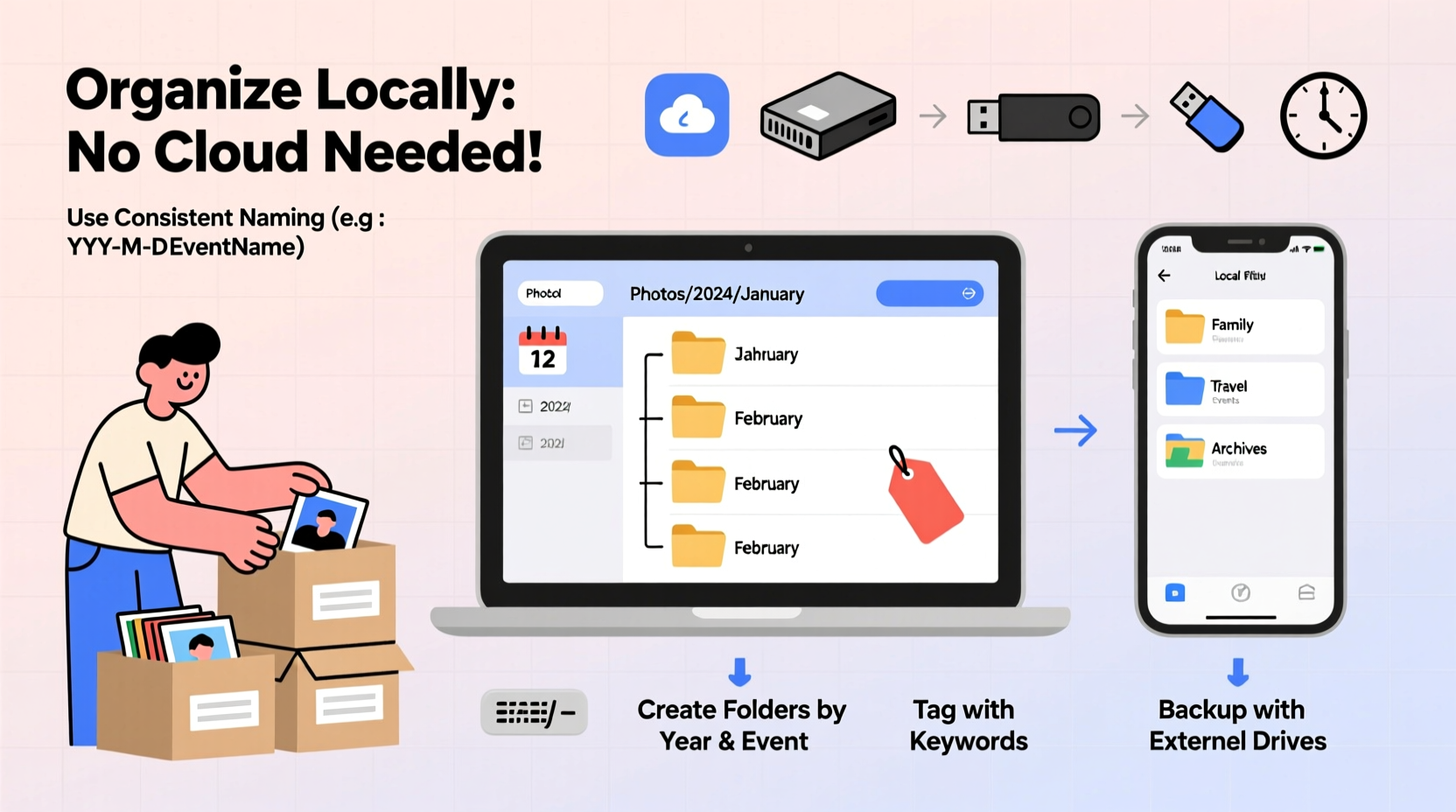
The foundation of any effective photo management system is a consistent, intuitive folder hierarchy. Without this, even the best tagging or naming conventions will fail when you need to locate a specific image quickly.
Start by choosing a primary organizational scheme. Most professionals recommend chronological sorting as the most scalable and predictable method. Here’s a standard structure:
Photos/
├── 2023/
│   ├── 2023-01_January/
│   │   ├── 2023-01-14_New_Years_Day_Family_Lunch/
│   │   └── 2023-01-20_Winter_Hike_Bear_Mountain/
│   ├── 2023-02_February/
│   └── ...
├── 2024/
│   ├── 2024-01_January/
│   └── ...
└── Archives/
    ├── Pre-2020_Photos/
    └── Scanned_Polaroids_1995-2005/
This format uses ISO 8601 date formatting (YYYY-MM-DD), which ensures folders sort chronologically in any operating system. The event name follows the date, making it easy to identify content at a glance.
Why Chronology Works Best
While some users prefer organizing by subject (e.g., \"Family,\" \"Travel,\" \"Pets\"), this approach becomes unmanageable over time. A single photo might belong to multiple categories, and cross-referencing across folders leads to duplication and confusion. Chronological sorting removes ambiguity—you always know *when* something happened, even if you’re unsure about the context.
Subject-based filtering should be handled later through metadata, keywords, or database software—not folder names.
Adopt a Consistent File Naming Convention
Folder structure gets you partway there, but individual file names matter just as much. Default camera filenames like DSC_00478.jpg are meaningless and prone to conflicts when merging photos from multiple devices.
Create a standardized naming pattern such as:
[YYYY-MM-DD]_[EventOrLocation]_[SequenceNumber].[ext]
For example:
- 2024-05-12_Sarahs_Wedding_001.jpg
- 2024-05-12_Sarahs_Wedding_002.jpg
- 2024-06-03_Portland_Road_Trip_001.jpg
This makes files sortable, searchable, and self-documenting. You can batch rename files using free tools like Advanced Renamer (Windows) or Renamer (macOS).
Preserve Original Filenames with Caution
If you're archiving raw files, consider keeping original camera names intact but storing them in clearly labeled subfolders (e.g., \"RAW\"). Use renamed versions only for edited or final copies. This preserves EXIF data integrity while still enabling usability.
Use Metadata and Keywords for Advanced Searchability
Folders and filenames help with broad navigation, but they don’t scale well for detailed searches. What if you want to find all photos of your dog taken in summer 2022? That’s where metadata comes in.
Embed descriptive information directly into photo files using standards like XMP and EXIF. Tools like Adobe Bridge, Photo Mechanic, or open-source options like DigiKam allow you to add:
- Keywords (e.g., “beach,” “birthday,” “Golden Retriever”)
- Captions and descriptions
- Copyright and contact info
- Geolocation (if desired)
- Star ratings and labels
These tags are stored inside the image file itself, so they travel with the photo—even when moved between drives or shared with others.
“Metadata is the invisible backbone of photo organization. It turns a chaotic collection into a searchable archive.” — Lena Torres, Digital Archivist & Museum Consultant
Best Practices for Tagging
To avoid inconsistency, create a controlled vocabulary. For instance:
- Use “dog” instead of mixing “puppy,” “canine,” and “pet”
- Stick to one spelling: “vacation” not “holiday” unless regionally relevant
- Limit keyword depth—three to five per photo is usually sufficient
You can also use hierarchical keywords: Travel > Europe > Italy > Rome.
Implement a Local Backup Strategy
No organization system matters if your photos aren’t protected against hardware failure, theft, or accidental deletion. Cloud services offer automated backup—but you can achieve the same resilience locally with intentionality.
A trusted principle among data preservation experts is the 3-2-1 rule:
- Keep 3 copies of your data (original + 2 backups)
- Store them on 2 different media types (e.g., internal SSD + external HDD)
- Keep 1 copy offsite (e.g., at a relative’s house or fireproof safe)
This eliminates reliance on third-party servers while ensuring redundancy.
Practical Backup Setup Example
| Copy | Location | Media Type | Update Frequency |
|---|---|---|---|
| Primary | Home desktop computer | Internal NVMe SSD | Daily (new imports) |
| Secondary | External USB drive stored nearby | Portable HDD (encrypted) | Weekly sync via rsync or FreeFileSync |
| Tertiary (Offsite) | Sister’s home, 20 miles away | Rotating set of two SSDs | Monthly rotation |
Automation tools like FreeFileSync (cross-platform) or rsync (command-line) ensure backups happen reliably without manual intervention.
Choose the Right Software Ecosystem
While folders and files work universally, dedicated photo management software enhances search, curation, and editing capabilities—all without uploading to the cloud.
Here are three top-tier non-cloud-dependent applications:
- Adobe Lightroom Classic: Manages catalogs locally; stores edits and metadata in sidecar files (XMP). Full control over storage location.
- DigiKam: Open-source, powerful tagging, face recognition, and versioning. Runs on Windows, macOS, Linux.
- Photo Supreme: Fast indexing engine, customizable fields, supports offline workflows.
These programs build databases that reference your actual files rather than importing them into proprietary silos. As long as you maintain the link between the catalog and your folder structure, your library remains portable and independent.
Avoid These Common Pitfalls
“Many users lose years of photos because they assumed their ‘organized’ albums in Apple Photos were backed up—only to realize the originals never left their laptop.” — Marcus Reed, Data Recovery Specialist
Be cautious with apps that obscure file locations. Always verify where your actual image files are stored and ensure those directories are included in your backup routine.
Mini Case Study: Rebuilding a Decade of Disorganized Photos
Samantha, a freelance writer and mother of two, had accumulated over 30,000 photos across four phones, two laptops, and a failing external drive. She avoided cloud storage due to privacy concerns but struggled to find anything.
Over six weekends, she followed this process:
- Collected all photo files into a single staging folder.
- Used ExifTool to extract creation dates from metadata (many iPhone exports lacked proper timestamps).
- Built a new folder tree based on year and month.
- Manually reviewed and renamed key events using the YYYY-MM-DD naming convention.
- Imported the organized library into DigiKam, where she added keywords for people, pets, and trips.
- Set up two encrypted external drives—one for daily backup, one rotated monthly to her parents’ house.
Today, she can instantly pull up photos from her son’s first day of school or their trip to Nova Scotia using simple keyword searches. Her entire archive spans 1.2TB and is fully under her control.
Step-by-Step Guide to Launch Your System
Follow this timeline to build a professional-grade photo organization workflow in under a month:
- Week 1: Audit existing photos. Gather all files onto one machine. Delete obvious duplicates and low-quality shots.
- Week 2: Design your folder structure and naming convention. Test it with a small batch (e.g., last month’s photos).
- Week 3: Begin bulk reorganization. Use scripts or renaming tools to automate where possible.
- Week 4: Set up your backup strategy. Acquire drives, enable encryption, perform first full sync.
- Ongoing: After each photo session, import, rename, tag, and back up within 48 hours.
Do’s and Don’ts of Local Photo Management
| Do | Don’t |
|---|---|
| Use ISO-standard dates in folder and file names | Name folders “Vacation!!!” or “PHOTOS(NEW)(FINAL)” |
| Tag photos with consistent keywords | Rely solely on memory or vague names like “that party” |
| Back up to multiple physical locations | Store all photos on a single laptop or phone |
| Use open formats like JPEG, TIFF, DNG | Depend exclusively on proprietary app libraries (e.g., .iPhoto) |
| Document your system in a README.txt file in the root folder | Assume you’ll remember your logic two years later |
FAQ
Can I access my organized photos from multiple devices without the cloud?
Yes. Use portable drives, network-attached storage (NAS), or manually sync folders across devices. For example, carry a thumb drive with a curated selection of recent photos for viewing on a TV or friend’s computer.
What if my hard drive fails despite backups?
If you follow the 3-2-1 rule, recovery should be straightforward: restore from your secondary or offsite copy. Keep older backups for at least 6–12 months to guard against silent corruption.
Is it worth scanning old printed photos?
Absolutely. Physical prints degrade over time. Scan them at 600 DPI in TIFF format for archival quality, then store the digital copies in your main system under an “Archives” branch. Label scans with estimated dates and names of people.
Conclusion
Organizing digital photos without cloud storage isn’t about rejecting technology—it’s about reclaiming ownership of your personal history. With a clear folder structure, disciplined naming, embedded metadata, and a rock-solid backup plan, you can build a system that lasts decades, survives platform changes, and stays private.
This isn’t a one-time project but a lifelong habit. Start small. Organize last month’s photos tonight. Buy a second drive this week. Name your folders correctly tomorrow. Each step protects memories that no algorithm can recreate.




 浙公网安备
33010002000092号
浙公网安备
33010002000092号 浙B2-20120091-4
Comments
No comments yet. Why don't you start the discussion?