
In an age where thousands of photos are captured annually on smartphones and digital cameras, managing them effectively is more important than ever. While cloud storage offers convenience, many users prefer to keep their photo collections private, accessible offline, and under full control. Organizing digital photos locally—without relying on cloud services—is not only possible but can be remarkably efficient with the right system.
A well-structured local photo organization strategy protects your memories from subscription fatigue, data breaches, or platform shutdowns. It also ensures fast access, easy backups, and long-term preservation. This guide walks through a practical, sustainable method for building and maintaining a local photo library that scales over time.
Why Avoid Cloud Storage? The Case for Local Organization
Cloud platforms like Google Photos, iCloud, and Dropbox offer automatic syncing and facial recognition, but they come with trade-offs. Privacy concerns, recurring costs, internet dependency, and potential loss of access during service changes make some users hesitant. Additionally, high-resolution photos and 4K videos consume large amounts of space, quickly exceeding free tiers.
Storing photos locally eliminates these issues. You retain complete ownership, avoid monthly fees, and maintain faster performance when browsing or editing. With proper folder architecture and backup routines, a local system can be just as reliable—if not more so—than cloud-based alternatives.
“Digital preservation starts with intentional organization. A structured folder system today prevents digital chaos tomorrow.” — Dr. Lena Torres, Digital Archivist at the National Media Preservation Center
Designing a Scalable Folder Structure
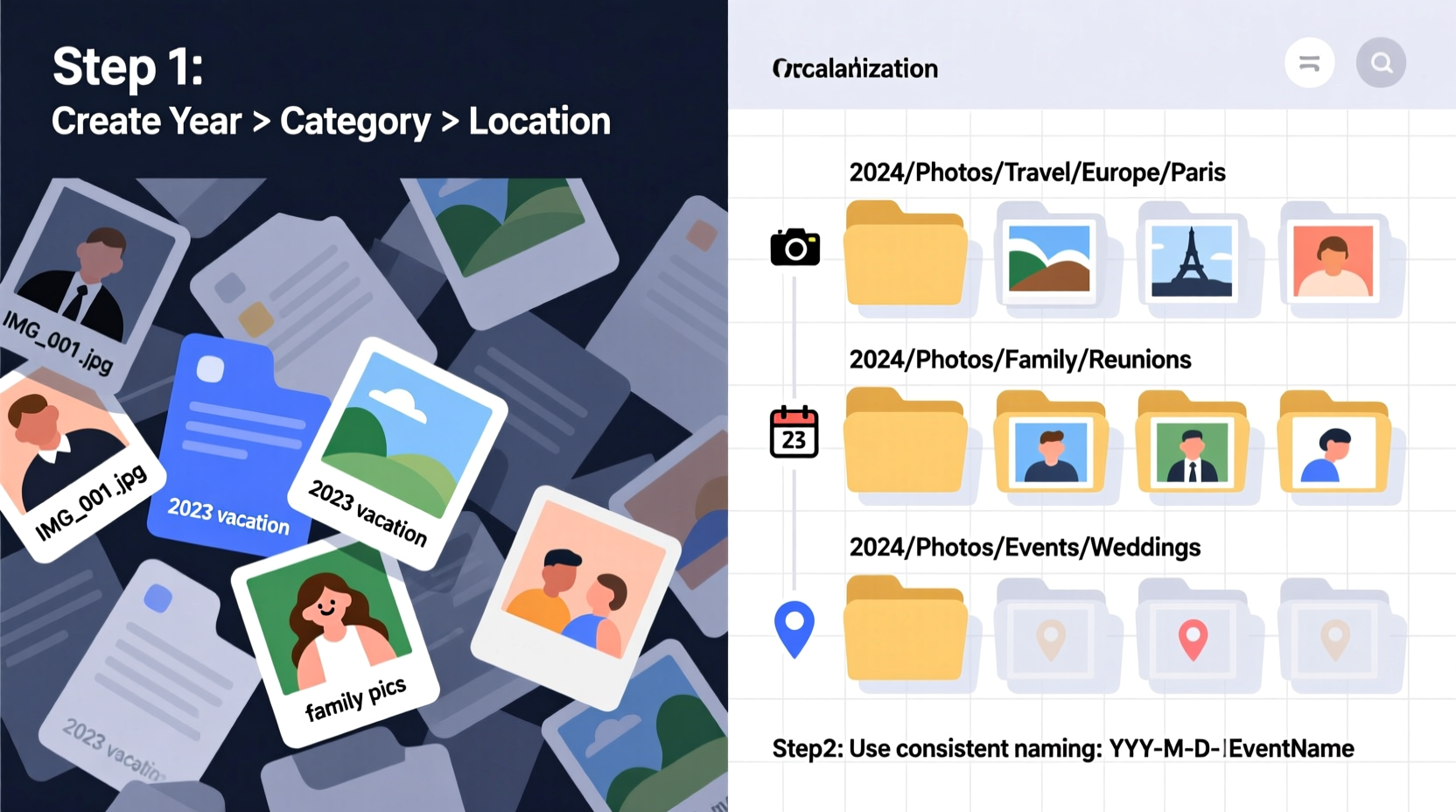
The foundation of any efficient photo management system is a logical, consistent folder hierarchy. A poorly organized drive leads to duplicates, confusion, and lost files. The goal is to create a structure that’s intuitive, searchable, and expandable over years or decades.
A recommended approach uses a top-down model based on time and context:
- Year: Start with the year (e.g., 2024).
- Month: Subfolders by month (e.g., 06_June).
- Event or Date Range: Further divide into specific events (e.g., 2024-06-15_WeddingAnniversary or 2024-07-01_Vacation_CostaRica).
This structure supports chronological navigation while allowing descriptive clarity. Using ISO date formats (YYYY-MM-DD) ensures files sort correctly in any operating system.
Folder Naming Conventions That Work
Consistent naming prevents ambiguity and makes searching effortless. Stick to a single format across all folders. Recommended elements include:
- Date at the beginning (YYYY-MM-DD)
- Descriptive title (capitalized words, no special characters)
- Optional location or subject
Examples of good names:
2024-05-12_Birthday_Party_James2024-08-20_Family_Reunion_Michigan2024-11-28_Halloween_Costumes
Avoid vague labels like “Photos,” “Vacation,” or “New Pics” which provide no context over time.
Step-by-Step Guide to Setting Up Your Local Photo System
Building an organized photo library requires planning and consistency. Follow this timeline to establish a reliable workflow:
- Inventory Existing Photos (Week 1)
Gather all photos from devices, external drives, and temporary folders. Use tools like Everything (Windows) or Spotlight (Mac) to search for common image extensions (.jpg, .png, .heic, .raw). - Remove Duplicates and Junk (Week 2)
Use duplicate finder software such as Duplicate Cleaner (Windows) or Gemini 2 (Mac) to eliminate redundant files. Delete blurry shots, screenshots, and irrelevant images. - Create Master Folder Hierarchy (Day 1 of Setup)
On your main drive or dedicated external SSD/HDD, build the root structure:Photos/2020/01_January/2020-01-15_New_Years_Day - Sort and Move Files Chronologically (Ongoing)
Begin transferring cleaned photos into their correct dated folders. Use file properties (EXIF metadata) to verify dates if filenames are unclear. - Implement Regular Import Routine (Monthly Going Forward)
After each event or trip, transfer new photos to the appropriate folder immediately. Don’t let them accumulate in device-specific folders. - Backup Strategy (Every 3 Months)
Maintain at least two physical copies on separate drives. Rotate one offsite (e.g., stored at a relative’s house) to protect against fire or theft.
IMG_1234.CR2 to
2024-09-10_Hiking_Trail_Section3.CR2.
Do’s and Don’ts of Local Photo Management
| Do’s | Don’ts |
|---|---|
| Use consistent date-first naming | Store everything in one giant “Pictures” folder |
| Back up to multiple drives | Rely on a single hard drive for long-term storage |
| Organize by event, not just date | Use ambiguous names like “Trip” or “Party” |
| Regularly review and archive old folders | Forget to verify backups periodically |
| Preserve original files; edit copies | Overwrite originals during editing |
Real Example: How Sarah Organized 10 Years of Family Photos
Sarah, a freelance writer and mother of two, had over 25,000 unsorted photos scattered across her laptop, phone, and three old USB drives. She wanted a way to preserve family memories without trusting third-party cloud providers.
She began by connecting all storage devices and using a script to extract every image file into a central staging folder. Over four weekends, she reviewed each batch, deleting duplicates and low-quality shots. Then, she created a master directory named Family_Photos, with subfolders for each year from 2014 to 2024.
Within each year, she added monthly folders and then event-specific ones. A summer trip to Yellowstone became 2022-07-10_Road_Trip_Yellowstone. Birthday parties were labeled with the child’s name and age.
To safeguard the collection, she purchased two 2TB external SSDs. One stayed connected to her desktop for daily access; the other was updated quarterly and stored in a fireproof safe. She now shares photo links with relatives via encrypted USB mailings.
“It took effort upfront,” Sarah says, “but now I can find any photo in seconds. My kids love scrolling through past birthdays and vacations—it’s become part of our family culture.”
Enhancing Accessibility Without Metadata Tools
Without cloud AI features like facial recognition or auto-tagging, finding specific people or themes may seem harder. However, smart folder design and supplementary methods can compensate.
Consider creating a parallel reference system:
- People Index Folder: Create symbolic links (shortcuts) to key photos of individuals. For example, a folder called
Index_People/Emmacontains shortcuts to her best photos across different years. - Themes or Categories: Use folders like
Index_Landscapes,Index_Pets, orIndex_Holidaysto group highlights. - Text-Based Logs: Maintain a simple
Photo_Journal.txtfile listing notable events, locations, and people featured each year.
While not automated, this manual indexing fosters deeper engagement with your collection and improves recall.
Essential Backup Practices for Long-Term Safety
No organization system matters if your photos are lost to hardware failure. The 3-2-1 backup rule remains the gold standard:
- 3 copies of your data (original + 2 backups)
- 2 different media types (e.g., internal SSD + external HDD)
- 1 offsite copy (stored elsewhere physically)
Rotate backup drives regularly. Set calendar reminders every three months to reconnect your secondary drive and sync updates. Use free tools like FreeFileSync (cross-platform) to automate synchronization tasks.
“Hard drives fail silently and suddenly. If you haven’t backed up in six months, you’re living dangerously.” — Mark Rios, Data Recovery Specialist
Frequently Asked Questions
Can I organize photos without specialized software?
Absolutely. While tools like Adobe Lightroom or Apple Photos offer advanced features, a disciplined folder-and-naming system works powerfully with just your operating system’s file explorer. No additional software is required for basic but effective organization.
What if my computer dies? Will I lose everything?
Only if you haven’t backed up. As long as you follow the 3-2-1 backup rule, replacing a failed machine simply means restoring from your external drive. Always test your backups annually by opening random folders to confirm readability.
How do I handle photos from multiple family members?
Designate one person as the primary organizer. Collect photos from others via shared drives, email, or direct transfer after events. Include contributor initials in folder names if needed (e.g., 2024-05-18_Backyard_BBQ_JaneMobile). Hold quarterly family sessions to review and approve new additions.
Checklist: Building Your Local Photo Organization System
Follow this checklist to ensure a smooth setup:
- ☐ Gather all existing photos into a temporary staging folder
- ☐ Remove duplicates, poor-quality images, and non-photos
- ☐ Choose a consistent folder naming convention
- ☐ Build the root directory structure by year and month
- ☐ Sort and move files into dated, descriptive event folders
- ☐ Label and store original files without modification
- ☐ Set up two external drives for redundant backups
- ☐ Schedule quarterly backup verification
- ☐ Create optional index folders for people or themes
- ☐ Document your system in a README.txt file inside the main folder
Conclusion: Take Control of Your Digital Memories
Organizing digital photos without cloud storage isn’t about rejecting technology—it’s about reclaiming control. A thoughtfully designed local folder system gives you privacy, reliability, and peace of mind. What might seem tedious at first becomes second nature with routine, turning photo management from a chore into a meaningful act of preservation.
Your photos are more than data—they’re moments frozen in time. By investing in a structured, local organization method, you ensure those moments remain accessible, intact, and personal for decades to come.




 浙公网安备
33010002000092号
浙公网安备
33010002000092号 浙B2-20120091-4
Comments
No comments yet. Why don't you start the discussion?