
Digital photos capture life’s most meaningful moments—birthdays, vacations, quiet family evenings. But over time, those precious images scatter across phones, hard drives, cloud accounts, and forgotten folders. Without a system, it’s easy to lose track of photos or accidentally save multiple copies. The result? A cluttered, confusing library where finding a specific image feels like searching for a needle in a haystack.
The good news: organizing your digital photo collection doesn’t require technical expertise or expensive software. With a clear plan, consistent habits, and a few smart tools, you can build a reliable, searchable archive that preserves every memory—without the duplicates.
Start with a Backup Strategy That Protects Your Memories
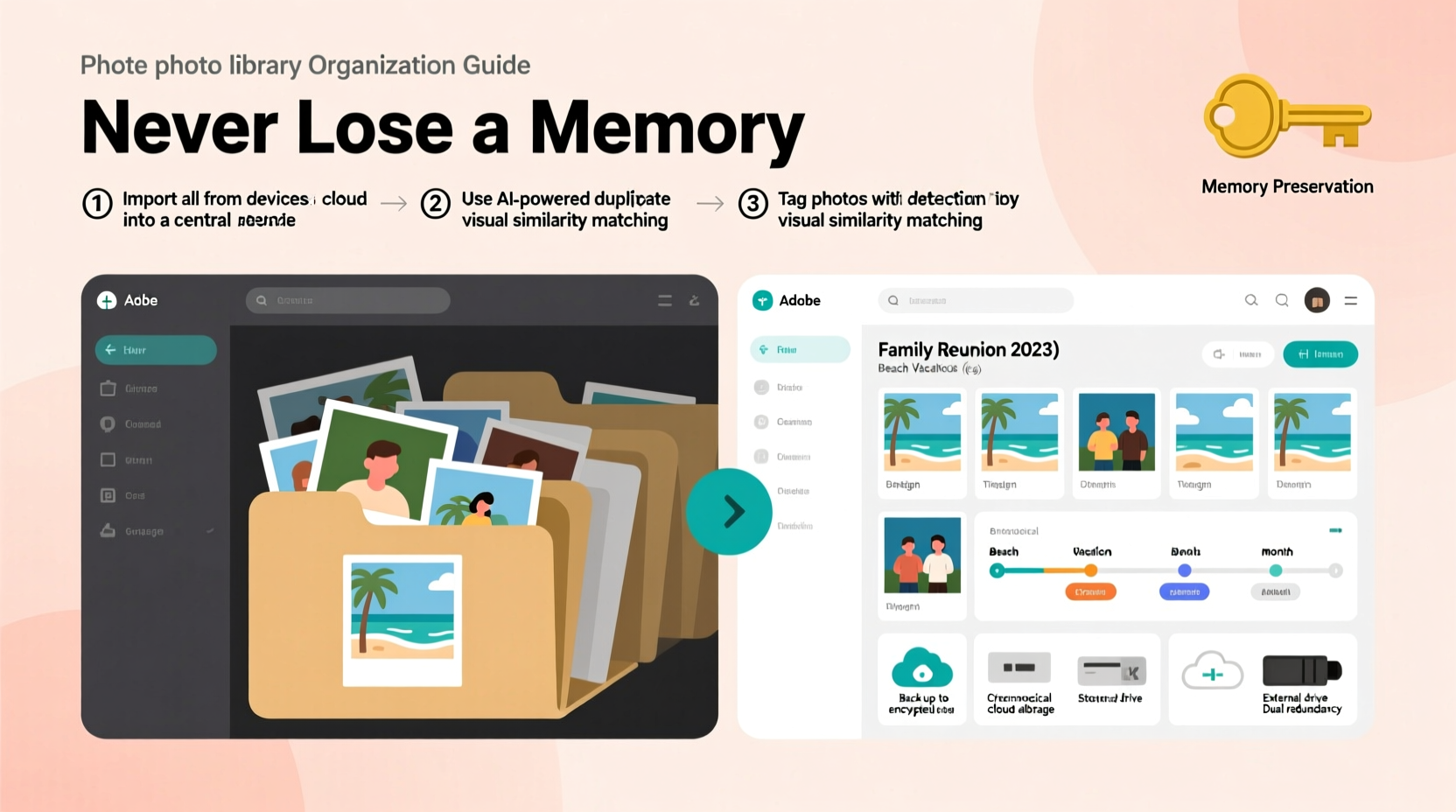
Before touching a single photo file, ensure your entire library is backed up. This isn’t just a precaution—it’s essential. Any reorganization carries risk, especially when moving, renaming, or deleting files. If something goes wrong, a backup ensures no memory is lost forever.
A robust backup follows the 3-2-1 rule: three copies of your data, on two different media types, with one stored offsite. For most users, this means:
- Your original photos on your primary device (phone or computer)
- A local backup on an external hard drive or NAS (Network Attached Storage)
- An offsite copy in a secure cloud service like Google Photos, iCloud, or Backblaze
“Photographs are irreplaceable. Once they’re gone, the moment is lost. Always back up before organizing.” — Dr. Laura Simmons, Digital Archivist at the National Memory Preservation Initiative
Create a Logical Folder Structure That Scales Over Time
One of the biggest mistakes people make is naming folders haphazardly: “Photos,” “New Pics,” “Trip Stuff.” These names offer no context and break down as your collection grows. Instead, adopt a consistent, hierarchical structure based on date and event.
The most effective system uses a YYYY/MM - Event Name format. For example:
/Photos/2023/06 - Summer Road Trip
/Photos/2023/12 - Holiday Gathering
/Photos/2024/01 - New Year's Eve
This approach makes navigation intuitive and supports automation. Software can easily sort by year and month, and you’ll never wonder where to place a new batch of photos.
If you have older photos without dates, estimate when possible. Use photo metadata (EXIF data) to extract timestamps. Tools like Adobe Bridge, XnView, or even free options like FastStone Photo Viewer can read and export this information.
Folder Naming Best Practices
- Always use four-digit years to avoid confusion (e.g., 2024, not '24)
- Use leading zeros in months (01, 02… 12) so folders sort chronologically
- Keep event names descriptive but concise: “Beach Wedding – Smith Family” instead of “Wedding pics lol”
- Avoid special characters like ?, *, /, \\, :, \", <, > which may cause compatibility issues
Eliminate Duplicates Without Losing the Right Version
Duplicates are inevitable. You might have the same photo on your phone, camera SD card, and cloud storage. Or you’ve edited a few versions and saved them separately. Left unchecked, duplicates inflate your storage needs and create confusion.
But blindly deleting duplicates is dangerous. What if you delete the only copy with edits? Or remove a higher-resolution version? The key is intelligent deduplication.
Step-by-Step Duplicate Removal Process
- Consolidate all photos into one master folder (after backing up).
- Use duplicate-finding software such as DupliFinder, VisiPics, or Gemini 2 (Mac) to scan for identical or near-identical images.
- Review suggested duplicates manually. Don’t rely solely on algorithms—check resolution, edits, and metadata.
- Prioritize quality: Keep the highest-resolution version or the one with meaningful edits.
- Move duplicates to a quarantine folder for 30 days before permanent deletion.
| Action | Do | Don’t |
|---|---|---|
| Finding duplicates | Use tools with visual preview and metadata comparison | Use tools that delete automatically without review |
| Selecting which to keep | Prefer originals with intact EXIF data | Delete a photo just because it’s smaller in file size |
| Final deletion | Wait 30 days after backup verification | Delete immediately after scanning |
Tag, Rate, and Caption for Long-Term Searchability
A well-organized folder structure helps you find photos by date, but what if you want to see all pictures of your dog, or every photo from Paris? That’s where metadata comes in.
Embedding keywords, captions, and ratings directly into photo files makes them searchable across devices and software. Unlike folder paths, metadata travels with the file—even if you move or share it.
Effective Metadata Practices
- Add keywords: Use tags like “birthday,” “beach,” “Grandma,” “sunset.” Be consistent—don’t use both “dog” and “puppy” for the same pet.
- Write brief captions: “Emma’s first day of school, September 2023” adds context future viewers will appreciate.
- Rate photos: Use star ratings (1–5) to flag keepers. Later, you can filter to show only 4- and 5-star images.
- Leverage facial recognition: Tools like Apple Photos, Google Photos, or Adobe Lightroom can group people automatically. Review suggestions to correct misidentifications.
To edit metadata at scale, consider using bulk editors. Adobe Bridge allows you to add keywords and captions to hundreds of photos at once. Free tools like ExifTool (command-line) or Photo Mechanic offer powerful alternatives.
“Metadata is the silent librarian of your photo collection. It works behind the scenes to make sure nothing gets forgotten.” — Marcus Tran, Digital Asset Management Consultant
Real Example: How Sarah Reclaimed Her 15,000-Photo Chaos
Sarah, a mother of two from Portland, had accumulated over 15,000 photos across her iPhone, old laptops, and a dusty external drive. She wanted to create a family album but couldn’t find more than a fraction of the images she remembered taking.
She began by connecting her external drive and copying everything to a new folder called “Master_Photo_Archive.” She then used Google Photos to sync her phone, ensuring cloud coverage. Next, she applied the 3-2-1 backup rule—local drive, cloud, and a second external drive stored at her sister’s house.
Using XnView, she sorted files by date and created a folder structure starting from 2015 onward. Older photos were grouped by estimated year. She ran Gemini 2 to identify duplicates—removing over 3,000 redundant files after careful review.
Finally, she spent weekends adding tags: “Lily’s soccer games,” “Dad’s birthday dinners,” “Camping trips.” Within three months, she could instantly pull up any memory. Her favorite win? Finding six hidden shots of her daughter’s first steps—previously buried in a folder named “Random 07.”
Essential Checklist: Organize Your Library in 7 Steps
✅ Your Photo Organization Checklist
- Back up all photos using the 3-2-1 rule
- Collect all photos into one central location
- Create a standardized folder structure:
YYYY/MM - Event - Sort photos by date using file metadata
- Run a duplicate finder and manually verify matches
- Add keywords, captions, and ratings to important photos
- Verify final backup and store one copy offsite
Frequently Asked Questions
Should I rename all my photo files?
You don’t have to, but consistent filenames help. Stick to formats like YYYYMMDD_Description.jpg (e.g., 20240515_Beach_Day.jpg). Avoid generic names like “IMG_001.jpg.” Tools like Bulk Rename Utility (Windows) or Renamer (Mac) can automate this process safely.
Can I organize photos on my phone the same way?
Phones don’t let you control folder structures directly, but you can use albums and labels. Sync your phone to a computer regularly and let your master library drive organization. Apps like Google Photos allow custom albums and search by people, places, and things—making mobile access seamless.
What if my photos have no date information?
No timestamp? Try reconstructing dates using context: receipts, social media posts, or messages around the time. Some tools, like PhotoMove, analyze file creation dates and folder patterns to suggest accurate sorting. As a last resort, create a “No Date” folder and revisit it later as clues emerge.
Make Your Memories Accessible—Not Just Stored
Organizing your digital photo library isn’t about perfection. It’s about accessibility, preservation, and peace of mind. A well-maintained collection means you can relive moments instantly, share them with loved ones, and pass them down to future generations.
The process takes effort, but it doesn’t need to happen all at once. Dedicate a few hours each weekend. Start with the most recent year and work backward. Celebrate small wins—like finally locating that missing graduation photo or trimming 20GB of duplicates.
Your memories deserve more than scattered files and broken links. With a clear system, thoughtful tagging, and regular maintenance, your digital photo library can become a living archive—one that grows smarter and more meaningful over time.




 浙公网安备
33010002000092号
浙公网安备
33010002000092号 浙B2-20120091-4
Comments
No comments yet. Why don't you start the discussion?