
Digital photos are among our most valuable personal assets—capturing milestones, emotions, and memories that can't be recreated. Yet, most people let them scatter across devices, cloud accounts, and forgotten folders. A single hard drive failure or accidental deletion can erase years of history in seconds. The solution isn’t just storage—it’s a disciplined, repeatable system that combines smart organization with robust backup strategies.
Professionals don’t rely on luck. They use structured workflows to keep their photo libraries searchable, safe, and scalable. This guide breaks down exactly how to replicate that approach, whether you're managing thousands of family snapshots or curating travel photography. From file naming conventions to redundant backup layers, you’ll build a system that protects your memories and makes them easy to find.
1. Start with a Clear Folder Structure
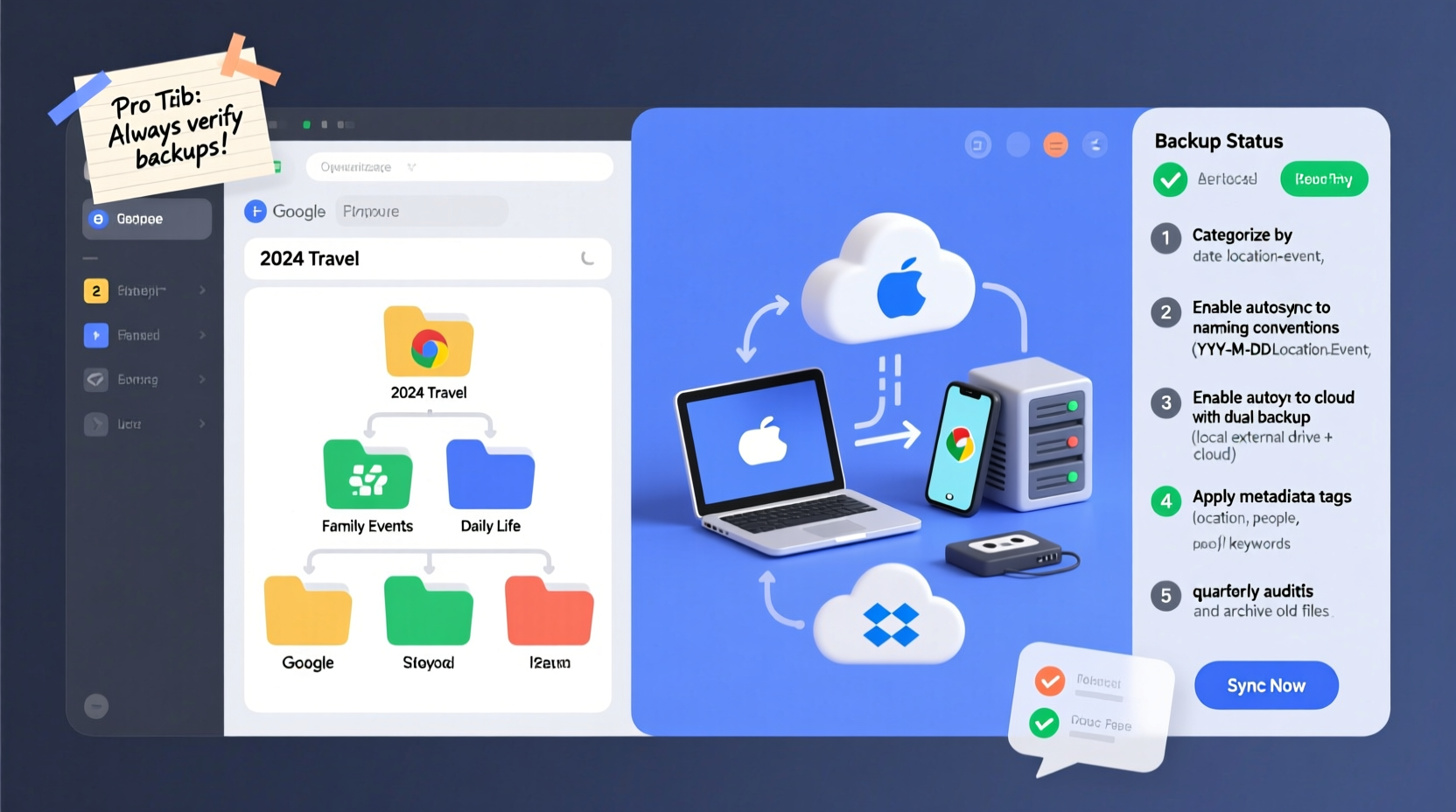
The foundation of any professional photo organization system is a logical, consistent folder hierarchy. Without it, even the best backup strategy collapses under chaos. Begin by defining a structure that scales over time and reflects how you naturally think about your photos.
A widely used and effective model uses chronological organization combined with descriptive events:
Photos/
├── 2023/
│   ├── 2023-06-10_Wedding-John-Doe/
│   ├── 2023-07-15_Family-Reunion-Michigan/
│   └── 2023-08-22_Iceland-Trip/
├── 2024/
│   ├── 2024-01-01_New-Years-Eve/
│   ├── 2024-03-14_Birthday-Sarah/
│   └── 2024-05-18_Graduation/
└── Archives/
    └── Pre-2020_Raw_Scans/
This format uses ISO date formatting (YYYY-MM-DD) at the start of each folder, ensuring automatic sorting by date in any file browser. Follow the date with a brief but meaningful description using hyphens instead of spaces for compatibility across systems.
Store all photos under one root directory (e.g., “Photos”) on your main drive. Avoid scattering folders across desktops, downloads, or multiple drives. Use subfolders only for major events or trips—don’t over-nest. More than three levels deep becomes difficult to navigate.
2. Implement Consistent File Naming and Metadata
Folder structure gets you partway there, but individual files need clarity too. Random camera-generated names like DSC_4567.jpg offer no context. Rename files systematically as you import them.
A good naming convention includes the date, event, and sequence number:
2024-05-18_Graduation_001.jpg2024-05-18_Graduation_002.jpg2024-05-18_Graduation_003.jpg
You can automate this process using tools like Adobe Bridge, Bulk Rename Utility (Windows), or Renamer (macOS). During import, apply rules that extract the photo’s capture date and insert it into the filename.
Beyond filenames, leverage metadata. Embed keywords, captions, and copyright information directly into the image file using EXIF or XMP standards. Most photo management software—like Adobe Lightroom, Apple Photos, or Digikam—supports batch editing of metadata.
“Metadata is the invisible backbone of digital archives. Without it, future generations won’t know who’s in the photo or why it mattered.” — Dr. Lena Torres, Digital Archivist, National Preservation Institute
At minimum, tag each photo with:
- People present
- Location
- Event type
- Keywords (e.g., “beach,” “birthday cake,” “graduation cap”)
These tags make searches instantaneous later. You’ll thank yourself when you need “all photos of Emma before age 5 at the lake house.”
3. Step-by-Step: Organize and Back Up Your Photos
Now that you understand the principles, here’s a clear, actionable workflow to organize and protect your entire photo collection—whether starting fresh or cleaning up years of clutter.
- Gather All Photos in One Place: Collect images from phones, cameras, old computers, and cloud services. Copy everything into a temporary “Inbox” folder on your main drive.
- Remove Duplicates and Junk: Use duplicate finder tools (like VisiPics or Gemini Photos) to eliminate redundant shots, screenshots, and blurry test images.
- Sort Chronologically: Sort all remaining files by date taken (not modified date). Most operating systems allow sorting by EXIF data.
- Create Folders Using the Date-Event Format: Group photos into folders based on day and event, following the structure outlined earlier.
- Rename Files Uniformly: Apply your naming convention across all files using bulk renaming software.
- Add Metadata: Tag each folder or selection with relevant keywords, descriptions, and people.
- Move to Permanent Archive: Transfer organized folders into your main “Photos” directory.
- Back Up Locally: Copy the entire library to an external hard drive formatted with a resilient file system (APFS for Mac, NTFS for Windows, or exFAT for cross-compatibility).
- Back Up to the Cloud: Upload your photos to a secure cloud service with versioning and encryption.
- Verify and Schedule Maintenance: Check backups monthly. Set calendar reminders to audit your system every quarter.
4. Build a Redundant Backup System (The 3-2-1 Rule)
Even the best organization fails if your photos aren’t protected. Professionals follow the 3-2-1 backup rule:
- 3 copies of your data (original + 2 backups)
- 2 different media types (e.g., internal drive + external SSD)
- 1 offsite copy (cloud storage or physical drive stored elsewhere)
This strategy guards against hardware failure, theft, fire, and ransomware. Let’s break down how to implement it.
Local Backup: External Hard Drives
Use at least one high-quality external drive (preferably SSD for durability) dedicated solely to photo backups. Connect it weekly or monthly to sync new additions. Use software like:
- FreeFileSync (cross-platform, open-source)
- ChronoSync (Mac)
- Robocopy (Windows command-line)
Set up a mirrored backup so changes in your main library are reflected on the drive. Store the drive unplugged and in a cool, dry place when not in use to reduce wear and vulnerability to malware.
Cloud Backup: Security and Accessibility
Cloud storage adds protection against physical disasters. Choose a provider that offers:
- End-to-end encryption
- Version history (to recover deleted or corrupted files)
- Unlimited or high storage tiers
| Service | Best For | Encryption | Storage Options |
|---|---|---|---|
| Google Photos | Casual users, AI search | Transit & rest (no end-to-end) | 15GB free; paid plans up to 2TB |
| iCloud Photos | Apple ecosystem | End-to-end optional (Advanced Data Protection) | 5GB free; up to 6TB |
| Backblaze B2 | Power users, automation | Server-side encryption | Unlimited storage |
| pCloud | Privacy-focused users | Optional end-to-end (Crypto folder) | 500GB–2TB, lifetime plans available |
For maximum security, avoid relying solely on consumer photo apps like Google Photos unless you enable locked folders or additional encryption. Consider using a dedicated backup tool like Duplicati or Rclone to encrypt and push your photo library to cloud storage without exposing raw files.
5. Real-World Example: Recovering After a Laptop Failure
Sophie, a freelance photographer and parent of two, had accumulated over 12,000 photos across six years. She kept most on her laptop and uploaded select ones to Facebook. When her computer failed during a trip, she lost access to everything—including irreplaceable videos of her daughter’s first words.
After replacing her laptop, she committed to a professional system. She purchased a 2TB SSD for local backup and subscribed to pCloud with its end-to-end encrypted vault. She spent weekends organizing photos by year and event, renaming files, and adding metadata. She now backs up monthly and stores one drive at her sister’s house.
When a ransomware alert hit her network last winter, she restored her entire library from the offline drive within hours. “I didn’t lose a single photo,” she said. “It was stressful, but the system worked exactly as designed.”
Essential Checklist: Photo Organization & Backup
✅ Your Action Plan:
- Define a standardized folder structure (Year → YYYY-MM-DD_EventName)
- Collect all photos into a central inbox
- Delete duplicates, screenshots, and unusable images
- Rename files with date-event-sequence format
- Add metadata: people, location, keywords
- Store master copy on primary drive
- Back up to external hard drive (mirrored)
- Upload to encrypted cloud service
- Test restore one folder quarterly
- Schedule annual review of your system
Frequently Asked Questions
How often should I back up my photos?
If you’re actively taking photos, back up at least once a week. For most personal users, a biweekly or monthly routine is sufficient—especially if you’re using auto-upload features on mobile devices. The key is consistency, not frequency. Missed backups create gaps that put recent memories at risk.
Is cloud storage safe for private family photos?
Yes, if you choose a provider with strong encryption and privacy policies. Enable two-factor authentication and consider using client-side encryption tools like Cryptomator to add a layer of protection before uploading. Avoid storing sensitive content in plain view on platforms with algorithmic sharing or ad-based models.
Can I use multiple cloud services together?
Absolutely—and doing so enhances redundancy. For example, use Google Photos for quick access and facial recognition, while maintaining a full encrypted backup on Backblaze or pCloud. Just ensure your primary archive remains the source of truth, not the cloud app’s interpretation of your library.
Conclusion: Take Control of Your Digital Legacy
Your photos are more than data—they’re fragments of your life story. Leaving them disorganized or unprotected is like storing heirlooms in a flood-prone basement. By applying professional-grade organization and adhering to the 3-2-1 backup rule, you transform chaos into a lasting archive.
Start small. Dedicate one weekend to building your folder structure and importing a single year’s worth of photos. Get the rhythm of the workflow. Then scale it forward and backward through your collection. Automate what you can, verify what you must, and never assume a backup worked until you’ve tested it.




 浙公网安备
33010002000092号
浙公网安备
33010002000092号 浙B2-20120091-4
Comments
No comments yet. Why don't you start the discussion?