
Every smartphone tap adds another photo to an ever-growing collection. Over time, those thousands of unsorted images turn into a digital clutter nightmare. Searching for a specific moment becomes frustrating, important memories risk being lost, and the idea of organizing everything feels overwhelming. The good news? You don’t need to spend weekends buried in folders to regain control. With the right strategy, you can streamline your photo library in under a few focused hours—and maintain it with minimal effort.
Start with a Clear Strategy, Not Perfection
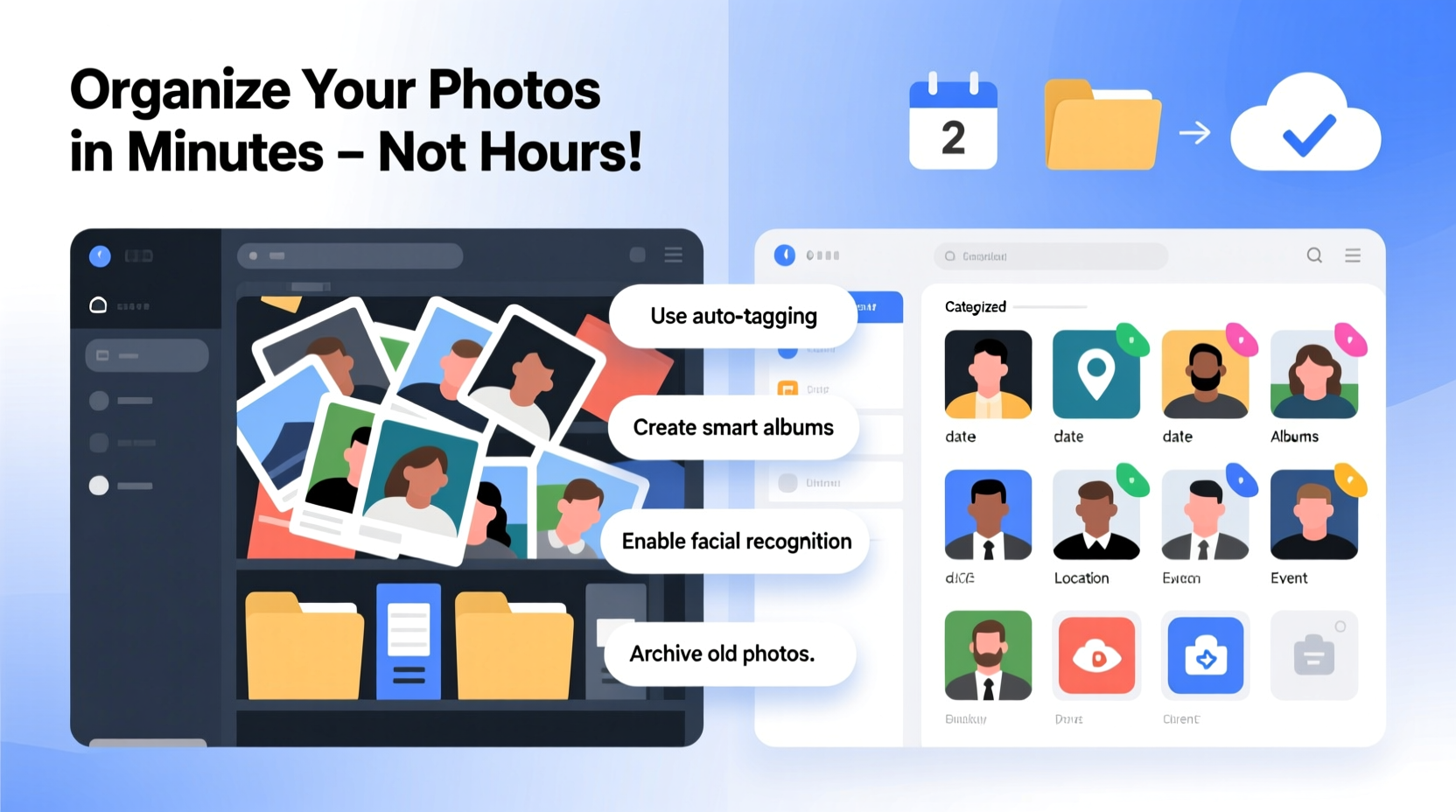
Most people fail at photo organization because they aim for perfection from day one. They try to rename every file, tag every person, and sort by lighting conditions or camera settings. That level of detail is unnecessary for 99% of users. Instead, focus on creating a system that makes photos findable, not flawless.
The goal isn’t to create a museum archive—it’s to ensure you can locate last summer’s beach trip or your child’s first school play in seconds. A practical system prioritizes consistency over completeness. Use broad categories, rely on automation where possible, and accept that some duplicates or blurry shots will remain. You’ll preserve your sanity and still achieve real results.
Use Automatic Tools to Do the Heavy Lifting
Modern photo platforms come with powerful AI-driven features that can classify, group, and even suggest edits. Relying on these tools cuts manual work by up to 80%. Here’s how to leverage them effectively:
- Google Photos: Automatically groups images by faces, places, objects, and events. It also creates albums, animations, and “memories” based on timing and location.
- Apple Photos (macOS & iOS): Uses on-device machine learning to recognize people, pets, scenes, and locations. Its “People & Pets” feature is especially accurate.
- Adobe Lightroom: Offers cloud-based AI tagging and facial recognition, ideal for creatives who want more control without manual input.
These platforms scan metadata (date, GPS, device info) and visual content to build smart indexes. Once synced, you can search “dog,” “mountains,” or “Sarah birthday” and get relevant results instantly—even if you never labeled a single photo.
“Automation isn’t cheating—it’s intelligent workflow design. The best organizers use tools to eliminate repetitive tasks.” — Dr. Lena Park, Digital Archiving Researcher, MIT Media Lab
A Simple 5-Step System to Organize Photos in Under 3 Hours
You don’t need days. With this timeline-based approach, you can transform chaos into clarity in one afternoon.
- Hour 1: Gather Everything in One Place
Collect photos from all devices—phones, tablets, old hard drives, SD cards, and cloud accounts. Copy them into a single master folder on your computer. Name it something like “All_Photos_Master.” Avoid deleting anything yet. - Hour 2: Let AI Sort by Time and Face
Upload the master folder to Google Photos or Apple Photos. Allow 24–48 hours for full indexing. During this time, the system will auto-group weddings, trips, holidays, and recurring faces. No action needed on your part. - Hour 3: Create High-Level Folders
Back on your computer, set up a simple folder hierarchy:- Photos_By_Year (e.g., 2020, 2021, 2022)
- Special_Moments (weddings, graduations, travel)
- Family_Albums (by person or household)
- Archive_Raw (for unprocessed or backup-only files)
- Hour 4: Run Duplicates Check
Use tools like Gemini Photos (iOS), Duplicate Cleaner (Windows), or VisiPics (cross-platform) to detect and remove exact or near-duplicate images. This often recovers gigabytes of space with zero effort. - Hour 5: Set Up Ongoing Maintenance
Enable automatic backups on your phone. Choose one primary platform (Google Photos or iCloud) and stick to it. New photos will be sorted automatically going forward.
This five-hour investment pays off forever. After setup, maintenance takes less than 10 minutes per month.
Smart Naming and Tagging—Without the Overkill
Manual naming every file is a trap. But strategic naming of key folders and events makes a big difference. Use a consistent format that includes date and subject:
| Good Format | Purpose | Avoid |
|---|---|---|
| 2023-07-14_Family_Reunion_Lake_Tahoe | Chronological + descriptive; easy to sort | FamTrip2023(1).jpg |
| 2022-12-25_Christmas_Dinner_Home | Specific event, searchable | IMG_8847.CR2 |
| 2024-03-09_Emma_Graduation_Ceremony | Names person and milestone | Party!!!.jpeg |
Apply this only to major events or shared family albums. For everyday photos, trust your cloud platform’s search function. Typing “Emma graduation” will pull up the same result without renaming a single file.
Real Example: How Sarah Reclaimed Her Photo Library in One Weekend
Sarah, a freelance designer and mother of two, had over 18,000 photos scattered across three phones, an old laptop, and a USB drive. She avoided organizing them because she assumed it would take weeks. Instead, she followed the five-step system above.
On Saturday morning, she copied all images into one folder using her new MacBook. That afternoon, she uploaded everything to Google Photos. While dinner cooked, the system grouped photos by event and recognized her children’s faces with 95% accuracy. Sunday morning, she reviewed auto-created albums titled “Beach Week 2023,” “Maya’s Birthday – Zoo Trip,” and “Dad’s Retirement Party.”
She created four main folders on her desktop, moved key events into them using the date-based naming convention, and ran a duplicate scan that removed 1,200 redundant screenshots and burst-mode shots. By Sunday evening, her entire library was searchable, backed up, and organized. Total active work: 4.5 hours.
Now, when her mom asks for pictures from Maya’s third birthday, Sarah types “Maya birthday 2021” into Google Photos and shares a link in seconds.
Checklist: Maintain Your System Long-Term
Organization isn’t a one-time project. Use this monthly checklist to keep your system running smoothly:
- ✅ Enable auto-backup on all devices
- ✅ Review new “Memories” or “Recaps” weekly to confirm accuracy
- ✅ Delete obvious junk: screenshots, receipts, failed shots
- ✅ Merge similar auto-albums (e.g., combine “Paris Trip Day 1” and “Paris Day 2”)
- ✅ Share curated albums with family instead of forwarding individual files
- ✅ Export one annual highlight album each December for long-term archiving
By dedicating just 15 minutes a month, you avoid future buildup. Think of it as digital hygiene—small habits prevent big problems.
Common Mistakes That Waste Time
Even well-intentioned efforts go off track. Avoid these pitfalls:
- Sorting by device or camera type: “iPhone Photos,” “DSLR Shots,” etc., fragment your memories and make cross-device searches useless.
- Relying only on local folders: Hard drives fail. Without cloud sync, you risk losing everything in a crash.
- Waiting until you have “time”: There’s never enough time. Block a few hours now rather than postponing indefinitely.
- Trying to tag every photo manually: Modern AI does this better and faster. Reserve manual tags for rare cases like historical documents or unnamed people.
“The most organized people aren’t the ones with perfect folders—they’re the ones who make retrieval effortless.” — Marcus Reed, Digital Minimalism Coach
FAQ: Quick Answers to Common Concerns
Should I keep original files after editing?
Yes—but store them separately. Keep edited versions in your main library for daily access. Save originals in an “Archive_Raw” folder or external drive for safety. This balances usability with data integrity.
Is it safe to rely on Google Photos or iCloud?
For most users, yes. Both services offer strong encryption, two-factor authentication, and version history. However, follow the 3-2-1 backup rule: 3 copies of your data, on 2 different media, with 1 offsite. So, keep your cloud copy plus one external drive stored away from home.
What if I have privacy concerns with facial recognition?
Both Apple and Google allow you to disable facial recognition. Apple processes face data on-device, so it never leaves your iPhone. Google stores it in the cloud but lets you delete it anytime. If you're uncomfortable, turn the feature off in settings—though you’ll lose some search convenience.
Conclusion: Take Action Before Another Memory Gets Lost
Your photos are more than data—they’re fragments of your life. Every day you delay organizing them, you increase the risk of losing precious moments to digital decay. But you don’t need endless free time or technical expertise. With automated tools, a simple structure, and a few disciplined hours, you can build a system that works for you—not against you.
Start today. Pick one device. Copy its photos into a temporary folder. Upload them to Google Photos or iCloud. Watch the AI do the sorting. In less than an hour, you’ll see your memories reappear in coherent albums, tagged and timed. That small win builds momentum. Repeat it with other sources, apply the naming convention, and lock in the habit with monthly maintenance.




 浙公网安备
33010002000092号
浙公网安备
33010002000092号 浙B2-20120091-4
Comments
No comments yet. Why don't you start the discussion?