
AirPods are designed for Apple’s ecosystem, where they deliver seamless pairing, instant battery readouts, automatic device switching, and intuitive gesture control. But many users own both iOS and Android devices — or have switched entirely to Android while still cherishing their AirPods. The good news: you can absolutely use AirPods with an Android phone. The bad news? Out of the box, you’ll miss several premium features that make AirPods feel magical.
The core Bluetooth audio functionality works perfectly — stereo sound, call handling, basic playback — but Apple doesn’t provide official support for advanced features on Android. No battery percentage, no tap customization, no spatial audio, and no Find My integration. However, with the right tools and setup, you can reclaim much of that lost functionality.
This guide walks through practical methods to pair your AirPods with an Android device while preserving as many high-end features as possible. You won’t get everything Apple users enjoy, but with smart app choices and a few configuration steps, your AirPods can remain a top-tier wireless audio solution on Android.
Understanding the Limitations of AirPods on Android
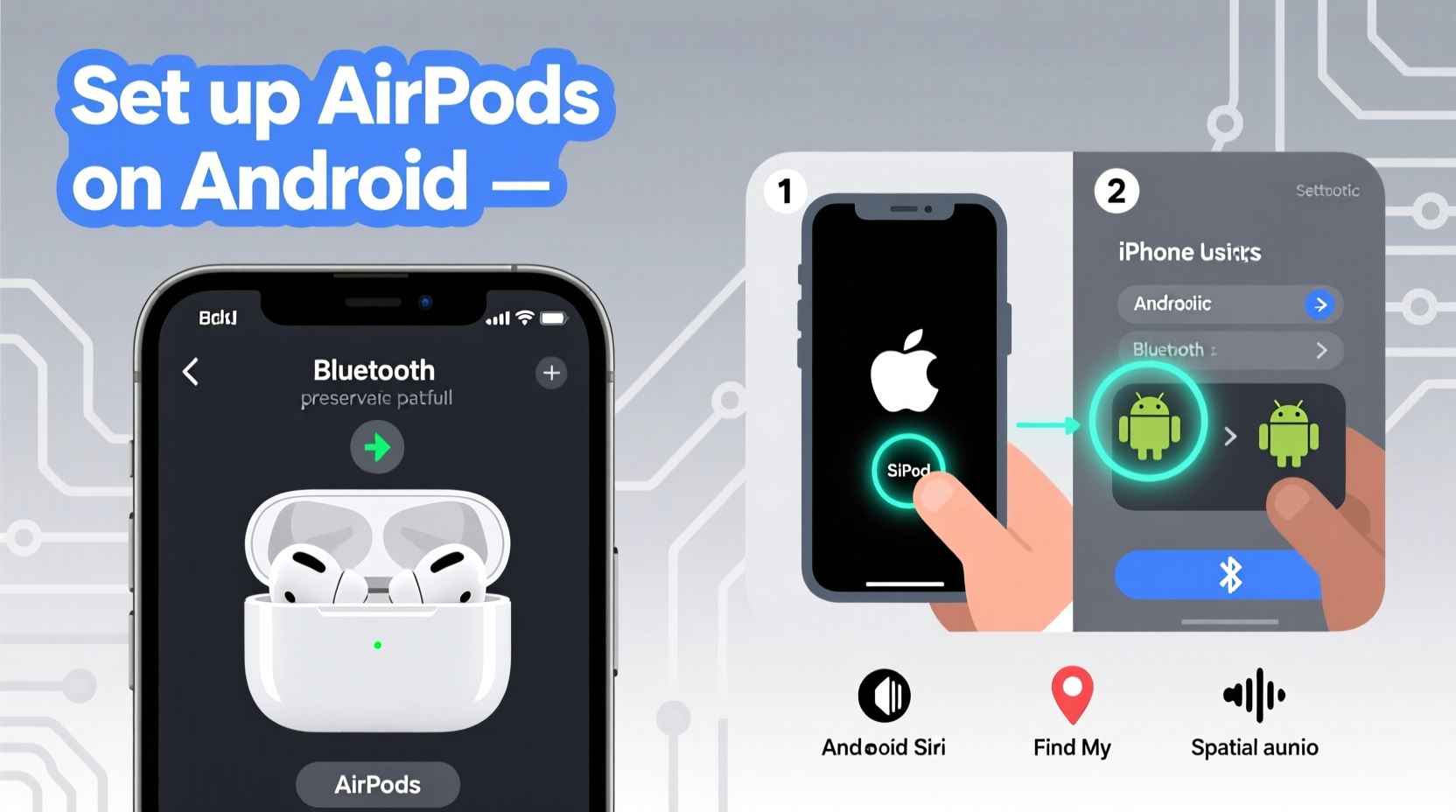
Before diving into solutions, it’s essential to understand what you’re up against. AirPods rely heavily on Apple’s proprietary W1/H1 chip and iCloud integration for their enhanced features. On Android, only standard Bluetooth profiles are available:
- HFP (Hands-Free Profile): Enables calls and microphone use.
- A2DP (Advanced Audio Distribution Profile): Handles high-quality stereo audio streaming.
- AVRCP (Audio/Visual Remote Control Profile): Allows basic play/pause, skip, and volume control.
Missing from this list are Apple-specific services like battery telemetry, firmware updates, spatial audio processing, and device-switching logic. These functions require direct communication between the H1 chip and iOS, which Android cannot replicate natively.
“AirPods are engineered for frictionless integration with Apple devices. When used outside that ecosystem, users trade convenience for compatibility.” — Jordan Lee, Wireless Audio Engineer at SoundLabs Research
That said, third-party developers have stepped in to fill the gap. While no solution is perfect, several Android apps now offer real-time battery monitoring, tap customization, and even proximity-based auto-pause — features once thought impossible on non-iOS platforms.
Step-by-Step Guide to Pairing AirPods with Android
Pairing AirPods with Android is straightforward. Unlike iOS, there’s no pop-up animation showing battery levels or a one-tap connect button. But the process itself is reliable and takes less than a minute.
- Open the AirPods case — Make sure your AirPods are inside and charged. Press and hold the small button on the back of the case until the LED light flashes white.
- Enable Bluetooth on your Android device — Go to Settings > Connected Devices > Bluetooth (path may vary by brand).
- Scan for devices — Your phone will begin searching. Look for “AirPods” in the list of available devices.
- Select “AirPods” — Tap the name to initiate pairing. Once connected, the LED on the case will turn solid white.
- Test audio — Play music or a video to confirm both earbuds are working and balanced.
At this point, your AirPods are functional. Calls, music, and basic touch controls (like double-tap to pause) will work using default settings programmed into the AirPods themselves. But you’re still missing visibility into battery life and the ability to customize gestures.
Restoring Key Features with Third-Party Apps
To recover lost functionality, you need dedicated Android apps that communicate with the H1 chip via Bluetooth LE (Low Energy) and decode hidden data packets. Several apps do this effectively. Below are the most reliable options and what each restores.
Top Apps for Enhancing AirPods on Android
| App Name | Battery Monitoring | Custom Gestures | Auto-Pause | Find My Integration | Platform |
|---|---|---|---|---|---|
| Assistant Trigger | ✅ Yes (per earbud + case) | ✅ Yes (single/double/triple press) | ✅ Proximity sensor-based | ❌ No | Play Store (Free/Premium) |
| MaterialPods | ✅ Real-time battery display | ⚠️ Limited (double-tap only) | ✅ When removed from ears | ❌ No | F-Droid / GitHub (Open Source) |
| AirBattery | ✅ Widget & notification | ❌ No | ❌ No | ❌ No | Play Store (Free) |
| Tasker + Plugins | ✅ (With AutoInput/AutoBluetooth) | ✅ Fully customizable | ✅ With sensor logic | ❌ No | Advanced (Paid) |
For most users, Assistant Trigger offers the best balance of features and ease of use. It supports detailed battery readings for left, right, and case, allows full remapping of tap gestures (e.g., triple-tap to launch Google Assistant), and includes auto-pause when removing an earbud — a feature Apple calls “Automatic Ear Detection.”
Installation is simple:
- Download “Assistant Trigger” from the Google Play Store.
- Grant required permissions (Accessibility, Notification Access).
- Open the app and select your AirPods from the detected devices list.
- Enable “Show Battery Popup” and adjust frequency.
- Go to Gesture Settings to reprogram single, double, or triple taps.
Once set up, you’ll see a small popup whenever you connect your AirPods, showing exact battery percentages. The app runs in the background with minimal battery impact.
Maximizing Performance: Do’s and Don’ts
To keep your AirPods running smoothly on Android, follow these best practices. Some stem from Bluetooth limitations, others from app dependencies.
| Do | Don’t |
|---|---|
| Use MaterialPods or Assistant Trigger for battery monitoring | Rely on generic Bluetooth settings for battery info |
| Keep your AirPods firmware updated via an iOS device (if possible) | Assume firmware updates happen automatically on Android |
| Re-pair AirPods if latency or disconnects occur | Ignore persistent connection issues without troubleshooting |
| Use Tasker for advanced automation (e.g., pause on unlock) | Install multiple overlapping AirPods helper apps |
| Store the case with AirPods inside to preserve charge | Leave AirPods exposed to moisture or extreme temperatures |
Real-World Example: A Cross-Platform User’s Workflow
Sophie, a digital marketer, uses an iPhone at home and a Samsung Galaxy S23 for work. She wanted to keep her AirPods Pro for consistent sound quality and noise cancellation across devices. Initially frustrated by the lack of battery info on Android, she discovered Assistant Trigger.
She configured her AirPods so that a double-tap activates ANC/Transparency mode on iOS, and on Android, the same gesture launches Google Assistant. She also enabled auto-pause, which stops audio when she removes one earbud during meetings. Using a persistent notification widget from MaterialPods, she checks battery levels at a glance.
“It’s not quite as smooth as on iPhone,” she says, “but with the right apps, I barely notice the difference. I save $200 by not buying a second pair of earbuds.”
Sophie’s experience reflects a growing trend: users who value hardware longevity and cross-platform flexibility. By leveraging open-source tools and smart configurations, she maintained nearly all the features she relied on.
FAQ: Common Questions About AirPods on Android
Can I update my AirPods’ firmware from an Android phone?
No. Firmware updates for AirPods are delivered exclusively through iOS devices connected to the same iCloud account. If you don’t own an iPhone, iPad, or Mac, your AirPods will remain on their last updated firmware version. This isn’t critical for daily use, but newer firmware often improves stability, battery efficiency, and noise cancellation.
Why don’t my AirPods show battery level in the Android quick panel?
Android’s native Bluetooth interface only displays generic device names, not battery data from non-standard accessories. Apple’s battery information is embedded in a proprietary format that standard Bluetooth stacks don’t interpret. That’s why third-party apps like Assistant Trigger are necessary — they decode these signals and present them in user-friendly ways.
Are AirPods worse on Android than Apple-certified Bluetooth earbuds?
In raw audio performance and microphone clarity, AirPods — especially the Pro models — still compete strongly with most mid-range Android earbuds. Their AAC codec support ensures high-quality streaming, and active noise cancellation is among the best in class. The main drawbacks are the lack of native integration and reliance on third-party apps. If you’re willing to install and configure one additional app, AirPods remain a powerful choice.
Checklist: Getting Full Value from AirPods on Android
- ✅ Pair AirPods via Bluetooth in Android settings
- ✅ Install Assistant Trigger or MaterialPods
- ✅ Grant necessary permissions (Accessibility, Notifications)
- ✅ Enable battery popup and gesture customization
- ✅ Test auto-pause and tap functions
- ✅ Re-pair if experiencing lag or disconnection
- ✅ Use an iOS device occasionally for firmware updates (if available)
- ✅ Monitor battery health over time
Conclusion: Seamless Doesn’t Have to Mean Apple-Only
Using AirPods with Android doesn’t mean surrendering to a stripped-down audio experience. While Apple locks down its deepest integrations, the Android community has built robust tools that restore most of what matters: battery awareness, gesture control, and intelligent behavior like auto-pause. With a few minutes of setup, your AirPods can perform nearly as well on a Pixel or Galaxy as they do on an iPhone.
The key is understanding the gaps and choosing the right software to bridge them. Whether you’re transitioning from iOS, managing multiple devices, or simply prefer the fit and sound of AirPods, you don’t need to compromise. Technology should serve you — not the other way around.




 浙公网安备
33010002000092号
浙公网安备
33010002000092号 浙B2-20120091-4
Comments
No comments yet. Why don't you start the discussion?