
Gaming on a PC doesn’t mean you have to abandon the comfort and precision of your DualSense PS5 controller. Sony’s innovative controller, known for its adaptive triggers and haptic feedback, delivers an immersive experience that many gamers prefer over traditional PC gamepads. Fortunately, connecting it to your Windows computer—wired or wirelessly—is simpler than most assume. Whether you're playing Steam titles, emulators, or indie games, this guide walks you through every reliable method to pair your PS5 controller to your PC with minimal hassle.
Why Use a PS5 Controller on PC?
The DualSense controller isn't just built for the PlayStation 5—it's engineered with ergonomics, responsiveness, and next-gen tactile feedback in mind. Its balanced weight, textured grip, and advanced features like dynamic resistance in the triggers make it a favorite among cross-platform players. More developers are optimizing PC games for DualSense functionality, including support for haptics in titles like *Death Stranding* and *Astro’s Playroom* (via emulation).
Using your PS5 controller on PC also eliminates the need to purchase additional peripherals if you already own one. It’s especially useful for console-to-PC transitions, remote play setups, or when using streaming services like Xbox Cloud Gaming or GeForce Now in controller mode.
What You’ll Need Before Starting
Before diving into the pairing process, ensure you have the following:
- A PS5 DualSense controller (original or revised model)
- A Windows 10 or Windows 11 PC (Windows 8.1 may work but isn’t officially supported)
- A USB-C to USB-A cable (for wired connection or initial Bluetooth pairing)
- Bluetooth capability on your PC (built-in or via a USB adapter)
- Latest Windows updates installed
Note: Some older PCs lack native Bluetooth support. If yours does not have Bluetooth, consider purchasing a low-cost USB Bluetooth 5.0+ dongle for reliable wireless performance.
Method 1: Wired Connection (Fastest & Most Reliable)
The simplest way to use your PS5 controller on PC is through a wired USB connection. This method requires no drivers or software configuration and ensures zero input lag.
- Connect one end of the USB-C cable to your PS5 controller and the other to an available USB port on your PC.
- Power on the controller by pressing the PS button located at the center.
- Wait a few seconds. Windows will automatically recognize the device as \"Wireless Controller\" under Game Controllers settings.
- To verify, press Win + R, type
joy.cpl, and hit Enter. Your controller should appear in the list.
This method works universally across all Windows versions and applications. It's ideal for testing the controller first or for gamers prioritizing stability over mobility.
Method 2: Wireless Pairing via Bluetooth
For true freedom of movement, pairing your DualSense wirelessly via Bluetooth offers a clean, cable-free experience. While slightly more involved than a wired setup, it’s straightforward once you know the correct steps.
Step-by-Step Bluetooth Setup
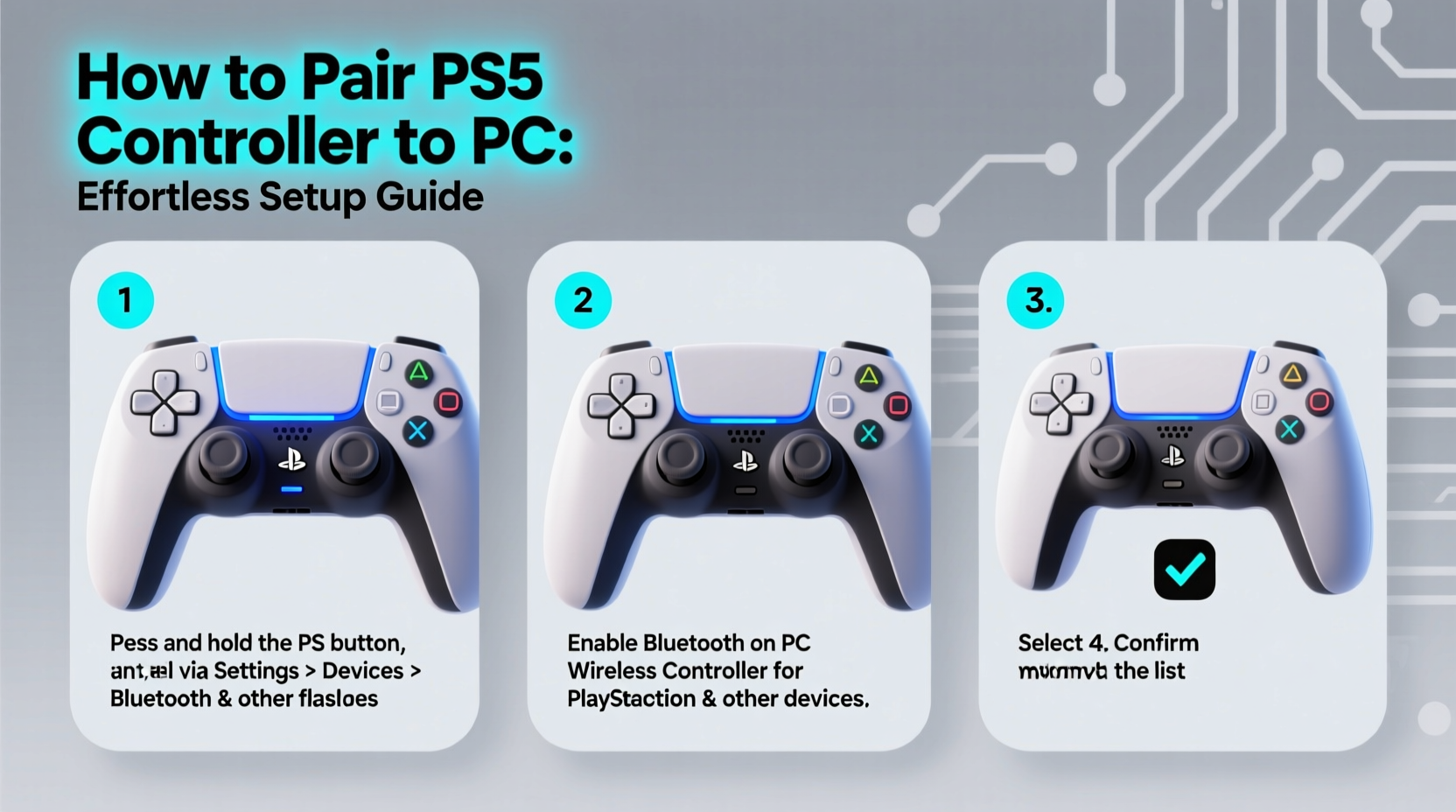
- Ensure Bluetooth is enabled on your PC. Go to Settings > Devices > Bluetooth & other devices and toggle Bluetooth on.
- Put the PS5 controller into pairing mode:
- Press and hold the PS button and the Share button simultaneously for about 3–5 seconds until the light bar starts flashing blue rapidly.
- On your PC, click “Add Bluetooth or other device” > “Bluetooth.”
- Wait for “Wireless Controller” to appear in the list and select it.
- Once connected, the light bar will glow a steady white, and the controller will be ready to use.
If the device fails to connect, remove any previously paired controllers from the Bluetooth menu and retry. Also, make sure no other Bluetooth devices are interfering—especially other gamepads or audio equipment.
“Bluetooth pairing with modern controllers has improved dramatically in recent years. The key is ensuring both devices are discoverable and interference-free.” — Mark Tran, Peripheral Systems Engineer at Logitech
Troubleshooting Common Connection Issues
Even with careful setup, some users encounter obstacles. Below are frequent problems and their proven solutions:
| Issue | Possible Cause | Solution |
|---|---|---|
| Controller not detected | Bluetooth off, outdated drivers | Enable Bluetooth, update Windows, restart Bluetooth service |
| Flashing light but no connection | Already paired elsewhere, battery low | Forget previous connections, charge controller fully |
| Lag or disconnects | Signal interference, weak Bluetooth adapter | Use a USB 5.0+ Bluetooth dongle, reduce nearby wireless traffic |
| Haptics or triggers not working | Driver limitation, app compatibility | Install DS4Windows or use Steam Input for full feature support |
Advanced Fix: Resetting the Controller
If pairing repeatedly fails, reset the controller physically:
- Locate the small reset hole on the back edge of the DualSense near the L2 trigger.
- Insert a paperclip and press the button inside for 5 seconds.
- Reattempt Bluetooth pairing afterward.
This clears stored Bluetooth profiles and restores factory communication settings.
Enhancing Functionality with Software Tools
While basic controls work out-of-the-box, unlocking the full potential of the DualSense—like haptic feedback, motion sensors, and adaptive triggers—requires third-party tools. Two popular options stand out:
Steam Input (Recommended for Gamers)
If you play games through Steam, you don’t need extra software. Steam natively supports the DualSense with near-full functionality.
- Launch Steam and go to Settings > Controller > General Controller Settings.
- Ensure “Enable Steam Input” is checked.
- Connect your PS5 controller via Bluetooth or USB.
- Open any game, press Shift+Tab to bring up the overlay, and customize controls using the intuitive interface.
Steam Input allows rebinding buttons, adjusting trigger sensitivity, mapping gyro controls, and even enabling community-created configurations.
DS4Windows (For Non-Steam Applications)
For games outside Steam or legacy titles that only recognize Xbox controllers, DS4Windows emulates the DualSense as an Xbox 360 or Xbox One controller.
- Download DS4Windows from the official GitHub repository (avoid unofficial sites).
- Install ViGEmBus driver when prompted (required for virtual controller emulation).
- Run DS4Windows and connect your controller via USB or Bluetooth.
- The tool automatically detects the device and maps inputs accordingly.
With DS4Windows, you gain access to profile saving, LED customization, touchpad mapping, and precise deadzone adjustments.
Mini Case Study: Alex’s Smooth Transition to PC Gaming
Alex, a longtime PlayStation user, recently built his first gaming PC. He wanted to continue using his DualSense while playing *Elden Ring* and *Cyberpunk 2077*, which he’d previously enjoyed on PS5. Initially frustrated by unresponsive triggers and missing haptics, he followed the Bluetooth pairing steps outlined here. After enabling Steam Input and calibrating the gyro for camera control, he noticed immediate improvements. By using the touchpad as a quick-menu shortcut and fine-tuning adaptive trigger resistance in DS4Windows, Alex achieved a seamless hybrid experience—proving that console-grade immersion is possible on PC with proper setup.
Checklist: How to Successfully Pair PS5 Controller to PC
Follow this concise checklist to ensure a smooth setup:
- ✅ Charge your DualSense controller fully
- ✅ Confirm your PC has working Bluetooth (or install a compatible dongle)
- ✅ Update Windows to the latest version
- ✅ Test controller with a USB cable first
- ✅ Put controller in pairing mode by holding PS + Share
- ✅ Connect via Bluetooth in Windows Settings
- ✅ Verify detection using
joy.cpl - ✅ Install Steam or DS4Windows for enhanced features
- ✅ Customize controls based on game requirements
- ✅ Reset controller if pairing fails repeatedly
Frequently Asked Questions
Can I use my PS5 controller on PC without Bluetooth?
Yes. A wired USB connection works without Bluetooth and is actually more stable. However, wireless functionality requires Bluetooth capability on your system.
Do all PC games support PS5 controller features like haptics?
No. Native haptic and adaptive trigger support is limited to select titles, primarily those ported from PS5 or developed with Sony partnerships. For broader support, use Steam Input or DS4Windows to simulate effects or remap functions.
Why does my controller disconnect randomly?
Random disconnections usually stem from poor Bluetooth signal quality, low battery, or interference from Wi-Fi routers, USB 3.0 ports, or other wireless devices. Try relocating your PC, using a Bluetooth extension dongle, or switching to a wired connection for consistent performance.
Maximize Your Gaming Experience
Pairing a PS5 controller to your PC opens up new levels of comfort and interactivity. Whether you’re reliving console favorites or exploring PC exclusives, leveraging the DualSense’s advanced design enhances gameplay significantly. With either a plug-and-play wired link or a properly configured Bluetooth connection, you can enjoy responsive controls, immersive feedback, and ergonomic excellence—all without breaking the bank on new hardware.
The setup might take a few minutes, but the payoff lasts for every future session. Once everything is running smoothly, you may find it hard to go back to a standard keyboard-mouse combo or a less-refined gamepad.




 浙公网安备
33010002000092号
浙公网安备
33010002000092号 浙B2-20120091-4
Comments
No comments yet. Why don't you start the discussion?