
In an age where smartphones store everything from personal photos to sensitive financial documents, securing your data is no longer optional—it's essential. While many users turn to third-party apps for folder protection, these can introduce privacy risks, consume storage, or require subscriptions. Fortunately, both Android and iOS offer robust native tools that allow you to password protect folders without installing additional software.
This guide explores practical, secure, and efficient methods to lock folders directly through your phone’s operating system. From leveraging built-in file managers and encryption settings to using private user profiles and secure cloud vaults, you’ll learn how to safeguard your digital life with confidence—no downloads required.
Understanding Native Security Features
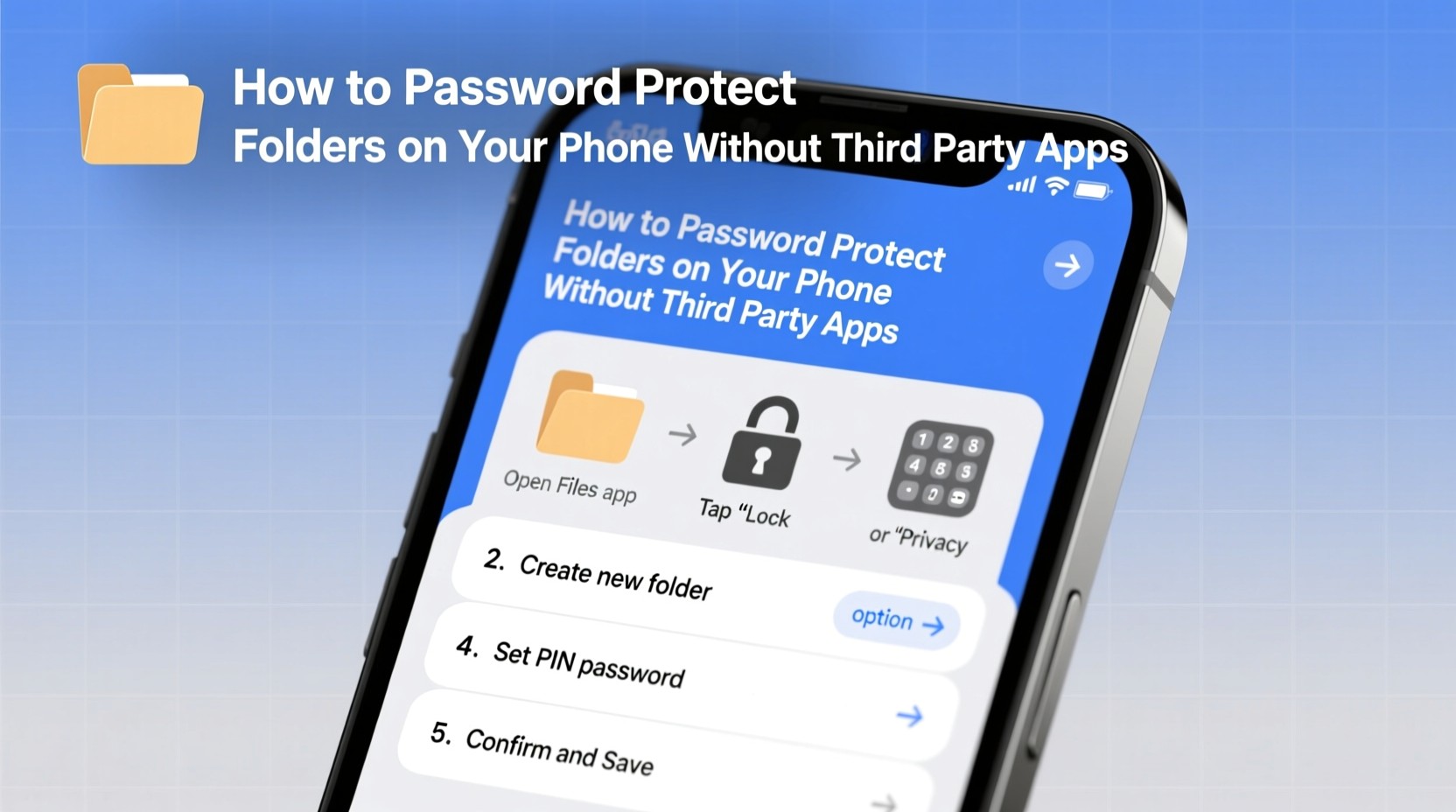
Modern smartphones are equipped with advanced security layers that go beyond simple screen locks. Both Android and iOS have evolved to include file-level encryption, biometric authentication, and user isolation—all of which can be harnessed to protect specific folders without relying on external apps.
On Android, full-disk or file-based encryption is automatically enabled when a lock screen PIN, pattern, or password is set. This means every file on the device is encrypted at rest. However, encryption alone doesn’t prevent someone with physical access from browsing your files once unlocked. That’s where strategic organization and access control come in.
iOS takes a more restrictive approach. Apple’s sandboxing model ensures apps cannot freely access each other’s data. The Files app respects this structure, but also allows users to create a “Locked” folder within iCloud Drive, accessible only via Face ID, Touch ID, or passcode—a powerful native solution already built into your iPhone.
Password Protect Folders on Android Using Built-In Tools
Android does not offer a direct “password protect folder” option in its stock file manager, but several workarounds exist using native functionality. These methods rely on combining encryption, app-specific storage, and user profiles to achieve folder-level privacy.
Method 1: Use Secure Folder (Samsung Devices)
Samsung Galaxy phones come with a feature called Secure Folder, powered by Samsung Knox. This is a completely isolated environment on your device that requires biometric or password authentication to access. You can move entire folders—photos, documents, apps—into this space.
- Open Settings > Biometrics and Security > Secure Folder.
- Sign in with your Samsung account and set up authentication (PIN, pattern, fingerprint, or iris).
- Once created, open Secure Folder and tap Add to import files, photos, or apps.
- Files moved here are inaccessible from the main device interface.
This is one of the most effective native solutions available on any Android device, offering true folder isolation without third-party software.
Method 2: Leverage Private Browsing in Google Files
Google’s Files by Google app includes a Private Folder feature that encrypts selected files locally. Although it doesn’t support full folder locking, it allows you to hide individual images, videos, or documents behind your device’s lock screen.
- Open the Files by Google app.
- Navigate to Browse > Private section.
- Tap Set up private folder and authenticate using your screen lock.
- Select files to add. They will be encrypted and only visible within this section.
Note: This feature may not be available on all devices, as it depends on OEM implementation and regional availability.
Method 3: Create a Restricted User Profile
For maximum separation, Android allows multiple user profiles on a single device. While primarily designed for tablets or shared devices, this can be used creatively on phones.
- Go to Settings > Accounts > Add account > User.
- Create a new user and set a unique lock screen method.
- Switch to that user and store sensitive files in their internal storage.
- Only switch to this profile when needed.
This method effectively isolates a complete environment, including its own Downloads, Documents, and Photos folders.
| Method | Encryption? | Biometric Lock? | Available on All Android? |
|---|---|---|---|
| Secure Folder (Samsung) | Yes (Knox) | Yes | No (Samsung only) |
| Google Files Private Folder | Yes (local) | Yes | Limited availability |
| User Profile Isolation | Yes (system-level) | Yes | Most Android 5+ |
Locking Folders on iPhone: Use the Locked Folder in iCloud Drive
Apple introduced the Locked Folder feature in iOS 16.2, giving users a native way to password-protect files directly within the Files app. This is currently the most reliable method to secure folders on iPhone without third-party tools.
Step-by-Step: Setting Up the Locked Folder
- Open the Files app.
- Navigate to iCloud Drive.
- Tap Select > New Folder, then name it (e.g., “Private”).
- Tap the three dots next to the folder > Lock.
- Authenticate using Face ID, Touch ID, or your device passcode.
- The folder icon will now display a lock symbol.
- To unlock, tap the folder and re-authenticate.
Files inside this folder are end-to-end encrypted and do not sync to Mac or iPad unless unlocked there as well. Even if someone gains access to your iCloud account via web browser, they cannot view the contents of locked folders.
Additional Tips for iOS Users
- The Locked Folder cannot be renamed or deleted while locked. You must unlock it first.
- There is no limit to how many files you can store inside, but performance may lag with very large datasets.
- If you disable iCloud Drive, the locked folder remains on your device but stops syncing.
“Apple’s introduction of the Locked Folder closes a long-standing gap in iOS privacy. It gives users enterprise-grade protection with consumer-friendly simplicity.” — David Lin, Mobile Security Analyst at TechShield Insights
Alternative Methods Across Platforms
While the above methods are the most secure and officially supported, some creative approaches can enhance folder protection using only native tools.
Encrypt Files Before Storage
You can manually encrypt files using ZIP archives with passwords—though neither Android nor iOS natively supports creating password-protected ZIPs, you can download such files from trusted sources (e.g., your computer) and store them securely.
Example workflow:
- On your computer, create a password-protected ZIP file using 7-Zip (Windows) or Keka (Mac).
- Transfer the file to your phone via email, USB, or cloud.
- Store it in a hidden location (e.g., rename folder to .private).
- Use the built-in Files app to extract—only if prompted for password.
This isn’t seamless, but it adds a layer of obscurity and encryption.
Hide Folders Using Naming Conventions
Both platforms treat folders starting with a dot (.foldername) as hidden. While not password protected, this prevents casual browsing.
- Rename a folder to start with a period (e.g., “.PrivatePhotos”).
- Move sensitive files inside.
- Access only via file managers that show hidden files (limited on iOS).
This method works best as a supplementary tactic—not a standalone security measure.
Mini Case Study: Securing Medical Records on a Shared Device
Jamal, a freelance photographer, shares his phone with his partner for household management apps. However, he recently received sensitive medical reports he didn’t want accidentally viewed. Instead of downloading a third-party vault app, he used the following approach:
- Created a new folder named “.HealthDocs” in Google Files.
- Moved PDFs into it—hidden from regular view.
- Additionally uploaded the same files to Samsung Secure Folder, which only he could access via fingerprint.
- Deleted the originals after confirmation.
When his partner borrowed the phone later, the files remained invisible and inaccessible. Jamal maintained privacy without cluttering his device with extra apps or risking data leaks.
Checklist: How to Securely Protect Folders Without Third-Party Apps
- ✅ Set a strong device passcode (6+ digits or alphanumeric).
- ✅ Enable biometric authentication (Face ID, fingerprint).
- ✅ For Samsung users: Set up Secure Folder and move sensitive data.
- ✅ For iPhone users: Use the Locked Folder in iCloud Drive.
- ✅ For others: Explore Google Files’ Private Folder (if available).
- ✅ Consider using restricted user profiles for complete isolation.
- ✅ Avoid storing unencrypted sensitive files in Downloads or DCIM.
- ✅ Regularly review what’s stored in accessible locations.
Frequently Asked Questions
Can I password protect folders on non-Samsung Android phones?
Direct folder password protection isn’t built into stock Android. However, you can use Google Files’ Private Folder (where available), create a restricted user profile, or rely on encrypted cloud storage like OneDrive or Dropbox with local file hiding for partial protection.
Does the iPhone Locked Folder sync across devices?
Yes, but only when unlocked on each device. The folder syncs via iCloud, but remains locked until you authenticate with Face ID, Touch ID, or passcode on that specific device. It won’t appear unlocked elsewhere automatically.
Are hidden folders (.foldername) truly secure?
No. Hidden folders are merely obscured—they’re not encrypted or password protected. A tech-savvy person using a file manager that shows hidden files can still access them. Use this method only as a basic deterrent, not real security.
Conclusion: Take Control of Your Digital Privacy Today
Your smartphone holds more personal information than ever before. Relying on third-party apps for folder protection might seem convenient, but it often introduces unnecessary risk, bloat, and complexity. By mastering the native security tools already built into your device, you gain stronger, more reliable control over who sees what—and when.
Whether you're using an iPhone’s Locked Folder, Samsung’s Secure Folder, or Android’s user profiles, the power to protect your data is already in your hands. No downloads. No subscriptions. Just smart, intentional use of the tools you already own.
Start today: audit your current file storage, identify sensitive folders, and apply one of the methods outlined here. Your future self will thank you when your privacy stays intact—even if your phone falls into the wrong hands.




 浙公网安备
33010002000092号
浙公网安备
33010002000092号 浙B2-20120091-4
Comments
No comments yet. Why don't you start the discussion?