
In today’s connected world, a reliable and secure home Wi-Fi network is essential. Whether you're working remotely, streaming 4K video, or managing smart home devices, bandwidth is a finite resource. Unfortunately, an unsecured network can become a shared utility—especially in densely populated areas like apartment complexes or suburban neighborhoods. Unauthorized users, including nearby neighbors, can piggyback on your internet connection, slowing speeds, increasing latency, and potentially exposing your data. The good news is that securing your network against freeloaders is both straightforward and effective when done correctly.
This guide walks through the technical and practical steps to lock down your home network, prevent unauthorized access, and ensure only trusted devices use your bandwidth. From choosing the right encryption to monitoring network activity, these measures will safeguard your connection and improve overall performance.
Why Securing Your Network Matters
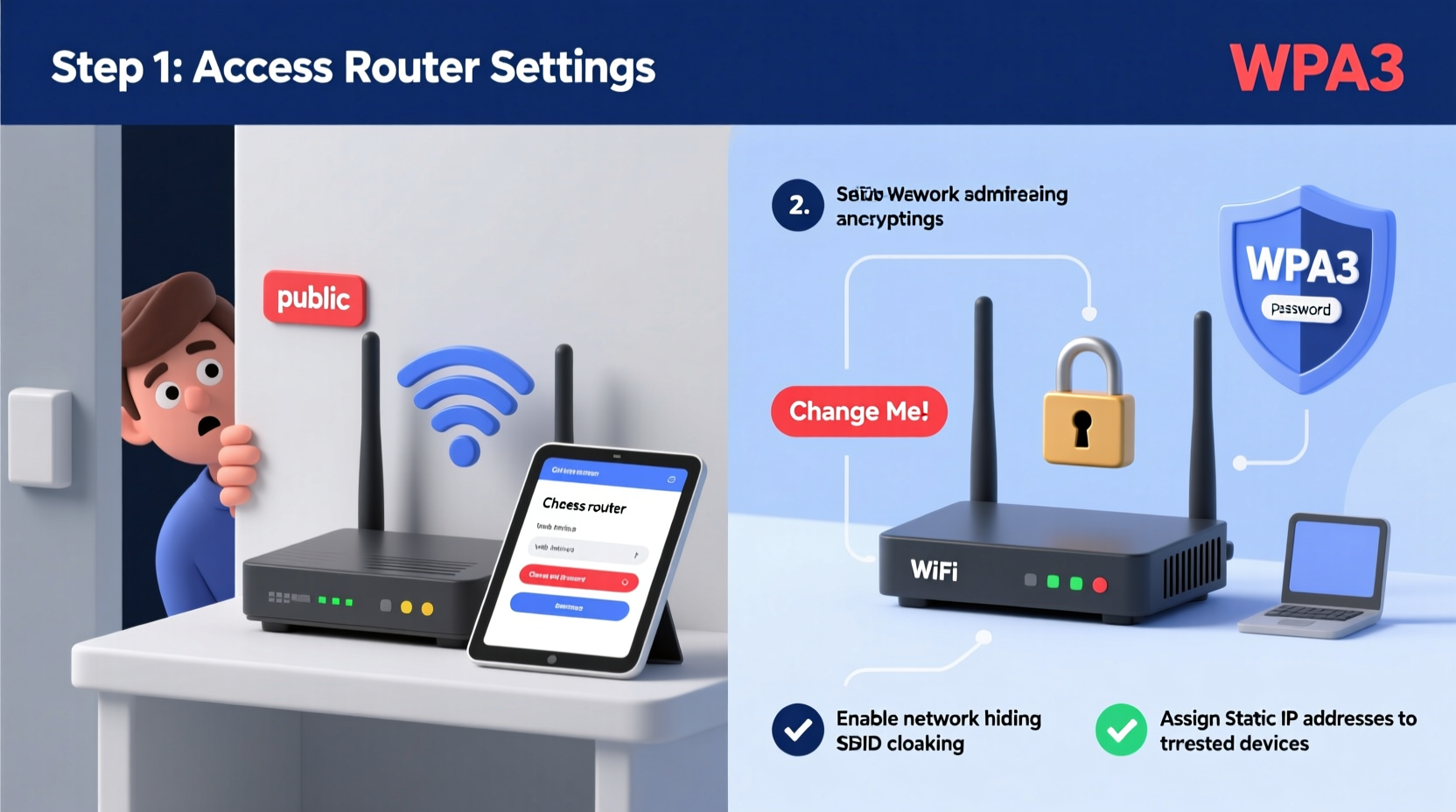
An open or poorly secured Wi-Fi network isn’t just a bandwidth issue—it’s a security risk. When others access your network without permission, they gain entry to your local network environment. This could allow them to:
- Monitor unencrypted traffic (like passwords or messages)
- Access shared files or printers
- Launch attacks from your IP address, implicating you
- Slow down critical tasks like video calls or gaming
Additionally, most internet service providers (ISPs) impose data caps. Excessive usage by unauthorized users may trigger overage fees or throttling. According to the Federal Trade Commission (FTC), “Securing your wireless router is one of the most important steps you can take to protect your personal information online.”
“An unsecured router is like leaving your front door unlocked in a busy neighborhood. It might not be broken into today, but it’s only a matter of time.” — David Klein, Cybersecurity Analyst at NetSecure Labs
Step-by-Step Guide to Password Protect Your Network
Follow this structured approach to fully secure your home Wi-Fi and prevent bandwidth theft.
- Access Your Router’s Admin Panel
Open a web browser and enter your router’s IP address (commonly 192.168.1.1 or 192.168.0.1). Check the label on your router for the exact address and login credentials. Once logged in, navigate to the wireless settings section. - Change the Default Login Credentials
Most routers ship with default usernames and passwords like \"admin/admin\". These are publicly known and easily exploited. Create a strong, unique admin password using a mix of uppercase letters, numbers, and symbols. - Enable WPA3 Encryption (or WPA2 if WPA3 is unavailable)
In the wireless security settings, select WPA3-Personal if your router supports it. If not, choose WPA2-PSK (AES). Avoid outdated options like WEP or WPA (TKIP), which are vulnerable to brute-force attacks. - Set a Strong Wi-Fi Password
Choose a passphrase that’s at least 12 characters long, combining random words, numbers, and symbols. For example:Bike$Park7Moon!Cloud. Avoid personal information like names or birthdates. - Change the Default SSID (Network Name)
Replace generic names like “Linksys” or “NETGEAR123” with a custom name that doesn’t reveal your identity or router model. Avoid using your name, address, or family members’ names. - Disable WPS (Wi-Fi Protected Setup)
WPS allows quick device pairing via a button or PIN, but the PIN method is notoriously insecure and susceptible to hacking. Disable it in your router settings to eliminate this vulnerability. - Enable Network Encryption and Hide SSID (Optional)
You can choose to hide your network name (disable SSID broadcast). While not foolproof—since tools can still detect hidden networks—it adds a small layer of obscurity. Note: You’ll need to manually enter the SSID when connecting new devices. - Update Router Firmware Regularly
Manufacturers release firmware updates to patch security flaws. Log in periodically or enable automatic updates if available. Outdated firmware is a leading cause of router compromise.
Monitor and Detect Unauthorized Access
Even with strong passwords, it’s wise to monitor who’s on your network. Most routers include a client list showing connected devices.
Navigate to the “Attached Devices,” “Connected Clients,” or “DHCP Clients Table” section in your admin panel. Look for unfamiliar device names or MAC addresses. Common indicators of intruders include:
- Multiple unknown smartphones or tablets
- Devices connected during odd hours
- Duplicate IP or MAC addresses
To make identification easier, assign static names to your devices (e.g., “John’s Laptop,” “Kitchen Camera”) in the router interface.
For advanced monitoring, consider third-party tools like Fing (available as a mobile app) or GlassWire. These provide real-time alerts, historical usage data, and device classification.
Mini Case Study: The Overloaded Apartment Network
Sarah, a graphic designer living in a Chicago high-rise, noticed her Zoom meetings frequently froze and file uploads stalled. Her ISP reported she’d exceeded her 1TB monthly cap—despite moderate usage. After logging into her router, she found 14 devices connected, including two labeled “Android_7E3F” and “iPhone_User99.” Neither belonged to her.
She changed her Wi-Fi password to a 16-character phrase, disabled WPS, updated her firmware, and renamed her SSID from “NETGEAR12” to “WorkFromHome_Secure.” Within days, only five trusted devices remained connected. Her speeds improved by over 60%, and she stayed under her data limit the following month.
Best Practices Checklist
Use this checklist to ensure your network remains secure and efficient:
- ✅ Changed default router login credentials
- ✅ Enabled WPA3 or WPA2 encryption
- ✅ Set a strong, unique Wi-Fi password
- ✅ Updated router firmware to latest version
- ✅ Disabled WPS functionality
- ✅ Reviewed connected devices weekly
- ✅ Considered hiding SSID for added obscurity
- ✅ Configured guest network for visitors
Using a Guest Network: Smart Isolation
If friends, family, or service workers need temporary internet access, use your router’s guest network feature instead of sharing your main password. A guest network isolates visitors from your primary devices, preventing access to shared folders, smart home systems, or computers.
Most modern routers support this feature. Enable it through the admin panel and set a separate password with a time or data limit. Some routers even allow you to disable guest access after business hours.
This strategy maintains convenience without sacrificing security—and prevents accidental bandwidth abuse from well-meaning guests.
Router Security Comparison: Do’s and Don’ts
| Practice | Do | Don't |
|---|---|---|
| Password Strength | Use 12+ character passphrases with mixed characters | Use simple passwords like “password123” or “12345678” |
| Encryption Type | WPA3 or WPA2 (AES) | WEP or WPA (TKIP) |
| Firmware | Update regularly or enable auto-updates | Ignore update notifications for months |
| SSID Naming | Use a neutral, non-identifiable name | Name it after your family, address, or router brand |
| Remote Management | Disable unless absolutely necessary | Leave remote admin enabled with default settings |
Frequently Asked Questions
Can my neighbor really slow down my internet?
Yes. Every connected device consumes bandwidth. If multiple neighbors are streaming, gaming, or downloading large files on your network, your available speed drops significantly. Latency-sensitive activities like video conferencing or online gaming suffer the most.
Is it legal for someone to use my Wi-Fi without permission?
In most jurisdictions, unauthorized access to a private network is illegal under computer fraud or telecommunications laws. However, enforcement is rare unless malicious activity occurs. The primary responsibility lies with the network owner to secure their system.
What if I forget my Wi-Fi password after changing it?
Keep a secure record of your password in a password manager or encrypted document. Never write it on a sticky note attached to your router. If you lose access, you can reset the router to factory settings (using the physical reset button), but this erases all configurations and requires re-setup.
Conclusion: Take Control of Your Connection Today
Your home network is more than just a way to get online—it’s the backbone of your digital life. Allowing unauthorized access undermines performance, privacy, and even financial control through data overages. By implementing strong encryption, updating firmware, monitoring connected devices, and using guest networks wisely, you regain full control over your bandwidth and security.
These steps don’t require technical expertise—just attention and consistency. Start tonight: log into your router, change your password, and verify who’s using your network. A few minutes of effort now can save you weeks of frustration later.




 浙公网安备
33010002000092号
浙公网安备
33010002000092号 浙B2-20120091-4
Comments
No comments yet. Why don't you start the discussion?