
Reverse image search is a powerful tool that allows you to discover the origin of a photo, verify its authenticity, or find higher-resolution versions. Whether you're trying to identify a product, confirm if an image is fake, or track down the source of a meme, performing a reverse image search from your phone has never been easier. With just a few taps, you can uncover valuable information about any image stored in your gallery or seen online.
This guide walks you through the most effective methods for both Android and iPhone users, using Google Lens, Google Chrome, and other trusted tools. No technical expertise required — just practical steps that deliver real results.
Why Use Reverse Image Search?
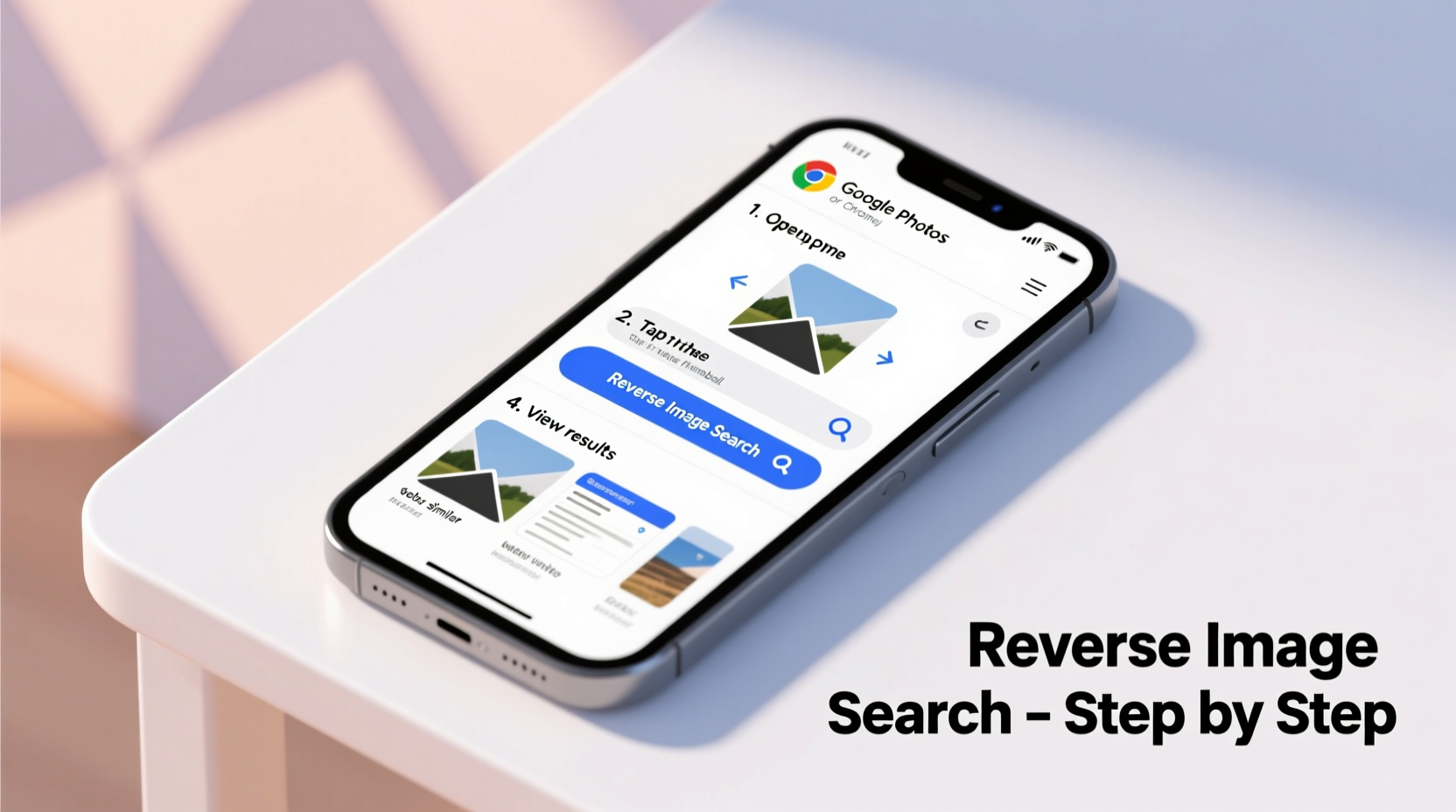
Images are shared across platforms every second, but their origins are often unclear. A reverse image search helps you trace where a photo came from, whether it’s been used elsewhere, or if it’s associated with misinformation. Common use cases include:
- Verifying if a profile picture on social media is stolen
- Finding the original source of a news image
- Shopping for products seen in photos (e.g., clothing, furniture)
- Detecting deepfakes or manipulated content
- Discovering higher-quality versions of low-resolution images
“Reverse image search is one of the most underused yet essential digital literacy tools today.” — Dr. Lena Patel, Digital Forensics Researcher at MIT
Step-by-Step: Using Google Lens on Android
Google Lens is built into most Android devices and offers the fastest way to reverse search an image directly from your camera roll or live camera feed.
- Open the Google app on your Android phone.
- Navigate to the photo you want to search. You can do this via the “Discover” tab or by tapping the camera icon inside the Google search bar.
- Select “Upload an image” or choose “From Gallery” when prompted.
- Browse your photo library and tap the image you want to analyze.
- Wait for Google Lens to process the image. It will highlight objects, text, and possible matches.
- Tap “Search across the web” to see where else the image appears.
The results will show visually similar images, related websites, and sometimes the earliest known appearance of the photo online.
How to Reverse Search on iPhone
iOS doesn’t have Google Lens integrated natively, but you can still perform reverse image searches using Safari and Google Chrome.
Method 1: Using Google Chrome on iPhone
- Install Google Chrome from the App Store if you haven’t already.
- Open Chrome and sign in to your Google account for better results.
- Go to Google Images (images.google.com).
- Tap the camera icon in the search bar.
- Choose “Upload an image” and select a photo from your camera roll.
- Review the search results, which include matching or similar images and relevant links.
Method 2: Using Safari with Google Images
- Long-press any image displayed in Safari (e.g., on a webpage or social media post).
- Select “Copy Image” from the context menu.
- Go to Google Images in Safari.
- Tap the camera icon in the search bar.
- Choose “Paste image URL” — but since you copied the image, Chrome isn’t available here; instead, switch to Chrome for full functionality.
Note: Safari alone does not support pasting images into Google’s search bar. Switching to Chrome is the most reliable workaround.
Comparison: Android vs iPhone Methods
| Feature | Android (Google Lens) | iPhone (Chrome + Google Images) |
|---|---|---|
| Access Method | Google app or Photos app | Google Chrome browser |
| Image Source | Gallery, camera, screenshots | Camera roll or web images |
| Speed | Fast (native integration) | Moderate (requires browser) |
| User-Friendliness | Very intuitive | Slightly more steps |
| Accuracy | High | High (same Google backend) |
Real-World Example: Spotting a Fake Profile
Consider Sarah, who met someone new on a dating app. The person’s profile featured several impressive travel photos. Curious, she decided to reverse search one of the pictures using her Android phone.
She opened the Google app, tapped the lens icon, uploaded the image, and within seconds, Google returned results showing the same photo credited to a stock photography site. The image was labeled “Young man hiking in Patagonia” — clearly not a personal snapshot. Armed with this knowledge, Sarah avoided a potential catfishing situation.
This example illustrates how a simple reverse image search can protect privacy and prevent deception.
Best Practices and Checklist
To get the most accurate results and maintain digital safety, follow this checklist before and after performing a reverse image search:
- ✅ Ensure the image is saved to your device before uploading
- ✅ Use high-resolution images whenever possible
- ✅ Avoid sharing sensitive or private photos during the search
- ✅ Check multiple results pages — the first result isn’t always correct
- ✅ Look for metadata clues like timestamps, locations, or EXIF data (if available)
- ✅ Cross-reference findings with other tools like TinEye or Yandex.Images
“Just as we fact-check headlines, we should verify images. Visual misinformation spreads faster than text.” — Marcus Tran, Cybersecurity Analyst
FAQs About Reverse Image Search on Mobile
Can I reverse search a screenshot?
Yes. Screenshots work just like any other image. Save them to your gallery and upload them via Google Lens or Chrome. However, heavily cropped or low-quality screenshots may yield fewer results.
Is reverse image search free?
Yes, all major tools — including Google Lens, Google Images, and Chrome — offer reverse image search at no cost. Some advanced platforms like TinEye or Clarifai offer premium features, but basic searches are free.
Does reverse image search work offline?
No. The process requires uploading the image to a server for analysis, so a stable internet connection is necessary. Wi-Fi is recommended for large files.
Conclusion: Take Control of What You See Online
In an age where visuals shape opinions, beliefs, and decisions, knowing how to verify an image’s authenticity is a crucial skill. Performing a reverse image search on your phone empowers you to question what you see, validate sources, and make informed judgments — whether you're shopping, socializing, or staying safe online.
The tools are already in your pocket. Google Lens on Android and Chrome on iPhone provide fast, reliable access to reverse search capabilities. With just a few taps, you can uncover the truth behind any photo.




 浙公网安备
33010002000092号
浙公网安备
33010002000092号 浙B2-20120091-4
Comments
No comments yet. Why don't you start the discussion?