
In an age where digital footprints are constantly tracked, maintaining online privacy has become essential. Among the many platforms that collect user data, YouTube—owned by Google—is one of the most pervasive. Every video you watch, search you type, or ad you interact with is logged and used to shape your experience. While this personalization can be convenient, it also raises serious privacy concerns. If you're looking to take control of your digital identity, managing and permanently deleting your YouTube history is a critical first step.
Understanding What YouTube Tracks
YouTube collects several types of data to personalize your experience and serve targeted ads. The most common include:
- Watch History: A log of every video you’ve viewed on YouTube, whether on mobile, desktop, or smart TV.
- Search History: All queries you've entered into the YouTube search bar.
- Location and Device Data: Information about your IP address, device type, and geographic location.
- Ad Personalization: Data used to show ads based on your interests and behavior.
This information is stored under your Google Account and linked across services like Gmail, Maps, and Chrome. While Google allows users to review and delete this data, automatic tracking often resumes unless settings are adjusted.
“Most users don’t realize how much behavioral data platforms like YouTube collect. Taking control starts with disabling auto-saving and regularly clearing history.” — Dr. Lena Patel, Digital Privacy Researcher at Stanford University
Step-by-Step: How to Permanently Delete Your YouTube History
Deleting your YouTube history isn't just about removing past videos from your feed—it's about erasing data that could be used to profile your habits. Follow these steps to ensure your history is fully removed:
- Sign in to your Google Account. Go to myactivity.google.com.
- Navigate to YouTube Activity. Use the left-hand menu to select “YouTube Watch History” or “YouTube Search History.”
- Select individual items or bulk-delete. Click the three dots next to any entry to delete it individually, or choose “Delete activity by” from the left panel.
- Choose a time range. Select options like “Last hour,” “Today,” “Past 7 days,” or “All time” to erase everything.
- Confirm deletion. Once confirmed, the data will be removed from your account.
- Repeat for Search History. Ensure both watch and search logs are cleared.
Note: Deleted data may still be retained anonymously for up to two months for internal analytics, but it will no longer be associated with your identity.
Stop Future Tracking: Manage Your YouTube Settings
Deleting history is only temporary if auto-saving remains enabled. To truly protect your privacy, disable data collection at the source.
Turn Off Watch and Search History
- Go to YouTube History while signed in.
- Click “Manage all history” at the top.
- Toggle off “Pause Watch History” and “Pause Search History.”
When paused, YouTube will not save future activity. However, note that some features like “Recommended Videos” may become less accurate.
Disable Ad Personalization
Even without history, YouTube may use other signals to target ads. To stop this:
- Visit Google Ad Settings.
- Scroll down to “Ad Personalization.”
- Click “Turn off” and confirm your choice.
This prevents Google from using your activity across sites and apps to tailor advertisements.
Use Auto-Delete for Long-Term Management
For users who want a balance between convenience and privacy, Google offers automatic data deletion:
- Go to Google Account > Data & Privacy.
- Under “Activity controls,” find “Web & App Activity.”
- Click “Manage activity,” then select “Auto-delete.”
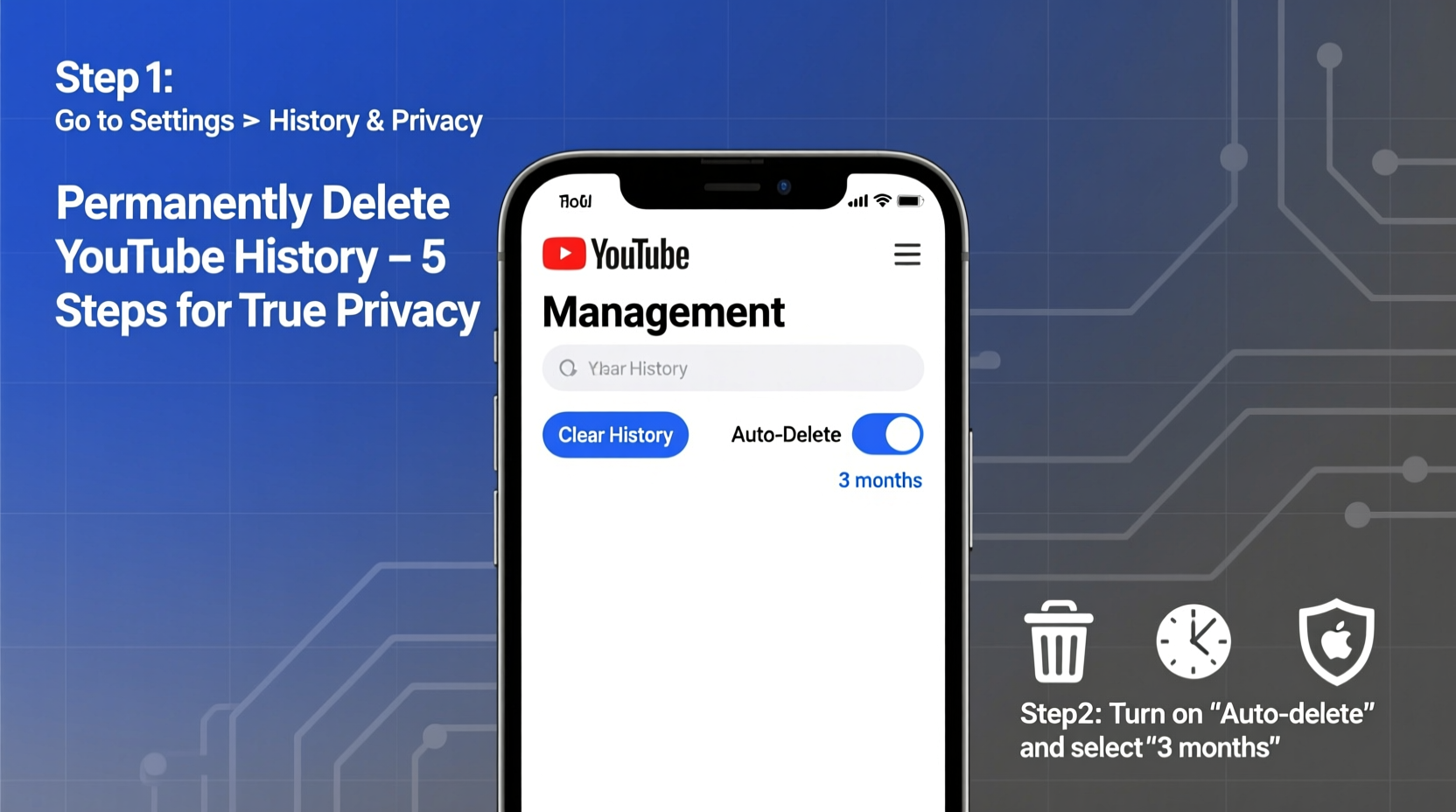
- Choose either 3 or 18 months for automatic cleanup.
This ensures your history doesn’t accumulate indefinitely, reducing long-term exposure.
Comparison: Manual vs. Automated Privacy Management
| Method | Control Level | Effort Required | Privacy Outcome |
|---|---|---|---|
| Manual Deletion | High (selective) | High (ongoing effort) | Immediate but temporary |
| Auto-Delete (3–18 months) | Medium | Low (set once) | Consistent long-term protection |
| Pause History + Incognito | Very High | Medium (behavior change needed) | Strongest real-time privacy |
Real-World Example: Recovering Control After Targeted Ads
Sarah, a freelance writer, noticed YouTube began recommending mental health videos and anxiety relief content—videos she never searched for. Concerned, she reviewed her watch history and discovered that during a stressful week, she had watched a few self-help clips on her phone. YouTube’s algorithm amplified this pattern, leading to increasingly intrusive suggestions.
She took action: first clearing her entire watch and search history, then pausing future tracking. She also turned off ad personalization. Within days, her homepage returned to neutral recommendations. More importantly, she regained a sense of control over her digital space.
Sarah now uses incognito mode for sensitive topics and has set her Google activity to auto-delete every three months—a sustainable routine that balances privacy and usability.
Essential Checklist for YouTube Privacy
- ✅ Clear YouTube watch history (all time)
- ✅ Clear YouTube search history (all time)
- ✅ Pause “Watch History” and “Search History”
- ✅ Disable Ad Personalization in Google settings
- ✅ Enable auto-delete for Web & App Activity (3 or 18 months)
- ✅ Use incognito/private browsing for sensitive viewing
- ✅ Regularly audit your Google My Activity page
Frequently Asked Questions
Does deleting YouTube history remove it from Google’s servers completely?
While deleted history is removed from your account and no longer used for personalization, Google may retain anonymized data for up to two months for system integrity and analytics. After that, it is permanently erased.
Can someone else see my YouTube history?
If you’re signed into a shared device or family account, others may access your history unless you use separate profiles or incognito mode. Always sign out on public or shared devices to prevent unauthorized access.
Will turning off history affect my YouTube experience?
Yes, but minimally. You’ll lose personalized recommendations and progress tracking (like “Continue Watching”). However, many users report improved content diversity and reduced echo chambers after disabling tracking.
Take Control of Your Digital Footprint Today
Your YouTube history is more than a list of videos—it’s a detailed map of your interests, habits, and even emotional states. By taking deliberate steps to delete and manage this data, you reclaim autonomy over your online presence. Privacy isn’t about hiding; it’s about choosing what you share and with whom.
Start today: clear your history, disable auto-saving, and set up auto-delete. These small actions compound into lasting digital hygiene. In a world where attention is monetized, protecting your data is one of the most powerful choices you can make.




 浙公网安备
33010002000092号
浙公网安备
33010002000092号 浙B2-20120091-4
Comments
No comments yet. Why don't you start the discussion?