
In an era where personal data is constantly tracked, collected, and sometimes exploited, taking control of your digital footprint is essential. Your mobile phone stores vast amounts of sensitive information—browsing history, app usage, location data, messages, and more. While deleting files may seem like enough, standard deletion rarely removes data permanently. Cybercriminals, forensic tools, or even secondhand buyers can recover what you thought was gone. This guide walks you through proven methods to truly erase your mobile phone history, ensuring your privacy and security remain intact.
Understanding What “Deleted” Really Means
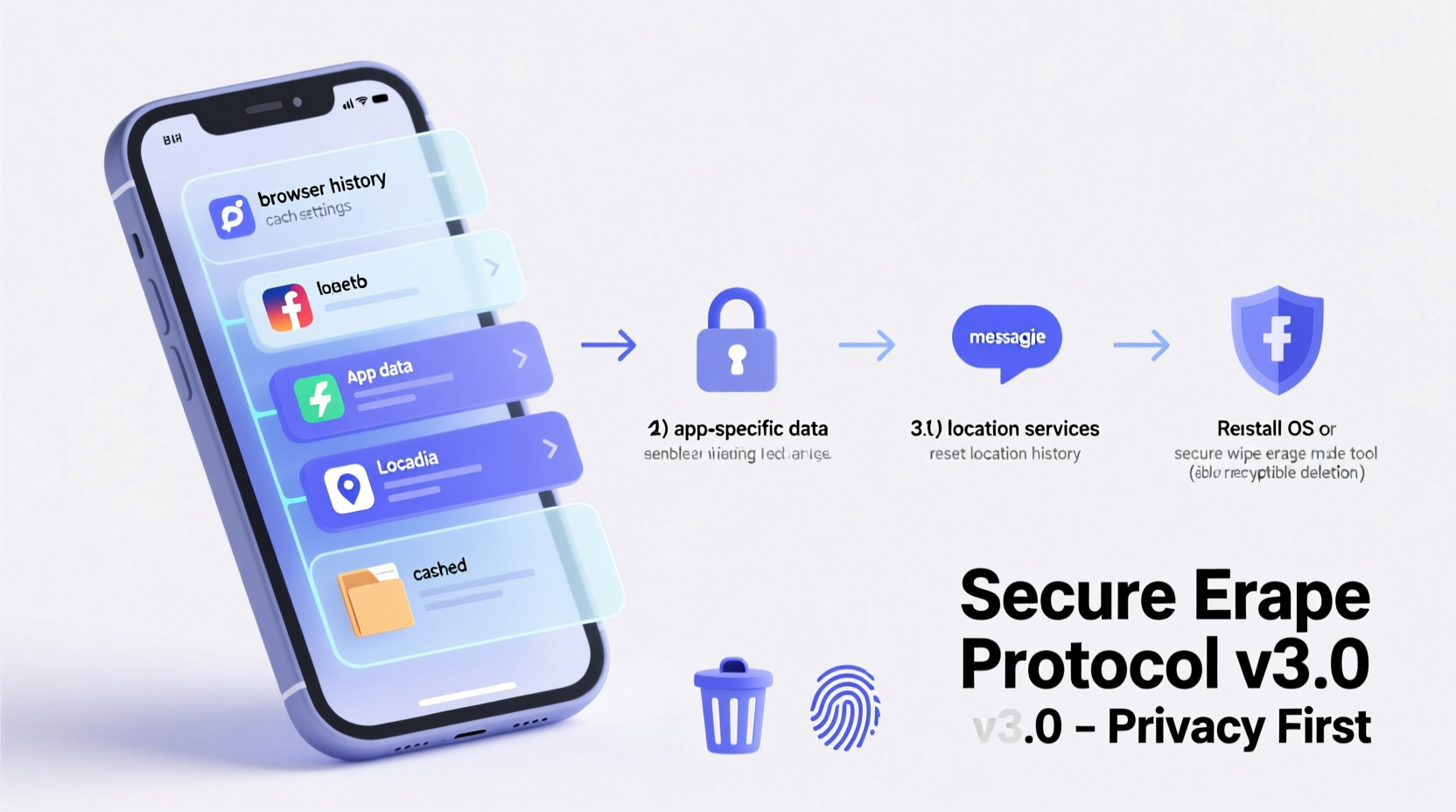
When you delete a file, message, or browsing history on your phone, the operating system typically only marks the space as available for new data. The original information remains physically present on the storage until overwritten. Forensic recovery tools can retrieve such data long after it appears to be deleted. True erasure requires overwriting the data or securely wiping the device’s memory.
“Most people believe emptying the trash means their data is gone. In reality, it’s like shredding a document into large pieces—still reconstructable.” — Dr. Lena Patel, Digital Forensics Researcher at SecureData Labs
This distinction is crucial for anyone concerned about identity theft, stalking, resale privacy, or corporate espionage. Whether you're switching devices, selling your phone, or simply protecting your digital life, permanent deletion is non-negotiable.
Step-by-Step Guide to Permanently Erase Mobile Phone History
The process varies slightly between Android and iOS, but both platforms offer secure methods to wipe data beyond recovery. Follow these steps carefully to ensure complete erasure.
Step 1: Back Up Essential Data (Optional)
If you plan to keep certain photos, contacts, or documents, back them up before proceeding. Use encrypted cloud services or local encrypted storage. Avoid unsecured public clouds if handling sensitive material.
Step 2: Sign Out of Accounts
Before wiping your device, sign out of all accounts—Google, Apple ID, social media, email, banking apps, etc. This prevents unauthorized access and deactivates remote tracking features like Find My iPhone or Find My Device.
- iOS: Settings > [Your Name] > Sign Out
- Android: Settings > Accounts > Remove Account
Step 3: Clear App-Specific Data
Some apps store cached data independently of system settings. Manually clear histories in high-risk apps:
- Browser: Clear history, cookies, cache, and saved passwords.
- Maps: Delete location history and search logs.
- Messaging Apps: Uninstall WhatsApp, Telegram, or Signal after deleting chat backups.
- Cloud Storage: Remove linked accounts from Dropbox, OneDrive, etc.
Step 4: Encrypt Your Device (If Not Already)
Encryption scrambles your data so it’s unreadable without a key. Modern smartphones encrypt by default when locked with a PIN, passcode, or biometric authentication. To confirm:
- iOS: Go to Settings > Face ID & Passcode. If a passcode is set, full-disk encryption is active.
- Android: Settings > Security > Encryption. Most devices running Android 7+ are encrypted by default.
Step 5: Perform a Factory Reset with Overwrite (Advanced)
A standard factory reset doesn’t guarantee permanent deletion. For true data destruction, overwrite the storage. While consumer phones lack built-in multi-pass overwrite options, these strategies enhance security:
- Fill storage with junk data before reset: Copy large video files until the phone is nearly full. Then delete them and perform a factory reset. This increases chances of overwriting old data.
- Repeat reset: After first reset, power on, set up briefly, then reset again. Multiple resets improve overwrite likelihood.
Step 6: Remove SIM and SD Cards
These components store data separately from internal memory. Format SD cards via computer using secure erase tools like DBAN (for microSD). Physically destroy or securely store SIM cards containing contact lists or carrier logs.
Platform Comparison: iOS vs Android Wiping Methods
| Feature | iOS (iPhone) | Android |
|---|---|---|
| Default Encryption | Yes (with passcode) | Yes (Android 7+, varies by manufacturer) |
| Secure Wipe Method | Factory reset + Find My disabled | Factory reset + encryption + data fill trick |
| Remote Wipe Available | Yes (via iCloud) | Yes (via Find My Device) |
| Third-Party Wipe Tools | Limited (closed ecosystem) | Available (e.g., Blancco, iShredder) |
| User Control Over Overwrite | No direct access | Partial (rooted devices allow advanced tools) |
Real-World Scenario: Selling Your Old Phone Safely
Sophia decided to upgrade her smartphone and sell her old iPhone 12. She deleted photos, cleared browser history, and signed out of apps. But she skipped a full backup verification and didn’t disable Find My iPhone. After shipping the device, the buyer contacted her—her Apple ID was still linked, blocking activation. Worse, some health app data remained recoverable via forensic software.
After retrieving the phone, Sophia followed the full protocol: backed up securely, signed out properly, turned off Find My, and performed a verified factory reset. She also filled the phone with dummy videos before deletion. The second sale went smoothly, and a third-party inspection confirmed no residual personal data.
This case underscores that convenience should never override security. A few extra minutes can prevent major privacy breaches.
Best Practices Checklist for Permanent Data Removal
- ✅ Back up essential data using encrypted methods
- ✅ Sign out of all accounts (Apple ID, Google, social media)
- ✅ Disable Find My iPhone / Find My Device
- ✅ Clear app-specific histories and caches
- ✅ Confirm device encryption is enabled
- ✅ Fill storage with temporary large files, then delete
- ✅ Perform factory reset twice for added security
- ✅ Remove and securely handle SIM and SD cards
- ✅ Verify erasure by checking post-reset state
Frequently Asked Questions
Can deleted phone history be recovered by hackers?
Yes, unless the data has been overwritten or the device encrypted and securely wiped. Standard deletion leaves traces accessible with forensic tools, especially if the phone is not encrypted or was rooted/jailbroken.
Is a factory reset enough to protect my privacy?
On modern encrypted devices, a factory reset is generally sufficient for most users. However, for high-risk situations (e.g., journalists, activists, corporate devices), additional measures like data filling and multiple resets are recommended.
What should I do if I lose my phone?
Immediately use remote wipe features: Find My iPhone for iOS or Google’s Find My Device for Android. Ensure these services were enabled beforehand. Also, change passwords for critical accounts accessed from the phone.
Final Thoughts: Take Control of Your Digital Legacy
Your mobile phone is a repository of your daily life—conversations, locations, habits, and secrets. Treating data deletion casually risks exposure long after you’ve moved on. By understanding the gap between apparent deletion and permanent erasure, you empower yourself to act decisively.
Privacy isn’t just about hiding something—it’s about owning your information. Whether upgrading, repairing, or donating your device, apply these methods consistently. Make secure wiping a routine, not an afterthought.




 浙公网安备
33010002000092号
浙公网安备
33010002000092号 浙B2-20120091-4
Comments
No comments yet. Why don't you start the discussion?