
Personalizing your iPhone home screen is one of the most satisfying ways to make your device feel uniquely yours. From custom icons and widgets to dynamic wallpapers and app layouts, iOS offers a surprising amount of creative freedom. But many users discover too late that excessive personalization can come at a cost: sluggish performance, reduced battery life, and even overheating. The good news? You don’t have to choose between a beautiful interface and a fast phone. With the right approach, you can enjoy both.
This guide walks through practical, expert-backed strategies to customize your iPhone intelligently—keeping it stylish, functional, and snappy. Whether you're using an older model or the latest iPhone, these techniques will help you avoid common performance pitfalls while expressing your personality through design.
1. Optimize Widgets for Style and Speed
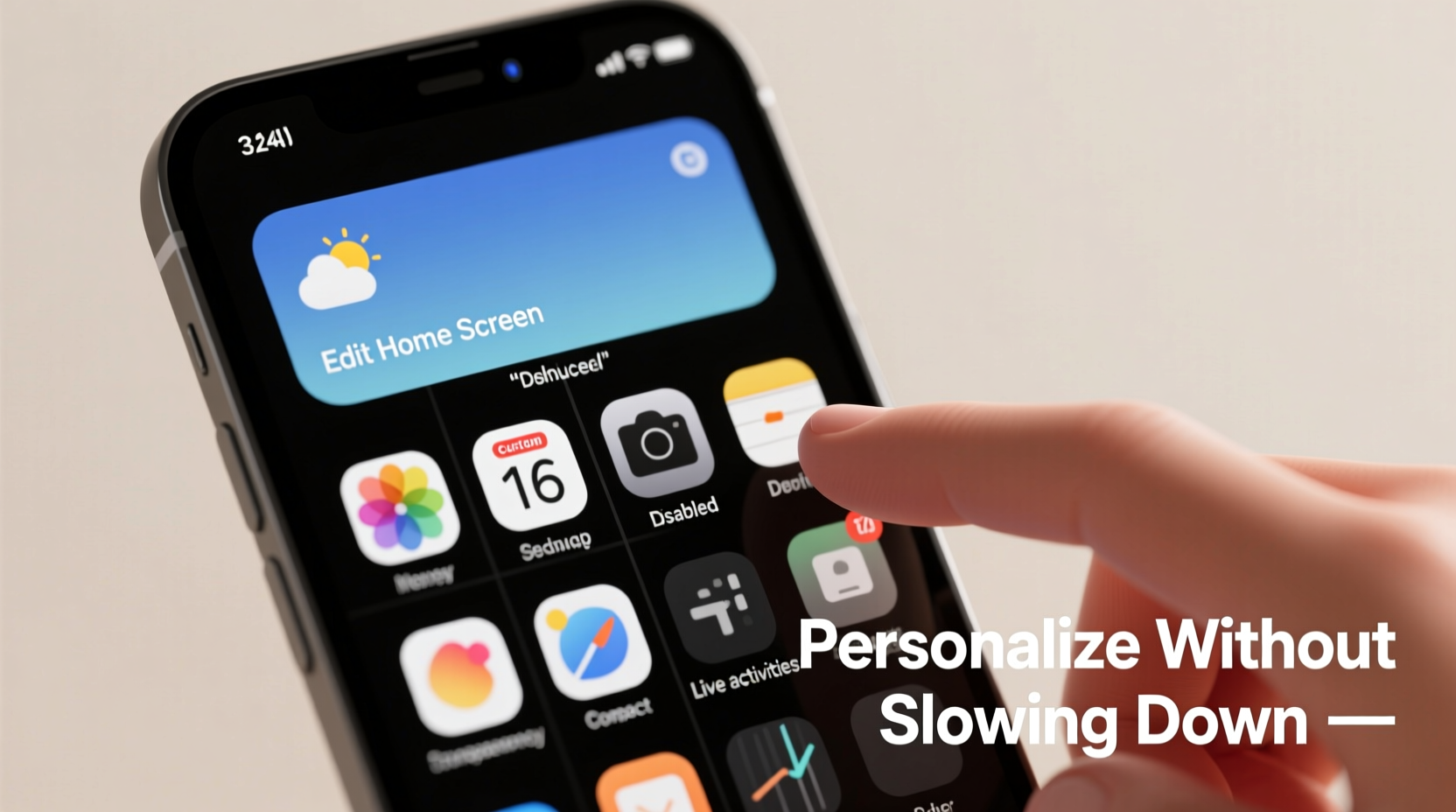
Widgets are among the most useful tools for personalization. They provide quick access to information like weather, calendar events, fitness stats, and more. However, not all widgets are created equal. Some refresh constantly in the background, consuming CPU cycles and draining battery unnecessarily.
To maintain responsiveness, limit your use of data-heavy widgets such as live sports scores, real-time stock trackers, or animated clocks. Instead, opt for static or infrequently updated ones. For example, a simple date widget or a quote-of-the-day uses minimal resources while adding visual interest.
Additionally, place heavier widgets (like Music or Calendar) on the Today View (swipe right from the home screen) rather than the main home pages. This keeps them accessible but prevents constant rendering during normal use.
2. Choose Lightweight Wallpapers and Effects
Your wallpaper does more than set the mood—it directly affects system performance. Dynamic and Parallax wallpapers, while visually engaging, require additional GPU processing every time you move the phone. On older iPhones (iPhone 11 and earlier), this can result in slight lag when opening apps or switching between screens.
Static wallpapers, especially those with dark tones, not only reduce strain on OLED displays but also consume less power. If you love motion, consider using a subtle Live Photo as your Lock Screen instead of the Home Screen. That way, you get the effect only when unlocking, minimizing ongoing impact.
“Wallpaper choice is often overlooked, but it’s one of the simplest ways to improve perceived performance.” — Jordan Lee, iOS Performance Analyst at MobileOptima Labs
Avoid setting high-resolution photos or complex gradients as your background. Compress images slightly before applying them, ensuring they match your screen resolution (typically 1170x2532 for newer models). This reduces texture loading time and improves overall UI fluidity.
3. Smart App Organization Without Overloading Folders
Folders are essential for managing clutter, especially if you’ve installed shortcuts or themed icons. But deeply nested folders—those with multiple layers or containing dozens of apps—can slow down folder animations and search indexing.
Limit folders to no more than 12 apps each, and avoid placing folders within folders. Use clear naming conventions (e.g., “Social,” “Finance,” “Travel”) so you can find what you need quickly. Consider grouping by function rather than aesthetics alone.
If you’re using shortcut-based icon packs, be selective. Each custom icon relies on a hidden Shortcuts app trigger, which adds a tiny overhead. Using hundreds of them may degrade launch speed over time.
| Organization Method | Performance Impact | Best Practice |
|---|---|---|
| Single-layer folders (≤12 apps) | Low | Group by usage frequency |
| Nested folders | High | Avoid entirely |
| Themed icon packs (via Shortcuts) | Moderate | Limited to 30–50 total |
| Default Apple icons | Negligible | No restrictions |
4. Minimize Motion and Transparency Effects
iOS offers several visual enhancements under Settings > Accessibility > Motion and Settings > Accessibility > Display & Text Size. While features like “Reduce Motion” and “Reduce Transparency” are designed for accessibility, they also significantly boost performance on mid-tier and older devices.
Transparency effects (such as blurred backgrounds in Control Center or Notification Shade) require continuous compositing, which taxes the GPU. Disabling them results in sharper, faster transitions. Similarly, turning off parallax and auto-brightness adjustments reduces sensor polling and animation layers.
You won’t lose personalization by enabling these settings—you’ll just gain efficiency. Pair “Reduce Motion” with bold, flat-design wallpapers or minimalist widgets for a modern, clean look that still feels customized.
Step-by-Step: Enable Performance-Friendly Visual Settings
- Open Settings → Accessibility.
- Tap Motion → toggle on Reduce Motion.
- Return to Accessibility → tap Display & Text Size.
- Enable Reduce Transparency.
- Optionally, increase Bold Text for stronger visual contrast.
- Restart your iPhone to apply changes smoothly.
After rebooting, notice how animations feel tighter and menus respond instantly. You might miss the blur effects at first, but most users adapt within a day—and appreciate the improved responsiveness.
5. Use Third-Party Launchers and Tools Judiciously
While iOS restricts full launcher replacements (unlike Android), tools like Shortcuts, Widgetsmith, and iColorsync allow deep customization. These apps let you create custom icons, color-match widgets, and automate workflows. But misuse can lead to bloat.
For instance, creating a shortcut for every single app may seem appealing, but each one is essentially a mini-app with its own launch routine. Over time, this fragments system resources and can delay app openings by up to half a second—especially noticeable when multitasking.
Also, avoid running background-refreshing widgets from third-party tools unless necessary. A weather widget updating every minute uses far more energy than one refreshing hourly. In Widgetsmith, adjust update intervals manually to balance freshness and efficiency.
Mini Case Study: Sarah’s Balanced Redesign
Sarah, a graphic designer and long-time iPhone user, wanted a sleek, monochrome home screen that reflected her minimalist aesthetic. She started by downloading a full icon pack (120+ apps), applying a dynamic wallpaper, and adding five animated widgets per page. Within days, she noticed delays when swiping between pages and occasional app crashes.
She revisited her setup with performance in mind. First, she removed unused shortcuts and kept only 36 custom icons for frequently used apps. She replaced the dynamic wallpaper with a static black-and-white gradient. Then, she reduced her widgets to two per page—one for calendar, one for reminders—and moved others to the Today View.
Finally, she enabled “Reduce Motion” and “Reduce Transparency.” The difference was immediate: smoother scrolling, faster app launches, and nearly a 15% improvement in battery life. Her home screen remained visually cohesive but now performed like new.
Checklist: Personalize Without the Penalty
- ✅ Limit home screen widgets to 2–3 per page
- ✅ Use static or dark wallpapers instead of dynamic ones
- ✅ Restrict custom icon shortcuts to essential apps only
- ✅ Organize apps into shallow folders (max 12 per folder)
- ✅ Enable “Reduce Motion” and “Reduce Transparency”
- ✅ Avoid live-updating widgets unless critical
- ✅ Test changes incrementally and monitor performance
- ✅ Restart your iPhone after major layout changes
FAQ
Will using Shortcuts to change icons slow down my iPhone?
Minimal use (under 50 shortcuts) has negligible impact. However, replacing icons for 100+ apps can cause minor delays because each shortcut must launch the target app in the background. Stick to customizing only your most-used apps.
Can I still have a stylish home screen without widgets?
Absolutely. Focus on typography, spacing, and icon alignment. Use uniform app names, consistent folder labels, and negative space to create visual rhythm. A clean grid layout with a single statement widget (like a centered clock) can be more impactful than cluttered designs.
Does dark mode improve performance?
On OLED iPhones (iPhone X and later), yes. Dark pixels are turned off completely, reducing power consumption and heat generation. This indirectly supports better sustained performance, especially during extended use.
Conclusion
Personalizing your iPhone home screen doesn’t have to mean sacrificing speed. By making intentional choices—favoring simplicity over spectacle, efficiency over excess—you can craft a look that’s both expressive and responsive. The key is balance: understand what drives performance costs and optimize accordingly.
Start small. Try one change at a time—swap a dynamic wallpaper, remove a redundant widget, simplify a folder. Notice how your phone feels. Build a system that reflects your taste without taxing your device. A well-tuned iPhone isn’t just faster; it feels more intuitive, more enjoyable to use every day.




 浙公网安备
33010002000092号
浙公网安备
33010002000092号 浙B2-20120091-4
Comments
No comments yet. Why don't you start the discussion?