
The iPhone lock screen is no longer just a barrier between you and your apps. With iOS 16 and later updates, Apple transformed it into a dynamic canvas where personal expression meets practical utility. Gone are the days of a static time display and a single wallpaper. Today’s lock screen allows deep customization—color themes, layered fonts, real-time widgets, and even integration with Focus modes. When tailored correctly, your lock screen can reflect your personality while delivering timely information at a glance.
Whether you're a minimalist who values clarity or someone who thrives on visual flair, mastering lock screen personalization enhances both usability and enjoyment. The key is balancing aesthetics with function: too much clutter distracts; too little misses opportunities for efficiency. This guide walks through actionable strategies to design a lock screen that looks great and works harder for you.
Customize the Clock Style and Color
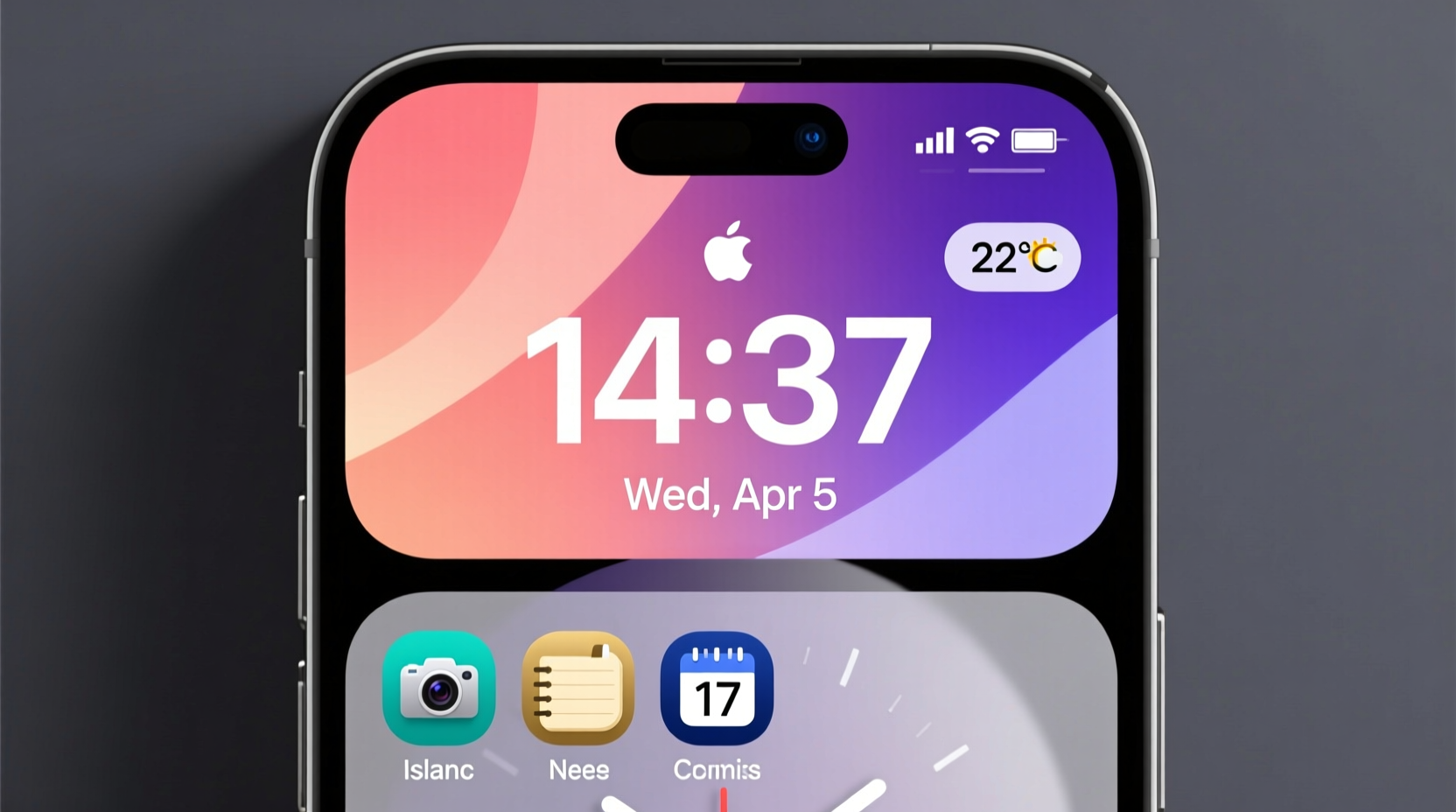
The clock is the centerpiece of your lock screen. Starting with iOS 16, Apple introduced multiple font styles and color options, allowing you to change its appearance without affecting system-wide settings. You can choose from elegant serif faces, bold digital displays, or sleek minimal types—all independently customizable per lock screen configuration.
To modify the clock:
- Press and hold anywhere on the lock screen until the “Customize” button appears.
- Select the clock to open font and color options.
- Swipe through available typefaces and tap to apply one.
- Tap “Color” to adjust hue, saturation, or brightness, or match it to your wallpaper automatically.
Consider pairing a thin, modern font with a dark wallpaper for contrast, or use a vibrant clock color on a muted background to make time instantly readable. Avoid overly ornate fonts if legibility in sunlight is important to you.
Choose and Layer Wallpapers with Depth Effect
A powerful feature introduced with iOS 16 is the ability to layer photos, creating depth effects that animate as you interact with your device. This adds dimensionality: foreground subjects appear closer, while backgrounds subtly blur behind the clock.
For best results, select a high-contrast image with a clear focal point—such as a person, pet, or landmark. Then follow these steps:
- In “Customize” mode, tap “Add New Wallpaper.”
- Choose a photo from your library or use suggested memories.
- Drag the subject into the foreground using the interface prompt.
- Adjust zoom and positioning so the clock remains visible.
You can also stack multiple wallpapers under different Focus modes (e.g., Work, Sleep, Fitness), enabling automatic switching based on context. For example, a serene nature shot could activate during meditation sessions via Focus mode triggers.
“Personalized visuals reduce cognitive load by making familiar cues intuitive. When users associate specific wallpapers with routines, engagement increases.” — Dr. Lena Torres, Human-Computer Interaction Researcher
Add Functional Widgets for Real-Time Information
Widgets bring live data directly to your lock screen—eliminating the need to unlock your phone for basic checks. Available widgets include battery levels, weather, calendar events, fitness activity rings, music playback, and shortcuts to apps or automations.
To add widgets:
- Enter Customize mode on your lock screen.
- Tap “Add Widgets” at the bottom.
- Select from small, medium, or large formats depending on space and priority.
- Drag to reposition them vertically along the left edge.
Strategic placement matters. Place urgent or frequently checked items higher up—like next to your alarm time or morning commute details. Less critical ones, such as hydration tracking or step count, can go lower.
| Widget Type | Best Use Case | Tips for Optimization |
|---|---|---|
| Weather | Daily planning | Show current temp + brief forecast; avoid full hourly breakdowns |
| Calendar | Scheduling awareness | Limits to next 1–2 events; disable all-day entries if distracting |
| Activity Rings | Fitness motivation | Use during workouts or active Focus modes only |
| Battery | Travel or long days | Add when expecting low charge; remove otherwise to declutter |
| Music/Now Playing | Audio commuters | Only enable if actively listening daily |
Don’t overload your screen. Three well-chosen widgets often provide more value than six competing notifications.
Create Multiple Lock Screens for Different Contexts
One of the most underused yet powerful features is having multiple lock screens tied to Focus modes. You can set distinct combinations of wallpaper, clock style, and widgets that activate automatically based on time, location, app usage, or manual selection.
For instance:
- Morning Routine: Bright wallpaper, large clock, weather widget, next calendar event.
- Work Mode: Professional tone, muted colors, task list widget, email unread count.
- Fitness Mode: Dynamic athlete photo, activity ring tracker, heart rate widget (if supported).
- Night Wind-Down: Dark-themed image, sleep schedule reminder, no widgets except moon phase or bedtime alert.
To link a lock screen to a Focus:
- Create or edit a Focus (Settings > Focus).
- Under “Lock Screen,” select “Use Custom Appearance.”
- Choose an existing lock screen or create a new one specifically for this mode.
- Set activation rules—e.g., every weekday at 9 AM, when opening Slack, or arriving at the gym.
Mini Case Study: Sarah’s Productivity Transformation
Sarah, a freelance designer, used to check five apps each morning just to get oriented: weather, calendar, messages, email, and her project tracker. She felt overwhelmed before starting work. After setting up three dedicated lock screens—Morning, Work, and Personal Time—she reduced app openings by 70%.
Her “Work” lock screen now shows only her next deadline, current time in client time zones, and a calming abstract gradient. It activates automatically when she opens Figma or enters her home office. “I don’t even unlock my phone until I’ve had coffee,” she says. “Seeing everything upfront helps me start focused.”
Optimize for Accessibility and Usability
Styling should never compromise readability. High-end designs may look stunning in screenshots but fail in real-world conditions like bright sunlight or quick glances while walking.
Follow these accessibility guidelines:
- Ensure sufficient contrast between clock/widget text and background. Avoid white text on light gray or yellow tones.
- Use larger fonts if you frequently view your phone at arm’s length.
- Enable Reduce Transparency (Settings > Accessibility > Display & Text Size) if layered effects cause visual strain.
- Test your setup outdoors or in low light to verify visibility.
Also consider haptic feedback. While not part of visual design, pairing subtle vibrations with lock screen interactions (e.g., checking messages) reinforces usability without requiring visual confirmation.
Checklist: Building a Balanced Lock Screen
Before finalizing your design, run through this checklist:
- ✅ Clock is readable in all lighting conditions
- ✅ Wallpaper has emotional or functional relevance (not random)
- ✅ No more than 3 widgets are active
- ✅ Widget data is updated in real time and actually useful
- ✅ Color scheme aligns with intended mood (energizing vs. calming)
- ✅ Linked to at least one Focus mode for automation
- ✅ Tested across different times of day
FAQ
Can I have different lock screens for different people?
No—lock screens aren’t user-profile-based like on some Android devices. However, you can quickly switch between your saved configurations manually by swiping left or right on the lock screen.
Why don’t my widgets update when my phone is locked?
Some widgets require Background App Refresh to be enabled. Go to Settings > General > Background App Refresh and ensure it’s turned on for the relevant apps. Also, make sure your device isn’t in Low Power Mode, which restricts background activity.
Do custom lock screens drain battery faster?
Minimal impact. Animated depth effects and live widgets consume slightly more power, but the difference is negligible for most users. If battery life is critical, opt for static wallpapers and fewer live elements.
Conclusion
Your iPhone lock screen doesn’t have to be generic. With thoughtful customization, it becomes a personalized dashboard that supports your rhythm of life—showing what matters, when it matters, in a way that resonates with you. From choosing emotionally meaningful wallpapers to automating context-aware layouts, every detail contributes to a smoother, more intentional digital experience.
Start small: pick one Focus mode, design a matching lock screen, and test it for two days. Refine based on what feels helpful versus distracting. Over time, you’ll develop a collection of smart, beautiful interfaces that do more than look good—they help you live better.




 浙公网安备
33010002000092号
浙公网安备
33010002000092号 浙B2-20120091-4
Comments
No comments yet. Why don't you start the discussion?